
An internet connection error or a temporary server outage is the most common reason you’ll find the apple tv app not working on your device. Most of the time, this happens because the local network is slow or the streaming service is currently offline for maintenance. You can confirm this quickly by checking if other apps on your device can connect to the internet or by visiting the Apple System Status page to see if the service is currently down.
| Cause | How common | How to confirm it | Fix it yourself? |
|---|---|---|---|
| Network disruption | Very common | Check other apps | Yes |
| App cache errors | Common | Restart the device | Yes |
| Software version mismatch | Occasional | Check system updates | Yes |
| Account sign-in issue | Occasional | Check profile settings | Yes |
| Server-side outage | Rare | View status page | No |
| Hardware failure | Very rare | Contact device maker | No |
Connection and Network Problems
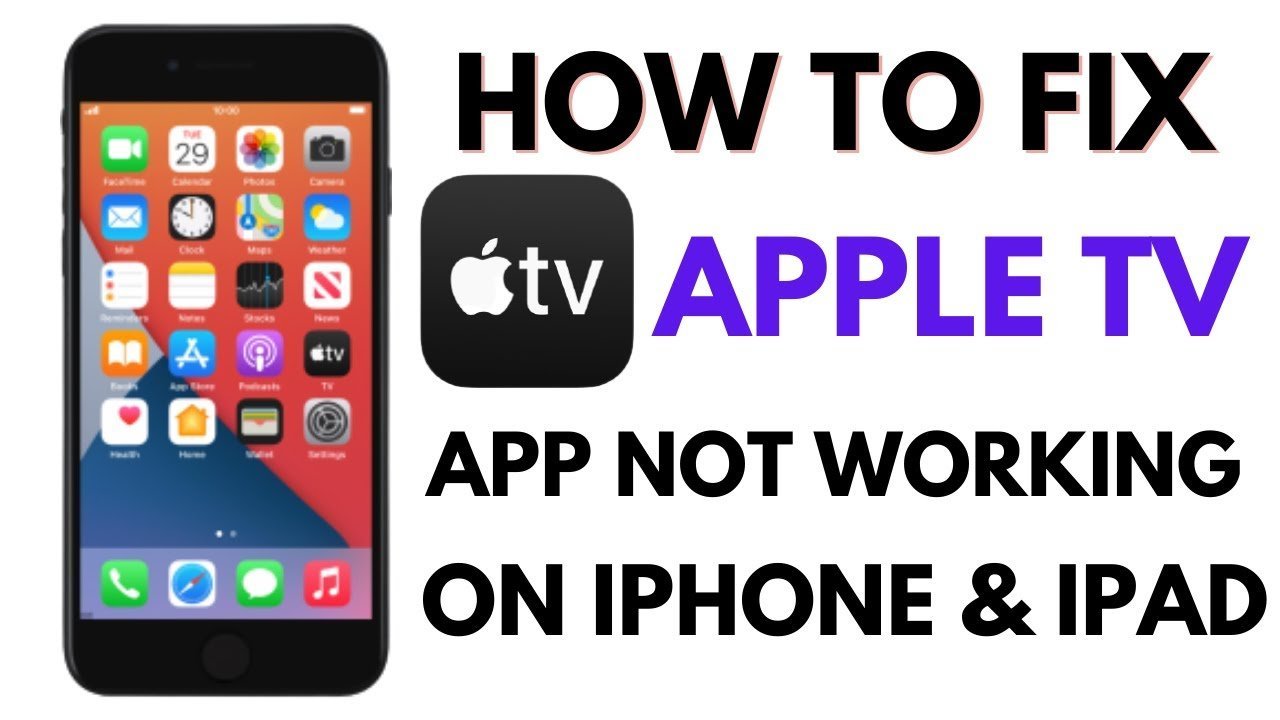
Network issues are the primary cause of streaming errors because the application requires a stable, high-speed data flow to load content. If your Wi-Fi signal is weak or your router is overwhelmed by other devices, the video will fail to buffer or the menu won’t load. You can test this by opening a different streaming app, like YouTube or Netflix, to see if it loads properly. If those apps also fail, your internet connection is likely the culprit.
To fix this, restart your router by unplugging it from the power source for thirty seconds and then plugging it back in. This clears the temporary memory in the router and forces it to re-establish a fresh connection with your internet provider. This process usually takes about five minutes to complete.
Most users make the mistake of restarting their router while leaving the modem powered on. If you have a separate modem and router, unplug both devices simultaneously to ensure the handshake between your hardware and the ISP resets completely. If the connection remains slow, check your router’s status lights. A solid red or blinking amber light often indicates a signal drop from the provider, while a steady green light suggests the issue is local to your home network.
If you’re using a wireless connection, try moving your device closer to the router or switching to a wired Ethernet cable to see if the stability improves. If your connection remains slow, contact your internet service provider to check for outages in your area. This varies by model — check the label on your router for specific reset instructions or indicator lights that show if the connection is active.
Outdated Software and Cache
Software conflicts occur when application files or the device’s operating system become corrupted or outdated. If you see a spinning icon that never disappears, it’s often a sign that the app is struggling to communicate with the operating system. You can distinguish this from a network issue by checking if the app menu loads but the videos themselves refuse to play.
To resolve this, start by performing a full restart of your streaming device. For most dedicated boxes, this means going into the settings menu and selecting “Restart” rather than just putting it into sleep mode. A common mistake is relying on the remote’s power button, which only puts the device into a low-power state without clearing the volatile memory.
If a simple restart doesn’t work, check for system software updates in your device settings. Manufacturers frequently release updates to patch bugs that cause playback errors. If your device is up to date, try signing out of your account, waiting one minute, and signing back in to refresh your authentication token. This often clears minor bugs that prevent the app from verifying your subscription status.
If you’re using a third-party smart TV, check the manufacturer’s official support portal to see if there’s a specific firmware version required for the latest app build. If your TV’s firmware is more than six months old, the app may lack the necessary security protocols to establish a secure handshake. When in doubt, uninstall the app, restart the device, and perform a clean reinstallation to purge lingering cache files.
Account and Subscription Status
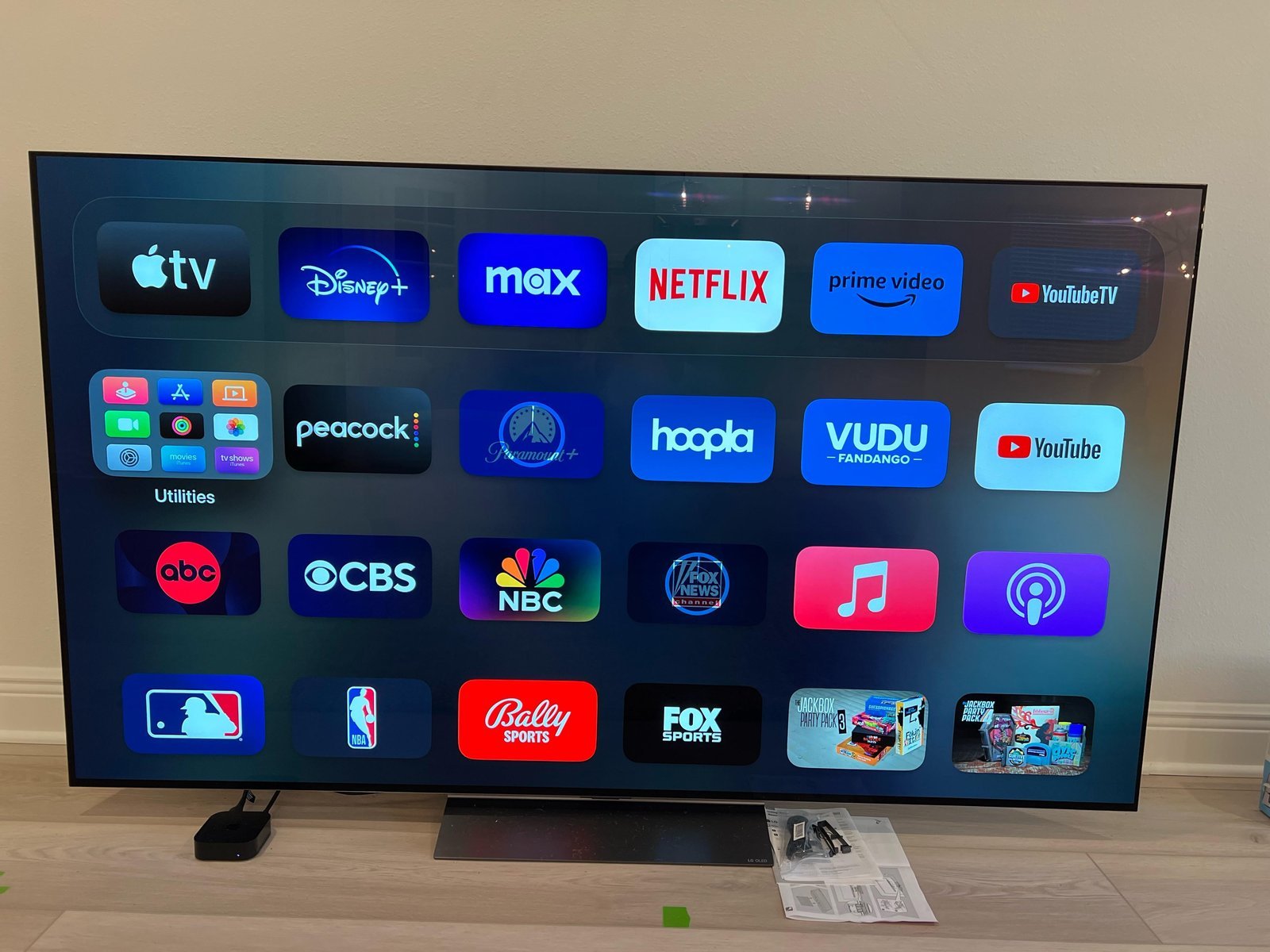
Sometimes the app is working perfectly, but your account permissions have lapsed or aren’t being recognized. This usually happens if your payment method expired or if you’re signed into an account that doesn’t have an active subscription. You can tell this is the cause if you can navigate the app menus and see content previews, but you receive a specific “subscription required” or “can’t play” error message when you click play.
To fix this, go to your account settings within the app or on a web browser and verify that your subscription is still active. If you recently changed your password, you must sign out and sign back in on every device you use to ensure the app recognizes the new credentials. This is a common mistake people make; they update their password on a phone but forget the TV, which causes a sync error that can take several minutes to troubleshoot. If you share an account, ensure that someone else hasn’t reached the maximum number of simultaneous streams allowed by your plan. If you’re still seeing an error, check the billing section of your account to confirm that your payment method is current and hasn’t been declined by your bank.
The less likely causes
Date and time settings: If your device clock drifts by more than five minutes, secure handshakes with authentication servers will fail. Always toggle your system settings to “Set Automatically” to sync with network time protocols. Manual overrides often cause silent authentication errors that look like connection drops.
Storage space: Streaming apps require at least 500MB of free internal space to cache temporary playback data. If your device reports less than 100MB available, the app will crash immediately upon launch. Clear your cache or delete high-resolution photos to reclaim this overhead.
Regional restrictions: Content providers use IP geolocation to enforce licensing agreements. If you’re using a VPN, the server’s IP may be blacklisted by the streaming service. Disable your VPN entirely to confirm if your current location is the primary source of the restriction.
Hardware damage: Overheating triggers thermal throttling, which forces the processor to drop background tasks like video decoding. If your device feels hot to the touch, power it down for ten minutes. Physical port damage usually manifests as flickering or static rather than a complete error message.
What to do if the Apple TV app not working
Fixing the Apple TV app typically involves simple software adjustments that require only your time and a remote control. If the problem is your network, a router restart is free and takes just a few minutes.
If the issue is an outdated app or OS, installing the latest update is also free but might take ten to twenty minutes depending on your internet speed. Many users mistakenly skip the “Check for Updates” menu in settings, which forces the device to run on legacy code that causes playback stutters. Always verify your version number against the latest release notes online before assuming the hardware is failing.
When the problem is a subscription or account error, you might need to update your payment information. This costs nothing but requires you to have your billing details ready. If you see an “Account Not Authorized” error, log out entirely and restart the device before re-entering credentials. This clears the cached token that often triggers false subscription flags.
In the rare case that your hardware is faulty, you may need to contact the manufacturer for a warranty claim. The cost of a repair depends on the device’s age and warranty status. Check your original purchase receipt or the manufacturer’s website to see if you’re still covered before you pay for any service.
Frequently asked questions
Can I fix this by reinstalling the app?
Yes, deleting and reinstalling the app can fix many persistent errors. This process removes corrupted temporary files that might be preventing the app from launching. After you uninstall the app, restart your device before downloading it again to ensure a clean install. This takes about ten minutes and often solves issues that a simple restart or sign-out can’t fix.
Why does the app crash when I try to play a movie?
It usually happens because the app is failing to establish a secure connection with the content server. If your internet speed is unstable, the app may crash while attempting to buffer the high-quality video stream. Try testing your connection speed or restarting your network equipment to see if the crashes stop after the connection is more stable.
How long does an Apple TV app update take?
It takes about five to ten minutes to download and install an update. This depends on your internet speed and the size of the update package provided by the manufacturer. Once the update finishes, the device will usually restart itself to apply the changes, which is a normal part of the process.
Is it safe to reset my device to factory settings?
No, you should only use a factory reset as a last resort. This process wipes all your personal data, saved logins, and customized settings from the device. Before you try this, check the manufacturer’s official support pages to see if there are other troubleshooting steps you can perform that don’t involve losing your data.
What happens if I have too many devices signed in?
If you exceed the allowed number of active streams, the app will typically show an error message. Most subscriptions allow for a specific number of simultaneous streams, and you’ll need to sign out of the app on your other devices to free up a slot. Check your account settings to see how many devices are currently active.
Does it matter if I use a VPN?
Yes, using a VPN can often cause the app to fail because it detects the hidden location and blocks the content. Many streaming services restrict access based on your IP address for licensing reasons. If you’re having trouble loading content, turn off your VPN entirely to see if the app begins working again.
Final Thoughts
If these quick fixes don’t get your shows playing again, it’s a good idea to reach out to Apple Support directly. They’ll help you figure out if there’s a deeper issue with your account or hardware. You shouldn’t have to miss your favorite movies for long, so don’t hesitate to ask.


