
Your fitbit not vibrating for text messages is most often caused by a simple notification setting being disabled on your phone or in the Fitbit app. In a small number of cases, your device might be in “Do Not Disturb” mode or the connection between your phone and tracker has been temporarily lost. You can quickly confirm this by checking if other notifications, like calls, are still reaching your wrist. If those arrive but texts do not, the issue is specific to your messaging app permissions.
Why your Fitbit isn’t vibrating for texts
| Cause | How common | How to confirm it | Fix it yourself? |
|---|---|---|---|
| Notifications disabled | Most of the time | Check app settings | Yes |
| Do Not Disturb active | Very common | Check device status | Yes |
| Bluetooth connection lost | Common | Check sync status | Yes |
| Focus mode on phone | Common | Check phone settings | Yes |
| App permissions denied | Occasional | Check system privacy | Yes |
| Firmware update needed | Rare | Check device version | Yes |
| Hardware failure | Very rare | Contact official support | No |
Incorrect notification settings
The most frequent reason for this issue is that text notifications are toggled off within the Fitbit app’s settings menu. When this happens, your tracker has no instruction to vibrate, even if the phone receives the message. To confirm this, open the Fitbit app on your phone, tap your profile icon, select your tracker, and navigate to the “Notifications” section. Ensure that “Text Messages” is toggled to the “On” position.
If the toggle is already on, the app might need a refresh. Toggle it off, wait ten seconds, and turn it back on. This forces the app to re-sync your notification preferences with the tracker’s firmware. Note that this varies by model — check the label or the Fitbit help center to confirm if your specific tracker supports custom notification categories, as some older models treat all app alerts as a single group.
If you have a newer tracker, you must also ensure your phone’s system settings allow the Fitbit app to display “Banners” or “Lock Screen” notifications. If your phone blocks the preview, the Fitbit app can’t read the incoming text to send the vibration command to your wrist. If you use a third-party messaging app, you must manually select it in the “App Notifications” list within the Fitbit app, as it doesn’t always default to these services. This process usually takes about three minutes to complete and requires no extra tools.
Active focus modes and connectivity
A common mistake is forgetting that your phone’s internal “Do Not Disturb” or “Focus” modes override all connected wearable alerts. If your phone is set to silent or is in a sleep-focused mode, it will often suppress the notification signal before it can reach your tracker. To check this, swipe down on your phone screen to see if a moon icon or “Focus” label is active. If it is, your tracker will remain silent until you disable these settings.
Another mechanism is the Bluetooth handshaking protocol. If your phone and tracker are too far apart, the Bluetooth link breaks; even when you return to range, the background sync process may not restart immediately. If the sync icon in the app shows a red exclamation mark, your connection is down. To fix this, turn Bluetooth off on your phone, wait five seconds, and turn it back on. This resets the radio link.
If you’re struggling with battery drain, you might be tempted to turn off Bluetooth, but doing so will stop all vibrations. If you aren’t seeing any notifications at all, check if your phone is currently connected to another Bluetooth device, like a car audio system, which can sometimes “steal” the notification stream from your tracker.
Software and system permissions
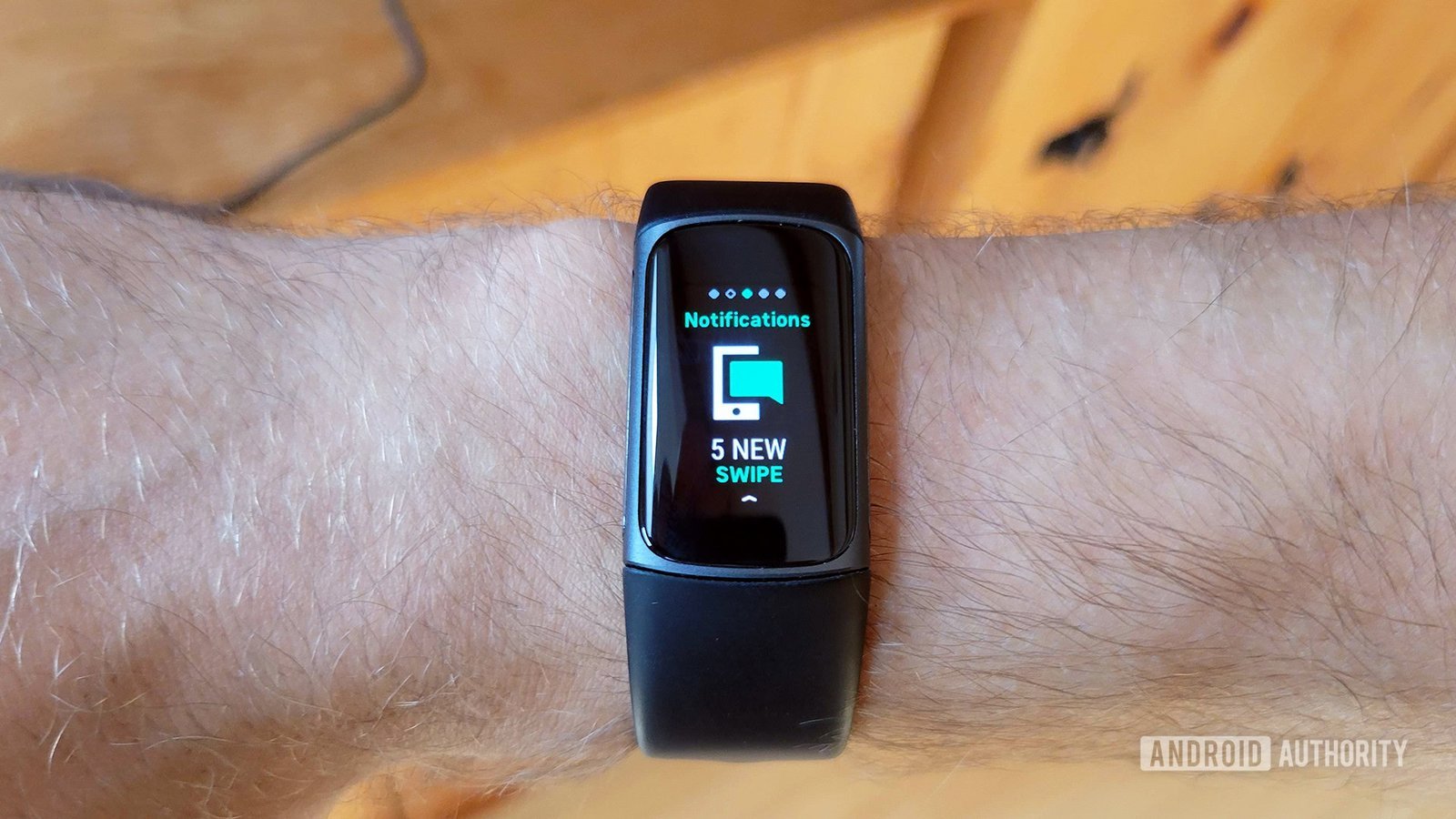
Sometimes the issue isn’t the Fitbit app, but the privacy permissions granted to it by your phone’s operating system. If you recently updated your phone’s software, it may have reset the “Notification Access” permission for the Fitbit app. To confirm this, go to your phone’s main Settings menu, search for “Notification Access,” and ensure that Fitbit is toggled to “Allowed.” If this permission is off, your phone’s operating system prevents the Fitbit app from accessing your incoming texts.
Another factor is the firmware version of your tracker. If your tracker is running an outdated version, it might struggle to interpret notification packets from newer phone operating systems. Check the app dashboard to see if an “Update Available” banner appears. If it does, follow the on-screen prompts to install the new software. This process can take anywhere from ten to thirty minutes depending on your internet speed.
This isn’t for people who are uncomfortable navigating deep system menus or who can’t keep their phone and tracker within three feet of each other during a firmware update. If you interrupt an update, you risk freezing the device. If you have checked your permissions and the firmware is current, but the tracker still fails to vibrate, it’s time to perform a factory reset. This clears all temporary cache files that might be corrupted, though it will also remove any unsynced data from your tracker.
The less likely causes
Low battery mode: If your device lights up but stays silent, check the battery icon first.
Outdated messaging app: If you use a non-standard text app, it may not be compatible with the current version of the Fitbit notification engine. Switch to your phone’s default SMS app for 24 hours to see if alerts return.
Corrupted cache: The app’s temporary storage can become clogged. Clearing the app cache in your phone settings often fixes this without deleting your personal data.
Device damage: If the vibration motor itself is broken, you won’t feel alerts even if the screen lights up. You can test this by triggering a silent alarm. If the screen flashes but you feel no physical pulse, the motor has failed and requires professional repair.
What a fix usually involves
Fixing these issues usually involves only your time and a stable internet connection. Most software-related solutions require you to spend about five to ten minutes in your phone’s settings menu or the Fitbit app. If you need to reinstall the app to reset a permission, you’ll need to sign back into your account, so have your login details ready.
If the issue is a hardware failure, the cost depends on your warranty status. If your device is still under the manufacturer’s warranty, a replacement may be provided at no cost. If the warranty has expired, a repair is often not worth the price because it can cost nearly as much as a new unit. To get a real quote or confirm your coverage, check your device serial number on the manufacturer’s official support page. Never attempt to open the casing of your tracker yourself, as this will void any remaining warranty and likely destroy the water-resistant seal that protects the internal electronics.
Frequently asked questions
Can I set different vibration patterns for texts?
No, you can’t customize the vibration pattern for text messages on most models. The vibration intensity and rhythm are set by the factory and are consistent across all alerts. You can only choose to turn notifications on or off. Check your device manual to see if your specific model supports “Vibration Settings” in the menu, though this usually only allows you to change the vibration strength from “Normal” to “Strong.”
Is it safe to reset my tracker?
Yes, it’s perfectly safe to reset your tracker, provided you sync your data to the Fitbit cloud first. A factory reset wipes the device memory, so any daily stats that haven’t yet synced to your phone will be permanently lost. Once the reset is complete, you simply pair the device again as if it were new, and your settings will be restored from the app.
How long should a notification alert last?
An alert typically lasts for two short pulses or one continuous vibration for about one second. If you find the vibration is too faint, ensure the tracker is worn snugly against your wrist. If the band is too loose, the tracker may move away from your skin, making the vibration feel much weaker.
What happens if I miss a text while away from my phone?
Your tracker won’t vibrate for the missed text once you return to range, as it only alerts you at the moment the message arrives. It doesn’t pull a history of unread messages from your phone. You’ll need to check your phone directly to view any messages that arrived while the Bluetooth connection was disconnected.
Does it matter if my phone is locked?
No, it doesn’t matter if your phone is locked, provided your notification settings allow for “Lock Screen” alerts. If your phone is set to hide message previews when locked, the Fitbit app often can’t see the text, and therefore, it won’t send the vibration alert to your tracker. Adjust your phone’s “Notifications” settings to “Show previews when unlocked” or “Always” to ensure alerts pass through.
Is it safe to leave Bluetooth on all day?
Yes, it’s safe to leave Bluetooth on all day, and it’s the recommended way to use your tracker. While it does use a small amount of battery, it ensures your device stays synced and ready to deliver alerts. The impact on your phone’s battery is minimal on modern devices, typically accounting for less than three percent of total daily power consumption.
Final Thoughts
If these adjustments don’t get your alerts working again, don’t worry. Sometimes a quick restart of your phone or tracker is all it takes to refresh the connection. If you’re still having trouble, reaching out to Fitbit’s support team is a great way to find a permanent fix for your device.


