
Most of the time, a user not syncing to azure ad happens because the local account hasn’t been added to the specific organizational unit or container that your sync tool is configured to monitor. You can verify this quickly by checking the properties of the user object in your local Active Directory and comparing its location to the sync scope defined in your Azure AD Connect settings. If the account sits outside that path, it remains invisible to the cloud.
Fixing a user not syncing to Azure AD
| Cause | How common | How to confirm it | Fix it yourself? |
|---|---|---|---|
| Scope exclusion | Very common | Check sync scope settings | Yes |
| Object filtering | Common | Review attribute filters | Yes |
| Sync service error | Frequent | Check service manager logs | Yes |
| Stale object ID | Occasional | Compare immutable IDs | Yes with care |
| Permission issues | Rare | Check domain admin rights | No |
| Account deletion | Rare | Search recycle bin | Yes |
Scope exclusion usually happens when an Organizational Unit is moved outside the sync path. You can verify this by checking if the container path matches your current export rules. If the path changed, the object is simply invisible to the sync engine.
Object filtering often triggers when a specific attribute, like a blank email field, fails a mandatory sync rule. Check your attribute flow logs for “filtered” status codes. If you see these, the system is working as designed; you must populate the missing data to force a sync.
Stale object IDs occur during domain migrations or re-installs. If the source anchor no longer matches the cloud identifier, the sync will hang. You can confirm this by comparing the objectGUID in AD against the immutableID in your cloud portal.
A common mistake is forcing a manual sync before checking the service logs. This often creates duplicate error entries that mask the root cause. If you see a “stopped-server-down” error, wait ten minutes before restarting the service to avoid database corruption. If the error persists, check your firewall ports.
Scope configuration errors
Sync scope errors occur when your local user account resides in a container that falls outside the defined synchronization path. Azure AD Connect only monitors the specific folders or organizational units (OUs) you selected during the initial setup. If you moved a user to a new OU to organize your directory, the sync engine effectively ignores the account because it no longer looks in that folder.
To confirm this, open the Azure AD Connect wizard on your server and select “View current configuration.” Look for the section labeled “Synchronized Directories” to see which OUs are currently marked for inclusion. If your user is in an OU that isn’t checked, the system won’t see the account.
Fixing this is straightforward: re-run the configuration wizard, select “Customize synchronization options,” and navigate to the domain/OU filtering screen. Check the box next to the OU where your user resides. Once you finish the wizard, the next scheduled delta sync will detect the account. This process takes about five to ten minutes of active work, though the sync itself might take another thirty minutes depending on the size of your directory.
If you’re managing a large enterprise environment, remember that adding an entire OU might pull in hundreds of unwanted test accounts. Always verify the contents of the OU before you add it to the sync scope. If you only need one user, consider moving that specific user to an OU that’s already included in your sync path instead of adding the entire folder.
Filtering attribute conflicts
Filtering happens when a specific attribute on the user object tells the sync engine to skip the account entirely. This is common if you use “attribute-based filtering” to prevent disabled accounts or service accounts from moving to the cloud. A user might have a specific field, such as “extensionAttribute1,” set to a value that triggers a filter rule in the synchronization rules editor.
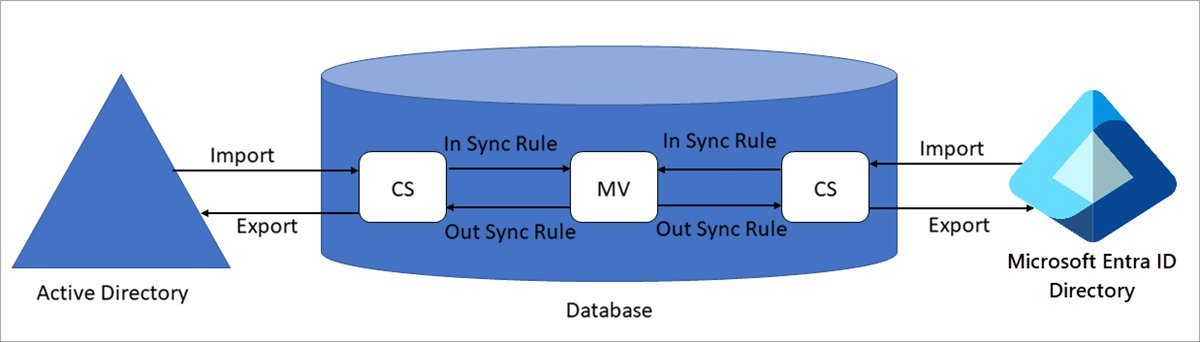
You can tell this apart from scope issues by checking the Synchronization Service Manager. If the user appears in the local connector space but doesn’t appear in the metaverse or the Azure AD connector space, the object is being blocked by a rule. Look at the “Connector” tab for the local domain and search for the user name. If you find the object there, the sync scope is correct, but a rule is stopping the export.
A common mistake is assuming a missing user is a scope issue when it’s actually an attribute conflict. If the user is missing from the Metaverse, check the “Metaverse Search” tab. If you find the object there but it lacks the expected cloud attributes, the issue is a transformation rule, not a filter.
To fix this, check the “Synchronization Rules Editor” on your server. Search for rules that apply to “Inbound” traffic and look for any filters that check the user’s attributes. If you find a rule that excludes the user, you must either update the user’s attributes to match the allowed criteria or modify the rule itself.
Changing these rules carries a risk; if you make a mistake in the logic, you could accidentally stop hundreds of users from syncing. Always document your changes before applying them. If you aren’t comfortable with advanced rule logic, manage your sync settings through the official Microsoft documentation to ensure you don’t break the entire connection.
Service manager connectivity issues
A failure in the synchronization service itself prevents any changes from reaching the cloud, regardless of where the user sits. This often happens if the “Microsoft Azure AD Sync” service has stopped or if the server has lost its connection to the internet. When the service crashes or hangs, the sync cycle never starts, and the “last sync” time in your portal will show as outdated.
To confirm this, open the “Services” console on your server and verify that the “Microsoft Azure AD Sync” service is running. If it’s stopped, attempt to start it. If it fails to start, check the Windows Event Viewer under “Application” logs for errors related to “ADSync.” These logs usually point to a database connection failure or a missing credential.
Fixing this often requires a simple service restart, but sometimes it requires a repair of the installation. If the service is running but the sync is still failing, use the “Synchronization Service Manager” to perform a manual “Delta Sync.” This forces the server to re-examine the directory.
If you see an error about “Stopped-Server-Down,” it means your server can’t reach the Azure endpoints. This is a common issue after a firewall update or a network configuration change. Check your firewall logs to ensure the server has outbound access to the necessary Microsoft URLs.
A common mistake is assuming the service is healthy simply because the process is active in Task Manager. Always verify the service status in the dedicated “Services” console, as a process can hang in a “stopping” state while appearing active. If the service status is “Running” but the “Synchronization Service Manager” shows no activity, the underlying SQL database may be locked. In this case, restarting the “Microsoft SQL Server (ADSync)” service alongside the sync service is the required decision rule to restore connectivity.
The less likely causes
Duplicate UPNs: A User Principal Name already exists in Azure AD, creating a conflict. Check the “ProxyAddresses” attribute in your local AD. If the UPN matches an existing cloud object, the sync engine will fail to provision the new account.
Immutable ID mismatch: The user was manually created in the cloud with a different source anchor. The sync engine can’t merge these identities because the “SourceAnchor” attribute doesn’t match. You must clear the cloud ImmutableID or delete the cloud object to resolve this.
Disabled sync account: The service account has expired or had its password changed. If you see “Stopped-server-down” in the sync logs, verify the account credentials immediately. A common mistake is failing to update the password in the Synchronization Service Manager.
Azure AD domain verification: Your UPN suffix isn’t a verified custom domain. If you add a new domain to your local forest, you must add and verify it in the Azure portal before syncing.
License limitations: The tenant has reached its object limit. If your sync logs show “QuotaExceeded,” you have hit the maximum capacity for your subscription tier. You must either upgrade your plan or prune inactive objects to proceed.
What a fix usually involves
Fixing sync issues generally involves time spent in the management console or the synchronization service tools. Most of these tasks require a basic administrative tool, such as the Azure AD Connect wizard, which is already installed on your sync server. You don’t need to purchase new software, but you might need to consult your internal network logs to identify why a connection is being blocked.
The cost of a fix is almost entirely your time. If the issue is a complex attribute conflict, it might take several hours of testing to identify the specific rule causing the block.
A common mistake is attempting to force a manual sync before verifying the local staging server’s connectivity. Doing this often compounds the error logs, making it nearly impossible to isolate the root cause later.
If the issue is a hardware failure or a corrupted database, you may need to reach out to your IT infrastructure team for a server restore. If you’re uncertain about the state of your sync server, check the documentation provided in the Azure portal under “Azure AD Connect Health” for a report on the current status of your sync cycles.
Use this decision rule: if the portal reports a “stopped-server-down” error, prioritize a hardware check; if it reports “sync-rule-error,” audit your attribute mapping. This provides a clear path to identifying whether the problem is global or limited to a single user.
Related guides


