
The most common reason for apple notes not syncing is an outdated iCloud account sign-in or a mismatch between the Apple ID used on your various devices. To fix this immediately, open your device settings, tap your name at the top, and sign out of iCloud before signing back in to force a fresh connection. This simple refresh often clears stuck sync queues. If that doesn’t work, check your internet connection and ensure that you have toggled the Notes switch off and back on within your iCloud settings menu.
Why Apple Notes Not Syncing Happens
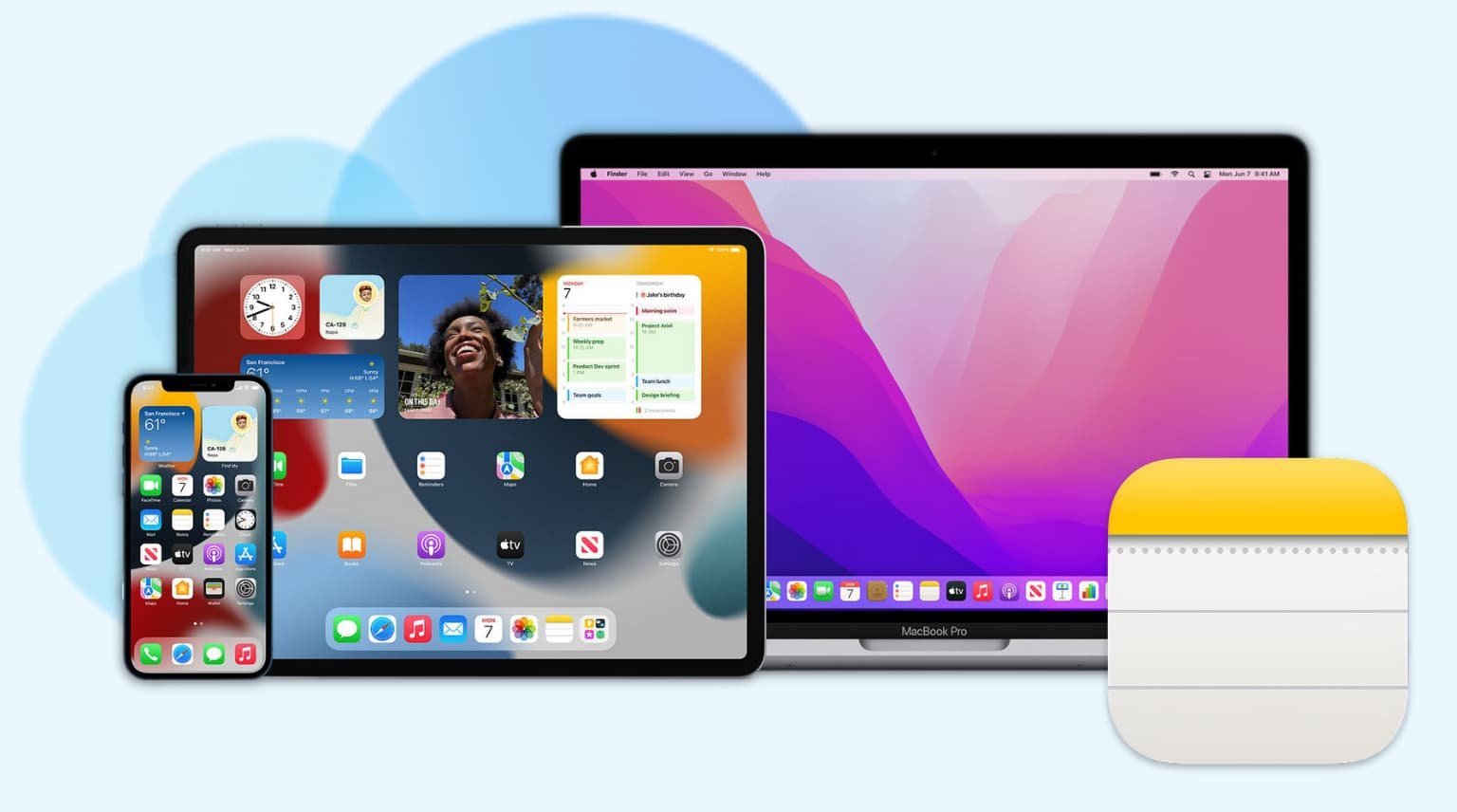
Synchronization issues usually stem from a breakdown in the handshake between your local device and Apple’s servers. When you create or edit a note, your device sends a data packet to the cloud. If your authentication token has expired, the server rejects this packet, leaving your changes stuck on your local storage.
Another frequent cause is storage capacity. If your iCloud account has reached its limit, the service stops uploading new data. You can verify your available space by checking the Apple iCloud system status page to ensure the service isn’t experiencing a wider outage.
Finally, software bugs in older versions of iOS or macOS can prevent the background sync process from triggering. If you’re running an outdated operating system, your device may fail to communicate with the updated protocols used by modern iCloud services. This varies by model—check the label or your settings menu to see if your hardware supports the latest software updates. If you’re using a legacy device that no longer receives updates, you might find that certain advanced features no longer sync correctly with newer hardware.
Verify your account status
This fix is for users who suspect their credentials are out of sync. If you see a notification asking you to “Update Apple ID Settings,” don’t ignore it. This prompt usually means your password has changed elsewhere or your session has timed out.
Go to your System Settings or Settings app. Look for your name at the top. If you see a red badge, follow the prompts to re-enter your password. Once you have authenticated, go to the iCloud section and ensure “Notes” is toggled to the “On” position. If it’s already on, toggle it off, wait ten seconds, and toggle it back on. This forces the device to re-index your notes.
If you have multiple devices, perform this check on all of them. If you’re logged into different Apple IDs on your phone and your computer, they will never sync. This is a common mistake that costs users hours of troubleshooting time. If you require professional assistance with complex account recovery, contact official Apple Support. They have the tools to verify if your specific Apple ID has been flagged or locked by the system.
Refresh the local cache
Sometimes the local database on your phone becomes corrupted. You can clear this by forcing the app to re-fetch data. Close the Notes app completely by swiping up from the bottom of your screen and sliding the app card away. Don’t just go to your home screen; you must fully quit the process.
After quitting, turn on Airplane Mode for thirty seconds to kill all network connections. Turn it off, then reopen the Notes app. Wait about one minute for the “syncing” icon to appear at the bottom of the note list. If you have thousands of notes, this process takes longer than if you have only a few.
If you’re using a shared note, the sync speed depends on the connection quality of all participants. If one person has a weak signal, the shared note might show an older version. This is the main trade-off of cloud-based collaboration: your speed is limited by the slowest device in the group. If you’re in a rush, stick to editing notes on your strongest network connection.
Reinstall the notes application
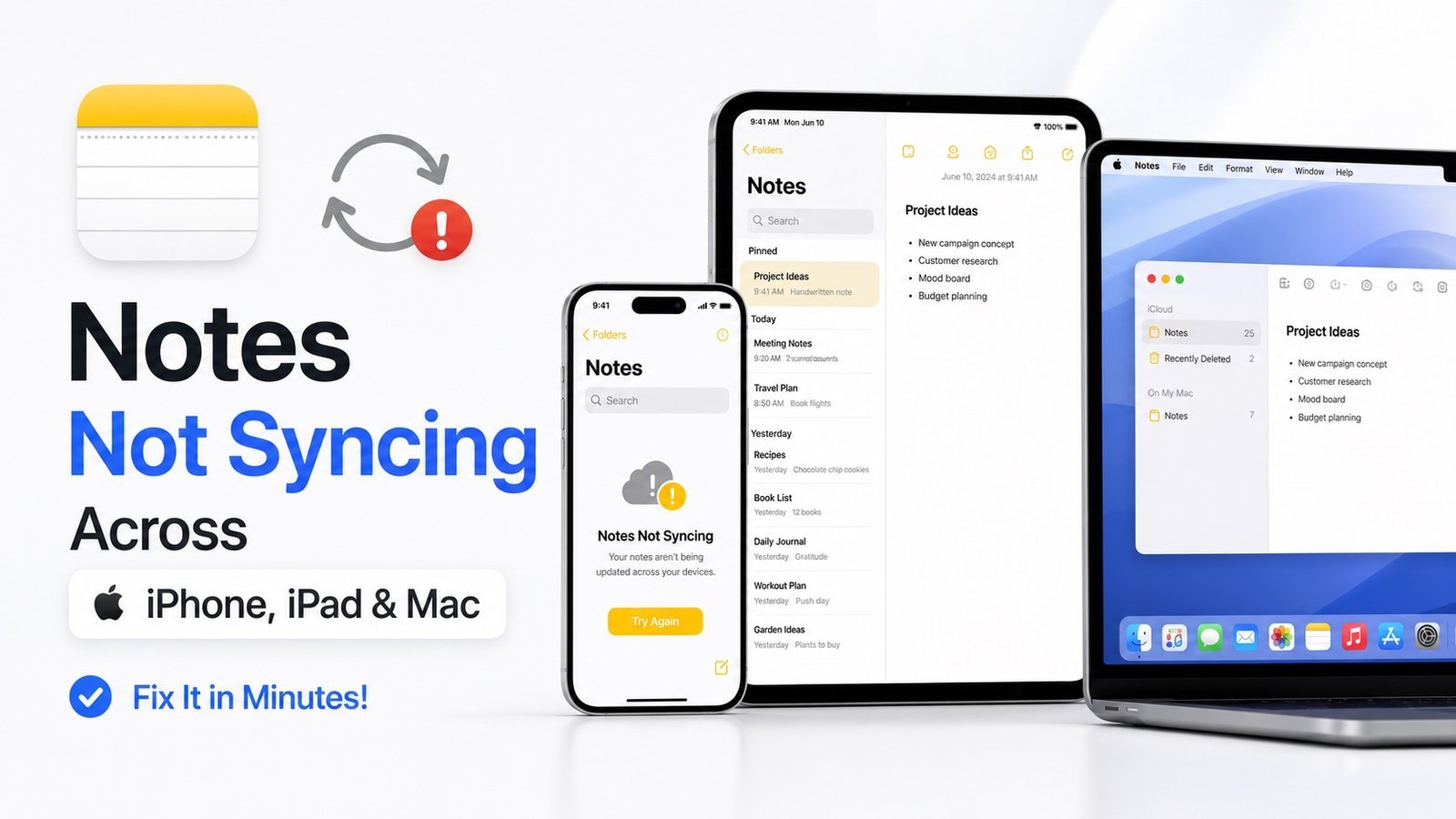
This fix is for the harder cases where the app itself has stopped responding to cloud triggers. If you have tried the steps above and the sync icon still spins indefinitely, deleting and reinstalling the app is often necessary.
Before doing this, ensure your notes are visible on iCloud.com from a browser. If they’re there, your data is safe. If they aren’t there, they’re only on your device. In that case, don’t delete the app, as you’ll lose your local data. Instead, create a manual backup by copying the text into a different app or emailing the notes to yourself.
Once your data is backed up, you can safely remove the app and download it again from the App Store. This clears any corrupted temporary files that were blocking the sync engine. This isn’t for someone who is uncomfortable managing their own data backups, as any note not synced to the cloud will be erased during the uninstallation. If you’re unsure about your backup status, consult an authorized technician who can perform a local device backup before you proceed with deleting the application.
What not to do
Don’t turn off your device while the syncing icon is spinning. This interrupts the data transfer mid-stream, which often leads to partial file corruption that’s difficult to reverse.
Don’t delete your Apple ID from your device to “fix” the sync. While tempting, this action wipes all iCloud data from your local storage. You’ll then be forced to perform a full re-download of your entire library, which can consume hundreds of gigabytes of data.
Don’t use third-party “sync repair” software found online. These tools often require you to provide your Apple ID password to unknown developers. If you have already done this, change your password immediately. The cost of convenience here is a total compromise of your personal privacy and account security.
How to stop it happening again
Consistent maintenance prevents the data bottlenecks that cause sync failures.
| Ignoring OS updates | Install updates promptly | New OS versions fix known sync bugs. |
Most users fail by ignoring the “sync conflict” notification, assuming the system will resolve it automatically. It will not. If you see a conflict, manually choose the version with the most recent timestamp immediately.
If you frequently move between mobile and desktop, check your device clock settings. A discrepancy of even sixty seconds between devices can trigger a permanent sync loop. Ensure both devices are set to “Set Automatically” in your time and date settings. This simple fix prevents the most common cause of corrupted note metadata.
Frequently asked questions
Can I force my iPhone to sync notes now?
You can force a sync by pulling down on the note list until the loading spinner appears. This action triggers an immediate refresh of your data from iCloud. If the spinner persists for over two minutes, check that your iCloud storage isn’t full.
Why are my notes syncing on iPad but not iPhone?
Your devices are likely signed into different Apple IDs or the iCloud sync setting is disabled. Verify that the Apple ID matches exactly under Settings on both devices. If the IDs match, ensure the Notes toggle is enabled in your iCloud settings.
How long does it take for notes to sync?
Syncing typically takes between five and thirty seconds, depending on your device model and note size. High-resolution photos or large PDFs will significantly increase the time required to complete the upload. If you have a slow connection, wait five minutes before troubleshooting.
Is it safe to sign out of iCloud to fix sync?
Yes, it’s safe to sign out of iCloud if you choose to keep a copy of your data. This preserves your local notes while resetting the connection to Apple servers. If you don’t keep a copy, your notes will be erased from the device.
What happens if I delete a note while offline?
Deletions are stored locally and pushed to the cloud once your device connects to the internet. This change then propagates to all your other signed-in devices. If you edit a note offline while it’s deleted elsewhere, you may encounter a sync conflict.
Why does my note say “Syncing failed”?
This error usually indicates a network timeout or a conflict between your local note and the server version. First, ensure your internet connection is stable. If the error persists, copy your text into a new note and delete the original to clear the metadata conflict.
Final Thoughts
If these adjustments don’t get your files moving again, it’s a good idea to check the official Apple System Status page online. Sometimes, their servers are simply undergoing maintenance. If everything looks green there, don’t hesitate to reach out to Apple Support; they’ll help you resolve any deeper technical issues quickly.


