
You can fix an apple watch not recording exercise by checking your wrist detection settings and ensuring the device is snug against your skin. This issue usually stems from a loss of heart rate data, which prevents the sensor from tracking your movement intensity during a workout. If your watch band is too loose, the sensors can’t maintain a steady reading, leading to gaps in your activity data. Always verify that your personal details, such as height and weight, are accurate in the Health app to ensure the calorie and exercise calculations remain precise.
Why is my Apple Watch not recording exercise?
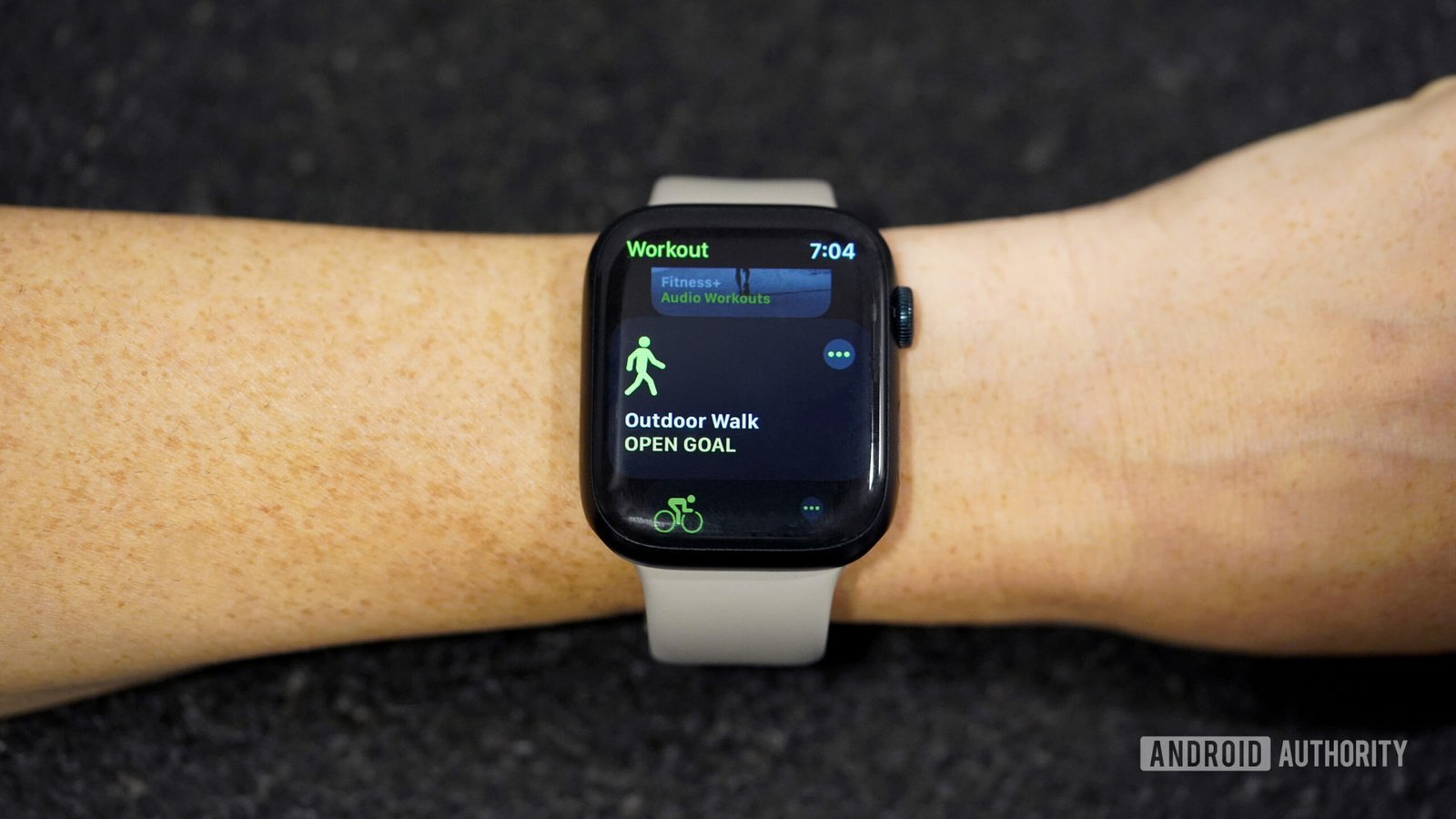
The primary reason your device stops tracking is a failure in the optical heart rate sensor. The watch uses green LED lights to measure blood flow through your wrist. If the device shifts during a run or a heavy lift, these sensors lose contact with your skin. This causes the watch to pause or stop recording because it no longer detects the physiological signs of exertion.
Another factor is the state of your calibration data. When you first set up the device, it needs to learn your stride length and movement patterns at various speeds. If you have recently changed your exercise routine or added a new type of movement, the watch may struggle to interpret your activity level correctly. This is particularly common if you’re performing stationary exercises that don’t involve significant arm movement.
Finally, software settings play a significant role in how data is collected. If your privacy permissions for motion and fitness tracking are disabled, the watch won’t log your movement as exercise. You should also ensure your device is running the latest watchOS version. Apple provides detailed guidance on how to maintain consistent readings by adjusting Apple Watch fit and settings to ensure the sensors work effectively. If you have tattoos on your wrist, the ink can sometimes block the light sensors, which is a physical limit that varies by model — check the label or the manufacturer’s support pages for specific skin-sensor compatibility.
Enable wrist detection
This fix is for users who notice that their watch locks frequently or fails to track heart rate during movement. Navigate to the Watch app on your iPhone and select the “My Watch” tab. Tap on “Passcode” and make sure the “Wrist Detection” toggle is turned on. When this feature is active, the watch uses its sensors to determine if it’s on your arm.
If you find that the watch still stops recording, your band might be the culprit. A band that’s too loose will allow the watch to slide during high-intensity movement. You should tighten the strap by one notch during workouts to keep the sensors flush against your skin. If you’re using a third-party band, it might not be holding the watch in the correct position compared to the original silicone options.
You’ll know this fix worked if the green light on the back of the watch remains active and consistent throughout your session. If you have a physical condition that requires a looser fit, you may find that the device struggles to track heart rate, which is a trade-off between comfort and data accuracy. For those with severe skin sensitivities, consult a medical professional before tightening the band significantly.
Calibrate your motion sensors
Calibrating your watch helps the device understand your natural pace and arm movement. This process is essential if you have recently switched from walking to running or if your exercise data seems consistently off. To calibrate, go to an area with clear GPS reception and walk or run at your normal pace for at least twenty minutes. You don’t need to start a specific workout, but doing so provides the best data for the watch to learn your habits.
If you’re a beginner, do this calibration in a flat, open space. If you’re an experienced runner, repeat this process at both your slow recovery pace and your faster race pace. This ensures the watch creates a more accurate profile of your movement. If you find the data is still inaccurate after several sessions, the issue might be a hardware fault in the accelerometer.
This fix isn’t for users who primarily perform stationary exercises like yoga or weightlifting, as those activities rely more on heart rate than stride calibration. If you need to perform this, ensure your iPhone is with you during the outdoor session to assist with GPS mapping. If you have a disability that affects your natural gait, the watch may not calibrate perfectly, and you should rely on manual entry for your active minutes.
Reset your fitness data
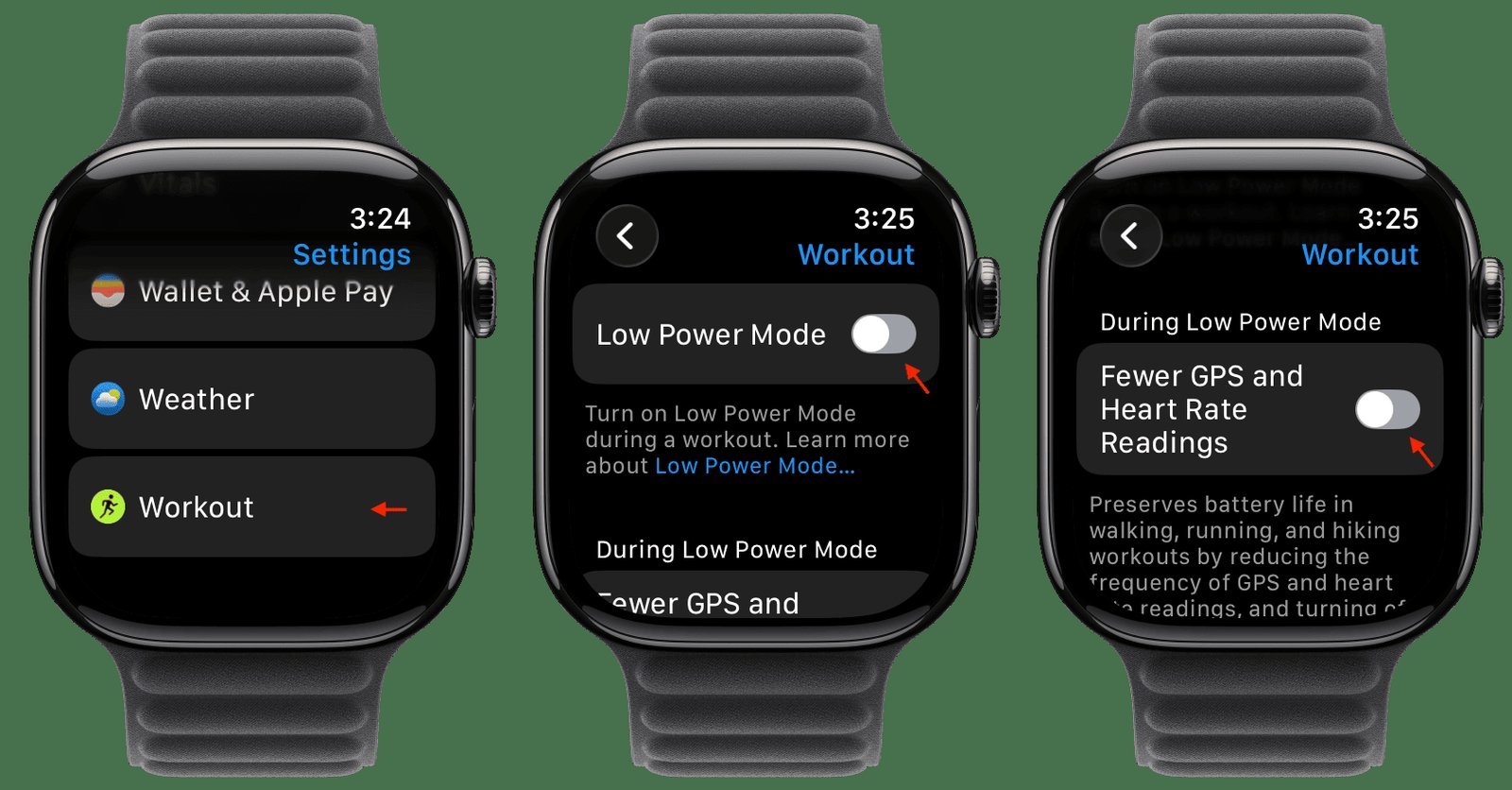
Sometimes, the internal cache of your health data becomes corrupted, leading to persistent errors in tracking. This is a more advanced step, so proceed only if other fixes have failed to resolve the issue. Open the Watch app on your iPhone, go to “Privacy,” and look for the option to “Reset Fitness Calibration Data.” This will erase your current stride and movement history, forcing the watch to start fresh.
This is a great option if you have recently changed your fitness level or if you have moved to a new environment. However, remember that you’ll lose your historical calibration, so your next few workouts might be slightly less accurate while the watch relearns your patterns. If you’re a professional athlete who relies on precise historical data for training cycles, consider the impact of losing that baseline before you reset.
This process doesn’t delete your actual health records or past workouts, only the calibration files used for tracking. If you find that the watch still fails to record exercise after a reset, the next step is to unpair and re-pair the watch entirely. If the problem persists after a full factory reset, you should contact Apple Support or visit an authorized service center, as this may indicate a failure of the internal sensors.
What not to do
- Don’t use a loose band during exercise. This prevents the heart rate sensor from making contact with your skin, which is the primary reason for tracking failure.
- Don’t turn off your heart rate tracking. Some people disable this to save battery, but doing so makes it impossible for the watch to record exercise intensity correctly.
- Don’t manually cover the sensors with tape or stickers. This blocks the light, preventing the watch from reading your pulse and leading to completely inaccurate data.
- Don’t ignore software updates. Running an outdated version of watchOS can lead to bugs that stop the fitness tracking features from working as intended by the developer.
How to stop it happening again
Consistency is the best way to ensure your watch keeps tracking your movement. The following table shows how to adjust your habits to prevent future recording issues.
| If you’re doing this | Do this instead | Why |
|---|---|---|
| Wearing the band loosely | Tighten by one notch | Keeps sensors on skin |
| Ignoring software updates | Update via iPhone app | Fixes known tracking bugs |
| Exercising with tattoos | Use a different wrist | Ink blocks sensor light |
| Using third-party bands | Use the original band | Ensures proper sensor fit |
Most users fail because they prioritize comfort over contact. If you can slide a finger between the strap and your wrist, the sensor will lose your pulse during high-intensity movement. This gap creates “ghost data” or complete gaps in your heart rate log.
Check your skin after a workout. If you see a faint, circular indentation from the sensor, you have the ideal tension. If you see no mark at all, your band is too loose. If your skin is irritated or red, loosen it by one notch immediately to avoid contact dermatitis, which forces you to stop wearing the device entirely.
Frequently asked questions
Can I manually add exercise to my Apple Watch?
You can manually add exercise by opening the Health app, tapping “Browse,” selecting “Activity,” and choosing “Workouts” to input your data. This feature is useful if you forgot to start your watch or if the sensors failed to track a session. Ensure you have your start and end times ready for accuracy.
Why does my Apple Watch stop recording when I lift weights?
The watch often struggles with weightlifting because the movements are short and intense rather than continuous. When you grip a barbell, your wrist muscles flex and can break the sensor contact. Try wearing the watch slightly higher on your forearm to keep the sensors in a more stable position.
How long does it take for the watch to calibrate?
Calibration typically takes about twenty minutes of continuous movement in an outdoor setting with good GPS. If you’re walking or running, the watch uses this time to map your stride against the GPS distance. You may need to perform this process a few times to get the best results. If you change your pace frequently, allow for a longer session to help the watch understand your different movement speeds.
Is it safe to wear the watch while swimming?
Yes, it’s safe to wear your watch while swimming, provided it’s an Apple Watch Series 2 or later. These models are water-resistant, but you should always turn on the “Water Lock” feature before entering the pool. This prevents accidental screen touches caused by water pressure. After your swim, rotate the Digital Crown to eject water from the speaker and dry the watch off completely to ensure the sensors remain clean.
What happens if I move my watch to the other wrist?
If you move your watch to the other wrist, you must update the orientation settings in the Watch app on your iPhone. Go to “General” and then “Watch Orientation” to select the correct wrist and crown position. This ensures the watch calculates your movement and heart rate data correctly.
Final Thoughts
If these adjustments don’t solve the problem, try unpairing your watch from your iPhone and setting it up as a new device. It’s a simple process that often clears out lingering software glitches. You’ll be back to tracking your daily progress accurately in no time, so don’t lose heart.
Related guides