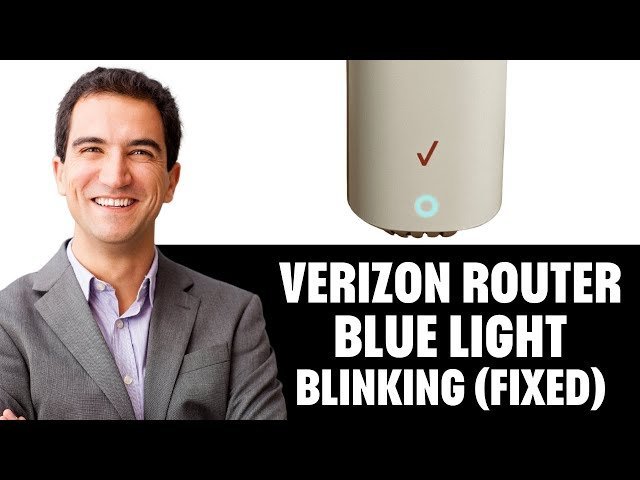
A verizon router blue light blinking indicates that your device is actively attempting to pair with a secondary access point or is in the middle of a firmware update. It’s safe to keep the router plugged in during this process, as interrupting a firmware update can corrupt the system software. To confirm the cause, look at the front of the unit for other status lights; if the light is solid white or glowing, the device is usually working, but a flashing blue light specifically signals a WPS pairing mode or an ongoing software installation.
What a Verizon router blue light blinking means
If your light shows a constant red, the system has lost its internet uplink. Check the cable connecting your modem to the router first.
Distinguish between a slow pulse and a rapid blink carefully. A pulse suggests a background task, while a rapid blink demands immediate user input. If you see a solid purple light, the device is in recovery mode. This happens after a failed factory reset. You must hold the physical reset button for exactly ten seconds to force a clean reboot.
Never pull the power plug during a firmware update. Doing so corrupts the flash memory, turning your router into a paperweight. If the light stays dark for more than ten minutes, the power supply itself may have failed. Test the outlet with a lamp before assuming the router is broken.
Firmware update in progress
A firmware update is the most common reason for a blinking blue light that persists for more than a few minutes. Verizon pushes these updates automatically to improve security and fix bugs, which requires the router to restart its internal software. You should never unplug the power cable while the light is blinking, as this can brick the hardware and force a factory reset.
You can confirm this is an update by checking the Verizon Fios router support pages to see if your specific model light pattern matches the “updating” sequence. If the light blinks for longer than 15 minutes, it’s likely stuck on a corrupted file. If X occurs—the light stops blinking and turns solid red—do a power cycle by unplugging the unit for 30 seconds. If Y occurs—the light stays blue for over an hour—contact support to check if the remote push failed.
This isn’t for users who have manually disabled automatic updates via the admin portal, as their routers won’t initiate these processes on their own. A common mistake is assuming the router is broken and pressing the reset button immediately, which costs you all your custom Wi-Fi names and passwords. If the light turns solid white after the blinking stops, the process finished successfully.
WPS pairing mode active
The blinking blue light often triggers when the Wi-Fi Protected Setup (WPS) button is pressed accidentally. This feature allows you to connect devices without a password, but it only stays active for a short window of time. If you don’t have a device currently trying to pair, the router will eventually time out and return to its normal state.
You can tell this apart from a firmware update by the speed of the flash; WPS pairing usually flashes rapidly, while firmware updates pulse slowly. If you didn’t mean to press the button, simply ignore it. The router will stop blinking on its own within 120 seconds. If you were trying to connect a printer or a range extender, ensure the other device is also in “discovery” mode at the same time. If the device fails to connect, move it within 5 feet of the router to rule out signal interference.
This varies by model — check the label on the back of your unit to see if your router supports WPS. Some newer Wi-Fi 6 models have limited WPS functionality for security reasons. If the light doesn’t stop after 5 minutes, you can tap the WPS button once to force it to cancel the pairing sequence.
Syncing with mesh extenders
A blinking blue light can also mean your main router is trying to find or sync with a wireless mesh extender. This happens if you recently moved an extender or if the connection between the units dropped. The main router pulses blue while it searches for a handshake signal from the satellite node to ensure your home network remains unified.
You can identify this if you have other small boxes connected to your network that are also showing blinking lights. If the router is blinking blue and your extender is blinking white, they’re actively looking for each other. To fix this, ensure both units are plugged into a wall outlet and aren’t blocked by large metal objects or thick concrete walls. If they fail to sync after 10 minutes, move the extender closer to the main router to verify the link.
The trade-off here is between signal range and speed; placing the extender too far from the router results in a “weak” link, even if the light eventually turns solid. If the blinking continues after you move the extender, perform a manual sync by pressing the “sync” button on the back of both units for 3 seconds. Once the lights turn solid white, the mesh network is established.
When to stop and get help
If the light stays solid red for more than 10 minutes, the hardware may be failing. A persistent red light indicates a boot-loop error that a simple power cycle can’t resolve.
If you smell burning plastic or hear a high-pitched whine from the power brick, disconnect it immediately. These signs point to a failing capacitor or a short circuit. Ignoring these warnings risks a fire hazard or damage to your wall outlet.
If the router feels extremely hot to the touch, it may have an internal cooling failure. If the unit is too hot to touch, ensure it’s placed in a well-ventilated area away from other heat sources.
If you have performed a factory reset and the device still refuses to broadcast a Wi-Fi signal, the internal radio is likely dead.
Don’t attempt to open the router casing. Opening the shell voids your warranty and exposes you to electrical components that can hold a charge even when unplugged. Contact Verizon support or use their official mobile app to request a replacement unit. This is a job for the provider’s technicians, as they must provision the new hardware to your account.
Frequently asked questions
Can I turn off the blinking light?
You can’t turn off the status lights because they communicate the router’s operational state. These indicators are mandatory diagnostic tools that show connection, update, or pairing status. If the light is too bright, you may cover it with opaque tape, provided you don’t block the ventilation holes.
Is it safe to reset the router?
Yes, you can reset the router, but only as a last resort. A factory reset wipes all custom settings, returning the device to the default credentials printed on the sticker. Note that you’ll need to reconfigure your network name and password after the process is complete.
How long does an update take?
A firmware update typically takes 10 to 15 minutes to complete. This process is essential for maintaining the security and stability of your home network. Don’t interrupt the update, as doing so may cause the device to malfunction or become unresponsive.
Does it matter if I am using a mesh system?
Yes, the blinking pattern often means the router is communicating with your mesh extenders. In a mesh setup, the main router acts as the “controller” and will blink blue while it negotiates the signal path with your secondary units. If you’re using a mesh system, ensure all units are updated to the latest software version to prevent syncing loops, which can cause the blinking light to persist longer than normal.
What happens if the light never stops blinking?
If the light never stops blinking, your router is likely stuck in a boot loop or failed update cycle. Perform a hard power cycle by unplugging the power cord for 60 seconds. If the blinking persists, the internal firmware may be corrupted and require professional support.
Why is my router blinking blue after a power outage?
It takes 5 to 10 minutes for a router to re-establish a connection after a power outage. The device must automatically perform a handshake with the local office to verify your account and download configuration files. Leave the device alone until the light turns solid white to confirm restoration.
Final Thoughts
If the light keeps flashing for more than an hour, there might be a deeper connection issue. Don’t worry, though; you can simply restart the device by unplugging it for a minute. If it doesn’t return to normal after that, it’s best to contact Verizon support so they can check your line.
Related guides