
You can fix an app not downloading on firestick by clearing the cached data for the Amazon Appstore or verifying your device’s remaining storage space. If a download fails, it’s almost always because the system can’t write new files to the internal memory, or the store’s temporary data has become corrupted. This is a common hurdle that happens when too many background processes or large files fill the storage.
Reasons your Firestick isn’t downloading
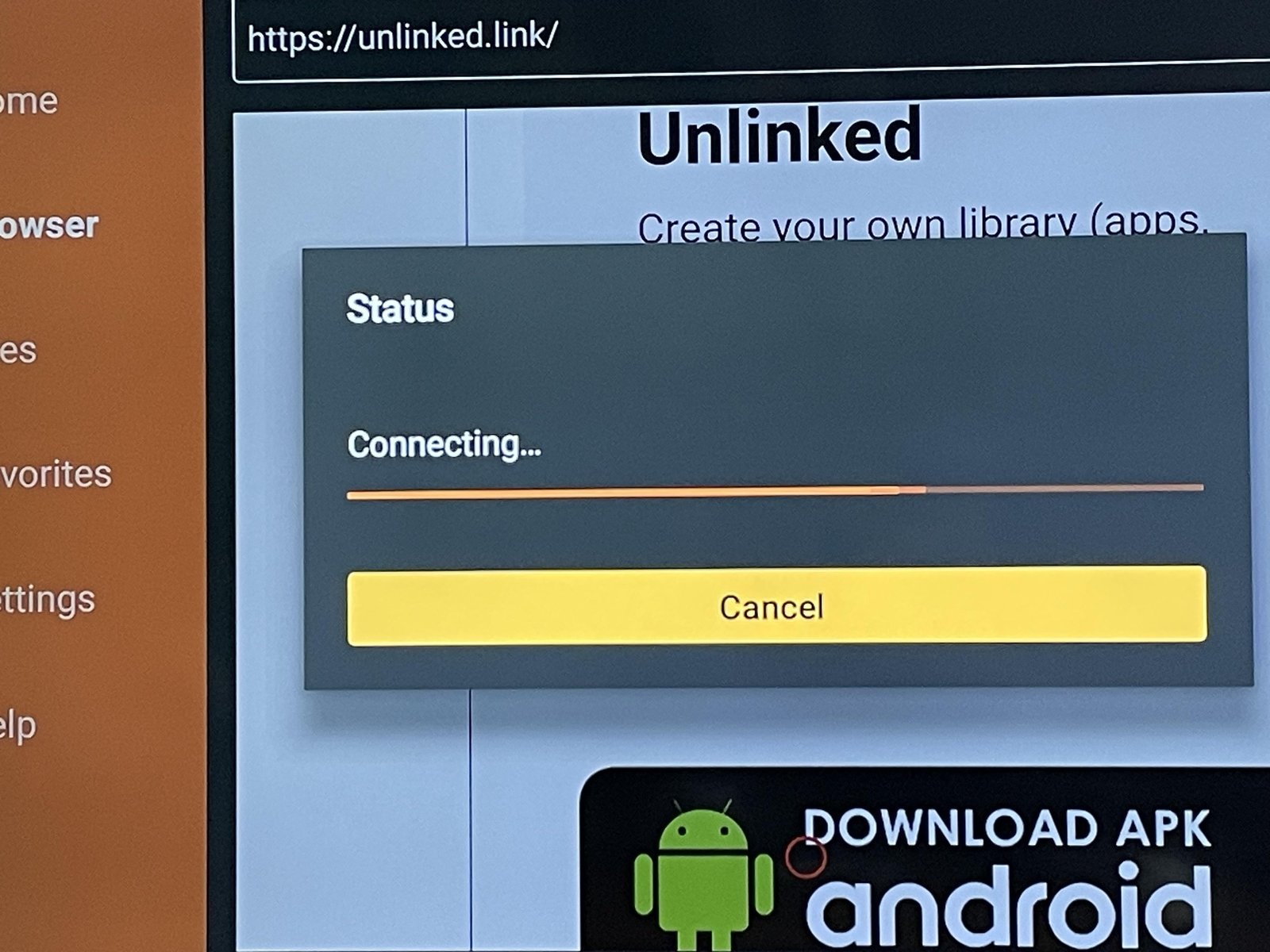
The primary reason downloads fail is a lack of available internal storage. The Fire TV system requires a specific amount of free memory to unpack and install applications. If you’re near the limit, the device refuses the request to prevent performance issues. You can check your available space by navigating to Settings, then My Fire TV, and selecting About. Choose Storage to see exactly how much room remains.
Another frequent cause is a corrupt cache within the Amazon Appstore application itself. Like a web browser, the Appstore saves temporary files to load faster. If these files get tangled or outdated, the “Download” button may become unresponsive or stall at zero percent. This isn’t a hardware defect; it’s a software state that resets easily.
Network instability also plays a role. If your internet connection drops for even a few seconds during the handshake between your device and Amazon’s servers, the download will hang. If you’re using a 2.4GHz Wi-Fi band, interference from other household electronics often causes these micro-interruptions. For a stable experience, Amazon’s official device support recommends ensuring your device has a strong signal and isn’t blocked by physical obstructions like cabinets or walls.
Clear the Appstore cache
If your storage space is sufficient but the download button does nothing, clearing the cache is the most effective first step. This forces the Appstore to dump its temporary data and reconnect to the server as if it were a fresh session.
Go to your Fire TV home screen and select Settings. Navigate to Applications, then choose Manage Installed Applications. Scroll down the list until you find the Amazon Appstore and select it. You’ll see an option for Clear Cache. Select this, and then select Force Stop to ensure the process restarts entirely.
If this doesn’t resolve the issue, you can also select Clear Data in the same menu. Note that clearing data will sign you out of your Amazon account on the device, requiring you to log in again. This fix is for users who have a strong internet connection but still see an “Error” or “Pending” status on their apps. If you have a slow connection, clearing the cache might not help because the server will simply fail to send the data again. This varies by model — check the label on your power adapter, as older Fire TV sticks require a dedicated power source to maintain the consistent voltage needed for stable downloads.
Manage device storage
If your storage is full, you must delete old apps or clear large data files to make room for new ones. Many people make the mistake of leaving apps installed that they never use, which consumes precious internal memory.
Go to Settings, then Applications, and select Manage Installed Applications. Look for apps that take up significant space, such as streaming services or large games. If you see an app you haven’t opened in months, select it and choose Uninstall. This is the fastest way to recover space.
If you’re a power user who needs many apps, you should consider using a USB OTG cable to expand your storage with a flash drive. This requires a specific adapter that fits between the power cable and the Fire TV stick. If you use an external drive, you must format it through the Fire TV settings menu before the system will recognize it for app storage. This isn’t for everyone; if you aren’t comfortable with hardware accessories, it’s better to just prune your current app list.
Force a network refresh
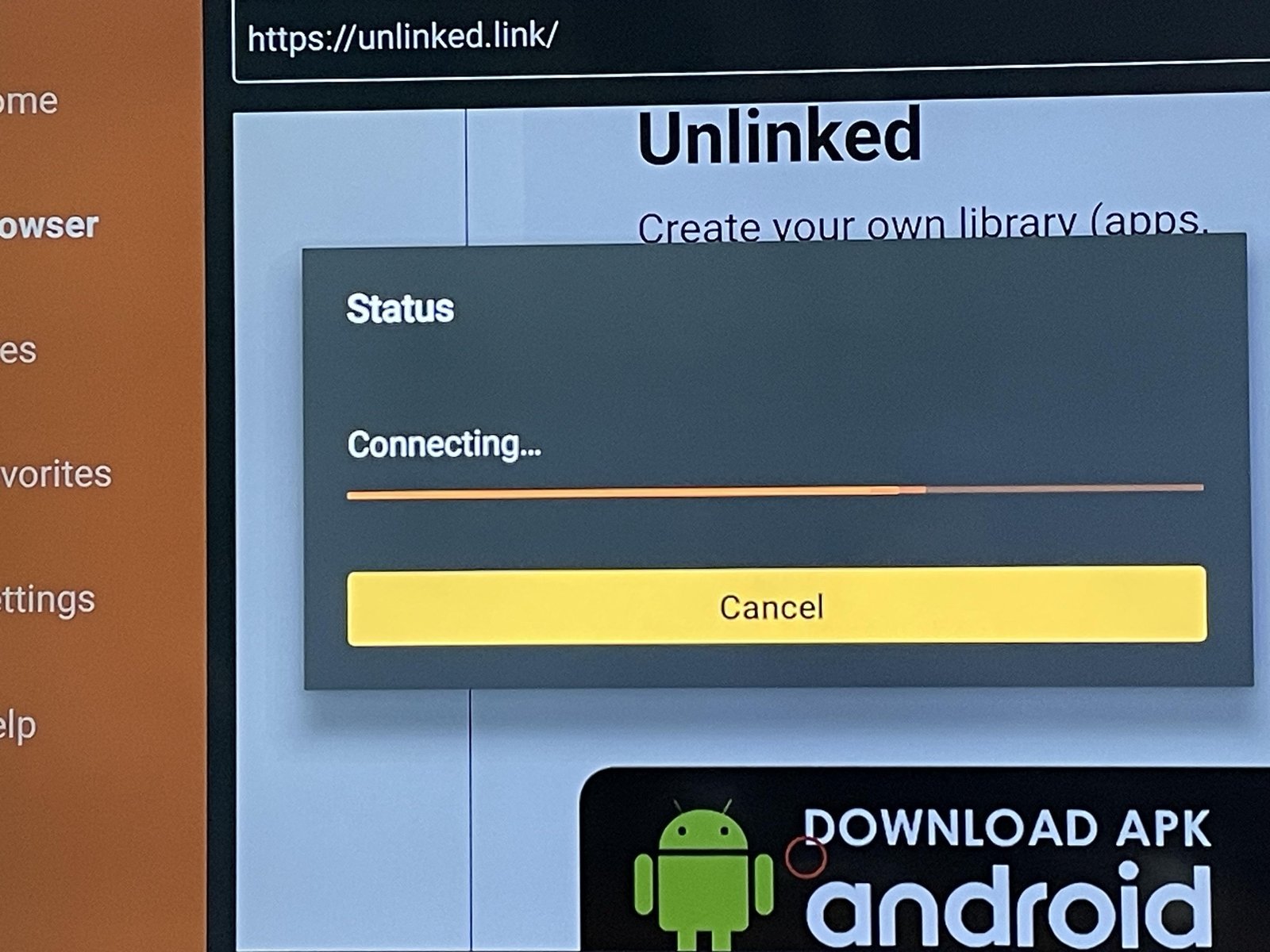
Sometimes the device remains stuck on a “zombie” connection where it thinks it’s online, but it can’t reach the download server. This often happens after the device wakes from sleep mode.
To force a refresh, navigate to Settings, then Network. Highlight your current Wi-Fi network and press the Menu button (the three horizontal lines) on your remote to “Forget” the network. Once the network is removed, restart your device by holding the Play/Pause and Select buttons together for ten seconds. After the device reboots, go back to the Network menu, select your Wi-Fi, and re-enter your password.
This process clears the IP configuration and forces the device to request a fresh address from your router. This is the best fix if you find that your other devices can stream fine, but the Fire TV stick remains stuck on a spinning download icon. If you have an older router, you may find that the device struggles to switch between the 2.4GHz and 5GHz bands. If your router has two separate names for these bands, try connecting to the 5GHz band specifically, as it provides higher throughput for large app files. If you find your internet is still slow after this, the issue is likely your ISP or the router hardware itself rather than the Fire TV settings.
What not to do
Don’t perform a factory reset immediately. This deletes all your personal data and account settings, which is unnecessary for a simple download error. A reset should be your final resort only after you have exhausted every other troubleshooting step.
Don’t install third-party “cleaner” apps. These tools often run in the background and consume more memory than they free up. They can also trigger security warnings that lock your legitimate access.
Don’t continuously click the download button. If the system is frozen, clicking repeatedly adds more requests to the queue. This causes the interface to crash and forces a hard reboot. If the button stays gray for more than thirty seconds, wait at least two minutes before checking your network status.
Don’t unplug the device while it’s updating. If the system is writing data, pulling the power corrupts the firmware. This makes the device unusable.
How to stop it happening again
Consistent maintenance prevents download errors from returning. If you follow a regular cleanup schedule, you’ll rarely encounter these issues.
| If you’re doing this | Do this instead | Why |
|---|---|---|
| Leaving apps running in background | Close apps properly | Saves RAM for system tasks |
| Ignoring “Low Storage” warnings | Delete unused apps monthly | Prevents system download blocks |
| Using 2.4GHz Wi-Fi for 4K apps | Use 5GHz or Ethernet | Reduces signal interference |
| Leaving device powered by TV USB | Use the wall power adapter | Ensures stable voltage for Wi-Fi |
Most users fail by ignoring the “cache clear” option buried in system settings. If your device feels sluggish, clear the cache for your most frequent streaming apps. This simple step often resolves persistent download failures before they escalate.
If the error persists after a reboot, toggle your Wi-Fi off and on to force a fresh handshake with the router.
Frequently asked questions
Can I use a VPN to fix download errors?
No, a VPN won’t fix a download error and may actually cause one. If your VPN server is slow or has restricted access to Amazon’s content delivery network, your download will fail. If you suspect your VPN is the problem, disconnect it completely and try the download again. If the app downloads successfully without the VPN, you know the issue was the server connection rather than your device storage or settings.
Why does my download stay at 0 percent?
A download stuck at zero percent usually means the device has lost its handshake with the Amazon server. This happens when the network connection is too weak to start the file transfer. Try restarting your router by unplugging it for thirty seconds and plugging it back in. If the download still doesn’t move, your internet provider may be throttling the connection to Amazon’s servers during peak usage hours.
How long should an app take to download?
A standard app should download in less than one minute on a high-speed connection. If you’re on a slower connection or a busy 2.4GHz Wi-Fi network, it may take up to five minutes. If your download takes longer than ten minutes, the process has likely stalled due to a network timeout. In this case, cancel the download, restart your Fire TV stick, and try again when the network traffic is lower.
Is it safe to clear data on the Appstore?
Yes, clearing the data for the Amazon Appstore is safe and won’t harm your device. It simply resets the application’s configuration to its factory state. You’ll need to log back in with your Amazon credentials, but all your other apps and settings remain untouched. Think of it like signing out and back into a website; it’s a standard procedure for troubleshooting minor software glitches.
What happens if I have no storage left?
If your internal storage is completely full, the Fire TV stick will stop downloading new content and may even stop streaming existing apps. You’ll see a “Storage Full” notification on your screen. To fix this, you must delete large apps or clear the cache of high-usage apps like YouTube or Netflix.
Final Thoughts
If you’re still having trouble after trying these fixes, it’s a good idea to check your internet connection or restart your home router. Sometimes a weak signal is the real culprit behind a stalled download. Once your connection is stable, you’ll be back to streaming your favorite shows in no time.


