
A poor internet connection is the most common reason your email app not syncing occurs, usually resolved by checking your signal strength or toggling your network settings. You can confirm this quickly by opening a web browser and loading a new page. If the page doesn’t load, your device isn’t connected to the internet. If the page loads, the issue is likely within your account settings or the application itself. This assumes you’re using a standard mobile or desktop email client; for enterprise-managed devices, internal network security policies may block background data.
Fixing an email app not syncing
| Cause | How common | How to confirm it | Fix it yourself? |
|---|---|---|---|
| Weak internet | Very common | Try loading a website | Yes |
| Disabled sync | Common | Check app settings | Yes |
| Full storage | Common | Check device settings | Yes |
| Outdated app | Occasional | View store updates | Yes |
| Password error | Occasional | Re-enter account details | Yes |
| Server outage | Rare | Visit provider status page | No |
If your connection shows full bars but fails to load a simple page, toggle your Wi-Fi off and back on. This clears a stuck IP address that often mimics a dead signal.
For storage issues, check if you have less than 500MB of free space. When a device drops below this threshold, background processes fail silently, leading to sync errors.
Distinguish a server outage from a local glitch by checking a third-party status site like DownDetector. If you see thousands of reports, stop troubleshooting your own hardware. You’re simply waiting for the provider to restore their back-end services.
Avoid the common mistake of reinstalling the entire app before checking your password. If you see a “session expired” banner, a fresh install won’t fix the underlying authentication token. Always re-enter your credentials first to save twenty minutes of wasted time.
Connection and signal issues
A weak or interrupted signal is the primary reason your inbox stops updating. Your app requires a steady stream of data to pull new messages from the server. If your signal bars are low, or if you’re switching between Wi-Fi and cellular data, the handshake between your phone and the mail server often fails. This is a common occurrence in areas with thick walls or heavy network traffic.
To test this, turn off Wi-Fi and use your cellular data, or move to a different location with better reception. If the emails arrive immediately, the problem was your network. If you’re using a public Wi-Fi network, note that many of these block email ports for security. According to the Federal Communications Commission’s guide on home networks, you can improve stability by staying within range of your router and minimizing physical obstructions.
If the connection is strong but the app still fails, check for “Airplane Mode.” People often toggle this by mistake. If it’s on, your device can’t send or receive data. If you have a stable connection and Airplane Mode is off, try restarting your router. This clears the cache of your local network hardware. If the issue remains, you need to check if your service provider has a known outage. Most major providers publish a real-time dashboard showing server health. If they show a red light, there’s nothing you can do but wait for them to fix it.
Sync settings and background data
Your email app settings control how often the device talks to the server. If “Push” notifications are turned off, or if “Fetch” is set to a long interval, your phone won’t update until you manually open the app. This is a trade-off: longer intervals save battery, but they make your email feel slow.
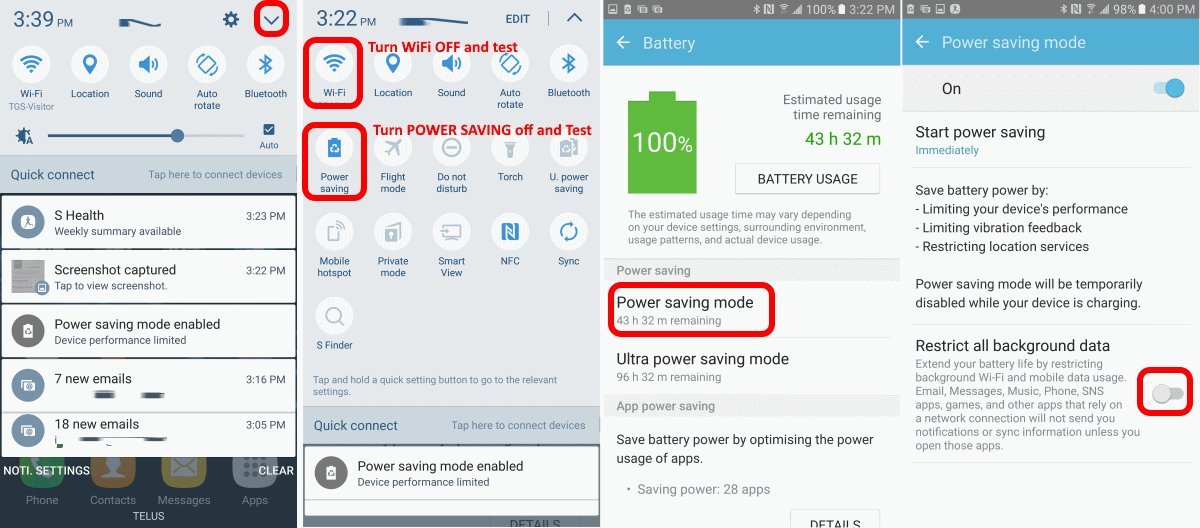
To check this, open your email app, navigate to Settings, and look for “Sync Frequency” or “Account Settings.” If you see “Manual,” the app will only update when you pull down on the screen. Change this to “Automatic” or “Push” for real-time delivery. If you’re using an Android device, also check the “Battery Optimization” settings. If your phone is in “Power Saving Mode,” it may kill background processes to save energy. This is a mistake many users make, which effectively silences the app until the device is plugged into a charger.
If your settings look correct, verify that background data is enabled for the app. Go to your phone’s main settings, select “Apps,” find your email program, and ensure “Background Data” is toggled to “On.” If this is restricted, the app can’t check for new mail while it’s closed. This varies by model — check the label or help menu in your device settings for exact path names, as these menus look different on every phone. If you have multiple accounts, you must check the sync settings for each one individually, as they don’t always share the same configuration.
Storage limits and account errors
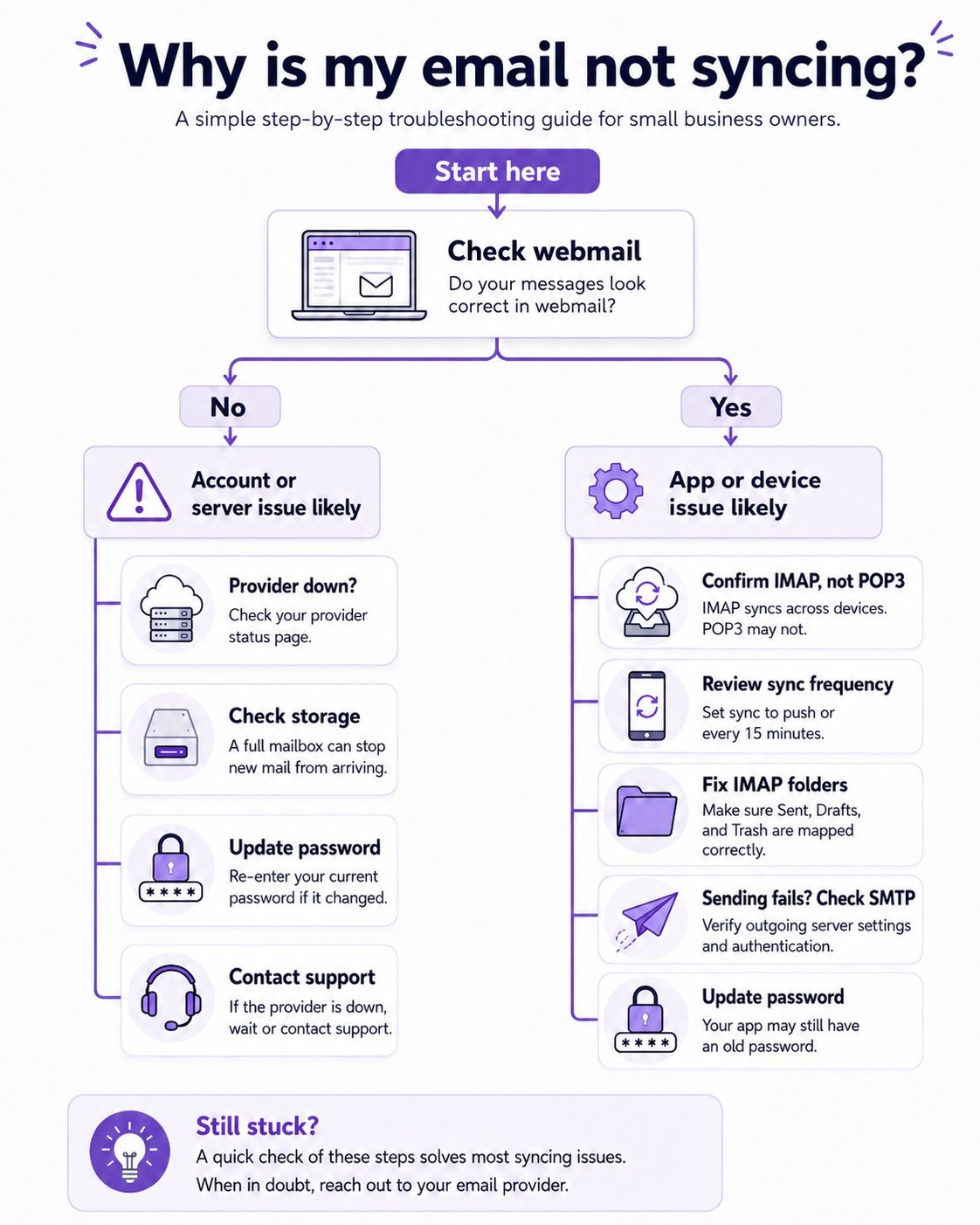
A full device or a full mailbox will prevent your app from downloading new files. When your phone storage reaches its capacity, it stops caching incoming mail to prevent system crashes. Similarly, if your email account storage is full, the server will reject new incoming messages, meaning there’s nothing for your app to sync.
To confirm this, go to your device’s “Storage” menu in settings. If you have less than a few hundred megabytes free, your phone may struggle to perform basic tasks. Delete large videos or unused apps to make room. If the device has space, check your email provider’s web portal to see if your cloud storage is full. If you see a “Mailbox Full” warning, you must delete old messages or attachments to make room for new ones.
A common mistake is forgetting to update your password after changing it on a computer. If your password changed recently, the app will try to sync using the old, incorrect credentials. It will usually show a small warning icon next to your inbox name. If you see this, tap the account and re-enter your new password. This isn’t for people who use third-party “cleaner” apps, as these tools can sometimes corrupt your email cache and cause syncing to fail entirely. If you use one of those tools, uninstall it and reinstall your email app to see if the sync returns.
The less likely causes
- Corrupted Cache: The temporary files stored by the app may be broken, requiring you to clear the app cache in your phone settings.
- Time and Date Mismatch: If your phone’s clock is wrong, the server will reject your security token, so ensure your date is set to “Automatic.”
- VPN Interference: A Virtual Private Network can mask your location or block specific ports, so try turning your VPN off to see if the mail starts flowing.
- App Updates: A bug in an older app version might be fixed in a newer release, so check the App Store or Play Store for pending updates.
- Account Removal: If the account has become unlinked, you may need to remove it from your device and add it back entirely.
What a fix usually involves
Resolving these issues usually involves simple software adjustments rather than physical repairs. Most fixes require only a few minutes of your time and no special tools. If you need to reinstall your app, ensure you know your email address and password, as you’ll need to sign in again from scratch. This process is free and typically takes a very short time if your internet is fast.
If the problem is related to your account storage, you might need to purchase more space from your provider. This is a recurring cost, and you should check the provider’s official pricing page to get a real quote before deciding. If you suspect your hardware is failing, contact the manufacturer’s support team directly. They can run a diagnostic test on your device’s radio components. Never pay for third-party “repair” software, as these are rarely effective and often cost more than the price of a legitimate app subscription. Always consult the official help pages for your specific email service to find the most accurate troubleshooting steps.
Frequently asked questions
Why does my email only update when I open the app?
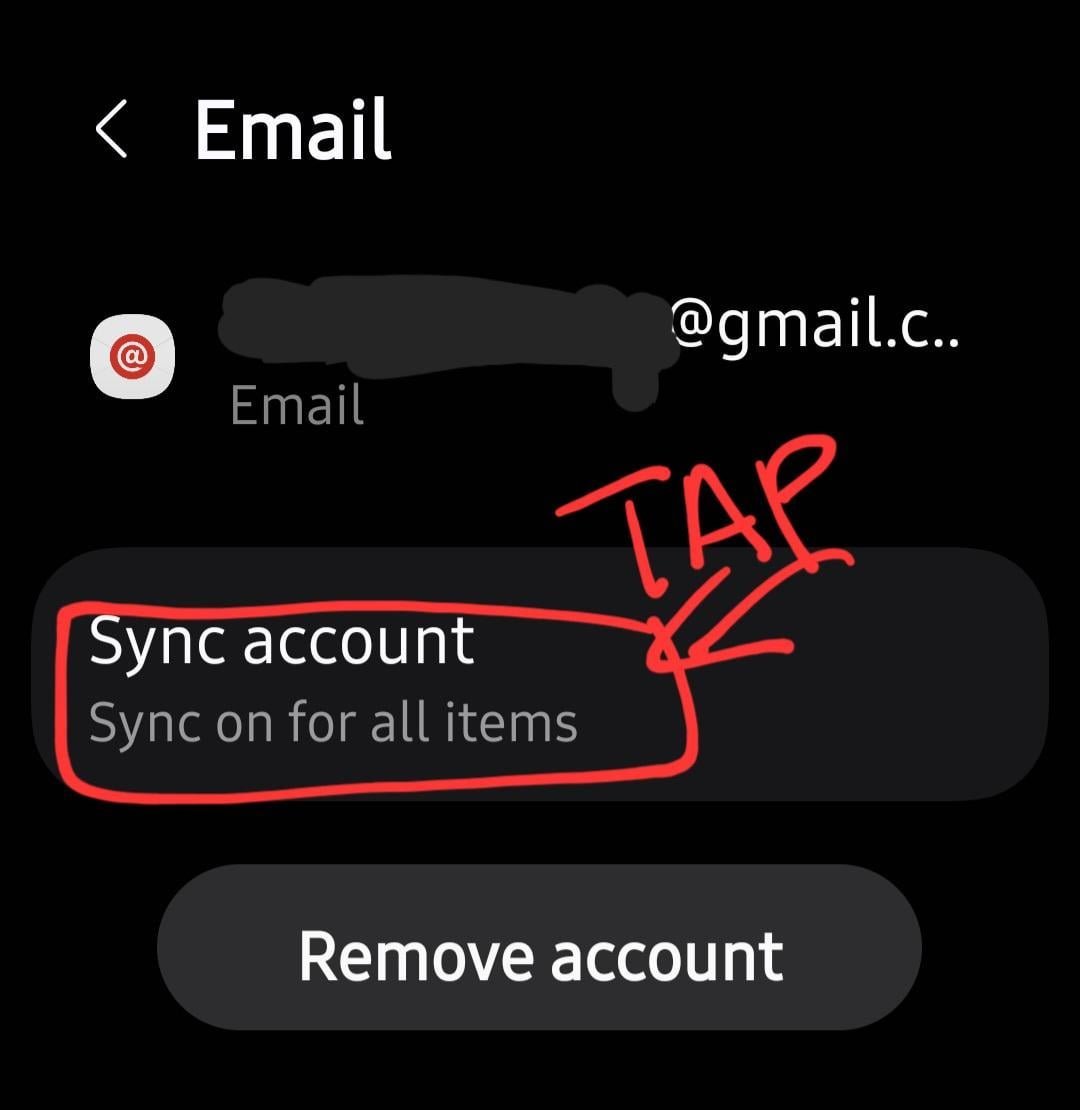
This happens because your sync settings are likely set to “Manual” or your device is in “Power Saving” mode. These settings stop the app from running in the background to save your battery life. Change your sync settings to “Push” or “Automatic” to fix this, and ensure your device isn’t in a low-power state.
Is it safe to remove and re-add my email account?
Yes, it’s safe to remove and re-add your account if you know your username and password. Your emails are stored on the server, not just on your device, so they will download again once you sign in. This is a common way to fix a stuck sync process by forcing the app to re-establish a fresh connection.
How long does a full sync take?
A full sync usually takes about one to five minutes, depending on the number of unread messages and your internet speed. If you have thousands of old emails, it may take longer as the app maps the folder structure. Check your data usage monitor to see if the app is actively downloading content during this time.
Why do I keep getting a password error?
You’re likely getting this error because your password was updated elsewhere and the app is still using the old one. If you recently changed your password on a computer or on the web, you must update it in your app settings. Simply tap the account and re-enter the current credentials to resolve the conflict.
What happens if my device storage is full?
If your device storage is full, the operating system prevents apps from saving new data, which stops your email from syncing. You’ll often see a notification that your storage is low. You must delete large files, like videos or old photos, to give the app enough space to cache your incoming messages.
Does a VPN affect email syncing?
Yes, a VPN can sometimes block the ports your email app uses to talk to the server. If your mail works when the VPN is off but fails when it’s on, the VPN settings are the cause. You can try switching your VPN location or check the documentation for your specific service to allow email traffic.
Final Thoughts
If these simple checks don’t fix the problem, don’t worry. You should try removing your account from the app and adding it back again, as this often clears out hidden errors. If it’s still not working, you’ll want to contact your email provider’s support team for more specific help.


