
You can fix a Fitbit not syncing by turning off your phone’s Bluetooth for ten seconds and toggling it back on to refresh the connection. This resolves the most common cause, which is a temporary glitch in the Bluetooth handshake. If the issue persists, ensure your phone’s operating system is updated and the app has background permissions.
Troubleshooting a Fitbit not syncing
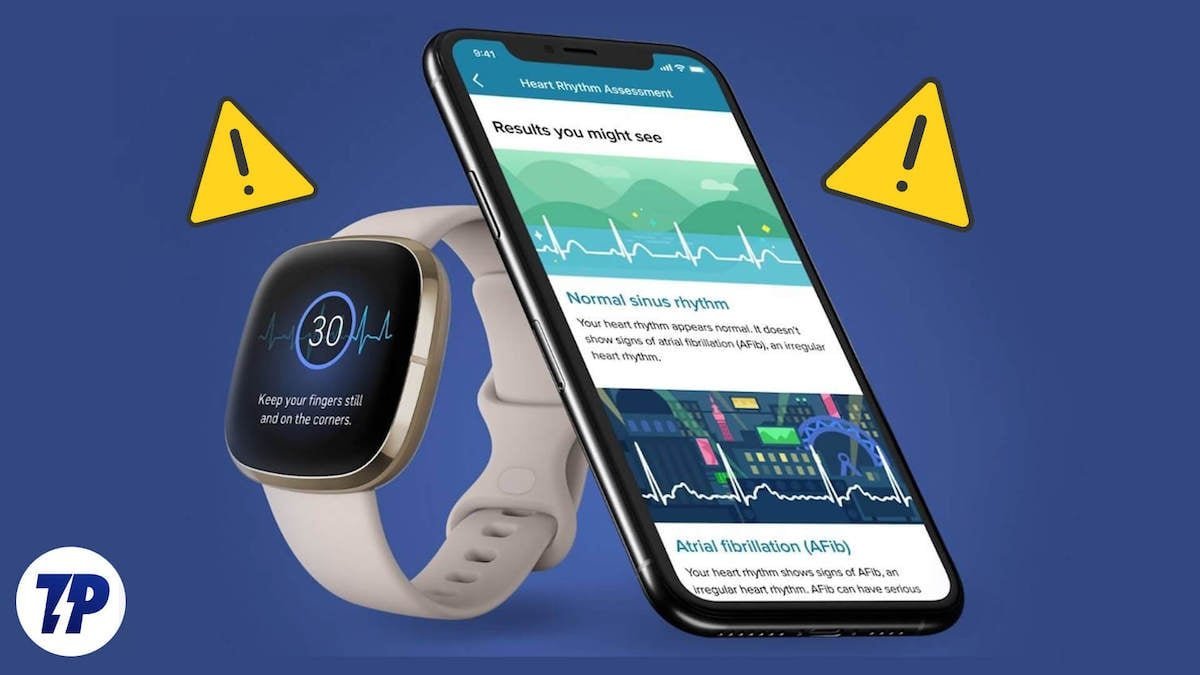
Synchronization issues usually stem from three distinct areas: software conflicts, connectivity interruptions, or outdated app versions. When your tracker attempts to communicate with your phone, it relies on a consistent Bluetooth signal. If your phone has moved too far away or if other devices are currently paired with your tracker, the data packet transfer will fail.
Another frequent cause is the state of the Fitbit app itself. If the app isn’t running in the background, it can’t pull data from the device automatically. You should check the official device troubleshooting guide from Google to see if there are known service outages or specific pairing requirements for your model.
Software version mismatches also play a significant role. If your tracker’s firmware is outdated, it may struggle to “talk” to the latest version of the app on your smartphone. Finally, if you have multiple mobile devices logged into the same account, your tracker may become confused about which phone it should be sending data to.
Restart the tracker
Restarting the device is often the most effective way to clear internal memory errors that prevent syncing. This process is safe and won’t erase your stored activity data, provided you have synced at least once in the past few days.
To perform a restart, locate the button on your tracker or the charging cable. For most models with a physical button, press and hold it for ten to twelve seconds until you see the device logo or feel a vibration. If your model doesn’t have a button, you must connect it to the charging cable, plug the cable into a powered USB port, and hold the button on the cable or the device for the same duration.
This fix is for users who have tried basic Bluetooth toggling without success. If you see a red “X” or an error message on the screen after the restart, the device might be experiencing a hardware failure, and you should contact support. Note that this varies by model—check the label on the back of your device to confirm your exact model name before looking up the specific restart sequence. If the device remains unresponsive after three attempts, don’t force it further, as this may damage the internal battery or pins.
Reinstall the application
If the tracker is fine but the data still doesn’t appear, the mobile application might be corrupted. Reinstalling the app clears out cached data that can block the handshake between your phone and the tracker.
Before you begin, ensure you know your login email and password, as you’ll need to sign back in. Delete the app from your phone, restart the phone itself, and then download the latest version from your official app store. Once reinstalled, log in and wait for the app to detect your tracker automatically.
This fix isn’t for people who have forgotten their account credentials, as you could lose access to your historical health data. If you have a very old phone model, the newest version of the app might not be compatible; check the app store requirements to see if your operating system version is still supported. A common mistake is trying to re-pair the device through the phone’s Bluetooth settings menu rather than the app itself. You must always use the app to pair your device. If you pair it manually through the phone settings, the app will often fail to recognize the tracker entirely, forcing you to remove the device from your account and start the setup process from the beginning.
Clear the cache and permissions
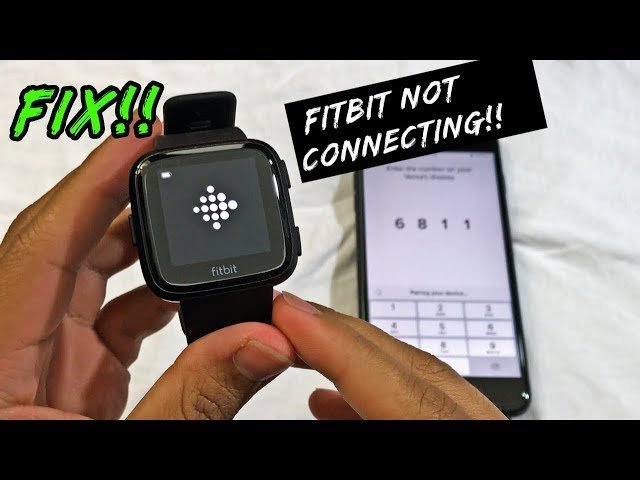
Sometimes the operating system restricts the Fitbit app from accessing the Bluetooth radio, especially after a phone update. You need to grant the app “Always Allow” permissions for location and Bluetooth to ensure it stays connected.
This is a more technical fix. On Android devices, go to your phone settings, find the App list, select the Fitbit app, and tap “Permissions.” Ensure that “Location” and “Nearby Devices” are set to “Always.” On iOS, ensure “Background App Refresh” is enabled for the app. If you’re using a battery saver mode, turn it off, as this mode often kills background tasks like Bluetooth syncing to save power.
This fix is for users who notice that their device only syncs when they manually open the app. It isn’t for users who have a physically broken tracker. If you’re uncomfortable changing system-level permissions, you can ask a tech-savvy friend to help, but avoid downloading third-party “fixer” apps from the internet, as these often contain malware or steal your data.
What not to do
- Don’t perform a factory reset immediately. This deletes all data currently on your tracker that hasn’t yet synced, and it’s almost never necessary for simple sync issues.
- Don’t force-close the app every time you finish using it. The app needs to run in the background to maintain the constant connection required for live dashboard updates.
- Don’t use a generic USB hub for charging. Some third-party hubs provide unstable voltage that can prevent the tracker from entering the necessary state for a firmware update or a deep sync.
- Don’t leave your tracker in a metal locker while trying to sync. Metal surfaces block Bluetooth signals, and the phone will never find the tracker if it’s shielded by heavy materials.
How to stop it happening again
Consistency is the best way to prevent future syncing frustration. Keep your app updated and your phone’s Bluetooth enabled at all times.
| If you’re doing this | Do this instead | Why |
|---|---|---|
| Closing the app manually | Let it run in background | It needs to stay active to sync |
| Using old firmware | Update via the app | New code fixes connection bugs |
| Keeping Bluetooth off | Keep it always on | It requires a constant radio link |
Most users mistakenly force-quit apps to save battery life.
If your device fails to sync for more than ten minutes, toggle your Bluetooth off and back on. If that fails, check your power settings. If “Battery Saver” mode is active, your phone will throttle the background data required for a stable link. Disable this mode to ensure a reliable connection.
Frequently asked questions
Can I sync my Fitbit without a phone?
No, you can’t sync your tracker directly to the internet without a bridge device like a smartphone or computer. The tracker lacks internal Wi-Fi or cellular chips, relying instead on Bluetooth to transmit data. You must use a connected device to sync your information to the cloud.
Why does my Fitbit take so long to sync?
Sync speed depends on the amount of stored data and signal strength between your devices. If you haven’t synced for several days, the tracker has a large backlog of heart rate, step, and sleep data to process. Keep your devices within three feet of each other to ensure a stable connection.
Is it safe to leave Bluetooth on all the time?
Yes, it’s safe to keep Bluetooth enabled on your smartphone. Modern Bluetooth Low Energy technology consumes negligible battery power and poses no health risks. Leaving it on is required for automatic data syncing and notification delivery throughout the day.
What happens if I sync to a new phone?
Your data remains safe on the cloud, so you won’t lose your history when switching phones. Simply log into your account on the new device to download your past information. You may need to remove the tracker from your old phone’s Bluetooth settings to prevent connection conflicts.
How long should I wait for a sync to finish?
You should wait at least five minutes for a sync to complete before assuming there’s a problem. While many syncs happen in seconds, large data transfers or firmware updates can take significantly longer. If the progress bar remains stalled after five minutes, restart the app and toggle your Bluetooth.
Final Thoughts
If these adjustments don’t get your data flowing again, don’t worry. You should reach out to the official support team through their website. They’re usually quick to help, and they’ll guide you through more advanced troubleshooting options to make sure your device is working perfectly again in no time.


