
The most common reason for an idw19 smartwatch not pairing is that the device is still connected to a previous phone’s Bluetooth history, which blocks new connections. To fix this, you must “forget” the watch in your phone’s Bluetooth settings and restart both devices. Most pairing failures occur when the app is bypassed or the Bluetooth cache is full. If your phone can’t see the watch after these steps, the battery might be too low to broadcast a signal.
Fixing IDW19 smartwatch not pairing issues
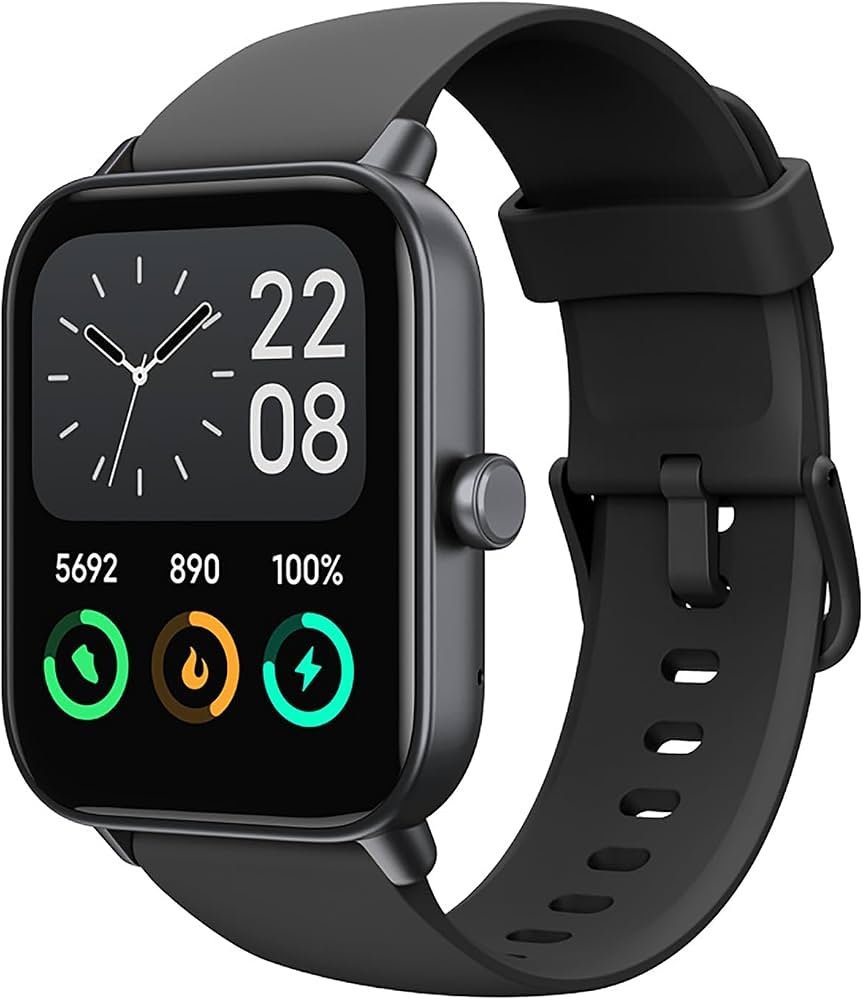
Pairing issues often stem from how Bluetooth Low Energy (BLE) handles device handshakes. When you pair a watch, it creates a unique bond with the phone’s operating system. If you try to switch phones or reinstall the app without unpairing the watch first, the device remains “locked” to the old host. It will refuse to broadcast its identity to new devices until that bond is broken.
Another frequent cause is app permissions. Modern mobile operating systems require specific location and background data permissions for the app to scan for nearby hardware. If you denied these prompts during the initial setup, the app will appear to search indefinitely without finding the watch. You can check your phone’s privacy settings to ensure the companion app has the necessary Bluetooth and location permissions enabled.
Finally, hardware interference can occur if you’re in an area with many active wireless devices. Bluetooth operates on the 2.4 GHz frequency, which is shared by Wi-Fi routers and other smart home gadgets. While it rarely prevents pairing entirely, excessive interference can cause the signal to drop during the initial handshake. If the watch display is dim or unresponsive, the internal voltage may be insufficient to maintain the radio connection, even if the screen appears to function.
Forget the device in system settings
This fix is for users who see the watch in their Bluetooth list but can’t complete the connection. Navigate to your phone’s Bluetooth settings menu. Find the watch in the list of “Paired” or “My Devices” and select “Forget this device” or “Unpair.” Don’t skip this step, as simply turning Bluetooth off and on won’t clear the handshake conflict.
Once the device is forgotten, turn off your phone’s Bluetooth entirely. Power the watch off by holding the side button for five seconds, then turn it back on. Wait for the watch to reach its main clock face. Now, open your phone’s Bluetooth settings again, but don’t try to pair from this menu. Close the settings, open the official companion app, and initiate the search from within the app’s interface.
If the app detects the watch, it will guide you through the final handshake. If the app still fails, you may need to clear the cache of the app itself. Go to your phone’s application manager, select the watch app, and choose “Clear Cache.” This removes temporary data that might be corrupted. If you have an older phone, this process might take longer to refresh the device list; wait at least 30 seconds after opening the app before tapping “Scan.”
Reset the watch to factory defaults
This fix is for cases where the software on the watch has become unresponsive or stuck in a loop. A factory reset wipes the watch’s internal connection logs and returns it to its original state. To do this, swipe down or left on the watch face to access the “Settings” or “System” menu. Look for an option labeled “Reset” or “Factory Reset.”
Confirm the action when prompted. The watch will restart and clear all stored data, including previous connection attempts. This is a “clean slate” approach that resolves most deep-seated software glitches. Note that this will erase any unsynced activity data, so make sure you have synced your fitness stats to the cloud before you trigger the reset.
After the watch reboots, it should display a “Pairing” screen or a QR code. At this point, it’s ready to be treated as a brand-new device. Follow the pairing instructions in your app exactly as you did when you first took the watch out of the box. If the watch doesn’t reset or the screen remains frozen, the internal hardware may have a fault. In this case, you should check the manufacturer’s warranty documentation to see if you’re eligible for a replacement or professional repair.
Check for app and firmware updates
Sometimes, the pairing protocol changes when your phone updates its operating system. If the companion app is outdated, it may not understand the new signals your phone is sending. Open the App Store or Google Play Store and check if an update is available for the companion app.
If you’re already on the latest version, check if the watch itself has a “Firmware Update” section within the app. If you can’t pair the device, you can’t update the firmware. This creates a trade-off: you need the app to update the watch, but you need the watch to be paired to use the app. If you have another phone available, try installing the app on that device to see if it can pair. If the second phone succeeds, you know the issue is with your primary phone’s software, not the watch.
If you have tried everything and the watch still won’t connect, it might be defective. This isn’t for users who have a simple software bug; this is for those who have performed a factory reset and tested the device with a different phone. If the watch fails to pair on two different phones, the Bluetooth radio inside the unit is likely damaged. Contact the retailer or the official support channel for your specific model to discuss a return.
What not to do
Don’t pair through the phone’s main Bluetooth menu. The app must manage the connection to sync data correctly. Bypassing the system settings avoids the common “Connected but no data” error that occurs when the phone treats the watch as a generic audio device rather than a data peripheral.
Don’t leave the watch charging while trying to pair. Many models automatically disable the Bluetooth radio while the charging pins are engaged to prevent electrical interference. If the watch is on the dock, the app will scan indefinitely without finding a signal, wasting your time.
Don’t hold the watch far from the phone during the first scan. Keep the devices within 12 inches of each other to ensure the signal strength remains high enough for the initial handshake. If you move beyond this range, the handshake will time out; simply move the devices closer and restart the pairing process.
Don’t install unofficial third-party apps to force a connection. These tools often lack the security certificates required to talk to the watch. Using them risks data leaks or “bricking” the device, leaving it unresponsive.
How to stop it happening again
To keep your connection stable, avoid constantly toggling Bluetooth or deleting the app. Most connection drops are caused by aggressive power-saving modes that kill background tasks.
| If you’re doing this | Do this instead | Why |
|---|---|---|
| Turning Bluetooth off to save battery | Keep Bluetooth enabled | Constant re-pairing consumes more power than staying connected. |
| Closing the app manually | Let the app run in the background | The app must stay active to sync data and maintain the bond. |
| Forcing a disconnect in settings | Unpair via the app menu | The app needs to know the device is gone to clear its internal logs. |
| Installing battery savers | Whitelist the watch app | Battery savers block the background processes the watch needs. |
Frequently asked questions
Can I pair my watch with two phones at once?
No, the watch can only pair with one phone at a time. You must unpair the watch from your old phone using the app’s “Unbind” feature before switching. If you fail to unbind, you’ll need to perform a factory reset to clear the old connection.
How long does the pairing process take?
Pairing typically takes 30 to 60 seconds once the app begins scanning. If the search lasts over two minutes, the attempt has timed out. Close the app, toggle your phone’s Bluetooth, and restart the search to resolve the issue.
What happens if the app crashes during pairing?
If the app crashes, clear the “ghost” connection by selecting “Forget” in your phone’s Bluetooth settings. After removing the device, perform a hard restart of your phone to flush the system memory. You must then restart the pairing process from the beginning.
Is it safe to reset my watch?
Yes, resetting your watch is safe, though you’ll lose unsynced data. A reset clears temporary memory and returns the watch to its original state. Ensure your watch has sufficient charge to complete the reset process.
Why does my watch show a different code?
A code on your watch screen confirms the pairing request to prevent unauthorized connections. Enter the code or tap “Confirm” within 10 seconds to complete the process. If you miss this window, you must restart the search in the app.
Final Thoughts
If you still can’t get a stable connection, don’t worry. Sometimes a quick update to your phone’s software or the watch app is all it takes to smooth things out. If you’re still having trouble, reach out to the support team; they’ll be happy to help you get back on track.
Related guides


