
You can fix it when your 365 calendar not syncing with iphone by removing and re-adding your Microsoft account in the iOS settings. This issue usually happens because the account authentication token has expired or the sync toggle is turned off in your phone’s mail settings. If you have recently changed your Microsoft password, your iPhone needs you to re-enter those credentials to establish a new connection.
Why your 365 calendar not syncing with iPhone
Sync errors between Microsoft 365 and Apple devices typically stem from a mismatch between your account credentials and the phone’s saved data. When you update your password on your computer, your phone doesn’t automatically receive that change. It keeps trying to connect with the old, now invalid, password. This leads to the calendar appearing empty or failing to show new meetings.
Another common cause involves the iOS mail settings. Your iPhone treats calendars, contacts, and emails as separate data streams under the same account. Sometimes, a software update resets the toggle for the calendar sync, effectively turning it off without your input. If the switch is off, your phone stops pulling data from the server even if your email is still working perfectly.
Finally, connectivity limits play a role. If you have too many calendars shared to your account, the iPhone may time out while trying to fetch all the data at once. If your internet connection is weak, the sync process might hang indefinitely. You can confirm your server status by checking the Microsoft Service Health portal to ensure there isn’t an outage affecting your region.
Remove and add the account
This method is for when your account is already on the phone but refuses to update. Go to Settings, then tap Mail, and select Accounts. Find your Microsoft 365 account in the list and tap it. Select Delete Account at the bottom of the screen. Confirm your choice, which removes the data from your phone but leaves your actual calendar events safe on the Microsoft servers.
Once the account is gone, go back to the Accounts menu and tap Add Account. Select Microsoft Exchange from the list. Enter your full email address and a description, then tap Next. A Microsoft login window will appear; enter your email and password here. You’ll likely need to complete a two-factor authentication prompt if your company requires it.
After the login finishes, the phone will ask which items you want to sync. Make sure the Calendar toggle is set to the “on” position, shown in green. Tap Save in the top right corner. Open your Calendar app and wait for a minute. You should see your events start to populate. If you have a very large calendar, this can take up to ten minutes to finish. This fix works for most users, but if your company uses a specific Mobile Device Management profile, you might need to contact your IT department to re-enroll your device.
Toggle the sync switch
If you don’t want to remove your entire account, you can try resetting the calendar sync connection first. This is a lighter approach that keeps your email and contacts untouched. Go to Settings, then Mail, and tap Accounts. Select your 365 account. Look for the Calendar switch. If it’s already on, turn it off. Wait for ten seconds.
When you turn the switch back on, your iPhone will re-sync the calendar data. You’ll be prompted to handle existing calendar events; choose “Delete from My iPhone” to clear out old or corrupted local copies. This ensures the next sync pulls fresh data directly from the Microsoft 365 cloud.
If this doesn’t work, check your Fetch New Data settings. Go to Settings, then Mail, then Accounts, and tap Fetch New Data at the bottom. Ensure that your 365 account is set to “Fetch” or “Push” rather than “Manual.” If it’s set to Manual, your phone will never update the calendar unless you open the app and pull down to refresh. For the best results, set the schedule to “Push” so your phone receives updates immediately.
Check your calendar view
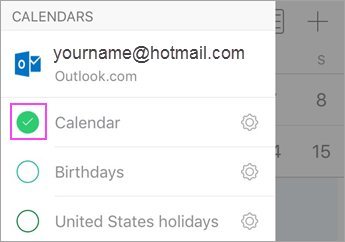
Sometimes the sync is working, but the calendar is hidden from your view. This happens if you have multiple calendars and accidentally unchecked the box for your work account. Open the Calendar app on your iPhone. Tap the “Calendars” button at the bottom center of the screen.
Look through the list of calendars under your Microsoft 365 account. If the circle next to your calendar is empty, tap it to add a checkmark. If you have multiple sub-calendars, ensure that the specific one you need is selected. This is a common mistake that costs people time because they assume the sync is broken when the data is actually just invisible.
If you still don’t see events, look for a “Show All” or “Sync” option within that same menu. For those with a large number of shared calendars, try unchecking all other calendars except for your main one. If the events appear after doing this, the issue is likely that your phone is overwhelmed by the number of calendars it’s trying to process. Limit the number of active calendars to keep the sync snappy. This isn’t for someone who needs to see every shared project at once, as the trade-off is losing visibility on secondary calendars to prioritize your primary work schedule.
What not to do
- Don’t delete your actual Microsoft 365 account from the cloud via a web browser to fix a phone sync issue, as this will permanently erase your data.
- Avoid using third-party “calendar repair” apps found in the App Store, as these often request unnecessary permissions to your private data and rarely fix sync errors.
- Don’t reset your entire iPhone to factory settings because of a calendar error, as this is a drastic step that rarely solves a simple sync conflict.
- Stop repeatedly toggling the sync switch on and off in rapid succession, as this can confuse the background process and cause the iPhone to lock the account for security reasons.
How to stop it happening again
Keep your account healthy by managing how your iPhone talks to the server.
| If you’re doing this | Do this instead | Why |
|---|---|---|
| Changing passwords often | Update in Settings immediately | Prevents old tokens from blocking new requests |
| Using Manual fetch | Switch to Automatic or Push | Keeps the calendar current without manual input |
| Ignoring software updates | Install the latest iOS | Fixes known bugs in the Exchange protocol |
Instead, check your background app refresh settings. If background refresh is disabled for your mail app, the server will time out during peak hours.
Use this decision rule: if you see a “Can’t Connect” error, toggle Airplane Mode for ten seconds. If the error persists, check your iOS version. Always prioritize the latest security patch to maintain a stable connection.
Frequently asked questions
Can I fix this without deleting my account?
You can fix this by toggling the Calendar switch off and on in your account settings. Navigate to Settings, Mail, Accounts, and select your 365 entry to toggle the Calendar off and back on. This refreshes the server connection without deleting your data. If this fails, perform a full account removal.
Why is my calendar empty after I added the account?
Your iPhone needs time to download all events from the Microsoft 365 server. Leave your phone plugged into a charger and connected to Wi-Fi for at least thirty minutes to allow the background sync to complete. Sync speed depends on your internet connection and the total number of events stored.
How long does a calendar sync take?
A standard sync usually completes in under sixty seconds once the initial connection is established. Initial syncs for new accounts can take up to ten minutes if you have thousands of events. If the calendar remains empty after twenty minutes, you likely need to re-enter your account password.
Is it safe to delete my account from the phone?
It’s safe to delete your Microsoft 365 account from your iPhone settings. This action only removes the local copy of your data, while your emails and events remain stored on Microsoft servers. Once you sign back in, the iPhone will download everything again from the cloud.
What happens if I choose “Delete from My iPhone”?
Choosing “Delete from My iPhone” removes the local cache of calendar events to resolve sync issues. This clears the slate for a fresh, accurate download from the server. Your events remain safe in your Microsoft 365 account throughout this process.
Final Thoughts
If the problem persists after these adjustments, you shouldn’t hesitate to check for a pending iOS update. Sometimes your phone’s software just needs a quick refresh to communicate properly with Microsoft’s servers. Once you’re running the latest version, everything should stay perfectly in sync so you don’t miss any important meetings.


