
The most common reason for tarkov arena not syncing is a temporary desynchronization between your Battlestate Games account and the game servers, which you can fix by performing a full logout and manual account refresh. This issue usually stems from a stale authentication token that prevents your profile data from updating across the Escape from Tarkov and Arena platforms. If you’re experiencing this, you should immediately log out of the game launcher, clear the cache, and restart your session to force a fresh handshake with the server.
Fixing Tarkov Arena Not Syncing
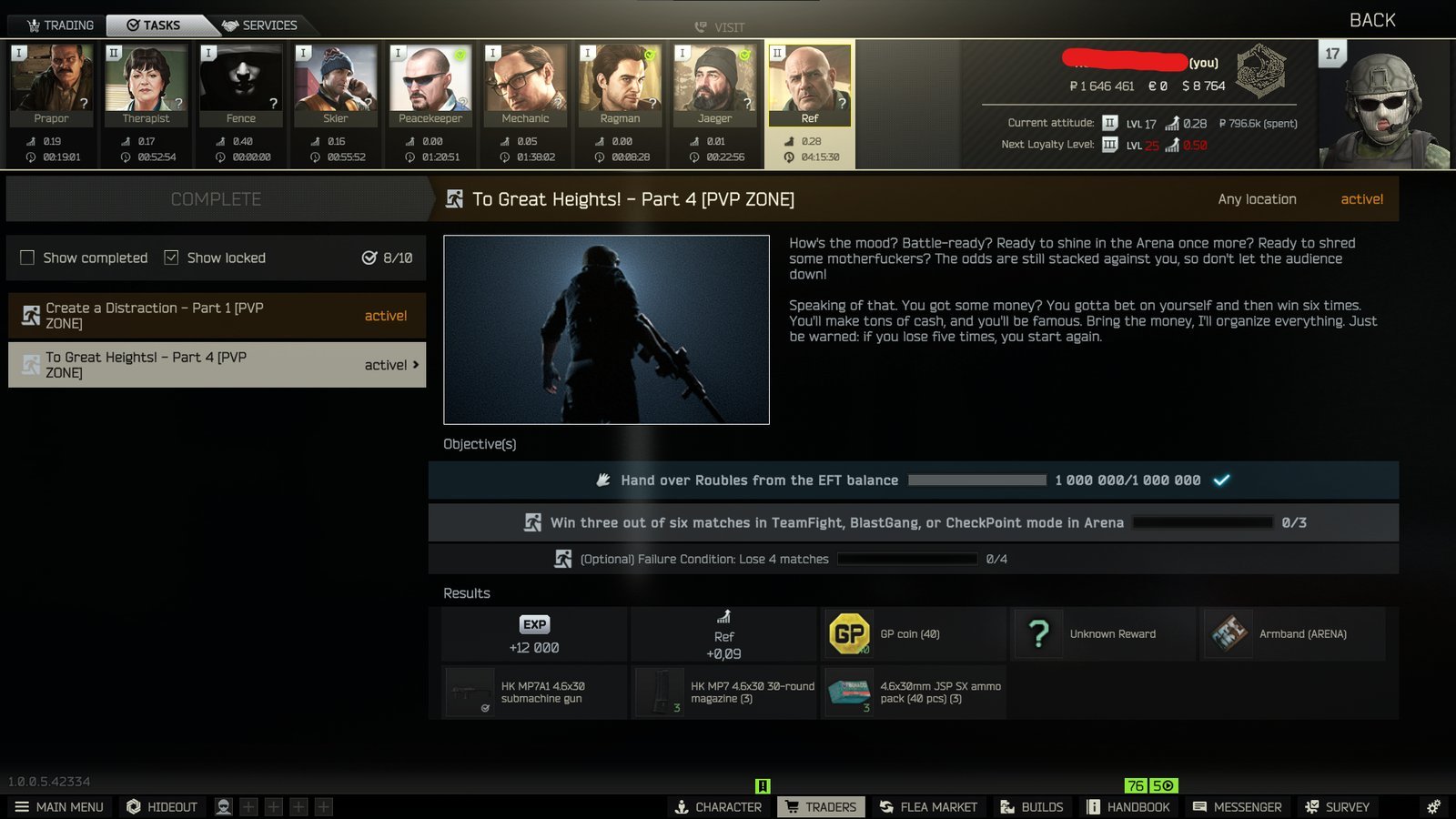
The primary cause for sync failures is a mismatch between your local client data and the server-side database. When you play both Escape from Tarkov and Arena, your profile information must bridge two distinct environments. If your authentication token expires or gets stuck during a server-side update, the game can’t pull your latest stats, gear, or currency balances.
Another common factor is network congestion or packet loss during the initial login phase. If your connection to the game servers is unstable while the launcher attempts to verify your account credentials, the synchronization process may time out. This leaves your profile in a “ghost” state where the launcher thinks you’re logged in, but the game servers haven’t fully registered your current session.
Finally, platform-side maintenance or service outages can prevent your data from updating. Battlestate Games occasionally performs backend maintenance that disables profile syncing for all players. If the issue persists across multiple restart attempts, it’s likely a server-side event rather than a local configuration error. Always verify this before attempting complex troubleshooting on your local machine, as server downtime is beyond your control and will resolve itself once the team finishes their work.
Clear the launcher cache
If you’re a player who has recently updated your game or switched between accounts, you should clear your cache to resolve sync errors. This process removes old temporary files that might be confusing the launcher.
To clear the cache, open the Battlestate Games Launcher and click on the small arrow next to your username in the top right corner. Select “Settings” from the dropdown menu. Within the settings window, look for the “Game” tab and click the “Clear Cache” button. Once the process completes, close the launcher entirely. Ensure that no background processes for the game are running by checking your Task Manager. After waiting about thirty seconds, reopen the launcher and log in again.
This fix is for users who have stable internet but still see outdated profile info. If you have a slow connection, this may take a few minutes to re-download the necessary assets. If the sync still fails after two attempts, this is a sign that your local files aren’t the culprit.
Force a full account refresh
If clearing the cache doesn’t work, you must force a complete session refresh. This is a more aggressive method that clears your stored login credentials, compelling the server to treat your next login as a brand-new request.
Navigate to the launcher settings again and select the “Log Out” option. Don’t just close the window; you must fully sign out of the application. Once you’re signed out, close the launcher completely. When your computer reboots, launch the game again and enter your credentials manually. Don’t rely on “remember me” features for this specific login attempt.
This isn’t for users who are currently in the middle of a raid or a match. If you force a logout while a session is active, you risk losing progress or triggering a penalty. If you find that your currency or items are still missing after a full refresh, wait at least one hour before contacting support. The server-side database sometimes takes time to catch up after a massive influx of player traffic. If you don’t see your progress after that hour, the data is likely still safe on the backend, but the sync service is currently overloaded.
Verify file integrity
For cases where the sync is stuck due to corrupted game files, you should use the built-in integrity check. This verifies that every file on your drive matches the version on the developer’s server.
It’s worth the time to do this if you experience frequent crashes alongside the sync issues. To start, open the launcher, click your username, and select “Integrity Check.” The tool will scan your installation folder and replace any files that don’t match the standard checksum. This process can take ten to twenty minutes depending on your storage drive speed; it’s much faster on an SSD than a traditional hard drive.
If you have a limited data plan, be aware that this might trigger a large download if many files are corrupted. If the check finishes and you still see sync errors, don’t attempt to modify the game files manually. Editing game files or using third-party “fixers” is a violation of the terms of service and can lead to a permanent account ban. If the integrity check reports no errors but you still can’t sync, you have reached the limit of what you can fix on your own. At this point, you should submit a ticket through the official support portal, as the problem is likely a deep-seated issue with your unique account ID on the server database.
What not to do
Don’t reinstall the entire game immediately. This rarely fixes a sync issue and only wastes time by redownloading hundreds of gigabytes of data. If the game client files are corrupted, you’ll see a specific error code like “0x8004” during the update process. If you lack that code, the problem lies in the cloud save, not your local install.
Don’t use VPNs to “force” a sync. Changing your IP address frequently flags your account for suspicious activity and triggers an automatic security lock. If you’re traveling, stick to a single stable connection rather than cycling through servers.
Avoid sharing your login credentials with third-party “sync tools.” These websites are almost always phishing attempts designed to steal your account. If a site asks for your password to “repair” a profile, it’s a scam.
Finally, don’t spam the login button or restart the client repeatedly. This triggers a temporary rate-limit ban on your IP, locking you out for up to 24 hours.
How to stop it happening again
Consistency is the best way to keep your profile synced. Follow these practices to avoid future issues.
Most players fail because they rely on auto-save triggers. If you force-close the app during a transition screen, the server often flags your account as “in-session.” This locks your progress for up to 30 minutes.
If you can’t use a wired connection, check your latency before joining a server. If your ping exceeds 150ms, stay off the main menu to prevent sync errors.
The golden rule is simple: if you see a spinning icon, wait. Closing the window while the game is writing to the database creates a corrupted save file. You’ll know this has happened if your gear resets to a previous state upon login. If you see this, stop playing and wait for the server to synchronize your profile correctly.
Frequently asked questions
Can I lose my items if the sync fails?
No, your items are stored on the developer’s server, not your local machine. If the sync fails, your items are safe and will appear once the connection to the backend database is restored. The issue is purely a display error in the launcher or the game client. Don’t worry about permanent data loss during a sync error, as the server keeps a master record of your inventory at all times.
Why does my currency show zero after a sync?
This display glitch occurs when the game fails to retrieve your profile data from the server. It typically happens during peak hours when the backend is under heavy load. Wait a short time and restart your game to restore your correct currency balance.
How long should I wait before trying again?
You should wait at least fifteen minutes after a failed sync attempt before trying again. Attempting to log in repeatedly in a short time frame can cause the server to block your connection temporarily. If the issue is widespread, wait until the status page confirms the services are fully operational. Patience is the best approach when dealing with server-side synchronization errors, as the system needs time to clear the failed request queue.
Is it safe to play while the sync is failing?
It isn’t safe to play because your progress might not save correctly. Entering a raid while the game is struggling to sync risks losing gear or failing to receive rewards. Always ensure your profile data is showing correctly before starting a match.
What happens if I ignore the sync error?
Ignoring this error will likely cause issues like missing quest rewards or restricted access to the flea market. The game requires a perfectly synced profile to verify your level, stash contents, and trader reputation. Address the sync issue immediately to prevent your client from rejecting your connection.
Final Thoughts
If these connection troubles persist after a quick refresh, don’t hesitate to reach out to the official support team. They’ll be able to check your account status for any deeper server-side errors. Once your profile is back in sync, you’ll be ready to jump right back into the action.
Related guides


