
You can fix 365 outlook not syncing by checking your internet connection, verifying your account status, or toggling the “Work Offline” mode in the application. This issue is most often caused by a lost network signal or a corrupted local cache file. If your connection is stable, the application might be stuck in an offline state that prevents new emails from reaching your inbox. Before you try complex settings, ensure your device shows an active data connection, as Outlook can’t pull updates without one.
Reasons Outlook isn’t syncing
Synchronization failures occur because the local data file on your computer can’t talk to the Microsoft Exchange server. The most common cause is a temporary network interruption. If your internet signal drops for even a few seconds, the application might switch to an offline mode to save resources. It doesn’t always switch back automatically when your connection returns.
Another frequent cause is a conflict within your local data file, known as an OST file. This file stores a copy of your mailbox on your hard drive. If this file becomes too large or gets damaged during a power surge or a forced shutdown, the sync process halts. You can see your current connection status in the bottom right corner of the Outlook window. If it says “Working Offline,” the application intentionally stops all communication with the server.
Finally, some security software can mistake the synchronization process for a threat. If you have recently installed a new firewall or antivirus program, it might be blocking the port that Outlook uses to communicate. This varies by version — check the settings of your specific security suite to see if it lists your email client as a blocked app. If none of these issues apply, you may need to check the Microsoft official support guidance to see if there’s a known service outage in your region.
Toggle the offline mode
This fix is for users who see “Working Offline” in the status bar at the bottom of the window. It’s the quickest way to force the application to reconnect to the server without restarting your computer.
Go to the “Send / Receive” tab at the top of your screen. Look for the button labeled “Work Offline.” If the button is highlighted, it means the feature is currently active. Click it once to turn it off. Wait about ten seconds for the status bar at the bottom to change from “Working Offline” to “Connected to Microsoft Exchange.”
If the status bar still doesn’t update, try clicking the button again to toggle it off and on. This creates a fresh request for a server connection. If you have a slow internet connection, this might take up to a minute to finalize. If you’re on a metered connection or using a VPN, the application might struggle to maintain this link. If this fix doesn’t work after two attempts, your issue is likely deeper than a simple toggle. This isn’t for users who have a “Disconnected” error, as that usually points to a password or server setting problem rather than a manual offline setting.
Repair your data file
This fix is for users who have a stable internet connection but still see a “Need Password” or “Disconnected” error. A corrupted OST file prevents the software from updating your folders.
Close Outlook completely. Open your Windows Control Panel and select “Mail.” Click the “Data Files” button, select your email account from the list, and choose “Open File Location.” Once the folder window appears, look for the file ending in “.ost.” Right-click it and choose “Delete.” Don’t worry; this file is just a local copy of your cloud data. When you reopen Outlook, the application will automatically create a fresh, clean version of this file and download your emails from the server again.
This process can take some time if you have a large mailbox, as it must pull all your history from the cloud. If your internet speed is low, it could take an hour or more to complete. This isn’t for users with POP3 accounts, as those accounts store mail locally and deleting the file could result in data loss. If you’re unsure what type of account you have, check your account settings page before deleting any files. If you aren’t comfortable deleting system files, you can use the “ScanPST” tool provided by Microsoft to attempt a repair instead.
Check your account credentials
Sometimes the sync stops because your saved login information is no longer valid. This happens frequently if you recently updated your account password on another device or via a web browser.
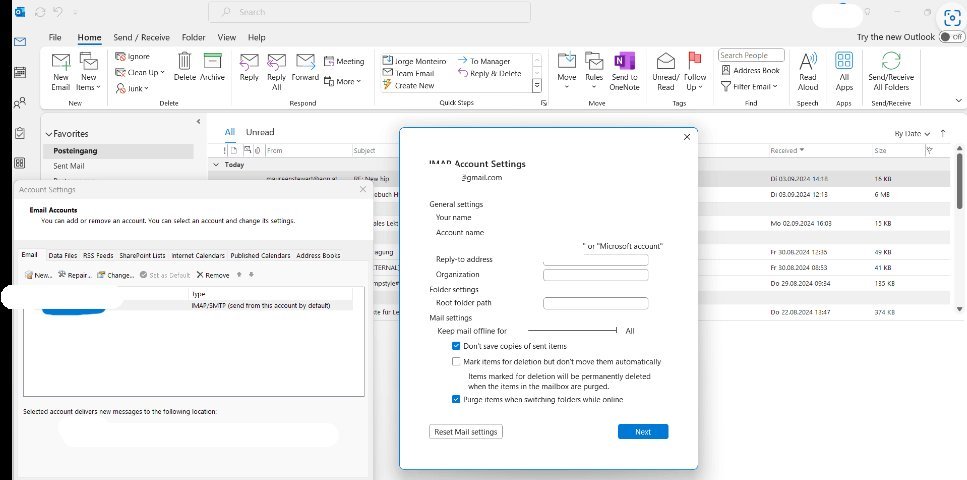
Go to “File” in the top left corner and select “Account Settings.” Click on “Account Settings” again in the dropdown menu. Select your email address and click “Repair.” A window will pop up asking to confirm your account details. Enter your current password when prompted. If the repair process finishes and shows a green checkmark, your sync should resume within a few minutes.
If the repair fails, your account might require two-factor authentication. In this case, you must ensure you have the authenticator app or your phone nearby to approve the login request. This isn’t for users who are using an alias or a secondary email address that isn’t the primary login for the Microsoft 365 account. If the repair tool continuously asks for a password even after you enter the correct one, you likely have a corrupted entry in your Windows Credential Manager. You should clear your saved passwords in the Credential Manager and restart the application to force a fresh login prompt. If you’re on a company-managed computer, you may need to ask your IT department to reset your session token.
What not to do
Don’t reinstall the entire Office suite immediately. This rarely fixes local sync issues and wastes at least an hour of productivity.
Don’t delete your email profile from the Control Panel unless you have verified your local archives. If you skip this, you’ll permanently erase any folders that exist only on your computer.
Don’t ignore “Disconnected” error messages for more than a day. If you wait longer, your local file becomes so outdated that it triggers massive sync conflicts. You’ll then spend hours manually reconciling duplicate items.
Don’t use third-party “repair” software from unknown websites. These tools often contain hidden malware designed to scrape your account credentials. If you find a tool promising a one-click fix, check the developer’s official site first. If the software isn’t hosted on a verified domain, assume it’s a security risk.
If you’re unsure about your backup status, always export your mailbox to a .pst file before touching any settings.
How to stop it happening again
Consistent maintenance of your local files and network settings prevents future sync interruptions.
| If you’re doing this | Do this instead | Why |
|---|---|---|
| Using public Wi-Fi | Use a secure, private network | Public networks often block mail ports |
| Keeping a massive inbox | Archive old emails to a folder | Smaller files sync faster and safer |
Frequently asked questions
Why does my Outlook say disconnected?
Outlook shows “Disconnected” when it can’t reach the Microsoft server due to internet issues, firewall blocks, or expired sessions. Check your internet connection first to rule out network outages. If your connection is stable, you may need to manually update your account credentials in your settings.
How long does it take for Outlook to sync?
Sync time depends on your mailbox size and internet speed. Large mailboxes or slow connections can extend this process to an hour or more. If the sync bar remains stagnant for an extended period, restart the application to resolve potential file corruption.
Is it safe to delete the OST file?
Yes, you can safely delete your OST file if you use an Exchange, Microsoft 365, or IMAP account. These accounts store your master data on the cloud, allowing Outlook to recreate the file and redownload your emails. Don’t delete this file if you use a POP3 account, as it stores your only copy locally.
What happens if I click work offline?
“Work Offline” prevents your computer from sending or receiving new data, allowing you to manage emails without interruptions. While enabled, you can’t send or receive messages until you toggle the setting off. Be aware that forgetting to disable this mode will prevent your mailbox from syncing new updates.
Can I fix sync issues on mobile?
You can fix mobile sync issues by clearing the app cache or removing and re-adding your account. The “Reset Account” option in the settings menu forces the app to wipe local data and refresh from the server. If that fails, reinstalling the app is the most effective way to resolve persistent errors.
Final Thoughts
If these quick fixes don’t get your inbox moving again, don’t worry. Sometimes a simple restart of your computer is all it takes to clear out those stubborn background glitches. If you’re still having trouble, it’s a good idea to reach out to your IT support team for further help.


