
If you find your 8bitdo ultimate software not syncing, the most common fix is connecting via a wired USB-C cable instead of Bluetooth. If detection fails, ensure you are using the version designed for your specific hardware. 8BitDo offers different software for Bluetooth and 2.4G models, so verify your model number on the official support portal.
Fixing 8bitdo Ultimate software not syncing
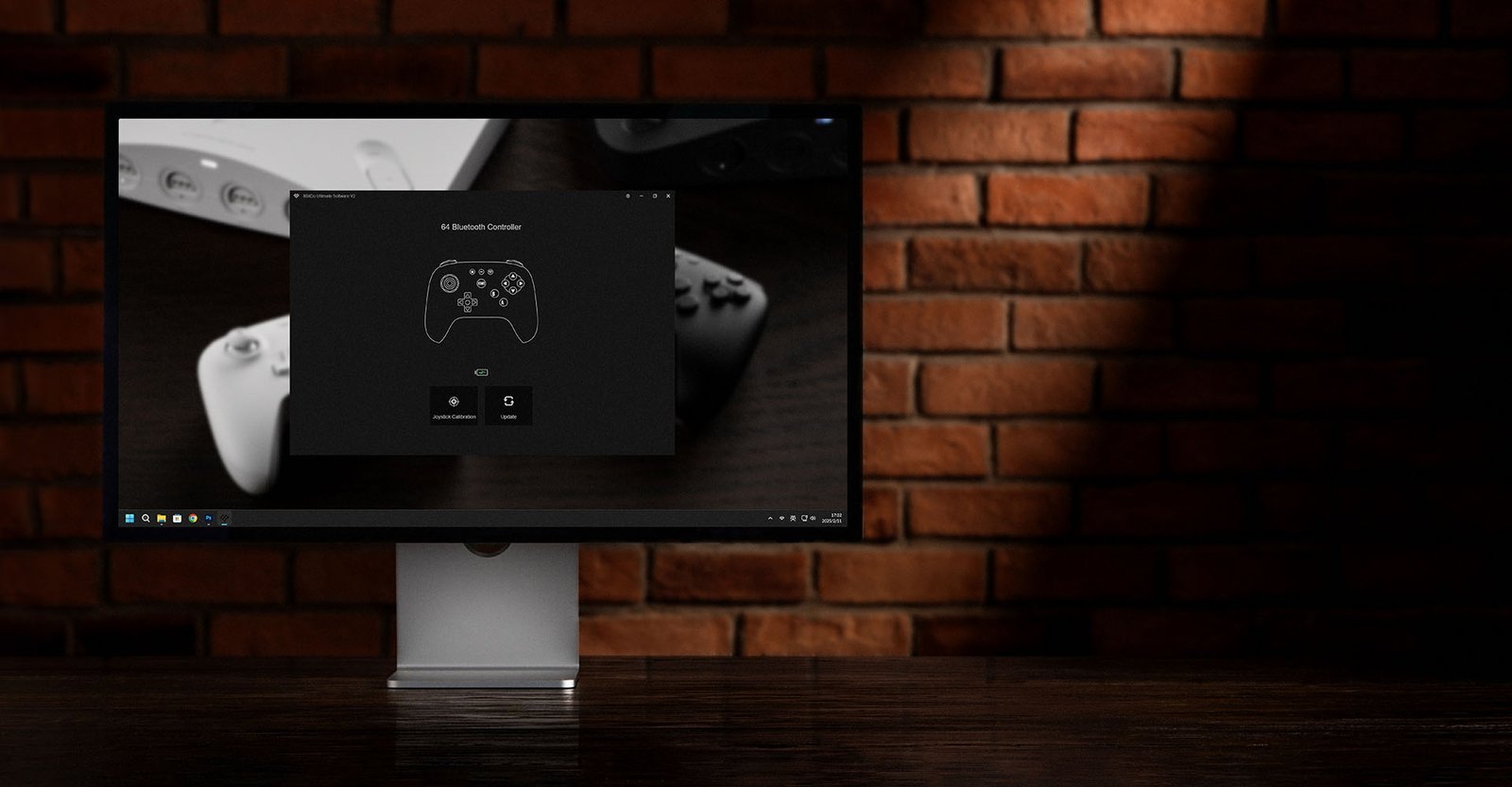
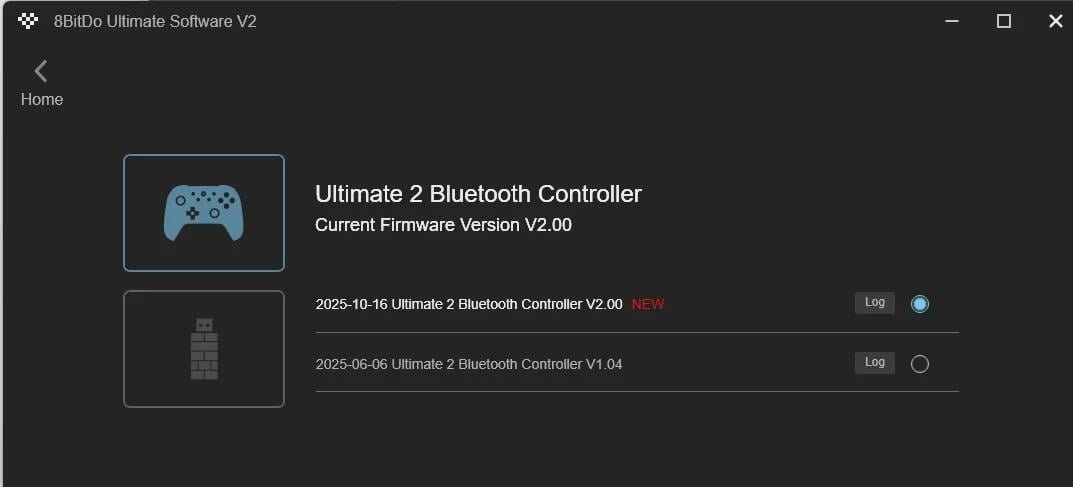
The software typically fails to sync because the communication protocol between the controller and the computer is interrupted. One primary cause is an outdated firmware version on the controller itself. If your controller firmware is significantly behind the software version, the handshake required for the app to “see” the device will fail. You can check your current firmware version within the app settings or via the 8BitDo Firmware Updater tool.
Another frequent cause is interference from background applications. Programs that manage other gaming peripherals or RGB lighting often try to claim the USB port’s data stream. When these programs conflict, the 8BitDo software can’t establish a stable connection. This is a common issue for users running multiple peripheral management suites simultaneously.
Finally, the connection mode of the controller matters. Many 8BitDo controllers have a physical switch on the back to toggle between D-input, X-input, and Switch modes. If the controller is set to a mode that the software doesn’t support on your current operating system, the sync won’t occur. This varies by model — check the label on the back of your controller to see which modes it supports. If you aren’t sure which mode your computer prefers, set it to X-input, as this is the most widely compatible standard for Windows PCs.
Update your controller firmware
This fix is for users whose software opens but displays “Controller not connected” even when the device is plugged in. Before you start, ensure you have the 8BitDo Firmware Updater installed on your computer.
First, disconnect the controller from your PC. Open the Firmware Updater and select the “USB” option. Connect your controller to the PC using a high-quality USB-C cable. Avoid using USB hubs or front-panel ports, as these often provide insufficient power or unstable data transfer. If the updater detects your controller, it will show the current firmware version. If a newer version is available, click the update button.
Don’t disconnect the cable while the update is in progress. Doing so can “brick” the device, making it unusable. Once the update finishes, close the Firmware Updater completely. Launch the 8BitDo Ultimate Software again and wait at least ten seconds for the system to re-initialize the USB driver. If the controller icon appears, the sync is successful. If you’re using a wireless model, you may need to unplug the USB cable and reconnect it to the software once more after the firmware update is finished to refresh the handshake. If you don’t have a working USB-C cable, this fix isn’t for you.
Change your USB connection method
If your software still refuses to sync, you must isolate the hardware connection from potential software conflicts. This fix is designed for users who suspect their USB port or cable is the bottleneck.
Start by unplugging every other USB device from your computer except for your mouse and keyboard. This reduces the load on your USB controller and prevents driver conflicts. Plug your 8BitDo controller directly into a rear-facing motherboard port. These ports are soldered directly to the board and provide the most consistent voltage and data throughput. Avoid using front-panel ports on your computer case, as they rely on internal cables that often degrade signal quality.
Once connected to a rear port, open the Device Manager if you’re on Windows. Look for “Universal Serial Bus devices” or “Human Interface Devices.” If you see a yellow exclamation mark next to the controller name, right-click it and select “Uninstall device.” Unplug the controller, wait five seconds, and plug it back into the same rear port. Windows will automatically reinstall the driver. After the driver notification disappears, open the 8BitDo software. If the software still doesn’t sync, try using a different USB-C cable. Many cables included with cheap electronics are “charge only” and lack the data wires needed for controller syncing. A high-quality data-rated cable is essential for this process to succeed.
Reinstall the software correctly
This fix is for cases where the software crashes or hangs during the syncing process. It’s worth the extra time if you have already tried updating your firmware and changing your USB ports without success.
First, uninstall the current version of the 8BitDo Ultimate Software through your system settings. It’s vital that you also delete the configuration folder. On Windows, navigate to your local AppData folder and search for any remaining 8BitDo folders to ensure no corrupt configuration files remain.
After clearing these files, restart your computer. This clears the active memory and resets the USB bus state. Download the latest installer directly from the manufacturer website. During installation, choose a directory that doesn’t require special administrative permissions, such as your main drive’s root folder. Once installed, run the software as an administrator by right-clicking the icon and choosing “Run as administrator.” This gives the software the necessary permissions to communicate with your controller’s hardware interface. If the software still fails to launch or sync after a clean install, your operating system may have a deeper driver conflict. In this case, you should contact the 8BitDo support team directly, as they can provide specific driver patches for unique hardware configurations. This isn’t a task for those without administrative access to their computer.
What not to do
Don’t use wireless dongles or Bluetooth while trying to sync with the Ultimate Software. These modes often disable the data-transfer capabilities required for deep configuration, leaving the software unable to detect your device.
Don’t leave your controller connected to a charging wall adapter during the sync process. The software can’t communicate through a power-only connection. If the controller is plugged into a wall, the computer will never receive the handshake signal.
Don’t attempt to force-flash firmware from a different model controller onto your device. This will permanently damage the internal logic board and void your warranty. If you’re unsure of your model, check the label on the back of the casing before downloading any files.
Don’t use third-party “driver updater” tools to fix the connection. These programs often install generic drivers that conflict with the specific 8BitDo hardware profile. Always download drivers directly from the official support site to ensure full compatibility.
How to stop it happening again
Consistency is the best way to keep your controller synced. By following a standard ritual for updates and connections, you avoid the common pitfalls that lead to sync errors.
| If you’re doing this | Do this instead | Why |
|---|---|---|
| Using front-panel USB ports | Use rear motherboard ports | Rear ports offer stable, direct power. |
| Updating via Bluetooth | Update via wired USB-C | Wired modes ensure a constant data link. |
| Keeping all apps open | Close other controller software | Other apps may “steal” the device signal. |
| Using charge-only cables | Use data-rated USB cables | Charge cables lack the required data pins. |
Frequently asked questions
Can I sync my controller using Bluetooth?
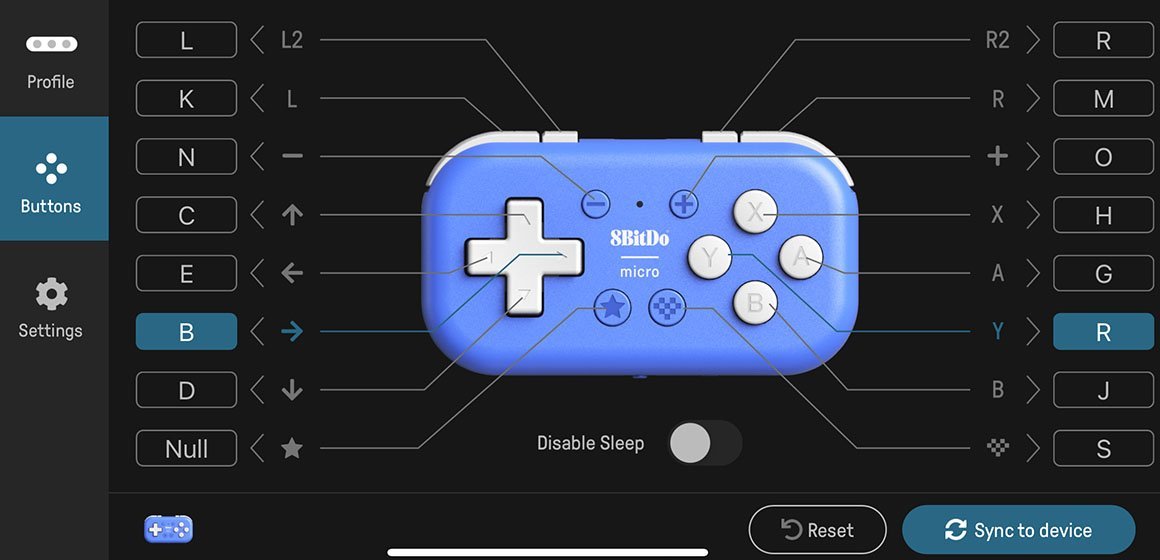
No, the 8BitDo Ultimate Software requires a wired USB connection for configuration and firmware updates. Bluetooth doesn’t provide the necessary data channel for these tasks. You must use a data-capable USB-C cable to change mappings, macros, or sensitivity.
Why does my software show a blank screen?
A blank screen means the software can’t detect your controller. Toggle the switch on the back to X-input mode to resolve most connection issues. If that fails, reconnect the controller to a different USB port to force the computer to re-detect the device.
How long does a firmware update take?
A firmware update typically takes two to four minutes to complete. The exact duration depends on your computer’s USB speed and the file size. Don’t disconnect the cable during this process, as interrupting a write can permanently damage the controller’s bootloader.
Is it safe to use a third-party USB cable?
Yes, you can use a third-party cable if it’s rated for data transfer. Many charging cables lack the internal wires required for communication. Ensure your cable supports data sync, or the software won’t recognize your controller when plugged in.
What happens if the software crashes during a sync?
Software crashes usually result from conflicts with other background programs or corrupted installation files. Close all other applications and perform a clean reinstall if the issue persists. Avoid crashes during firmware updates, as they may leave your controller in an unresponsive state.
Final Thoughts
If you still can’t get a stable connection, don’t hesitate to reach out to their support team directly. They’re usually quick to help with firmware glitches or hardware-specific bugs. Once you’ve sorted this out, you’ll be back to customizing your button layouts and macros exactly how you like them.


