
When your email not syncing on android is causing delays, the most common fix is to toggle your device’s “Auto-sync data” setting off and then back on in the Accounts menu. This action forces the operating system to re-establish a connection with the mail server. The issue often stems from a temporary handshake failure between your phone and the provider, or a background process that has become stuck. If this doesn’t resolve the lag, you’re likely looking at a credential error or a power-saving restriction preventing updates.
Reasons your email isn’t syncing
The primary reason for sync failures is the aggressive battery management built into modern mobile operating systems. When your phone enters a low-power state, it restricts background data for apps to preserve battery life. If your email app isn’t explicitly set to “unrestricted” data usage, the system will kill the sync process every time you lock your screen.
Another frequent cause involves corrupted cache files. Your app stores small bits of data locally to speed up loading times. If these files become fragmented or damaged, the app can’t properly communicate with the server to retrieve new messages, even if your internet connection is active. You might see a “last updated” time that remains stuck in the past, even when you manually refresh the inbox.
Finally, credential mismatches occur after you change your password on a computer or web browser. Because the phone stores your old token, it attempts to log in with invalid information. The server rejects these requests, but the app often fails to prompt you for the new password immediately. This creates a silent failure where the app appears to be working, but simply can’t authenticate to pull new data. This varies by model — check the label in your settings menu to see if your manufacturer uses a custom interface, as the menu paths may differ slightly from stock Android.
Toggle background data settings
If you find that your email only updates when you open the app, your background data permissions are likely blocked. This fix is for users who have a solid internet connection but experience delayed notifications.
First, navigate to your phone’s Settings and tap on “Apps” or “App Management.” Find your specific email app in the list—such as Gmail, Outlook, or a third-party client—and select it. Look for a sub-menu labeled “Mobile data” or “Data usage.” Ensure that the switch for “Allow background data usage” is toggled to the “on” position. If it’s already on, try turning it off, waiting ten seconds, and turning it back on.
This forces the system to refresh the app’s network permissions. If you have a “Data Saver” mode active globally, you should also add your email app to the “Unrestricted data” whitelist. This is the most common mistake; people enable Data Saver to save money on mobile plans but forget that it stops their email from fetching messages in the background. If you’re on a metered connection, this will increase your data usage, so keep an eye on your monthly limit. You’ll know this worked if you receive a test email notification within a few minutes of locking your screen. If your phone still doesn’t sync, the issue is likely a server-side authentication error rather than a data restriction.
Clear application cache files
Clearing the cache is a safe way to remove temporary data that might be causing a sync loop. This is the best step if your app is crashing or showing a “connection error” message despite having full Wi-Fi strength.
Go to Settings, then select “Apps.” Find your email app and tap on “Storage & cache.” You’ll see two buttons: “Clear storage” and “Clear cache.” Select “Clear cache” first. This doesn’t delete your emails or your account login; it only clears the temporary files used to display the interface. After clearing the cache, force-stop the app by tapping the “Force stop” button, then reopen it.
If the problem persists, you may need to “Clear storage” or “Clear data,” but be aware that this will sign you out of the app entirely. You’ll need to re-enter your email password and re-download your recent messages. This is a trade-off: it fixes deep-seated data corruption, but it requires you to re-authenticate your account. This isn’t for users who have forgotten their current email password, as you’ll be locked out until you reset it. Once you clear the storage, the app acts as if it were newly installed. It will perform a fresh handshake with the server, which usually resolves persistent sync errors. If the app still fails to sync after a fresh login, the issue is likely with the mail server itself rather than your phone.
Remove and re-add your account
When simple fixes fail, removing and re-adding your email account is the most effective way to reset the sync protocol. This process clears all local associations with your account and forces the device to pull a fresh configuration from the server.
This step is for when you’re certain your password is correct but the account remains stuck. Go to Settings, then “Passwords & Accounts” or “Users & Accounts.” Tap on the email account that’s failing to sync and choose “Remove account.” Confirm the action. Once the account is gone, restart your phone to clear the system memory. After the device reboots, return to the same menu and tap “Add account.” Follow the prompts to sign in with your email address and password.
This is a powerful fix, but be mindful that it removes all locally cached contacts and calendar entries associated with that account. If you have any unsaved drafts or offline attachments, make sure to back them up or send them to yourself before removing the account. It’s a necessary step if the sync token has become permanently invalidated by a security update or a server-side change. If you have two-factor authentication enabled, have your secondary device ready to verify the new login. If the account still refuses to sync after this, you may need to contact your email provider’s support team, as the restriction could be on their end rather than your device.
What not to do
- Don’t delete the actual email app from your phone, as this often leaves behind corrupted preference files that will just break the app again when you reinstall it.
- Don’t turn off your Wi-Fi and switch to mobile data while the app is actively trying to sync, because this can cause the app to hang in a “pending” state.
- Don’t use “Task Killer” or “RAM Booster” apps to force-close your email, as these tools prevent the background processes necessary for real-time syncing.
- Don’t ignore “Account Action Required” notifications in your status bar, because the system is explicitly telling you that your login token has expired.
How to stop it happening again
Keep your email settings optimized to prevent future sync interruptions. The table below outlines how to maintain a stable connection between your device and your provider.
| If you’re doing this | Do this instead | Why |
|---|---|---|
| Leaving Battery Saver on | Use “Adaptive Battery” mode | Battery Saver limits sync intervals to save power. |
| Using a third-party cleaner | Let the OS manage cache | Manual cleaners often delete essential sync tokens. |
| Keeping your phone offline | Enable “Auto-sync” globally | Sync can’t trigger if the global toggle is off. |
| Ignoring app updates | Update apps via Play Store | Older versions lose compatibility with servers. |
Frequently asked questions
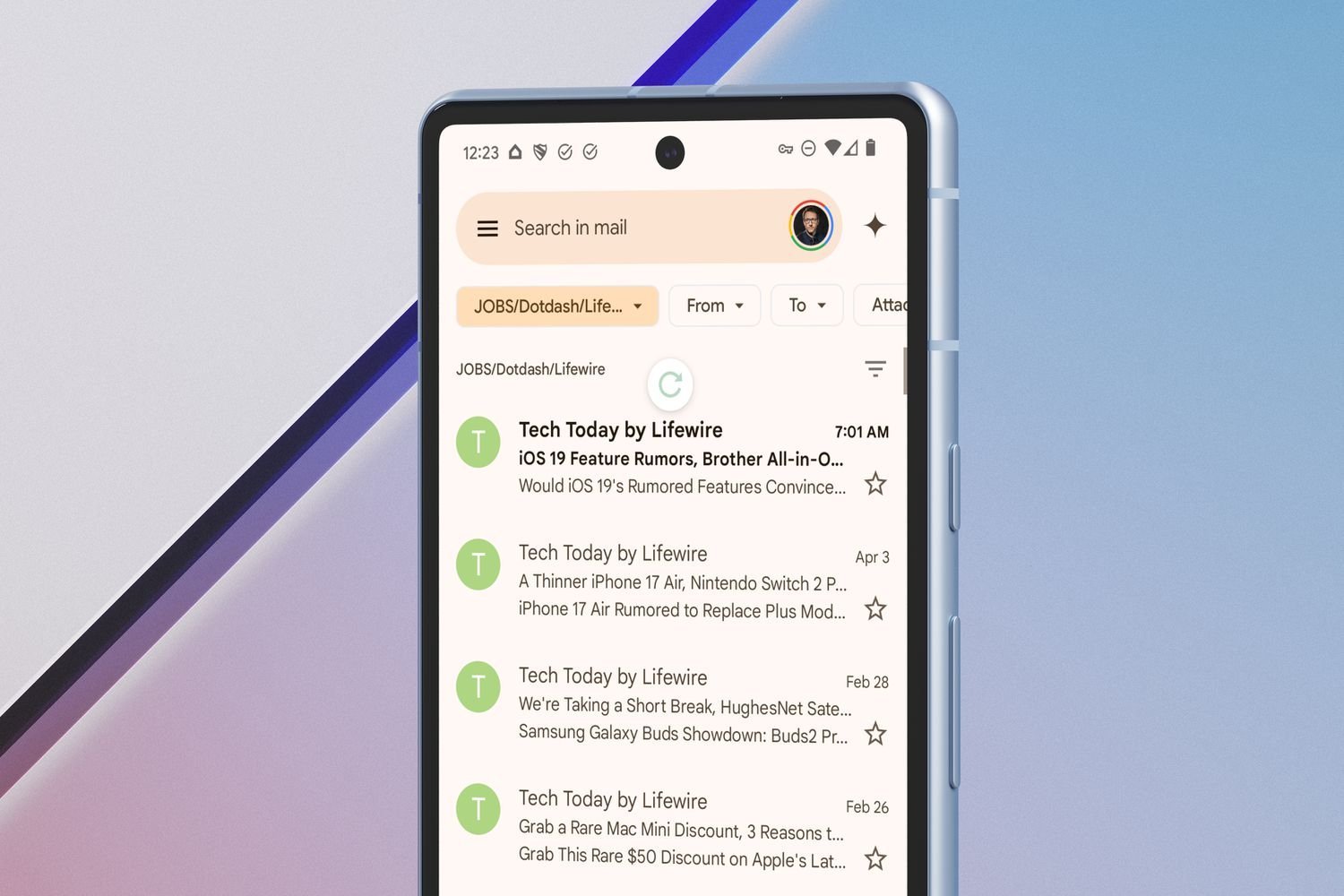
Why does my email only sync when I open the app?
Your phone is likely using a battery optimization feature that kills background processes to save energy. Check your battery settings for the email app and change it from “Optimized” to “Unrestricted.” This allows the app to stay active in the background even when the screen is off. If this setting isn’t available on your specific device, ensure that “Auto-sync” is enabled in your global account settings.
How long does it take for email to sync after I fix it?
Syncing should occur within thirty seconds of re-establishing a stable internet connection. If you have just added a new account, it may take up to five minutes to pull the initial headers, especially if you have a large inbox. If nothing happens after ten minutes, check your connection speed or try toggling Airplane Mode on and off to reset your network radio.
Is it safe to clear my email app cache?
Yes, it’s perfectly safe to clear your email cache because it doesn’t delete your actual messages or account credentials. The cache only holds temporary UI elements like profile pictures and thumbnails. When you reopen the app, it will simply re-download these small files. Never confuse “Clear cache” with “Clear storage,” as the latter will sign you out of your account.
What happens if I remove my email account?
Removing the account from your phone settings deletes the association between your local device and the server. It will remove any emails that were only stored locally, but it doesn’t delete the emails from the actual server. You can always see your messages again by logging back in through the email app. Ensure you know your current password before starting this process.
Can a slow internet connection stop email from syncing?
Yes, a slow or unstable connection can cause the sync handshake to time out before it finishes. If your signal strength is low, the app will stop trying to sync to prevent draining your battery. Try switching from mobile data to a stable Wi-Fi network to see if the sync completes. If it works on Wi-Fi but not mobile data, your carrier may be blocking the mail server.
Why does my phone say sync is disabled?
The system global sync toggle has likely been turned off, or you’re in a “Power Saving” mode that disables background data. Go to your phone’s main settings menu and search for “Accounts” to see if the sync toggle is active. If the switch is greyed out, disable your phone’s battery saver mode first. Once the global switch is on, you can re-enable sync for your specific email account.
Final Thoughts
If these quick adjustments don’t get your inbox moving again, it’s a good idea to check your internet connection or simply restart your device. Sometimes a fresh start is all the system needs to clear out lingering glitches. If you’re still stuck, don’t hesitate to reach out to your provider’s support team for help.
Related guides


