
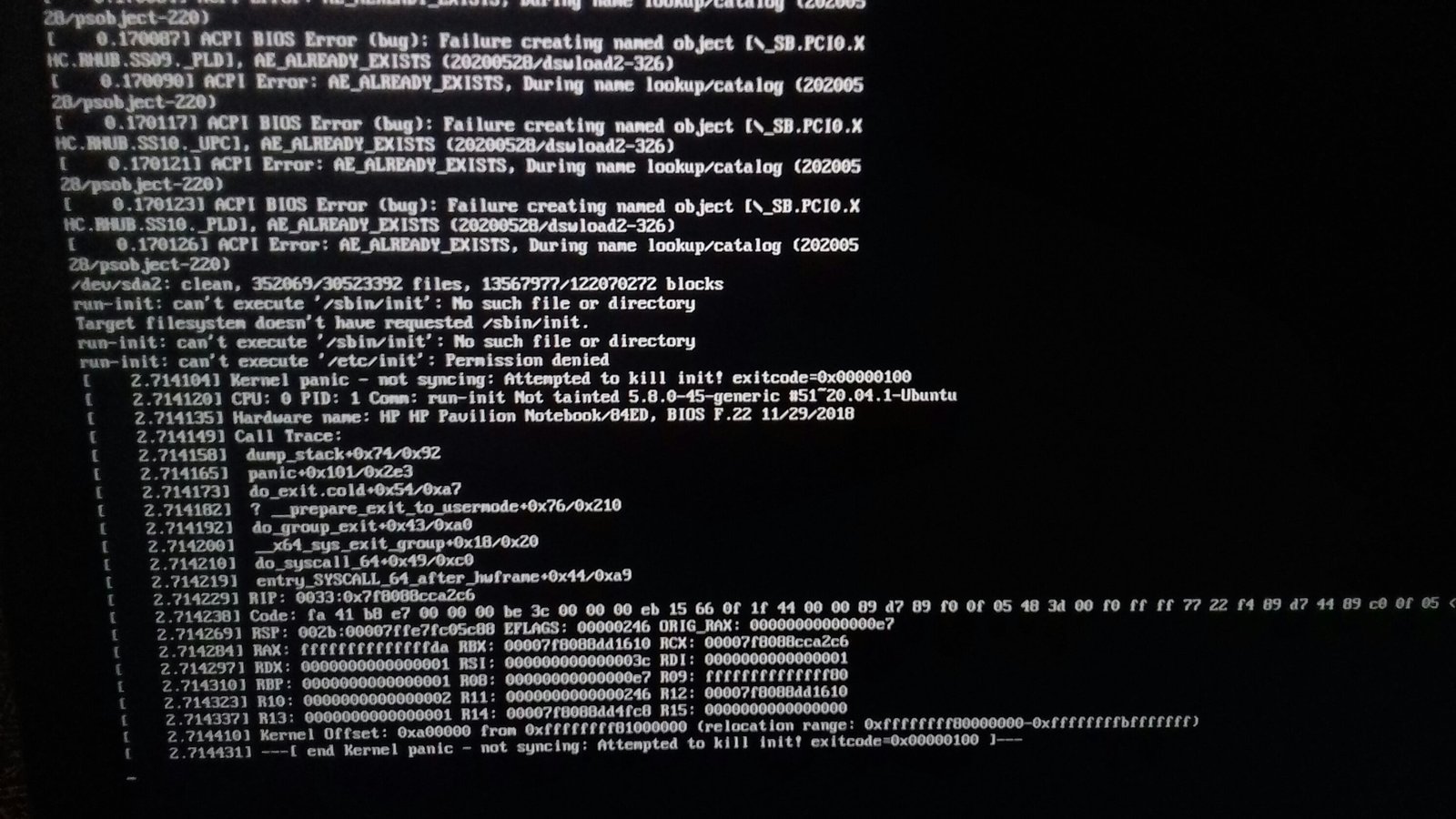
A corrupted or missing system initialization file is the primary reason you see an end kernel panic not syncing attempted to kill init error on your machine. This message means the Linux kernel has loaded, but it can’t find or execute the first program—usually called init or systemd—needed to start your operating system. Because the kernel can’t proceed without this process, it stops everything to prevent further damage to your data.
Fixing ‘end kernel panic not syncing attempted to kill init’
| Cause | How common | How to confirm it | Fix it yourself? |
|---|---|---|---|
| Corrupt init process | Often | Check boot logs | Yes with care |
| Missing system files | Often | Boot live media | Yes with care |
| Faulty kernel update | Common | Check version history | Yes |
| Broken storage drive | Sometimes | Run SMART test | No |
| Bad hardware RAM | Sometimes | Run Memtest86 | No |
| Misconfigured bootloader | Rare | Check GRUB config | Yes with care |
Most users mistake hardware failure for software corruption. If your system hangs during the initial BIOS splash screen, the issue is almost certainly hardware. If the system reaches the loading bar before crashing, focus on software.
When checking storage drives, look specifically for “reallocated sector counts.” If this number is increasing over time, it’s a strong indicator that your drive is physically failing. Don’t attempt to repair the file system in this state. You’ll only accelerate data loss.
For kernel updates, the decision rule is simple. If you can access a recovery shell, roll back to the previous version immediately. If the system fails to mount the root partition, you must use a live USB to chroot into the environment. Doing so often creates a secondary dependency loop that makes recovery nearly impossible.
Init process failure
A corrupted init process often results from an interrupted system update or an unexpected power loss during a critical write operation. When the operating system tries to launch the first process, it looks for a binary file, typically located at /sbin/init. If this file is missing, zero bytes in size, or damaged, the kernel hits a wall and triggers the panic.
To confirm this, you need to boot your computer using a live Linux USB drive. Once you reach the desktop environment of the live system, open your terminal and mount your main system partition. Use the command ls -l /mnt/your-drive/sbin/init to see if the file exists and has a reasonable size. If the file is missing or shows a size of zero, you have found the problem.
Fixing this usually requires reinstalling the base system package from your live environment using the chroot command. If you’re using a Debian-based system, you would typically run apt-get install --reinstall sysvinit-core or the equivalent for your distribution. Note that this varies by distribution—check the documentation of your specific Linux distribution to ensure you use the correct package manager. If you accidentally delete the wrong system file, you could make the system unbootable, so always back up your data before you start.
Missing or corrupted system libraries
Sometimes the init program exists, but the shared libraries it needs to run are damaged. This often happens after a partial update where some files were upgraded but others remained at older versions. The kernel tries to execute the init file, but the dynamic linker fails because a dependency is missing.
You can tell this apart from a missing init file by checking the specific error messages displayed on your screen before the panic. If you see “error while loading shared libraries” followed by a filename, the init file is present, but the system is broken. To fix this, you must enter a rescue shell or chroot into your system from a live USB. Use the package manager to force a reinstallation of the core libraries, such as libc6.
This task is for users who know how to manage packages manually. If you aren’t familiar with these tools, it’s safer to copy your personal files to an external drive and perform a fresh installation of your operating system. This is a trade-off: you save hours of troubleshooting by reinstalling, but you must spend time restoring your personal settings and software.
Bootloader configuration errors
An incorrect bootloader configuration can point the kernel to the wrong location for the init process. This frequently occurs after a user manually edits the GRUB configuration file or after a disk cloning operation where the UUID of the partitions changed. The kernel starts, but it looks at the wrong drive or partition to find the init binary.
To confirm this, look at the kernel boot parameters when the computer starts. At the GRUB menu, press ‘e’ to edit the entry. Ensure the root= parameter points to the correct partition identifier, such as /dev/sda1 or the correct UUID. If it points to an old or non-existent partition, the system will panic because it can’t find the init file at the specified address.
If you find an error, change the parameter to the correct value and press F10 to boot. If this works, you must make the change permanent by updating your GRUB configuration file, usually located at /etc/default/grub. After you edit the file, run update-grub to save the changes. If you aren’t sure which partition is your root, use the blkid command in a live environment to list all drives and their UUIDs. Never guess a partition name, as an incorrect setting can prevent the system from mounting the root filesystem entirely.
The less likely causes
- Hardware failure on the hard drive can prevent the system from reading the init file; if you hear clicking noises, stop using the drive immediately and contact a data recovery specialist.
- Faulty RAM modules may cause random corruption of files during the boot process; run a memory test tool for at least one full pass to rule this out.
- A kernel update that’s incompatible with your specific hardware drivers can cause an immediate panic; try booting into an older kernel version from the GRUB advanced menu.
- Corrupted file system structures may require a manual check; use the
fscktool from a live USB, but be aware that running this on a mounted drive can cause permanent data loss.
What a fix usually involves
Fixing this error almost always requires a live Linux USB drive and a basic understanding of the terminal. You’ll need a working computer to create the USB installer, which is a small part of the total effort. Most fixes involve reinstalling system packages or editing text configuration files. The cost is usually nothing if you have a spare USB stick, but the time investment can be high. If you aren’t comfortable with terminal commands, the cost of professional help might be a significant portion of the price of a new computer. Always check your distribution’s official documentation for the exact steps, as specific commands change between versions. If you feel overwhelmed, it’s better to seek help from a local technician rather than risking your system files.
Frequently asked questions
Can I fix this without losing my data?
Yes, you can usually fix this without losing data by using a live USB to repair the system files. Your files remain on the disk, and the repair process only targets the operating system binaries. However, if the hardware drive itself is failing, there’s a risk of further data loss, so always copy your important documents to a separate drive before attempting any repairs.
Is it safe to try these steps myself?
Yes, it’s safe if you’re careful, but you must follow the instructions exactly. The biggest risk is accidentally deleting or overwriting the wrong partition during the repair process. If you don’t feel confident using the command line or editing system files, it’s much safer to take your machine to a professional who can handle the recovery without risking your personal files.
How long does a typical repair take?
This includes the time to create a live USB, boot the machine, and run the necessary repair commands. If you’re new to these processes, it may take longer as you read the documentation to ensure you’re entering the commands correctly for your specific system setup.
What happens if I ignore the error?
Nothing happens because the system can’t boot. The kernel panic is a “stop” state, meaning the computer won’t progress to the login screen or desktop environment. You must resolve the underlying issue with the init process or the boot configuration before the operating system can function again. Ignoring the error will simply leave you with an unusable machine until the problem is addressed.
Does it matter which Linux distribution I use?
Yes, the specific commands and file paths vary by distribution. Debian, Ubuntu, Fedora, and Arch all have different ways of handling the init process and package management. Always check the official support page or manual for your specific Linux version before you run any repair commands. Using the wrong command for your distribution can cause more damage to your system files than the original error.
Is this a sign of a dying hard drive?
Sometimes, but not always. While a failing drive can cause file corruption that leads to this error, software updates or configuration mistakes are just as likely. If you see this error repeatedly after you have already fixed it, that’s a strong sign of a hardware issue. In that case, you should check the SMART status of your drive to see if it’s reporting physical errors.
Final Thoughts
If these repairs don’t get your system running again, it’s likely that your hard drive is physically failing. You shouldn’t wait to back up your important files if you can still access them through a live USB. It’s always better to be safe than sorry when your data’s at risk.


