
The main reason for your ipad and iphone not syncing is usually an outdated Apple ID login or a mismatch in your iCloud settings. Most users fix this by signing out of iCloud on both devices and signing back in to refresh the connection. This assumes your devices are running a current version of iOS or iPadOS; if you’re using an older model that no longer receives updates, you may need to check the Apple System Status page to ensure the server is actually online.
Fixing iPad and iPhone Not Syncing Issues
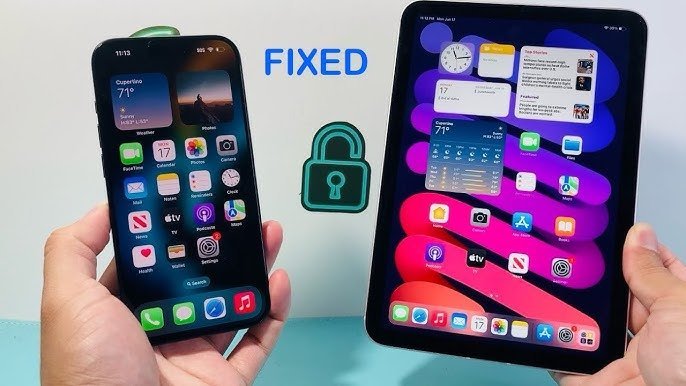
Synchronization failures occur when the background communication between your devices and Apple’s servers is interrupted. One common cause is a conflict in your iCloud account credentials. If you recently changed your password on one device but not the other, the second device will lose its ability to push or pull data. It simply can’t authenticate the connection.
Another reason is a setting mismatch. For example, if “iCloud Drive” is toggled on for your phone but off for your tablet, the files will never meet in the middle. This also applies to specific app toggles, such as “Contacts” or “Notes.” If the toggle is set to “Off” on one device, that specific data remains local to that machine.
Finally, connectivity issues play a role. If your devices are on different Wi-Fi networks or one is using a restrictive VPN, the sync process might hang. The system requires a stable, consistent internet connection to verify your data against the cloud. If you’re in a location with high firewall restrictions, the sync port might be blocked. This varies by model — check the label on your device settings for specific network limitations. If the issue persists after checking these items, the problem might be a corrupted local database, which usually requires a more advanced reset of the sync services.
Sign in and out of iCloud
This fix is for users who have verified their internet connection but still see no updates moving between devices. Start by going to your Settings app. Tap your name at the top of the menu, scroll to the bottom, and select “Sign Out.” You’ll need your Apple ID password to turn off “Find My” before you can fully exit the account. Once you have signed out, restart both your devices by turning them off and back on again.
After the devices reboot, go back to the Settings menu and sign in with your Apple ID again. When you sign in, ensure you select the same services you want to sync, such as Photos, Notes, and iCloud Drive. If you have a large amount of data, this process can take several hours to complete. Don’t force the device to sleep or turn off the Wi-Fi during this initial handshake. You’ll know it worked when the data begins to populate the secondary device. If you encounter an error message regarding your storage limit, you may need to manage your cloud space before the sync will resume. If you aren’t comfortable managing your account settings, visit an authorized service center for professional help.
Reset network settings
If your accounts are correct but the data still refuses to move, your network configuration might be the culprit. This fix is for those experiencing intermittent connection drops or “Syncing…” messages that never finish. Go to Settings, tap “General,” then “Transfer or Reset,” and choose “Reset.” From there, tap “Reset Network Settings.” This won’t delete your photos or apps, but it will remove your saved Wi-Fi passwords and Bluetooth connections.
Once the device restarts, reconnect to your home Wi-Fi network. This process clears out any outdated configuration files that might be blocking the Apple sync servers. Test the connection by opening the Notes app and creating a new note on your phone. If it appears on your tablet within a few seconds, the reset has successfully fixed the communication path. Note that you’ll have to manually re-enter your Wi-Fi passwords for any saved networks you use regularly. This is a common trade-off for fixing deep-level connectivity bugs. If you have a complex enterprise network setup, consult your IT department before performing this reset, as it might require specific manual configurations to regain access to your workplace systems.
Check for software updates
Sometimes, the synchronization protocol changes between versions of iOS. This fix is for devices that have fallen behind on security or feature updates. Go to Settings, tap “General,” and select “Software Update.” If an update is available, install it on both devices. This is important because a newer version of software on your phone might use a sync format that an older version on your tablet can’t read.
If both devices are already on the latest version, check if the apps themselves need an update via the App Store. Occasionally, a third-party app will stop syncing because the developer released a patch that requires the latest OS. If you’re using a device that’s too old to support the current OS, you may be stuck with manual syncing options, such as using a cable and a computer. This is a significant limitation, and if you rely on these devices for work, you may need to consider upgrading to a newer model. If you’re unsure about your device’s compatibility, check the official support documentation for your specific model number. This isn’t a task that requires specialized tools, but it does require a steady power source; never attempt an update if your battery is below 50 percent, as a loss of power during an update can corrupt the system files.
What not to do
Don’t delete your apps to fix a sync issue. This often destroys local data that hasn’t reached the cloud yet, making recovery impossible.
Avoid third-party “sync cleaner” apps. These tools frequently interfere with Apple’s secure encryption keys. Using them can trigger a permanent lockout of your encrypted keychain.
Never create a second Apple ID for your tablet to bypass storage limits. Apple doesn’t support merging two separate accounts. If you split your data, you’ll be forced to manually export and import files between them forever.
Don’t share your Apple ID password to “force” a sync. This grants the other person full access to your private messages, location history, and linked payment methods. If you need to share data, use Family Sharing or iCloud Shared Albums instead.
If you’re unsure which account holds your primary data, check the “iCloud” menu in Settings. If the storage bar is full, clear old backups rather than creating a new account.
How to stop it happening again
Consistency is the best way to prevent sync issues. Keep your settings uniform across all your Apple hardware to ensure the cloud always knows which device is the source of truth.
| If you’re doing this | Do this instead | Why |
|---|---|---|
| Turning off Wi-Fi to save power | Keep Wi-Fi enabled | Syncing happens in the background |
| Using different Apple IDs | Use one Apple ID | Syncing requires the same account |
| Ignoring update prompts | Install updates promptly | Prevents protocol mismatches |
| Turning off iCloud for apps | Enable iCloud for key apps | Allows data to reach the cloud |
The most common mistake is toggling “Low Power Mode” while syncing large media libraries. This setting aggressively throttles background processes, which often kills an active sync session halfway through. If your upload stalls, check if your battery is below 20%.
If you manage multiple devices, designate one as your “primary” for sensitive data like passwords or health records. When you make a change, wait ten seconds before closing the lid to allow the handshake to complete. If the sync icon remains spinning, don’t force-quit the app. Forcing a quit during a data write can corrupt your local database, leading to permanent loss.
Frequently asked questions
Can I sync my ipad and iphone without icloud?
Apple devices are designed to sync primarily through the iCloud ecosystem. While you can manually transfer files using a cable and computer, automatic syncing of notes, contacts, and photos relies on iCloud infrastructure. Without iCloud, you must manually move files after every change, which is a labor-intensive process not recommended for daily use.
Why does my ipad show different photos than my iphone?
This occurs because iCloud Photos is likely disabled on one device or you’re signed into different Apple IDs. Check the Photos section in Settings to ensure the toggle is turned on for both. Note that the system often pauses large uploads until it detects a stable Wi-Fi connection to save your mobile data.
How long does it take for data to sync?
Usually, data syncs in a few seconds, but this depends on your internet speed and the size of the files. If you’re syncing a large library of high-resolution images or videos, it can take several hours for the entire collection to appear on the second device. Ensure both devices are plugged into power and connected to Wi-Fi to allow the background process to complete without interruption.
Is it safe to sign out of icloud?
Yes, it’s safe to sign out of iCloud, provided you choose to keep a copy of your data on the device when prompted. When you sign out, the device will ask if you want to keep copies of your contacts, photos, and other information. Select “Yes” to ensure your data stays local. Once you sign back in, the system will merge the local data with the cloud storage automatically.
What happens if my storage is full?
If your storage is full, the sync process will stop immediately and you’ll receive a notification. Apple provides a set amount of free storage, and once you exceed that, no new data can be uploaded to the cloud. You must either delete old files to clear space or upgrade your storage plan to resume the synchronization of your new notes, photos, and documents.
Final Thoughts
If these adjustments don’t resolve the issue, it’s worth checking your Wi-Fi connection or toggling your data off and on. Sometimes a simple network reset is all it takes to get things moving again. If you’re still having trouble, don’t hesitate to contact Apple Support—they’re happy to help you get back on track.


