
A frozen or blank screen means your fitbit display not working is likely caused by a depleted battery or a minor software glitch that requires a forced restart. This is a common issue that often resolves itself once the device is properly powered or refreshed. When the screen remains unresponsive after these steps, the cause is usually a deep discharge or a hardware failure within the internal display ribbon cable.
Why your Fitbit display not working
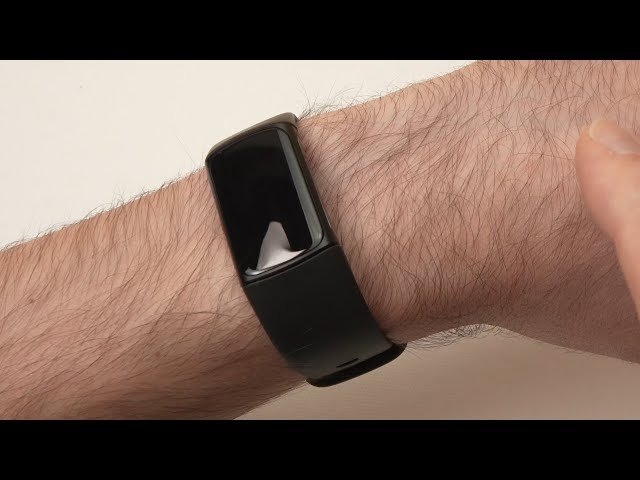
The most frequent reason for a blank screen is a battery that has fallen into a deep discharge state. If you leave your device without power for an extended period, the voltage drops below the threshold required to trigger the charging circuit. The device won’t show a charging icon until it recovers a minimum charge level. This varies by model — Check the output specifications on your charger; using a low-power USB port on a computer may not provide enough current to wake a deeply discharged battery.
Another cause is a firmware hang. Like any computer, the operating system can encounter a process that stops responding. If the software freezes while the screen is off, the display remains dark even if the battery is full. This isn’t a sign of permanent damage but rather a temporary communication error between the processor and the screen controller.
Finally, physical damage to the internal display connector can occur. If the device was dropped or exposed to high pressure, the ribbon cable connecting the screen to the motherboard may lose its connection. If you have already tried a forced restart and the screen remains dark, you should consult the Fitbit help center for specific troubleshooting steps and warranty information. If the device is out of warranty and the screen is physically broken, professional repair is often more expensive than a replacement unit.
Force a restart
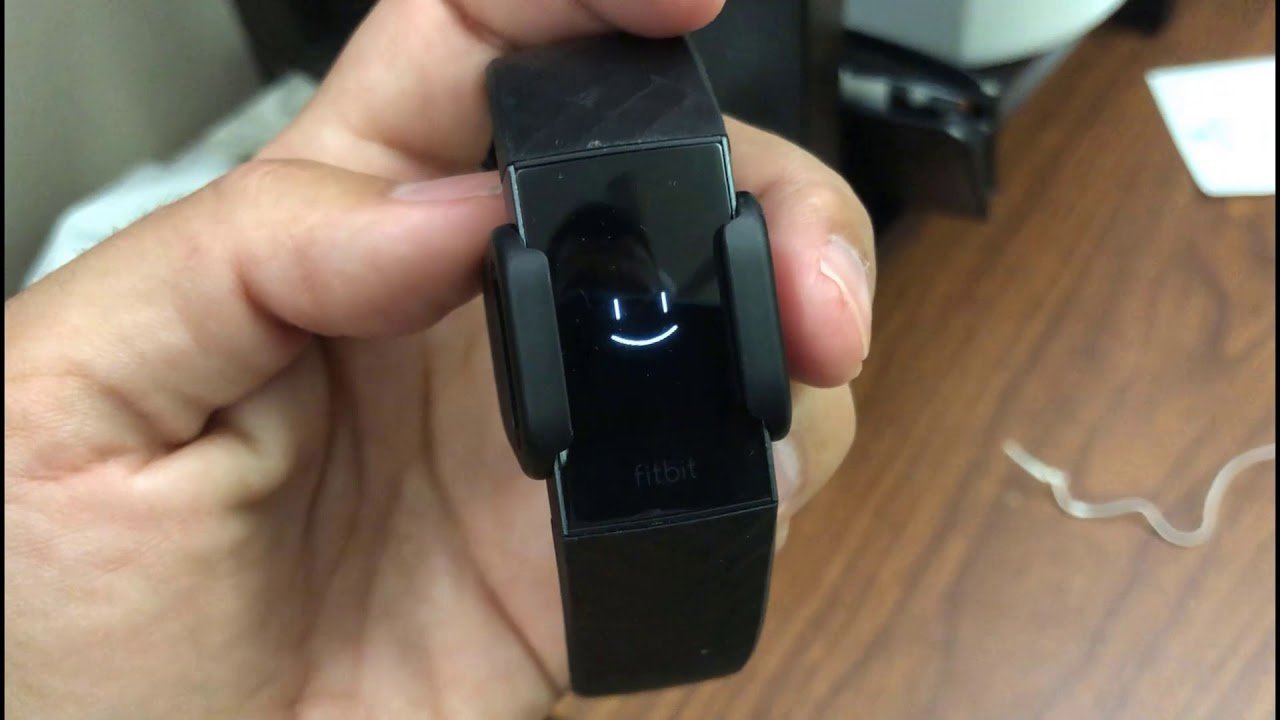
A forced restart is the first action to take when the screen doesn’t respond to touch or a button press. This process cuts power to the processor briefly to clear the temporary memory. To perform this, keep your charger connected to the device and plug the other end into a wall adapter. Most models require you to press and hold the main button for ten to fifteen seconds until the brand logo appears on the screen.
If your device doesn’t have a button, look for a small pinhole on the charging cable or the device itself. You may need a paperclip to press the button inside this hole while the unit is plugged into power. If the device vibrates or shows a low battery icon, the restart was successful. If nothing happens after holding the button for twenty seconds, try a different wall outlet or a different charging cable. This assumes the device has no water damage; if you suspect liquid ingress, don’t attempt to charge it, as this can cause a short circuit. This fix isn’t for devices with cracked screens, as the hardware is already compromised.
Clean the charging contacts
Dirty charging pins often prevent the device from receiving enough power to wake the screen. Over time, sweat, lotion, and dead skin cells create a layer of grime on the metal contacts. This layer acts as an insulator, stopping the current from flowing from the charger to the battery.
To clean the contacts, use a soft-bristled toothbrush or a cotton swab dipped in a small amount of isopropyl alcohol. Gently rub the metal pins on both the device and the charging cable. Don’t use metal tools like needles or knives, as these can scratch the gold plating and lead to permanent corrosion.
Many users mistakenly use water or household cleaners. These liquids leave behind mineral deposits that accelerate oxidation, which creates a permanent barrier to electricity. Always use 70% or higher isopropyl alcohol to ensure the liquid evaporates instantly without leaving residue.
Once the contacts are shiny and clean, dry them thoroughly with a lint-free cloth. Reconnect the charger and wait at least thirty minutes before checking the display. If the screen shows a charging indicator, leave it plugged in until it reaches full capacity. If the screen remains blank after cleaning and waiting, the issue is likely internal and requires a professional inspection.
Check the charging source
Sometimes the problem isn’t the device, but the power source providing the energy. Many USB ports on older laptops or keyboards don’t output the steady voltage needed to revive a drained battery. If you’re using a computer port, switch to a certified wall adapter that came with a smartphone or tablet.
This is worth the effort because it eliminates the variable of insufficient power. If you have been using a third-party charging dock, try the original cable that came in the box. Third-party cables often have pins that don’t align perfectly with the device contacts, leading to intermittent charging.
Check the output label on your power brick before plugging it in. This triggers thermal protection circuits that prevent charging entirely to protect the hardware. If you see the device heat up but the screen remains dark, you’re likely using an incompatible high-speed charger.
If you switch to a known-working wall adapter and a genuine cable, and the screen still doesn’t light up after two hours, the battery has likely reached the end of its lifespan. If your device is only a few months old, this is a clear sign of a defective battery that should be covered under the manufacturer’s limited warranty. Always prioritize the manufacturer’s original power brick to ensure the handshake protocol between the charger and the battery functions correctly.
What not to do
Don’t place the device in a freezer to “reset” the battery. This creates internal condensation that corrodes the logic board, leading to permanent hardware failure.
Avoid using a screwdriver to pry open the watch casing. This action destroys the factory-applied water-resistant seal. Once the seal is broken, your warranty is voided, and the device becomes susceptible to moisture damage during daily wear.
Never use a hairdryer or oven to dry the device after water exposure. High heat melts the delicate internal plastic components and warps the battery casing. If the watch gets wet, pat the exterior dry with a lint-free cloth and place it in a sealed bag with silica gel packets for 24 hours.
Don’t press the screen with force. Excessive pressure cracks the glass or damages the sensitive digitizer layer. If the screen remains unresponsive, perform a soft reset by holding the side button for ten seconds instead.
How to stop it happening again
Consistency is the best way to keep your display working for years. Follow this guide to manage your device health.
| If you’re doing this | Do this instead | Why |
|---|---|---|
| Cleaning with water | Cleaning with alcohol | Prevents moisture and corrosion |
| Using random USB ports | Using a wall adapter | Provides stable, constant voltage |
Most users mistake a full charge for a healthy one. Storing a device at 100% capacity for long periods causes internal voltage stress that degrades capacity by roughly 10% annually. If you plan to store your device for more than a month, discharge it to exactly 50%.
Check your power source before plugging in. Always match the manufacturer’s recommended wattage to ensure a steady current. If the screen flickers during charging, switch to a certified wall brick immediately to avoid permanent hardware failure.
Frequently asked questions
Can I fix a blank screen by tapping it?
No, tapping a blank screen won’t fix a software freeze or a dead battery. If the display is completely dark, the internal controller isn’t sending a signal to the screen. Tapping can only help if the screen is on but unresponsive to touch, which suggests a digitizer error. If the screen is black, focus on the power supply and the forced restart method rather than physical input.
Why is my screen black but it vibrates?
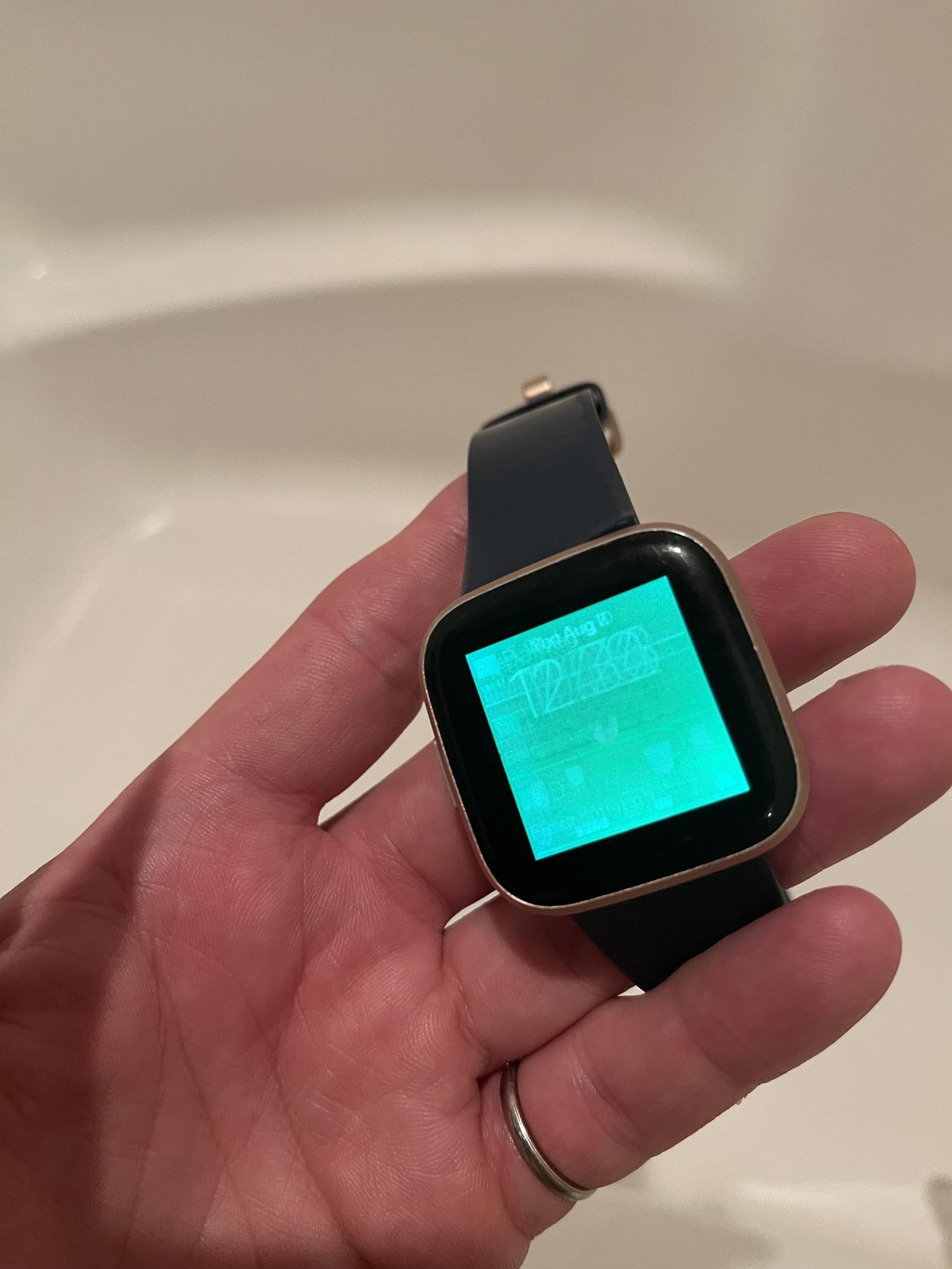
Your device is powered on, but the display panel or the ribbon cable has failed. When a device vibrates for alerts but shows nothing, the main processor is working, but the video signal isn’t reaching the screen. This is a hardware failure that can’t be fixed with software resets. You should contact the manufacturer’s support team to discuss repair options or a potential replacement if the device is still under warranty.
How long should I charge a dead fitbit?
You should charge a completely dead device for at least two hours before expecting a response. If the battery was drained to zero, it needs time to reach a “trickle charge” state before the operating system can boot. Don’t assume the device is broken if it doesn’t light up within the first few minutes of being plugged in.
Is it safe to leave my device charging overnight?
Yes, modern lithium-ion batteries have built-in circuits that stop the flow of electricity once the battery reaches one hundred percent. You don’t need to worry about overcharging the device by leaving it plugged in while you sleep. However, ensure the device is in a cool, dry place to prevent heat buildup, which is the primary enemy of battery longevity.
What happens if I ignore a flickering screen?
Ignoring a flickering screen usually leads to a permanent black display within a few weeks. A flicker often indicates that the ribbon cable is loose or that the backlight driver is failing. If you notice flickering, back up your data immediately using the mobile app. Once the screen goes completely black, you’ll be unable to access the settings to perform a backup.
Final Thoughts
If your device still won’t wake up, don’t worry. You should reach out to the manufacturer’s support team to check your warranty status. They’ll help you determine if a replacement is necessary. It’s a simple way to get back to tracking your fitness goals without any more frustration.


