
If you have an app not deleting from Mac, you can fix it by force-quitting the application through Activity Monitor to clear the file lock. The system blocks deletion while a program runs in the background, often triggering a Finder error. Once you end the process, you can drag the app to the Trash.
Why this happens
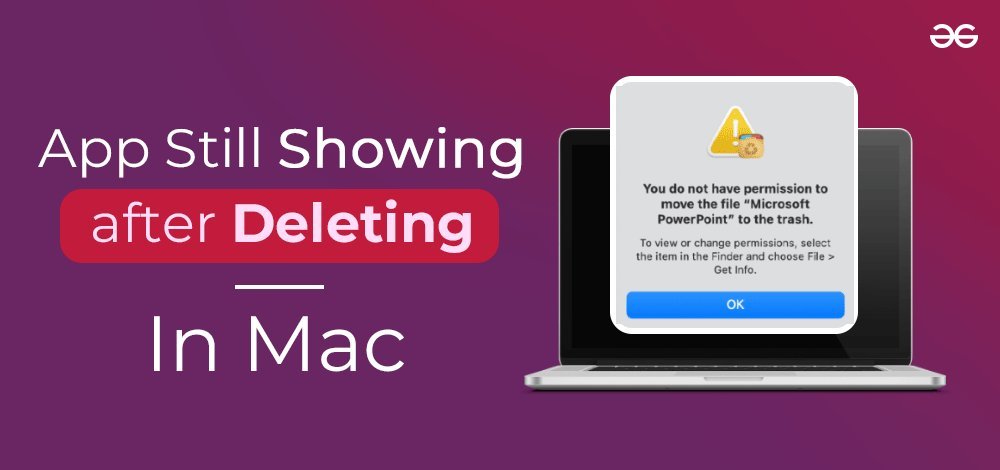
The primary reason you can’t delete an app is that the macOS operating system protects files currently in use by the CPU. Even if you closed the main window of an app, a helper tool or background agent might still be active. This is common with security software, cloud synchronization tools, or media players that keep a daemon running to handle updates or background tasks.
Another cause is permission restrictions. If you didn’t install the app with administrator privileges, or if the file is marked as “locked” in the Get Info window, the Finder will refuse to move it. This is a safety feature designed to prevent users from accidentally removing system-critical components or software that requires specific credentials to modify.
Finally, some applications install files in multiple locations, such as the Library folder or Application Support directories. If you’re trying to delete only the primary icon, the system might block the action if it detects that the app is linked to an active user profile. If you’re unsure if a file is safe to remove, consult the Apple support guide for managing apps to see which files are standard for third-party software.
Force quit through the Activity Monitor
If an app refuses to leave your folder, you must terminate its active processes. Open the Activity Monitor by pressing Command + Space and typing “Activity Monitor.” Once the window opens, click the “CPU” tab to see all running tasks. Locate the app you want to delete in the list. Select the process by clicking on it once, then click the “X” button at the top of the window. A dialog box will appear asking if you want to quit the process. Choose “Force Quit” to ensure the app stops immediately.
This method is for users who have a stuck process that doesn’t respond to a standard Quit command. If the process restarts automatically after you force it to quit, it’s likely a background agent or a “Login Item” set to launch at startup. You can check these in System Settings under General > Login Items. If you don’t have administrative access, you may be unable to kill system-level processes, which is a limit designed to protect the integrity of the OS. If the app still refuses to move after you force quit it, restart your Mac to clear the temporary memory cache.
Modify file permissions for locked apps
Sometimes a file is simply locked, which prevents any changes, including deletion or renaming. To fix this, locate the app in your Applications folder and click it once to highlight it. Press Command + I to open the “Get Info” window. Look for the “Locked” checkbox near the top of the menu. If it’s checked, click it to uncheck the box. You might need to enter your Mac password to confirm this change.
This fix is ideal for users who see a “locked” icon on the file or receive a specific permission error when trying to move the item to the Trash. If you can’t uncheck the box, it means you lack the necessary permissions. This is common if the app was installed by a different user account on the same machine. In this case, you must log in as an administrator to change the settings. If you aren’t the primary user, you’ll need to ask the administrator to perform this step for you. Attempting to force-delete files via Terminal without proper authorization can lead to system instability, so always stick to the Finder interface if you aren’t an advanced user.
Use a dedicated uninstaller tool
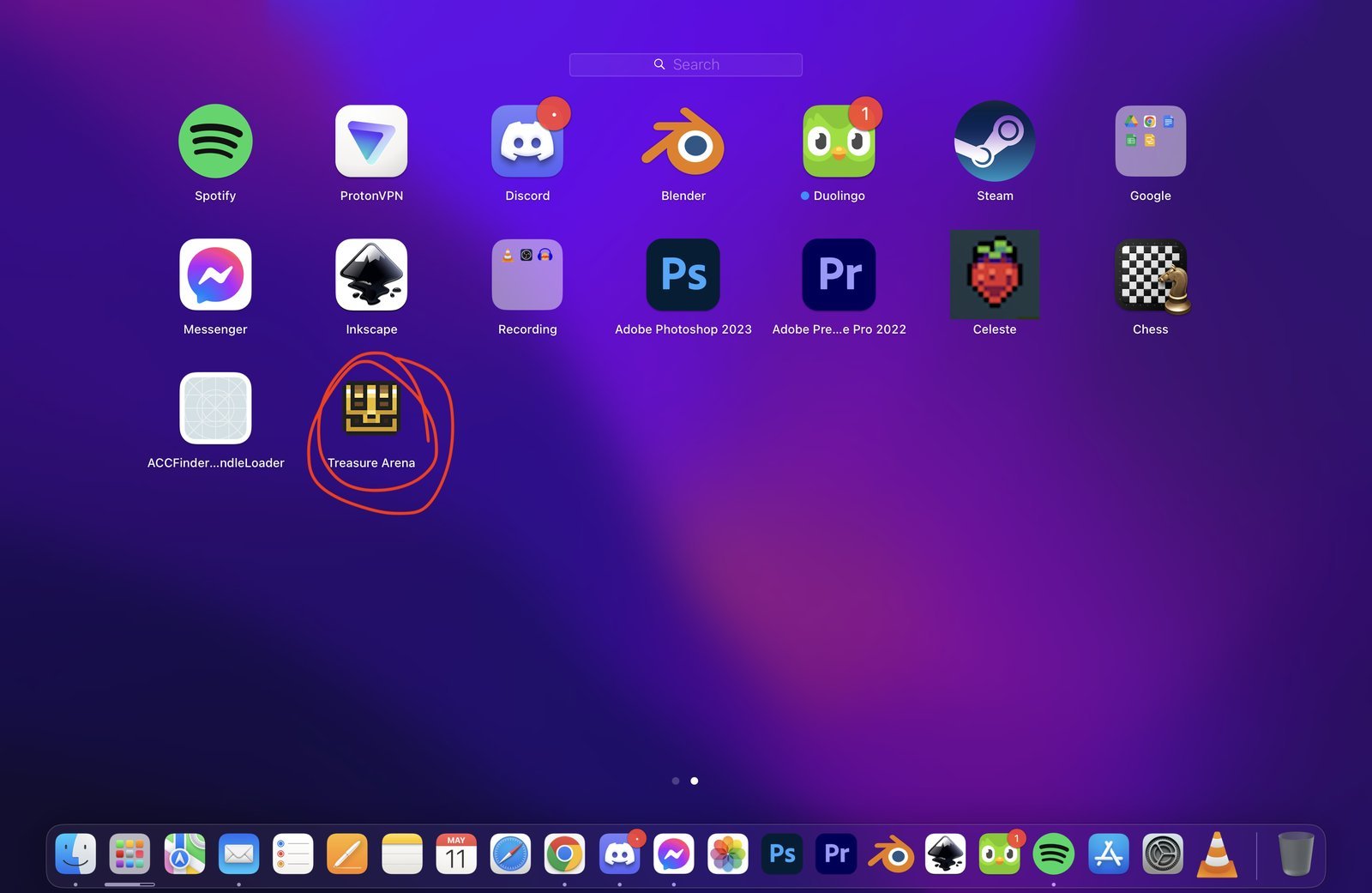
For complex software that spreads files across your system, a manual delete often leaves behind hidden files that can cause errors later. If you find that a simple move to the Trash doesn’t work, it’s worth using an official uninstaller provided by the developer. Many professional suites, such as Adobe Creative Cloud or Microsoft Office, include a specific “Uninstall” utility inside their installation folder. Running this utility is the safest way to remove the app and all its associated helper files without risking the deletion of critical system data.
If you’re a casual user, this is usually the most reliable path. It saves you from searching through hidden Library folders where you might accidentally delete a file needed by another program. If the developer doesn’t provide an uninstaller, you can look for third-party tools that track installation paths, but be aware that these apps require full disk access to work correctly. If you don’t feel comfortable granting such high-level permissions to a third-party tool, stick to the manual methods. Only use this method if the app is large and installed via an installer package rather than a simple drag-and-drop icon.
What not to do
Don’t force-delete files using the Terminal “sudo rm” command. This bypasses all system safeguards. A single misplaced space in your command can wipe your entire user directory instead of a single folder. If you’re unsure of the path, use the “rm -i” flag to prompt for confirmation before every deletion.
Don’t delete files directly from the System or Library folders manually. These directories house essential configuration files. Removing a single preference file can prevent your Mac from booting or disable core hardware drivers. If a folder looks cluttered, leave it alone.
Don’t use generic “cleaner” apps that claim to optimize your system. Most of these tools lack the granular intelligence to distinguish between temporary cache files and critical system states. Using them often leads to persistent background crashes.
Don’t drag an app icon to the Trash while it’s still running. This triggers a “zombie” process. The system will keep the app’s memory allocated, draining your battery and slowing performance. Always quit the application via the menu bar or by pressing Command-Q before moving it to the Trash.
How to stop it happening again
To keep your system clean, always use the correct removal method for each type of app.
| If you’re doing this | Do this instead | Why |
|---|---|---|
| Dragging icons while open | Quit the app first | Prevents file-in-use errors |
| Guessing file locations | Use the developer’s uninstaller | Avoids deleting system files |
| Ignoring error messages | Read the specific alert | Identifies if it’s a permission issue |
| Forcing via Terminal | Use the Finder | Protects against accidental deletion |
Most users mistakenly assume that moving an application icon to the Trash is sufficient. This leaves behind hidden preference files and cache data that can total hundreds of megabytes. Over time, these orphaned files accumulate and cause system-wide performance degradation.
If an application lacks a dedicated uninstaller, use a reputable third-party utility to scan for these remnants. If you see a “file in use” error during deletion, don’t force the process. Instead, open your Activity Monitor to identify the background process holding the lock. Kill that specific process first to ensure a clean, complete removal.
Frequently asked questions
App not deleting from Mac? What to do if it’s open
No, you can’t delete an app that’s currently open because macOS locks files in use to prevent data corruption. You must first quit the application or use Activity Monitor to force the process to end. Once the app is no longer active, you can move the file to the Trash without errors.
Why is the trash icon grayed out?
The Trash icon is usually grayed out because the files inside are currently being used by an active process or are locked by the system. If you can’t identify the file, restart your computer. A restart clears all active processes and releases file locks, which usually allows you to empty the Trash normally upon the next login.
Is it safe to delete apps from the Library folder?
No, it isn’t safe to delete files from the Library folder unless you’re certain they belong to an app you have already uninstalled. The Library folder contains configurations for your entire system and other installed software. Deleting the wrong file here can cause your Mac to behave strangely or prevent other apps from launching. Only remove items from the Library if you’re following specific instructions from the software developer.
How long does it take to force quit an app?
It usually takes less than five seconds to force quit an app once you have the Activity Monitor open. The time depends on how many processes the app is running. If an app has many background agents, you might need to repeat the process for each agent.
What happens if I delete a system file by mistake?
If you delete a system file, your Mac may show errors, fail to open certain apps, or stop booting correctly. If you have a Time Machine backup, you should restore the file from there immediately. If you don’t have a backup, you may need to reinstall the macOS to restore the missing system components. Always exercise caution when moving files out of the Applications folder to avoid affecting core system functions.
Final Thoughts
If you still can’t empty your Trash, try restarting your computer to clear any lingering background tasks. It’s a simple trick that usually solves those stubborn remaining files. Once your Mac reboots, you’ll find your storage space is finally clear and ready for whatever new projects you’ve got planned next.
Related guides


