
You can usually fix a fitbit versa 2 not syncing by force-restarting your watch and clearing the Bluetooth cache on your smartphone. This issue happens when the connection between your mobile device and the wearable becomes unstable or when the background sync service hangs. For most users, a simple reboot of the watch clears the temporary software glitch causing the data transfer to stall. If the problem persists, checking your phone’s app permissions is the next step to ensure the tracker has the necessary access to push data to your account.
Fixing a Fitbit Versa 2 Not Syncing
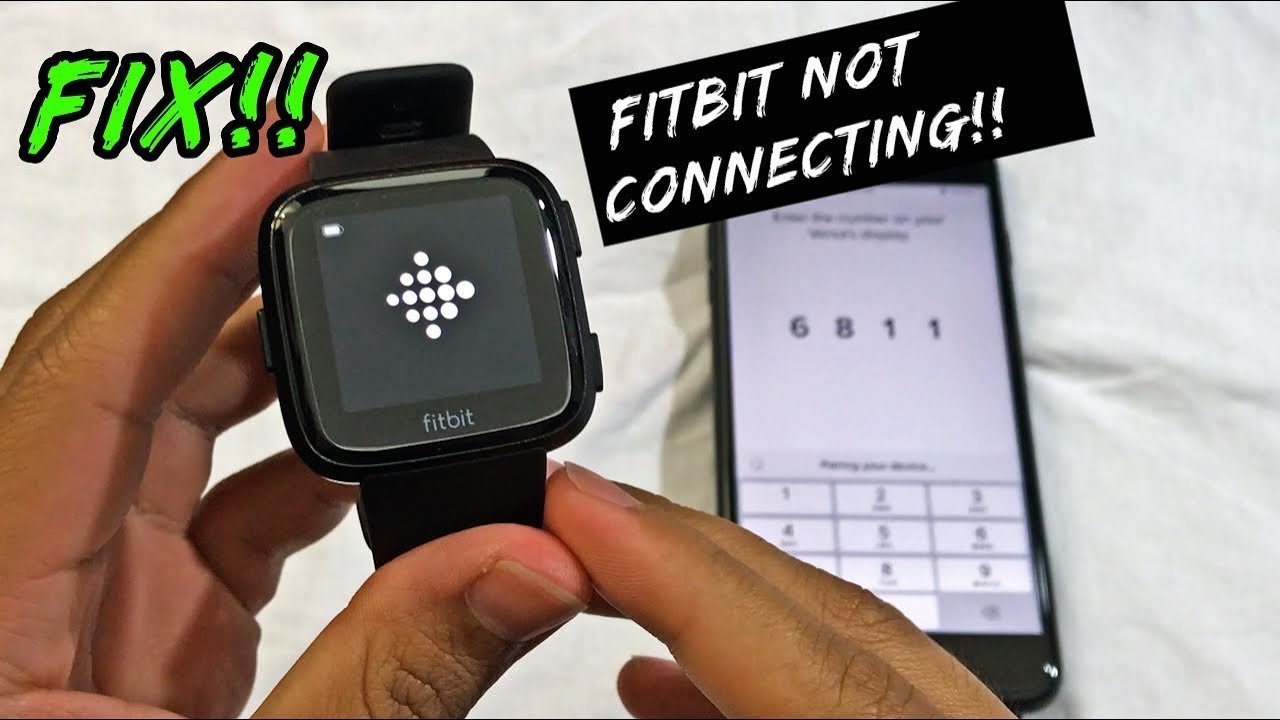
Synchronization failures often stem from software conflicts between the Fitbit app and your smartphone’s operating system. When your phone updates its OS, it may sometimes restrict the background data permissions that the app requires to function correctly. This is a common hurdle for many users after a system patch.
Another primary reason is a corrupted Bluetooth cache. Your smartphone keeps a list of saved connections to make pairing faster, but these files can become outdated or damaged. If the Bluetooth handshake fails, the app cannot “see” your watch, even if the watch appears to be connected in your phone’s settings.
Environmental factors also play a part. If you have too many active Bluetooth devices nearby—such as wireless speakers, smart home hubs, or other wearables—your phone might struggle to maintain a stable stream with the watch. This varies by model; check the label or your phone’s documentation for its maximum supported concurrent Bluetooth connections. If you suspect interference, turn off other Bluetooth devices temporarily to see if the sync resumes. Finally, ensure your Fitbit app is updated to the latest version. Older versions of the app may not communicate properly with newer mobile operating systems, leading to persistent sync errors. You can verify the latest software requirements on the Fitbit official help page.
Force restart the watch
This fix is for users whose device is completely unresponsive or stuck during a sync attempt. A force restart clears the watch’s temporary memory without deleting your personal data or activity logs.
To perform this, locate the single button on the left side of your Versa 2. Press and hold this button for about 10 to 12 seconds. Keep holding until the screen goes dark and you see the Fitbit logo appear on the display. Once the logo pops up, let go of the button and wait for the watch to boot up normally. Once it’s back on, open the Fitbit app on your phone and pull down on the dashboard to trigger a manual sync.
If this doesn’t work, the watch might have a low battery. If your battery level is below 20%, the device often disables high-power features like Bluetooth syncing to preserve energy. Plug the watch into its charger and wait for it to reach at least 50% charge before trying the sync again. This is a mistake many people make, assuming the watch will sync even when “power save” mode is active. If the watch still refuses to sync after a restart and a full charge, you may need to remove the device from the app and re-pair it as a new device.
Refresh the Bluetooth connection
If restarting the watch didn’t help, the issue likely resides in your phone’s Bluetooth settings. This approach is for users who see the watch as “connected” in their phone’s settings but still can’t see data in the app.
First, go to your phone’s Bluetooth settings and find the Versa 2 in your list of paired devices. Select “Forget this device” or “Unpair.” Next, turn Bluetooth off on your phone entirely, wait about 15 seconds, and turn it back on. Now, open the Fitbit app. Don’t try to pair the watch through your phone’s general Bluetooth menu; you must pair it strictly through the Fitbit app interface.
If you’re using an Android phone, make sure “Location Services” are turned on. Android requires this for Bluetooth Low Energy (BLE) scanning, which is the technology your watch uses to sync. Without this permission, the app can’t locate the watch even if Bluetooth is active. If you’re on an iPhone, ensure that “Background App Refresh” is enabled for the Fitbit app in your settings. This allows the app to pull data even when you aren’t actively looking at the screen. If you have multiple phones, ensure the watch isn’t trying to sync with a different device nearby. If it is, turn off Bluetooth on the second phone.
Reinstall the Fitbit app
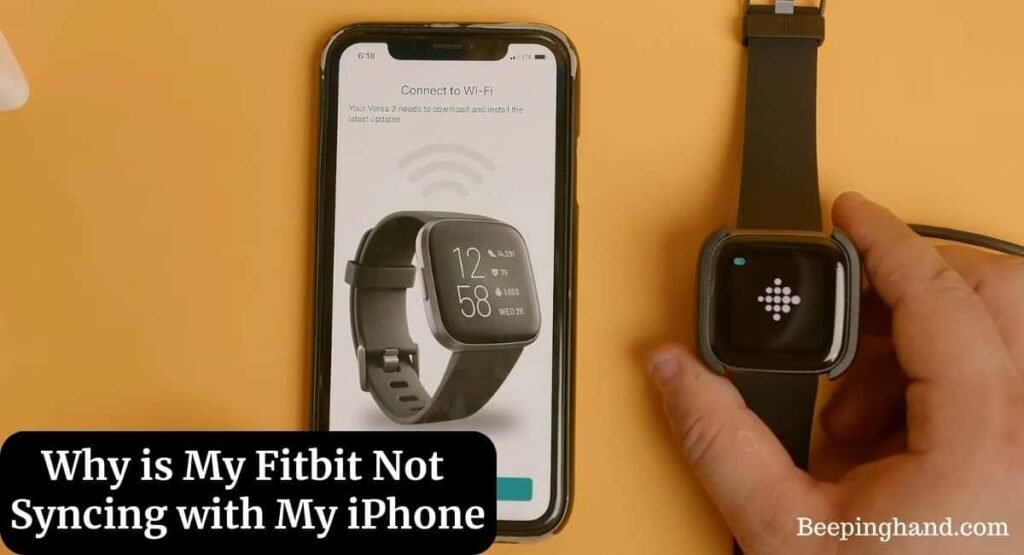
Sometimes the app itself becomes corrupted, and the only way to fix it’s a clean install. This is for users who have tried the steps above without success.
Before you start, make sure you know your login email and password, as you’ll need to sign back in. Delete the Fitbit app from your phone entirely, then restart your phone. This ensures that any leftover cache files are wiped from the system memory. Once the phone has restarted, go to your app store, download the latest version of the Fitbit app, and log in.
When you open the app, it should prompt you to set up a new device. Select your Versa 2 and follow the on-screen instructions to re-link it to your account. This process forces the app to re-establish the security keys needed for syncing. This is a time-consuming process, so only do this if you have about 15 minutes to spare. If you have a professional athlete account or a specific corporate health plan, keep in mind that re-pairing might require you to re-sync your data with those specific third-party dashboards. If the app still shows a sync error after a clean installation, you may have a hardware failure in the watch’s Bluetooth antenna. In that case, you should contact Fitbit customer support for a potential warranty claim.
What not to do
- Don’t perform a factory reset immediately: Many people jump to a factory reset, which wipes all your unsynced data and requires a full setup, when a simple restart would have fixed the issue.
- Don’t keep tapping “Sync Now” repeatedly: Pushing the sync button dozens of times only puts more stress on the Bluetooth connection and can cause the app to crash or freeze.
- Don’t use third-party “Fix My Fitbit” apps: These apps are often scams that don’t have access to your watch’s internal hardware and can potentially steal your login credentials.
- Don’t ignore system updates: Skipping OS updates on your phone often leads to compatibility issues that make syncing impossible, as the phone’s Bluetooth protocol may change.
- Don’t leave the watch on the charger while syncing: While it’s fine to charge, some users find that the heat generated during fast charging can interfere with the wireless signal, making a sync attempt less stable.
How to stop it happening again
Consistency is the best way to keep your data flowing smoothly. If you make these small adjustments to your daily routine, you’ll rarely face sync errors again.
| If you’re doing this | Do this instead | Why |
|---|---|---|
| Closing the app entirely | Keep the app running in the background | The app needs to be active to push data. |
| Turning off Bluetooth to save power | Keep Bluetooth enabled at all times | Constant pairing is more reliable than repeated reconnects. |
| Syncing once a week | Sync at least once every 24 hours | The watch has limited memory for storing data. |
| Ignoring app update prompts | Update the app as soon as it releases | Updates fix known bugs that block connections. |
Frequently asked questions

Can I sync my Fitbit without Wi-Fi?
Your watch uses Bluetooth to sync data to your phone without needing Wi-Fi. However, your phone requires an active internet connection to upload that synced information to Fitbit servers. If you lack cellular or Wi-Fi access, data won’t appear on your online dashboard until your phone reconnects to the internet.
Why does my Fitbit say “Sync Pending” for hours?
This error usually means your phone is blocking the app from communicating in the background. Check your “Battery Optimization” settings and set the Fitbit app to “Unrestricted.” Note that if your operating system puts the app to sleep to save battery, it will kill the sync process before it can finish.
How long should a sync take?
A normal sync takes between 30 and 60 seconds depending on how much data is stored on the watch. If you haven’t synced for several days, it might take up to three minutes because there’s more activity data to transfer. If your sync takes longer than five minutes, the process has likely stalled, and you should force-close the app and restart your Bluetooth to kickstart the connection.
Is it safe to unpair my watch?
Yes, it’s perfectly safe to unpair your watch, as your data is stored on the Fitbit servers once it has successfully synced. Any data that hasn’t yet synced will be lost during the unpairing process, which is why you should always try a simple restart first. When you re-pair the watch, the app will recognize your account and restore your settings, watch faces, and historical activity logs automatically.
What happens if I change my phone?
You must remove the watch from your old phone’s Bluetooth list and set it up as a new device on your new phone. Your data is tied to your account, so your history will appear once you sign in. Ensure your watch is fully charged, as the setup process consumes significant battery power.
Final Thoughts
If you still can’t get your data to update, don’t worry. Sometimes the best approach is to reach out to Fitbit’s support team directly through their website. They’ll help you figure out if there’s a deeper hardware fault, so you won’t have to keep struggling with your device on your own.


