
The most common reason for 4k capture utility not recording is a conflict between the software’s encoder settings and your computer’s current hardware resources. To fix this immediately, close all other demanding applications, go to the settings menu, and change your encoder to “Software (x264)” if your hardware encoder is failing, or “Hardware (NVENC/AMD)” if it’s currently set to software mode. This mismatch prevents the application from writing the data stream to your disk.
Why this happens
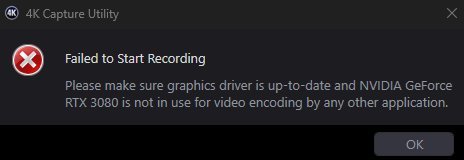
The primary reason this issue occurs is that the software requires a steady stream of data to be processed and saved to your hard drive in real time. If your computer is busy, the capture utility can’t handle the incoming video signal. This creates a bottleneck, causing the recording to fail or show a black screen.
A second cause involves storage space and file permissions. If your chosen save folder is full, or if the software lacks “Administrator” privileges to write files to that directory, the recording will simply stop or refuse to start. The software needs consistent read/write access to the destination drive.
Finally, hardware limitations play a role. Capturing at 4K resolution demands significant bandwidth from your USB controller and high write speeds from your storage media. If you’re using a mechanical hard drive that’s already fragmented, or a USB hub that can’t handle the data throughput, the utility will abort the recording to prevent data corruption. This varies by model — check the label on your capture card for the required USB standard (such as USB 3.0 or 3.1) and ensure your cable supports that speed.
Adjust your encoder settings
This fix is for users who see the capture utility open but receive an error message as soon as they hit the record button. You must switch the processing method to see if your graphics card or your processor is the better choice for your specific rig.
Open the Elgato 4K Capture Utility and navigate to the “Preferences” menu. Look for the “Recording” tab. Under the “Encoder” section, you’ll see a dropdown menu. If it’s currently set to “Software,” try switching it to your specific graphics card option, such as “NVIDIA NVENC” or “AMD AMF.” If it’s already on hardware, switch it to “Software” to see if your CPU can handle the load.
After changing this, attempt a short 10-second test recording. If the recording succeeds, the previous setting was incompatible with your current driver version or hardware state. If it still fails, your hardware might be overheating or struggling with the 4K bitrate. This is a common trade-off: using your CPU takes load off the GPU, but it can make your computer sluggish while gaming. If you don’t have a dedicated graphics card, you should always stick to the software encoder. If you notice the software is still crashing, you can check system requirements on the official Elgato support page to ensure your CPU and RAM meet the minimum threshold for 4K processing.
Check your storage permissions
This fix is for users who have confirmed their hardware is powerful enough but still face “Recording Failed” errors. Often, the software is trying to save to a protected folder or a drive that’s technically “Read Only” due to a system update or a change in user permissions.
First, identify the exact folder where your files are meant to be saved. Right-click that folder in Windows File Explorer, select “Properties,” and verify that the “Read-only” box is unchecked. If it’s checked, uncheck it and click “Apply” to all subfolders. Next, close the 4K Capture Utility completely. Right-click the application icon on your desktop or in your start menu and select “Run as Administrator.” This forces the application to have full control over your drive’s file structure.
If this works, you should make this permanent. Right-click the shortcut, choose “Properties,” go to the “Compatibility” tab, and check the box that says “Run this program as an administrator.” This isn’t for everyone; if you share your computer with other users, ensure they have their own accounts to avoid permission conflicts. A mistake people make is trying to save recordings to a cloud-synced folder like OneDrive or Dropbox. These services constantly try to “sync” the file while you’re recording it, which causes the capture utility to lock up. Always save to a local, non-synced drive folder for the best performance.
Update your drivers and firmware
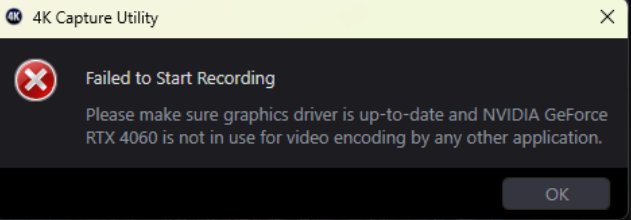
This fix is for the harder cases where settings changes don’t work. It’s worth the time if your capture card has stopped working after a major Windows update or a GPU driver change. If you haven’t updated your drivers in more than six months, this is likely the source of your conflict.
To do this, visit the official manufacturer’s website and download the latest “Game Capture” software and firmware update tool. Don’t rely on Windows Update to find these, as it often provides generic drivers that lack the specific hooks needed for 4K capture. This process requires you to have the capture card physically installed and detected by the system. If you aren’t comfortable navigating driver installations or BIOS settings, you should ask a friend with technical experience or contact the manufacturer’s support team. Attempting to force a firmware update if your power supply is unstable can risk “bricking” your device, meaning it will stop working entirely. If you have a high-end setup, you should also check that your PCIe slot is set to Gen 3 or Gen 4, depending on your card’s manual. If you have already tried these steps and the device is still not recording, your capture card may have a hardware fault, and you should initiate a warranty claim with the company.
What not to do
Don’t try to record 4K content to a USB 2.0 thumb drive. These drives typically cap out at 30 MB/s, while 4K video often requires a sustained write speed of at least 60 MB/s to prevent dropped frames.
Avoid turning off your antivirus software entirely to test for interference. Instead, add an exclusion for your specific recording folder. Disabling protection leaves your system vulnerable to background threats that can spike CPU usage and ruin your stream.
Don’t use video editing software to record while your capture utility is open. Both programs will fight for exclusive access to the hardware encoder. This conflict usually results in a black screen or a fatal software crash.
Never unplug the USB cable from the capture device while the utility is running. This sudden disconnect prevents the software from finalizing the file header. You’ll likely lose the entire recording, as the file will remain unreadable and permanently corrupted. If the device freezes, close the software first.
How to stop it happening again
To prevent this from recurring, keep your system environment stable and predictable. The most important rule is to ensure your storage destination is always ready for high-speed data.
| If you’re doing this | Do this instead | Why |
|---|---|---|
| Saving to a cloud folder | Save to a local SSD | Cloud syncing interrupts the write stream |
| Running many apps | Close background tasks | 4K capture needs dedicated CPU/GPU resources |
| Using a USB hub | Connect directly to the PC | Hubs often limit bandwidth for 4K signals |
| Ignoring updates | Update firmware/drivers | Drivers fix compatibility with new OS versions |
Frequently asked questions
Can I record 4K with a USB 2.0 cable?
No, you can’t record 4K video using a USB 2.0 cable because the data throughput is insufficient. USB 2.0 has a maximum speed of 480 Mbps, while 4K video requires much higher bandwidth. You must use a USB 3.0 or higher cable.
Why does my recording stop after a few seconds?
Your recording stops because your hard drive is likely running out of space or using an incompatible file system. 4K video files consume several gigabytes in minutes, and FAT32 limits file sizes. Ensure your drive is formatted as NTFS or exFAT.
Is it safe to change the encoder settings?
Yes, it’s safe to change your encoder settings in the utility. These settings only determine which component processes the video data without altering your hardware or files. If your system can’t handle a chosen encoder, the software will simply display an error.
How long can I record in 4K?
You can record for as long as you have free disk space on your storage drive. There’s no hard time limit within the 4K Capture Utility itself. Ensure your computer is set to “High Performance” mode to prevent sleep or hibernation during long sessions.
What happens if I lose power during a recording?
If you lose power during a recording, the file currently being saved will likely be corrupted and unreadable. The utility only finalizes the file header when you stop the recording manually. Use an Uninterruptible Power Supply or ensure your laptop is plugged into a wall outlet.
Final Thoughts
If these adjustments don’t get your footage flowing, check that your storage drive has plenty of free space, as large files fill up disks faster than you’d expect. You shouldn’t have to struggle with these errors for long. If issues persist, reach out to the support team for more personalized help.
Related guides


