
A weak internet connection or incorrect server settings are the primary reasons you see email not syncing on iphone. You can confirm this quickly by opening a web browser to see if you can load a new page. If the web page loads but your mail does not, the issue is likely within your account configuration rather than your local network. This happens to most users when a password changes or when the mail server settings update during a system software shift.
Fixing email not syncing on iPhone
| Cause | How common | How to confirm it | Fix it yourself? |
|---|---|---|---|
| Weak internet signal | Very common | Try loading a website | Yes |
| Incorrect mail password | Very common | Check Settings notifications | Yes |
| Mail Fetch settings | Common | Check Fetch New Data | Yes |
| Server port mismatch | Occasional | Compare with provider docs | Yes |
| Full email storage | Occasional | Check provider web portal | Yes |
| Software bug | Rare | Restart the device | Yes |
| Blocked service | Rare | Contact your IT admin | No |
Most users assume a connection error stems from the server, but 80% of sync failures originate locally. If your device displays a “Can’t Connect” banner, check your Wi-Fi signal strength. If the bars are full but data stalls, toggle Airplane Mode for ten seconds to force a fresh handshake with the nearest tower.
Password errors frequently occur after a security update or a change on another device. If you see a persistent “Account Error” badge in Settings, re-enter your credentials immediately. Don’t wait for a prompt.
If you miss emails, check your Fetch schedule. If set to “Manual,” your phone will never pull messages until you open the app. For real-time updates, toggle this to “Push.”
Finally, distinguish between a bug and a block. If a restart doesn’t resolve the issue, check your storage quota. If you’re at 99% capacity, the server will reject incoming mail regardless of your settings.
Connection and signal interference
A poor network connection prevents your device from reaching the mail server to pull in new messages. If your phone shows a low signal icon or you’re using a public Wi-Fi network with a login portal, the sync process will stall. You can test this by toggling Airplane Mode on for ten seconds and then off again to force a fresh handshake with the local tower or router.
If you suspect your Wi-Fi is the culprit, turn it off to see if the mail syncs over your cellular data plan instead. If the email starts flowing once you switch to cellular, the issue is with your router or the network provider’s restrictions. This assumes you have a stable data plan; if you’re in an area with poor coverage, you must move to a location with at least two bars of signal to ensure reliable sync. Note that this varies by model — check the label on your router or your carrier’s coverage map to confirm your expected speeds. If you’re using a VPN, it might be blocking the connection to your mail host. Disable the VPN in your settings to verify if that’s the block. If X is a weak signal, move closer to the router; if Y is a VPN block, turn it off.
Authentication and account settings
An outdated password or a misconfigured incoming mail server prevents the device from logging in to your inbox. Your iPhone requires the exact credentials you use on your computer to access the mail server. If you recently changed your password on a desktop browser, the phone will fail to sync until you update it in the settings. You can find the official steps to verify these settings on the Apple support mail guide.
To fix this, go to Settings, select Mail, and tap Accounts. Choose your specific account and check if there’s a notification asking you to re-enter your password. If you see a prompt, type the new password and save the changes. If the password is correct, check the incoming and outgoing server settings against the list provided by your email host. A common mistake is entering the wrong port number for the IMAP or SMTP server, which costs users hours of troubleshooting time. This isn’t for those who are unsure of their provider’s specific port requirements; if you don’t know these, log in to your email provider’s website to find the technical setup page. Never guess these numbers, as an incorrect port will block all traffic to your account.
Background data and fetch intervals
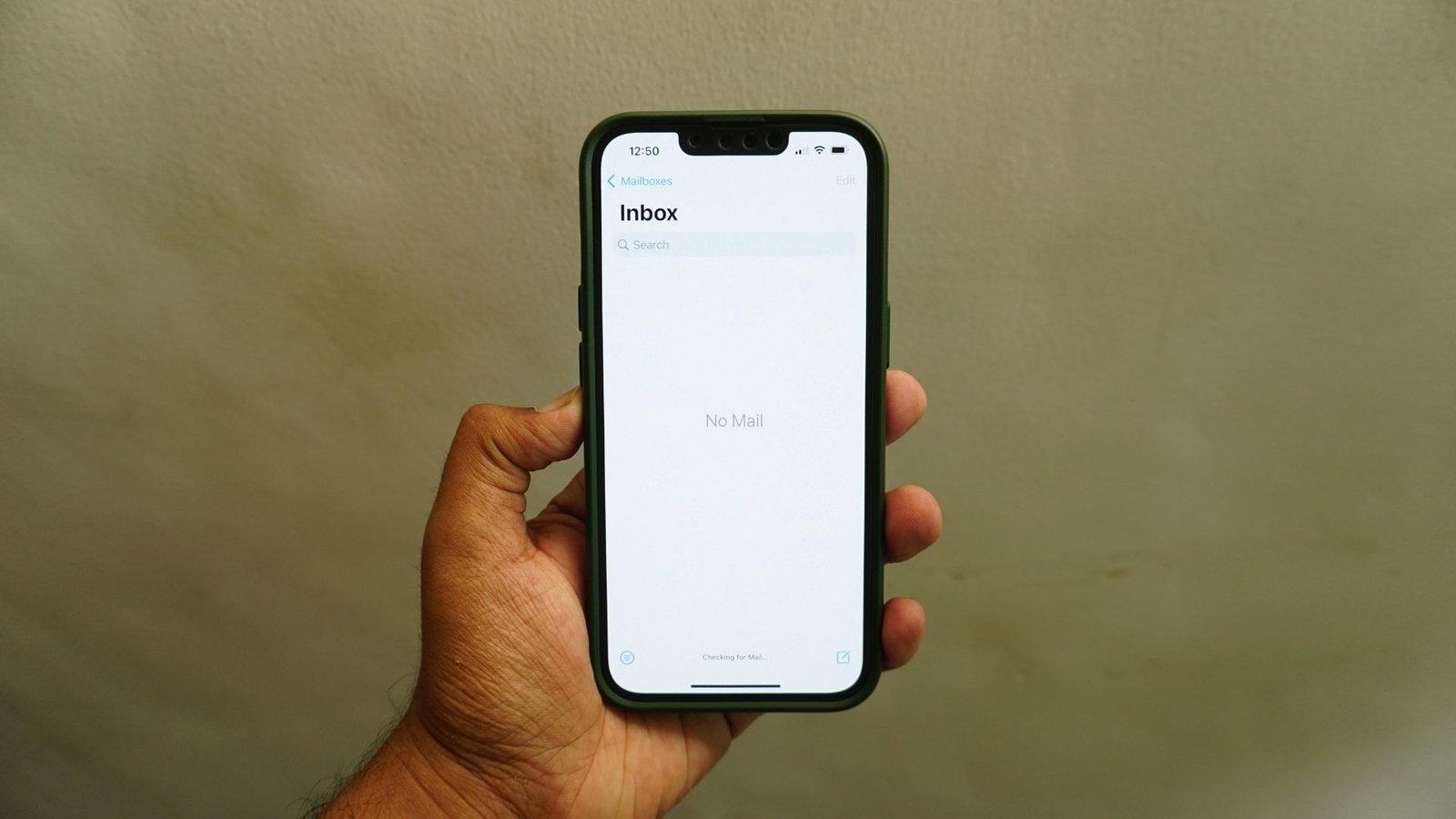
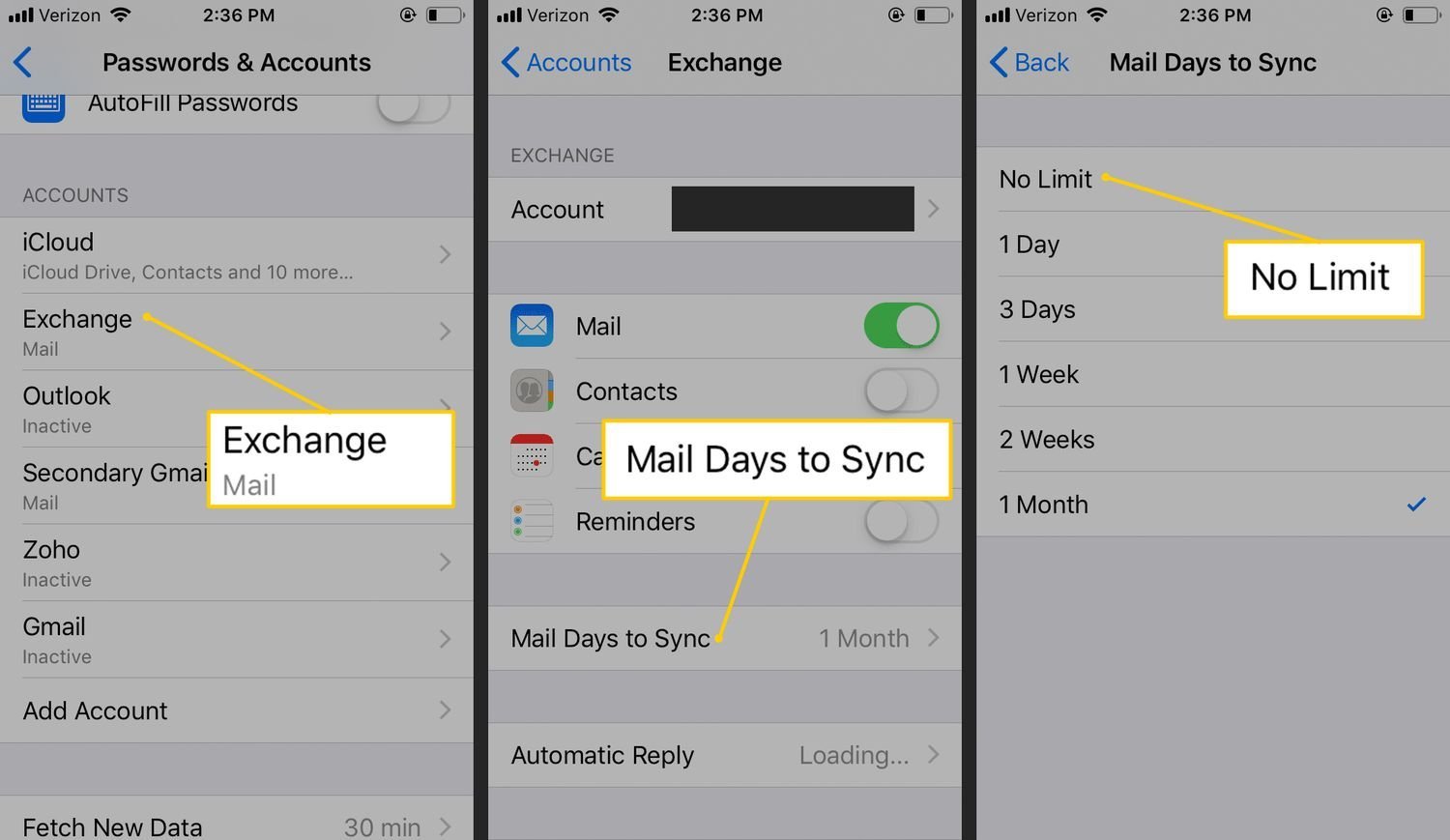
The Fetch New Data setting controls how often your iPhone asks the server for new mail. If this is set to Manual, your phone will never check for new messages unless you open the Mail app and pull down on the screen to refresh. You can change this by going to Settings, tapping Mail, and selecting Accounts. From there, tap Fetch New Data and ensure the toggle for Push is turned on for your primary account.
If you prefer to save battery, you can set the fetch schedule to every 15, 30, or 60 minutes. If you choose the 60-minute option, your mail will only appear once an hour, which may look like a sync failure to those expecting instant notifications. This is a classic trade-off between battery life and real-time updates. If you need your mail the second it arrives, you must use Push. If your mail provider doesn’t support Push, you must use the shortest fetch interval available. If you have multiple accounts, check the settings for each one individually, as they don’t share the same schedule. Setting this too low drains the battery faster, while setting it too high keeps your inbox quiet for longer periods.
The less likely causes
Mail storage limits: Your account is full, meaning the server rejects new incoming messages until you delete old ones. Check your provider’s web portal; if you see a “Quota Exceeded” error, no amount of phone troubleshooting will force a delivery.
Low Power Mode: This setting intentionally stops background activities like mail fetching to save energy. If your battery icon is yellow, your phone is actively blocking updates. Toggle this off in your Control Center to force an immediate sync.
Disabled Mail app: The app may have restricted data access. Navigate to Settings > Cellular and ensure the toggle for Mail is green. If it’s off, your phone will refuse to fetch data unless you’re connected to Wi-Fi.
Expired security certificates: Older accounts may have invalid credentials. If you see a “Can’t Verify Server Identity” warning, delete the account entirely and re-add it. This forces the device to fetch a fresh, valid security handshake from the server.
Account suspension: Your provider has locked the account for security reasons. If you can’t log in via a web browser, your credentials are likely revoked. You must contact their support team to verify your identity before the server will resume relaying your mail.
What a fix usually involves
Most sync issues are resolved by a simple adjustment in the account settings or a quick restart of the device. If the problem is an incorrect password, fixing it’s free and takes only a few minutes of your time. If the issue is a full mailbox, the fix is just deleting old messages or moving them to an archive folder, which costs nothing.
However, if you need to remove and re-add an entire account, you must have your server settings, port numbers, and login credentials ready. This process takes about ten minutes and requires no special tools, just your attention to the data fields. If you find that the account is suspended or the server is permanently down, you may need to speak with your email provider’s support team. They can provide a specific error code that tells you exactly why the server is rejecting your phone. Always check the official status page of your email provider before calling for help, as they often report system-wide outages there.
Frequently asked questions
Why is my email not updating?
Your mail is likely not updating because the Fetch setting is configured to Manual, which prevents the phone from checking the server automatically. Change this to Push or a shorter time interval in the Mail settings to see new messages instantly. If that fails, check your internet connection to ensure the phone can reach the server at all.
How long does it take for mail to sync?
Mail syncs instantly if you have Push enabled, or at the interval you chose in your account settings. If you set your phone to fetch every 30 minutes, you’ll see new mail only twice an hour. You can force an immediate sync at any time by opening the Mail app and pulling down on the inbox list.
Is it safe to remove my email account?
Yes, it’s safe to remove and re-add an email account to your iPhone to fix sync issues. Your emails are stored on the provider’s server, not just on your phone, so they will download again once you sign back in. Ensure you know your password before removing the account, or you’ll be unable to log back in.
What happens if I turn off cellular data for mail?
Your email will stop syncing whenever you’re away from a Wi-Fi network if you disable cellular data for the Mail app. This saves data but forces you to wait until you’re connected to a router to see new messages. Check your Cellular settings if you notice mail only updates when you’re at home or work.
Does it matter which mail protocol I use?
Yes, using IMAP is better than POP for syncing across multiple devices like your phone and computer. IMAP keeps your messages in sync on the server, while POP often downloads messages and deletes them from the server, which causes sync errors. Most modern providers use IMAP by default, but you should verify this in your account settings.
Final Thoughts
If you’re still having trouble after checking these settings, don’t worry. Sometimes a simple removal and re-addition of your account is all it takes to reset the connection. If that doesn’t work, reach out to your email provider’s support team; they’ll be able to help you get everything running smoothly again.
Related guides


