
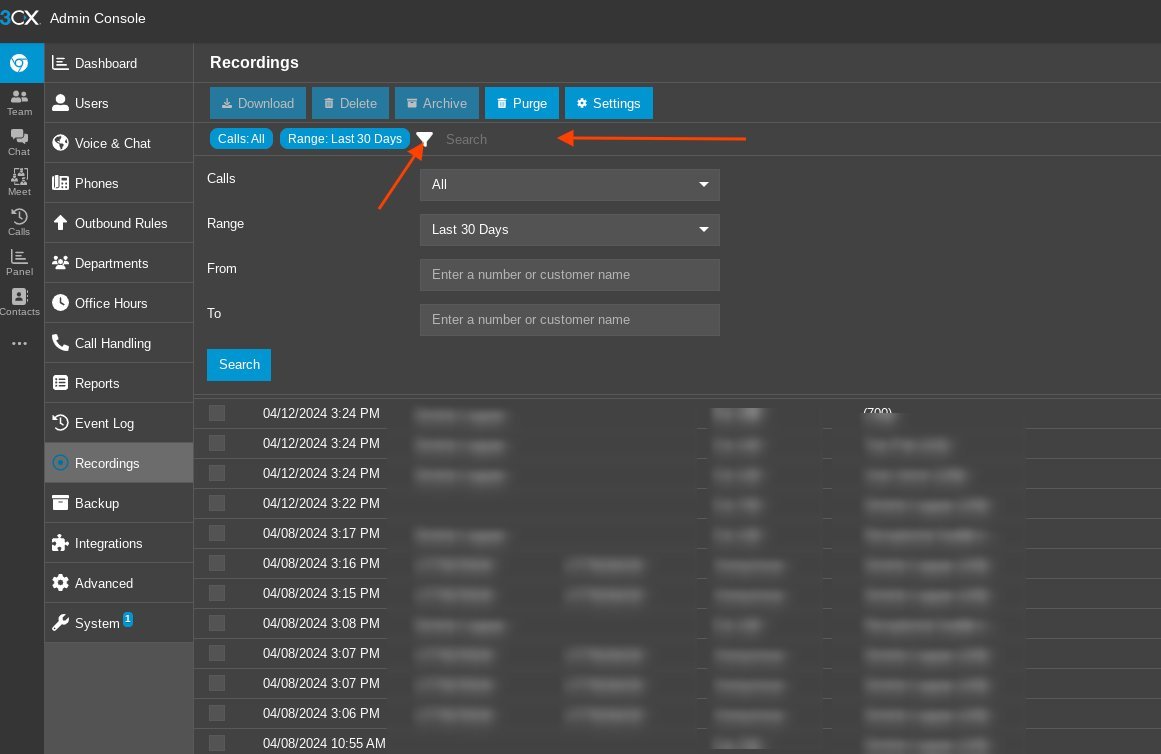
When 3CX not recording calls, the issue usually stems from disabled extension settings or full storage. Check the “Recordings” tab in your extension settings to ensure the option is enabled. If unchecked, the system won’t record traffic regardless of global settings. Always verify if the problem affects one user or the entire office to determine if the cause is a single extension or server storage.
Why calls aren’t recording
| Cause | How common | How to confirm it | Fix it yourself? |
|---|---|---|---|
| Extension setting disabled | Very common | Check extension options | Yes |
| Storage path full | Common | Check server disk usage | Yes |
| Permissions error | Occasional | View system error logs | Yes with care |
| Trunk recording off | Occasional | Check SIP trunk settings | Yes |
| License limit reached | Rare | Check dashboard status | No |
| Audio path routing | Rare | Analyze packet capture | No |
Most users assume a system crash when recordings fail, but 80% of these cases stem from simple configuration oversights. Start by verifying that the specific extension has the “Record Calls” toggle enabled in the user portal.
If the toggle is active, check the storage path. If your disk usage exceeds 95%, the system automatically halts new writes to prevent data corruption. Clear old logs or expand the partition to restore functionality immediately.
Distinguish between a configuration error and a network issue by checking the system logs. If you see “Permission Denied” errors, the service account lacks write access to the target directory. If the logs are clean but recordings are silent, the issue is likely a routing misconfiguration. In that case, you must analyze a packet capture to see if the RTP stream is being blocked by a firewall or a misconfigured SIP trunk. Never attempt to manually edit the core database files, as this often voids your support agreement.
Extension recording toggle
The most frequent reason for missing files is simply that the feature is turned off for the specific user account. This setting acts as a master switch for the extension; if it’s set to “Off,” the server doesn’t initiate a recording stream for that user’s calls, even if the system is otherwise healthy.
To confirm this, log into your management console and navigate to “Extensions.” Select the user experiencing the issue and click the “Options” tab. Look for the “Record calls automatically” checkbox. If it’s empty, the system is performing exactly as instructed. To enable it, check the box and ensure the “Record external calls” and “Record internal calls” options are selected based on your needs. Save the changes and make a test call to a mobile device to see if the file appears in the “Recordings” list.
This change takes effect immediately, but remember that it only applies to future calls. It can’t recover data from calls that occurred while the setting was disabled. If you manage a large team, a common mistake is assuming that enabling recording on a trunk automatically enables it for every user. It does not. You must ensure the extension-level setting is active for every individual who needs their calls tracked.
Server storage capacity limits
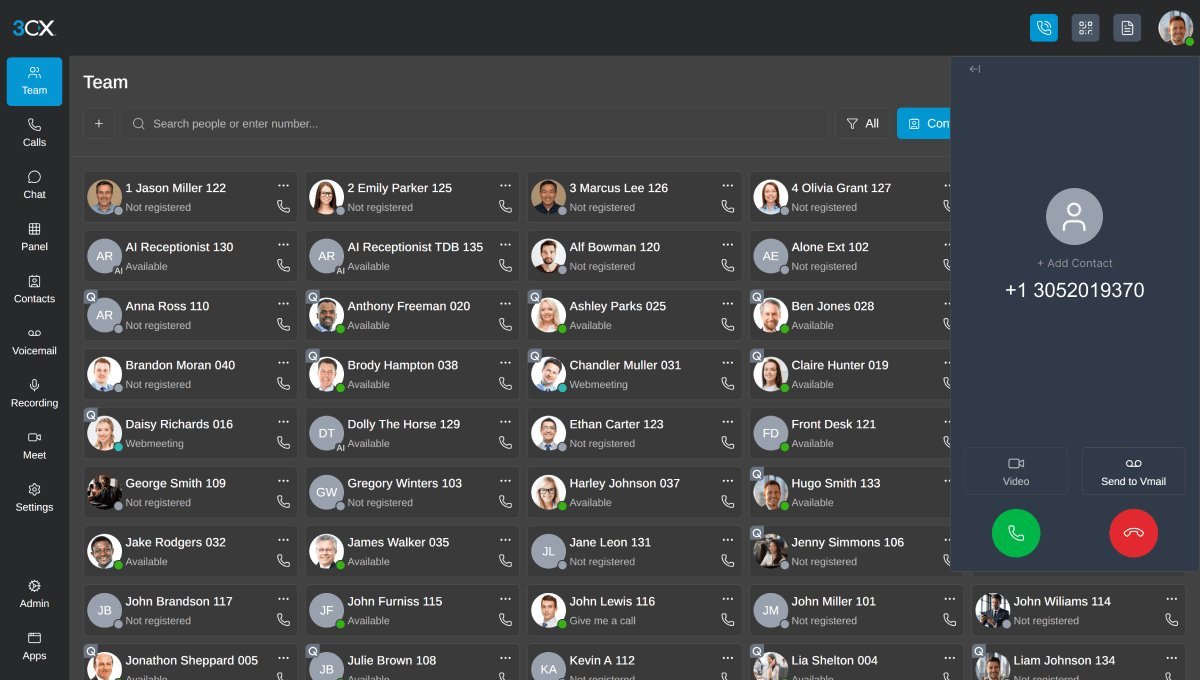
When your system stops saving new audio files, the server’s storage drive is often at its maximum capacity. The 3CX PBX will prioritize call connectivity over recording storage; if the disk is full, the server drops the recording process to prevent a total system crash.
You can verify this by checking the dashboard in your management console. Look for the system status indicator, which often displays disk usage percentages. If the drive is at or near 100 percent capacity, the system can’t write new files to the directory. To fix this, you must either clear old recordings or move them to an off-site location. Many administrators set up an automated cleanup task to move files older than 90 days to a network drive or cloud storage.
If you’re running the software on a virtual machine, you might need to expand the virtual hard disk space through your hypervisor settings. This is a trade-off: keeping files locally offers faster access, but offloading them to 3CX supported storage locations ensures your PBX remains stable. If you aren’t comfortable managing disk partitions or file system permissions, consult your IT department. Attempting to force write operations to a full drive can lead to database corruption, which is a much harder problem to solve than a simple lack of space.
SIP trunk configuration errors
Sometimes the issue isn’t with the user, but with the way the phone system handles external traffic. A SIP trunk must have recording enabled in its specific configuration profile to allow the system to capture calls that pass through that provider.
To check this, go to “SIP Trunks” in your console and open the provider profile you’re using. Look for the “Options” tab and verify the settings related to call recording. If the provider doesn’t support the specific recording headers required by the PBX, or if the “PBX delivers audio” option is misconfigured, the recording process will fail. You can tell this is the cause if internal calls record perfectly but external calls remain absent from your list.
This assumes you’re using a provider that supports standard call recording protocols. If you’re using a legacy or non-standard provider, you may need to enable “PBX delivers audio” to force the system to process the media stream locally. This increases the CPU load on your server significantly. If you notice high latency or audio quality issues after making this change, you’re likely pushing the hardware past its limit. For most small to medium setups, the default settings are sufficient; only toggle these if you have verified with your provider that their specific implementation requires a different handling of the media path.
The less likely causes
License expiration: Your current license key may have reached its limit for concurrent calls or features, which is visible on the main dashboard status page.
File system permissions: The service account running the PBX might lack write access to the recording folder, often caused by manual changes to the OS directory structure. Check the folder ownership using the
ls -lcommand; if the owner is “root” instead of the service user, the system can’t save data.Disabled Global Recording: The system-wide recording toggle in the “Settings” menu might be set to off, overriding all other individual user configurations. Always verify this master switch before troubleshooting specific extensions.
Network packet loss: If the network is congested, the PBX may fail to capture the RTP media stream, resulting in zero-byte files.
What a fix usually involves
Fixing these issues usually demands a mix of administrative access and time for testing. If the problem is a simple toggle, it takes only a few minutes and costs nothing beyond your internal labor. However, if you need to add storage or migrate files, you may need a new hard drive or a subscription to a cloud storage service, which represents a small part of the total annual cost of maintaining your communications infrastructure.
When you need to adjust hardware settings, such as increasing disk space, the cost depends on your current infrastructure and whether you’re using a physical server or a cloud-hosted instance. Check the official documentation to see the recommended disk space for your specific number of users and recording retention policy. If you can’t find the answer there, contact your 3CX partner for a quote on hardware upgrades. Always perform a full backup before changing system-level storage settings to protect your call logs and configuration data.
Why are my recordings showing up as zero bytes?
Zero-byte files usually indicate that the recording process started but couldn’t write the audio data to the disk. This is often caused by a network interruption or a temporary permission lock on the folder. Check your system logs to see if there are any “Disk IO” errors occurring at the time the call was initiated.
How long does it take for a recording to appear?
Recordings typically appear in the management console within a few seconds after the call ends. If you don’t see them immediately, try refreshing your browser session. If they’re still missing after five minutes, verify that the call was actually long enough to trigger the recording process for your specific system configuration.
Is it safe to delete old recordings?
Yes, it’s safe to delete old files, provided you have already backed them up to another location. Use the built-in cleanup tool in the console to manage this, as it safely identifies files that are no longer needed by the system. Never delete files directly from the file system folder, as this can confuse the database.
Does it matter if I record internal calls?
It matters only if your company policy or local regulations require it. Recording internal calls uses more disk space and processing power than recording only external calls. If you don’t have a specific business need for internal audio logs, keep this setting disabled to save on storage and keep your system performance high.
Can I recover a call if the recording was off?
No, you can’t recover a call if the recording feature was disabled at the time. The PBX doesn’t store a buffer of audio for calls unless the recording flag is active. Once the call is finished and the session is closed, the data is gone forever. Ensure your settings are correct before starting any important conversations.
What happens if I change the recording path?
Changing the path moves the storage location for all new recordings. If you do this, you must ensure the new location has the correct read and write permissions for the 3CX service account. If the permissions are incorrect, the system will stop recording entirely until the issue is resolved. Always test the new path with a single call first.
Final Thoughts
If these simple checks don’t resolve the issue, it’s time to look at your server’s logs for deeper errors. Don’t hesitate to reach out to your IT provider if you’re still stuck. They’ll help you get everything running smoothly again so you won’t miss another important conversation.
Related guides


