
You can resolve the issue of an app not deleting from iphone by disabling the Screen Time restrictions that prevent app removal. This is the most common reason why the delete option disappears or stays greyed out. If the icon shakes but shows no “X” or “minus” symbol, your device settings are likely blocking the action. You don’t need to reset your entire phone; you simply need to toggle one permission in the settings menu to regain control over your home screen.
Why this happens
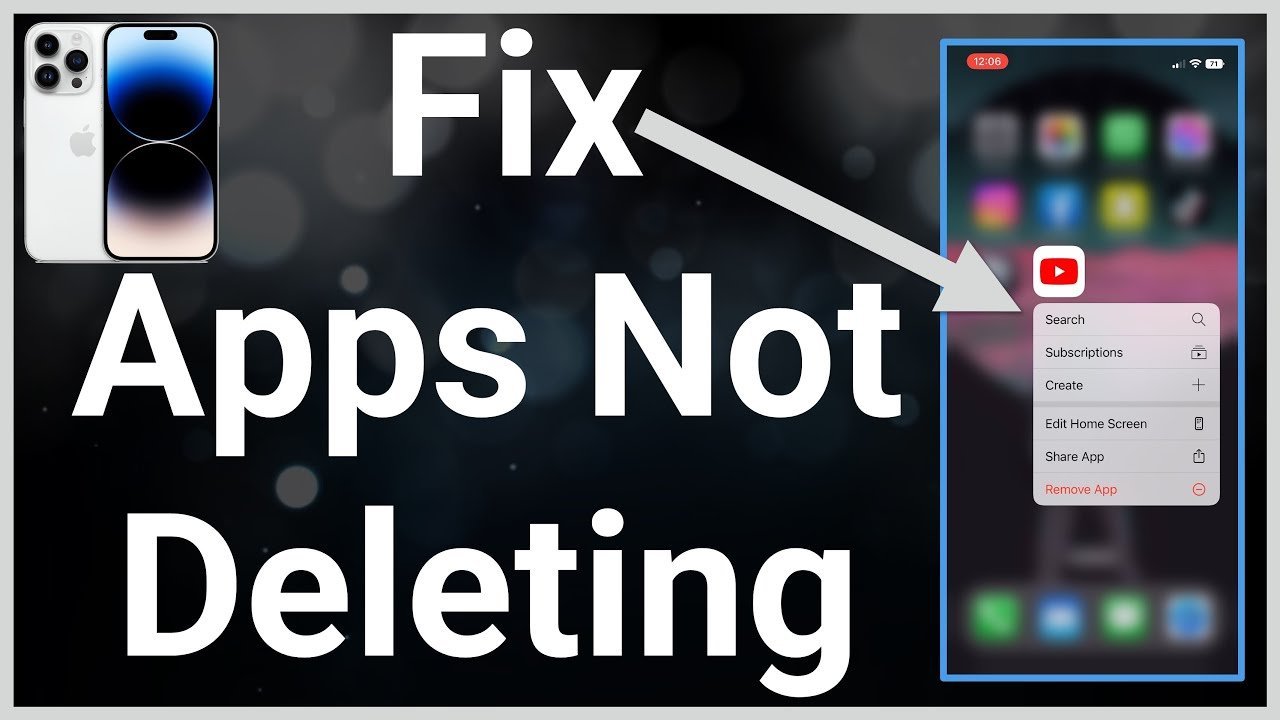
When an application refuses to budge, it’s rarely a sign of a broken operating system. Instead, it’s usually a result of software locks designed to prevent accidental deletion. The most frequent cause is a Content & Privacy Restriction enabled under Screen Time. If you share a device or have set up parental controls, these settings prevent users from removing apps to ensure essential tools remain installed.
Another cause is a pending update or a “stuck” download. If an app is currently trying to update from the App Store, iOS locks the file to prevent data corruption. The system can’t delete a file while it’s actively writing data to your storage. You can check the status of these downloads by opening the App Store and viewing your account profile.
Finally, some built-in Apple apps can’t be deleted. If you’re trying to remove a core system tool like Messages or Phone, the system won’t provide an option to delete it because it’s required for the basic operation of the device. This varies by model — check the label or the official Apple support guide for removing apps to see which pre-installed apps are removable on your specific iOS version. If you aren’t sure if an app is a system essential, look for the “Remove App” option; if it’s missing, the app is likely protected by the system.
Check your Screen Time settings
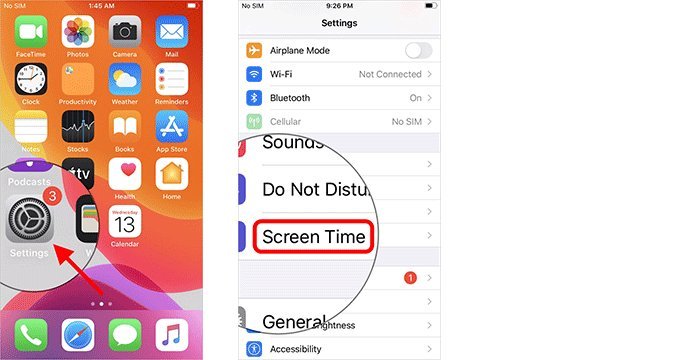
This fix is for users who see the app icons, but can’t find the delete button or the “Remove App” option. You must have your Screen Time passcode ready if you set one up previously. If you don’t have the passcode, you can’t change these settings without performing a factory reset, which deletes all data on the phone.
- Open the Settings app on your iPhone.
- Scroll down and tap Screen Time.
- Select Content & Privacy Restrictions.
- If the toggle at the top is green, tap iTunes & App Store Purchases.
- Look for the line labeled Deleting Apps.
- Ensure this is set to Allow.
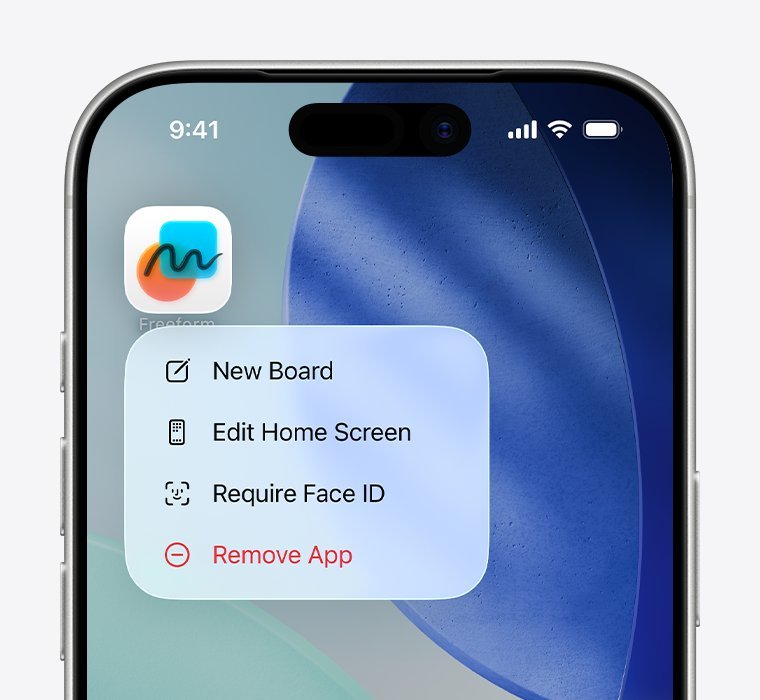
If it was set to “Don’t Allow,” the delete option is hidden globally. Once you change this to “Allow,” go back to your home screen. Press and hold the app icon again. You should now see the “Remove App” or the minus symbol appear. If it still doesn’t work, restart your iPhone to clear the temporary cache. If you’re a parent managing a child’s device, this is the primary way to control their access to app management. This isn’t for users who have forgotten their Screen Time passcode, as the phone will require that specific code to verify your identity before allowing any changes to these security restrictions.
Clear the App Store queue
If your app is stuck in a “waiting” or “loading” state, you need to stop the App Store process before you can delete the file. This is a common mistake; people try to delete the app while the store is still trying to install it. This costs you time because the phone will simply ignore the delete command until the download finishes or fails.
- Open the App Store on your iPhone.
- Tap your profile icon in the top right corner.
- Scroll down to the Upcoming Automatic Updates section.
- If the app you want to delete is in this list, tap Stop or swipe left on the app to cancel the download.
- Once the download process is cancelled, return to your home screen.
- Press and hold the app icon.
- Tap Remove App and then select Delete App.
If the app icon is greyed out and says “Waiting,” you can also try turning on Airplane Mode for ten seconds and then turning it off. This forces the App Store to drop the connection. If you have a slow internet connection, the phone may keep trying to finish the download in the background. If the app still refuses to delete after cancelling the download, restart the device to refresh the App Store service. This fix works for most third-party apps that get hung up during an interrupted Wi-Fi session.
Use the storage settings menu
This method is for the harder cases where the app icon on your home screen is unresponsive or invisible. It’s worth the extra time because it forces the operating system to show you exactly what is taking up space. It isn’t for users who are trying to delete “System Data” or essential firmware files, as these are protected by the OS to prevent the phone from becoming unusable.
- Open Settings and tap General.
- Tap iPhone Storage.
- Wait for the list to load; this may take a few seconds if you have many apps.
- Find the app you want to delete in the list and tap it.
- Tap Delete App at the bottom of the screen.
- Confirm your choice by tapping Delete App again in the pop-up menu.
This method bypasses the home screen interface entirely. It’s highly effective because it interacts directly with the storage management system. If you see an app here that has no icon or a size of zero bytes, it’s a “ghost” app. In this case, you should restart the phone immediately. If the app still appears after a restart, you may need to perform a backup and restore via a computer, but this is a last resort. If you’re uncomfortable navigating these system settings, stop and consult an authorized service provider, as deleting the wrong system-critical file can cause errors that require a full reset to fix.
What not to do
- Don’t force a factory reset immediately. This deletes every photo, message, and contact on your device, and it’s rarely needed for a single stuck app.
- Don’t download third-party “cleaner” apps. These apps often lack the system permissions to actually delete other apps and may track your personal data instead.
- Don’t repeatedly tap the icon. This causes the phone to register multiple commands, which can freeze the user interface and make the phone feel slower.
- Don’t remove your Apple ID from the phone. This won’t help you delete an app and will only cause you to lose access to your iCloud backups and services.
- Don’t try to delete Apple system apps. Most core apps like “Settings” or “App Store” are hardcoded into the software, and you can’t delete them regardless of the method you choose.
How to stop it happening again
Keep your software updated to avoid bugs where apps get stuck in a “waiting” loop.
| If you’re doing this | Do this instead | Why |
|---|---|---|
| Leaving Wi-Fi during updates | Wait for the update to finish | Interrupting downloads creates file errors |
| Giving kids full access | Use Screen Time limits | This stops accidental deletions or changes |
| Filling storage to capacity | Keep 5GB free space | iOS needs buffer space to manage files |
| Using old iOS versions | Update to the latest iOS | Updates fix known deletion bugs |
Frequently asked questions
Can I delete an app if it says waiting?
You can’t delete an app while it’s in the “waiting” state because the system is locking the file. Cancel the download in the App Store by stopping the update to make the delete option available. You may need to restart your iPhone if the status doesn’t change.
Why is my app not deleting from iPhone?
The delete button is missing because your Screen Time settings are likely set to restrict app removal. Check the Content & Privacy Restrictions menu in your settings to ensure that “Deleting Apps” is set to “Allow.” If this is restricted, the option to remove apps will be hidden for every app on your device. Once you change this setting, the remove option will reappear on your home screen icons immediately.
How long does it take to force delete an app?
It takes less than one minute to force delete an app through the storage settings menu. The process is instant once you confirm the deletion, though large apps may require a few extra seconds to clear the cache. A restart is only necessary if your device appears frozen.
Is it safe to delete apps through settings?
Yes, it’s completely safe to delete apps through the storage settings menu. This is a built-in feature designed by Apple to help users manage their device memory. The system will only allow you to delete apps that you installed yourself or certain pre-installed apps that are marked as removable. It won’t allow you to accidentally delete essential system files that are required for the phone to function properly.
What happens if I delete an app I paid for?
You won’t lose your purchase if you delete an app from your iPhone. All apps are tied to your Apple ID and can be re-downloaded for free at any time from the App Store. Simply visit the “Purchased” section in your profile to restore them whenever you choose.
Final Thoughts
Once you’ve adjusted these settings, your home screen should feel organized and clean again. If you still encounter problems with stubborn icons, it’s a good idea to check for a pending software update. Keeping your device current ensures everything runs smoothly, so you won’t have to worry about these glitches anymore.
Related guides


