
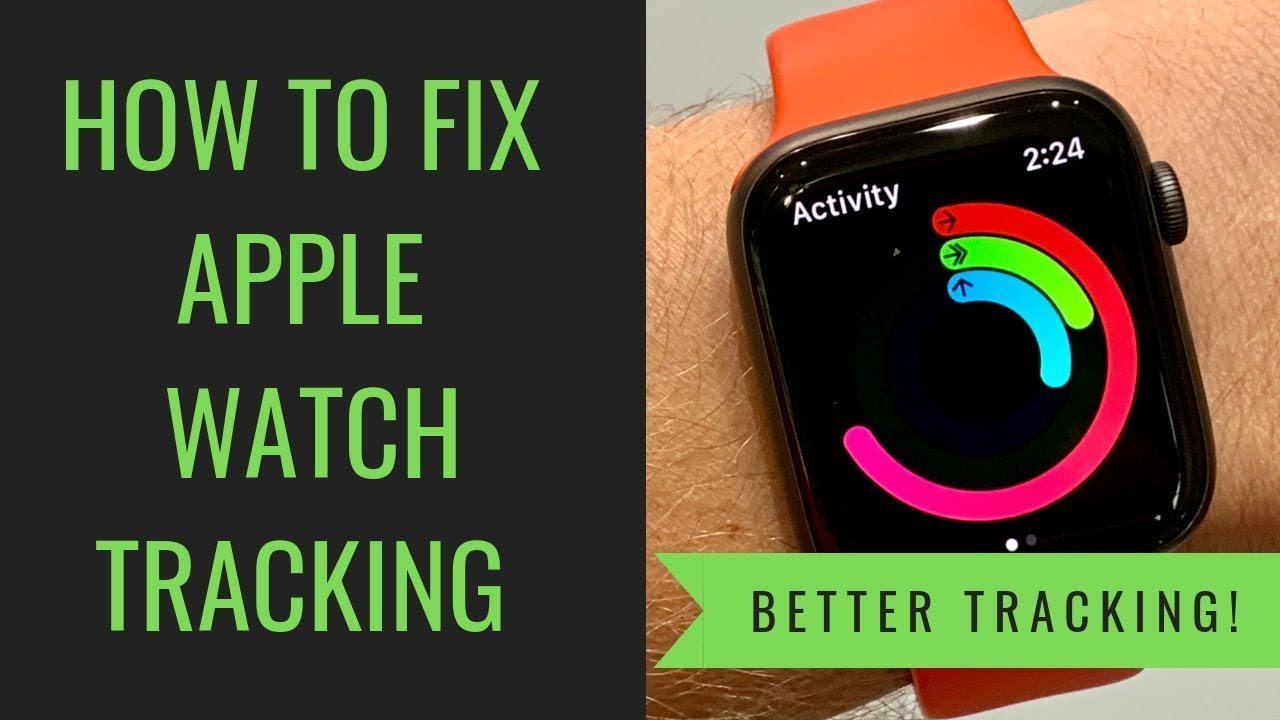
Activity not recording on Apple Watch is usually caused by a loss of calibration, a software glitch, or a loose fit preventing heart rate detection. To verify the sensor, check for a green light on the back of the watch while wearing it; if absent, the device can’t track movement or heart rate. For more details, see the Apple Watch support guide.
Why activity not recording on Apple Watch
| Cause | How common | How to confirm it | Fix it yourself? |
|---|---|---|---|
| Wrist detection off | Very common | Check settings in Watch app | Yes |
| Needs recalibration | Common | Distance seems wrong | Yes |
| Dirty sensors | Common | Visual inspection of back | Yes |
| Software glitch | Occasional | Restart the device | Yes |
| Improper fit | Occasional | Watch slides on arm | Yes |
| Hardware failure | Rare | No green light pulses | No |
If wrist detection is off, your watch stops tracking heart rate the moment you break skin contact. Toggle it back on in the Watch app under Passcode settings.
For recalibration, walk or run for 20 minutes outdoors using GPS. This teaches the watch your specific stride length. If your pace remains inaccurate, reset your fitness calibration data in the Privacy settings.
Dirty sensors often cause erratic readings because sweat or lotion blocks the light path. Wipe the back with a microfiber cloth and warm water. If the green light fails to pulse even after a hard restart, the sensor array has likely suffered a permanent hardware failure. You can’t fix this internally. Contact support immediately, as this fault typically requires a full unit replacement rather than a software patch.
Sensor contact and wrist detection
The most frequent cause for gaps in your data is the watch failing to detect that it’s on your wrist. When the watch loses contact with your skin, it stops recording heart rate data to save battery power. This feature, known as Wrist Detection, is a security measure that locks the device when it’s removed. If the watch is loose, it will constantly lock and pause your workout without you noticing.
To test this, ensure the band is snug but not uncomfortable. If the watch asks for your passcode frequently during the day, the band is too loose. You can verify the setting is active by opening the Watch app on your iPhone, selecting My Watch, then going to Passcode. If Wrist Detection is toggled off, turn it back on. This assumes you’re using an official band; if you use a third-party magnetic or loose-fitting strap, you might need to tighten it by one hole. If you have a larger wrist, you may need a longer band to keep the sensor pressed firmly against your skin. This is a common mistake; people often wear their watch too low on the wrist bone, which prevents the sensor from getting a clear reading. Adjusting the position to be one finger-width above the wrist bone usually fixes the tracking gap instantly.
Calibration for movement accuracy
Your watch uses an accelerometer to count steps and distance, but it needs to learn your stride length to be accurate. If the activity is recording but the distance is way off, the internal motion sensors are likely uncalibrated. This often happens after you change your walking pace or start a new type of exercise.
You can fix this by performing an outdoor walk or run of at least twenty minutes on flat, open ground. During this session, maintain your natural, steady pace. It’s important that you have GPS enabled on your phone or watch for this process. If you’re walking on a treadmill, the watch relies on the accelerometer alone, which is less accurate than GPS. If the distance remains incorrect after a twenty-minute walk, you should reset your calibration data. Open the Watch app on your iPhone, go to Privacy, and select Reset Fitness Calibration Data. This wipes the old, incorrect data and forces the watch to learn your movement patterns from scratch. This process takes no money, but it requires at least one dedicated outdoor workout to complete. If you’re a fast walker, ensure you don’t jog during the test, or the watch will calibrate to the wrong speed profile.
Software and background sync errors
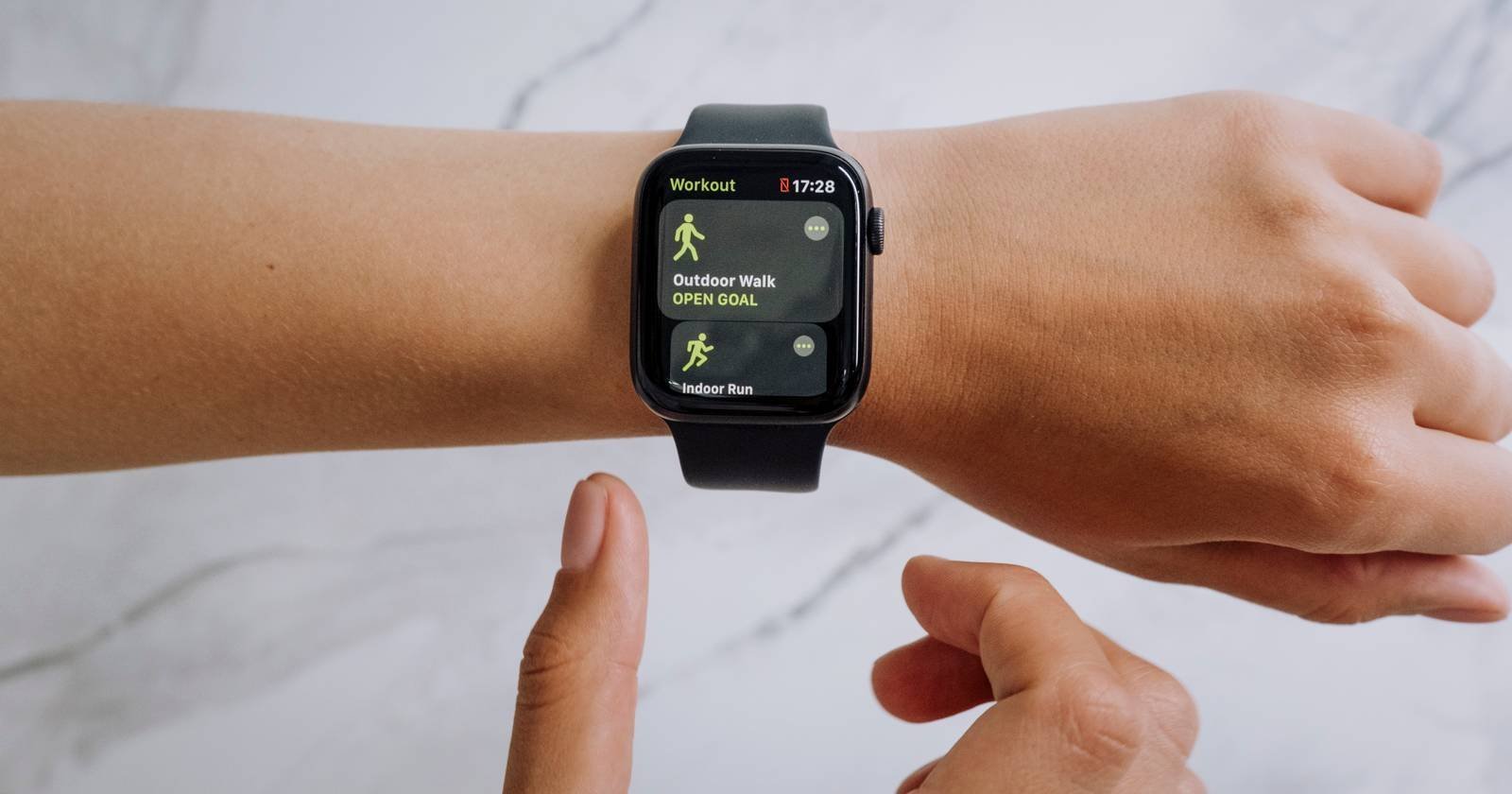
Sometimes the watch records the data locally but fails to sync it to the Fitness app on your iPhone. This often happens when the Bluetooth connection between the two devices is interrupted during a workout. If the watch shows the activity in the Activity app but the iPhone does not, a temporary sync error is the culprit.
To resolve this, restart both your iPhone and your watch. This clears the cache and forces the devices to re-establish their handshake. If that doesn’t work, toggle Bluetooth off on your phone for ten seconds and then turn it back on. This forces the watch to push any pending data packets to the phone. A mistake people make is unpairing the watch immediately, which can cause you to lose unsynced data. Always try a simple restart first. If you still see a gap, check if your iPhone has enough storage space; if the phone is full, it may refuse to import new health data. This varies by model — check the storage settings on your iPhone to ensure you have at least a few gigabytes free. If you have done all these steps and the data is still missing, the hardware may have a deeper issue that requires professional repair.
The less likely causes
Low battery mode: The watch disables heart rate sensors to save power, which stops activity tracking. If your battery icon is yellow, the device will prioritize basic timekeeping over biometric data collection.
Disabled health permissions: Check your privacy settings to ensure the Fitness app has permission to read heart rate and motion data. Navigate to Settings, then Privacy, and finally Health to toggle these switches. If they’re grayed out, you must re-pair the watch to reset the privacy handshake.
Outdated watchOS: Old software versions contain bugs that prevent sensor activation. Check for updates in the Watch app immediately. If you’re two versions behind, the sensor may fail to calibrate correctly.
Internal sensor damage: If the watch was dropped or exposed to water, the internal hardware might be broken. This requires an authorized repair. If the back glass feels warm while charging, the seal is likely compromised.
What a fix usually involves
Most fixes for activity tracking involve simple software settings or cleaning the device. Cleaning the sensors is free and takes seconds; use a soft, lint-free cloth to wipe the back of the watch. If the band is the issue, replacing it with a new one is a small part of the total cost of the watch. If the hardware is damaged, a repair or replacement is a significant portion of the cost of a new device. You should always check the official Apple website for your specific model’s troubleshooting steps before considering a professional repair. If a repair is necessary, contact an authorized service provider for a real quote. Never pay for “software fixes” from third-party sites, as these are often scams. The cost depends on your warranty status and whether you have an active protection plan. If you’re out of warranty, an official repair can be quite high, so weigh the cost against the current market price of a replacement watch.
Frequently asked questions
Why is my activity ring not moving?
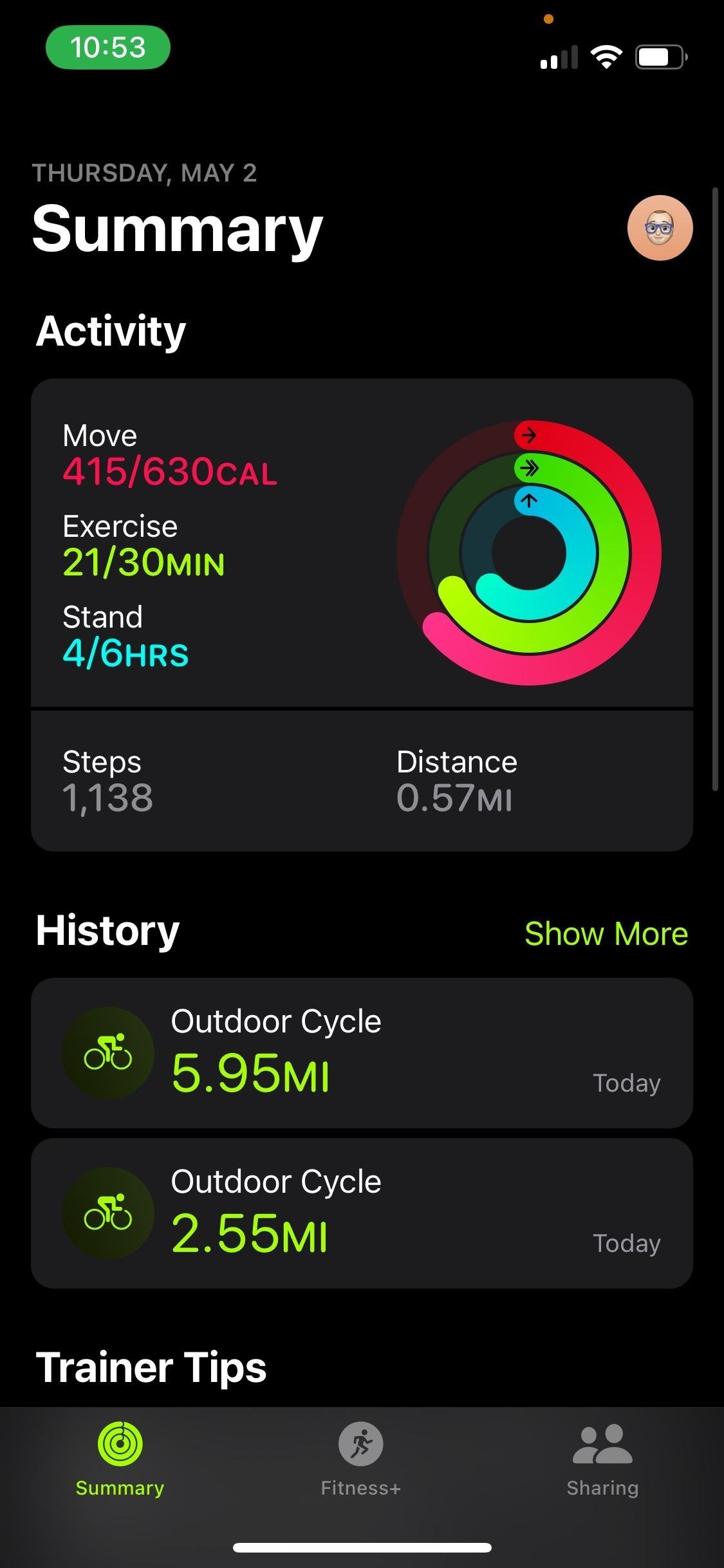
Your activity ring relies on the sensors detecting motion, so it won’t move if you’re holding a shopping cart or a stroller handle. To fix this, try to keep your arm moving naturally or put the watch on your other wrist. If the rings are frozen even when you’re moving, a simple restart of the watch usually clears the internal sensor lock.
How long does it take for data to sync?
Data usually syncs within a few seconds, but it can take up to ten minutes if you have just finished a very long workout. If the data doesn’t appear after that time, check that your Bluetooth is enabled on your phone. If it still doesn’t sync, try opening the Fitness app on your phone to force a refresh.
Is it safe to reset calibration data?
Yes, it’s perfectly safe to reset your calibration data, as it only removes the stored stride length information. It doesn’t delete your workout history, health records, or personal settings. The watch will simply collect new movement data during your next outdoor walk to rebuild its accuracy profile. You should only do this if your distance readings are consistently wrong.
Does it matter if the watch is wet?
Yes, water on the sensors or between the watch and your skin can interfere with heart rate readings. If you’re swimming or sweating heavily, the sensor may struggle to maintain a consistent light pulse. After any water activity, wipe the back of the watch and your skin dry to ensure the sensor can read your pulse correctly again.
What happens if I turn off wrist detection?
If you turn off wrist detection, the watch will stop measuring your heart rate and won’t lock automatically. You’ll lose all your heart rate data for workouts and your stand credit for the day. It’s highly recommended to keep this setting on, as it’s the primary way the watch knows you’re actually wearing it.
Can I track activity without my phone?
Yes, you can track activity without your phone because the watch stores all data locally in its own memory. Once you’re back in range of your phone, the watch will automatically sync the saved data to your Fitness app. If you don’t see the data, ensure that Bluetooth is turned on and that the watch isn’t in airplane mode.
Final Thoughts
If your data still won’t sync after checking these basics, it’s a good idea to reach out to Apple Support directly. They’ll help you determine if there’s a deeper hardware issue at play. Don’t worry, you’ll be back to closing those rings and tracking your progress in no time at all.
Related guides


