
You can fix an app not downloading on samsung tv by clearing the Smart Hub cache or checking your internet connection settings. These issues usually stem from a full storage drive, a temporary network glitch, or a software version that’s no longer compatible with the application you want to install. If your TV has been running for a long time without a restart, the internal memory might be clogged with background data, which prevents new files from writing to the storage.
Reasons your Samsung TV isn’t downloading
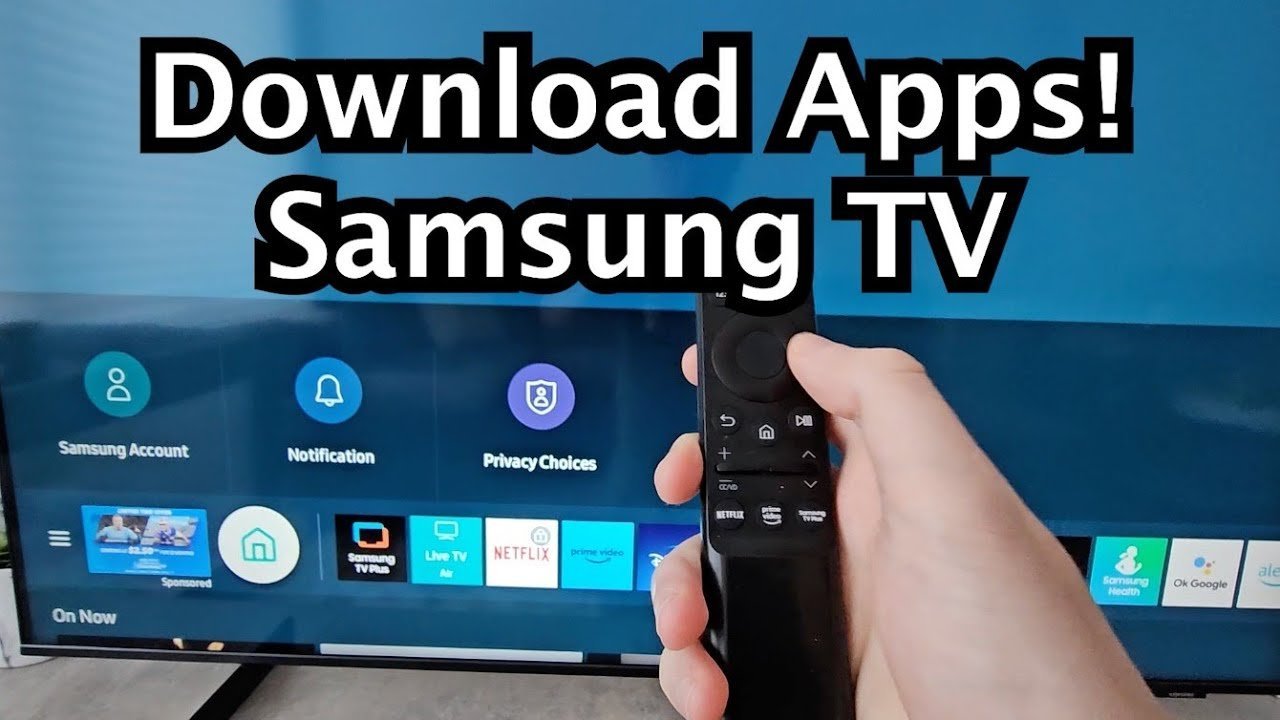
When an installation fails, it’s often because the TV’s operating system has lost its handshake with the app store server or the local storage is simply too full to accept new data. Samsung TVs use a specific partition for the Smart Hub, which acts as a sandbox for your apps. If this partition fills up, you’ll see an error message or the download progress bar will stall indefinitely.
Another common cause is a network configuration error. Even if your other devices work fine, the TV might have a cached DNS setting that’s outdated. This prevents the TV from reaching the correct download server. Furthermore, Samsung periodically updates its Tizen OS. If your firmware is several versions behind, the app store may block new downloads to prevent system instability. You can verify your specific model’s software requirements on the Samsung Support official troubleshooting page.
If you’re using a VPN or a custom DNS setting provided by your router, the TV’s security protocols might flag the connection as untrusted. This is a common trade-off for privacy; while your data remains private, the restrictive nature of these settings often blocks the handshake required to pull down new application packages. Finally, if your TV is a much older model, the app developer may have discontinued support for that hardware generation entirely.
Power cycle the television
Performing a power cycle is the most effective way to clear temporary memory errors. This is for users who see the download icon spinning but never completing. Unplug the power cable directly from the wall outlet while the TV is still powered on. Wait for a few seconds to ensure the system has fully powered down. Plug the cable back in and wait for the system to boot up completely.
Don’t use the remote control to turn it off. The “soft” standby mode keeps the operating system running in the background, which doesn’t clear the RAM or the stuck process. Using the remote puts the TV into a standby mode, which doesn’t perform a full system reboot.
If the download works after this, the issue was a simple memory hang. If it does not, you’re dealing with a deeper software or network conflict. This method is safe for all hardware and doesn’t delete your saved passwords or account settings.
The decision rule is simple: if the spinning icon persists for more than three minutes after a reboot, stop trying to cycle the power. You’re likely facing a DNS failure or a server-side outage. At that point, move to checking your network settings or router connectivity.
Clear the Smart Hub cache
Clearing the cache forces the TV to reload the app store interface from scratch. This is for when the download button is greyed out or unresponsive. Navigate to the Settings menu, select Support, and then choose Device Care. From there, select Manage Storage. You’ll see a list of installed apps. Select the View Details button for the app store or any app that’s taking up an unusual amount of space. Choose the Clear Cache option. If you have multiple apps that you don’t use, delete them now to free up space. This is a manual process that varies by model—check the label on your remote for the menu navigation buttons. This fix isn’t for users who have a solid internet connection but are seeing “Network Error” codes; that requires a different approach. If you clear the cache and the download still fails, you may need to perform a full Smart Hub reset, which will sign you out of all your accounts.
Update your system firmware
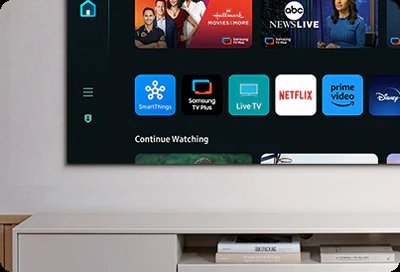
Updating the firmware ensures that your TV speaks the same language as the modern app servers. This is for users who have tried the previous steps and still can’t download content. Go to Settings, then Support, then Software Update. Select Update Now.
If an update is available, the TV will download and install it automatically. This process can take up to fifteen minutes. Don’t turn off the power during this time, as interrupting a firmware update can corrupt the system files and render the TV unusable.
This fix isn’t for users who have limited data plans, as these updates can be several gigabytes in size. Check your router’s data usage logs before starting if you’re near your monthly cap. Exceeding your limit can trigger significant overage fees from your internet provider.
If your TV says “No updates available” but the app still won’t download, the application itself might be incompatible with your specific model year. Many manufacturers stop issuing firmware patches for TVs older than five years.
In that case, the only remaining option is to use an external streaming device like a Roku, Apple TV, or Fire Stick. These devices bypass the TV’s internal software limitations entirely, effectively giving your screen a new, supported operating system.
What not to do
Don’t factory reset the TV as a first step. This action deletes your calibrated picture modes, saved passwords, and logged-in accounts without guaranteeing a fix. If the issue is a simple software glitch, a power cycle—unplugging the unit for sixty seconds—usually resolves it without the data loss.
Avoid downloading apps from third-party websites using the TV’s browser. These files are often incompatible with your specific firmware and can introduce malware to your home network. If an app isn’t in the official store, it’s likely unsupported or malicious.
Never force a power-off while the TV is updating. This can permanently brick the operating system, requiring a costly mainboard replacement. If the progress bar remains stalled for an extended period, contact Samsung support.
Don’t ignore “Insufficient Storage” warnings by retrying the download. Repetitive failures create corrupted temporary files that occupy more space. If you see this alert, delete one unused app to clear the cache before attempting any new installations.
How to stop it happening again
To keep your TV running smoothly, maintain a buffer of free space and keep the system software current.
| If you’re doing this | Do this instead | Why |
|---|---|---|
| Using Wi-Fi for updates | Use a wired Ethernet cable | Ensures a stable, fast connection |
| Ignoring update prompts | Enable Auto-Update in settings | Keeps apps compatible with servers |
Most users mistake a simple remote “off” button for a true shutdown. In reality, this just puts the unit into a standby state that preserves lingering cache errors. To perform a hard reset, you must physically unplug the power cable from the wall for at least sixty seconds.
If your interface feels sluggish despite these steps, check your internal storage menu. In this case, uninstall your largest unused app immediately to regain performance.
Frequently asked questions
Can I install apps from a USB drive?
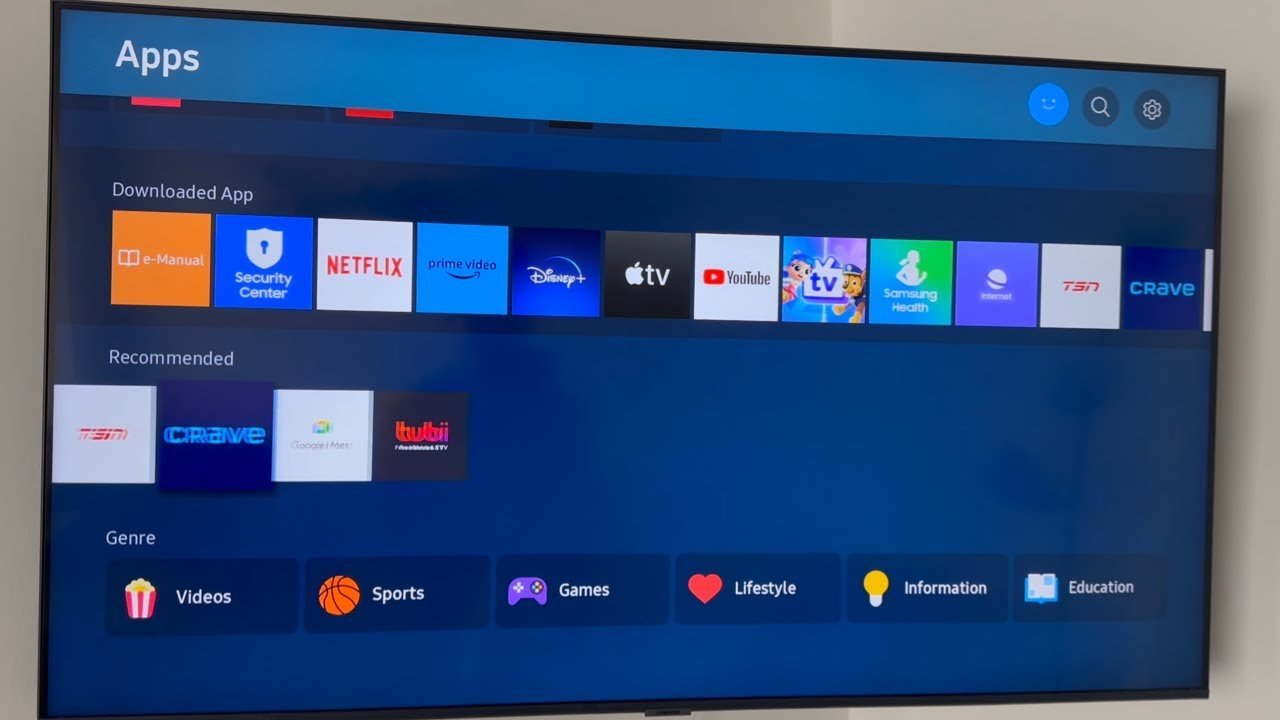
Samsung TVs don’t allow third-party app installation from USB drives for security reasons. The operating system is locked to prevent unauthorized code execution. You must use the official app store, though you can use an external streaming device if an app is unavailable.
Why does the download stop at 99 percent?
Downloads often stall at 99 percent because the TV can’t verify the file’s digital signature. This usually results from an incorrect system clock setting. Ensure your TV time is set to “Auto” to resolve the mismatch with the security certificate.
How long should an app download take?
App downloads typically finish in under thirty seconds on a standard connection. If the progress bar hangs for over two minutes, a network timeout or server error has likely occurred. Cancel the download and restart your router before trying again.
Is it safe to clear the Smart Hub cache?
Clearing the Smart Hub cache is safe because it only removes temporary files without deleting your account information. It functions like a refresh button for the app store. Avoid performing a full “Reset Smart Hub,” as that will log you out of all services.
What happens if my TV is too old for the app?
Incompatible apps won’t appear in the store or will be greyed out on older TVs. This occurs because the hardware lacks the power to run modern applications. You can bypass this limitation by using a streaming stick in your HDMI port.
Final Thoughts
If these quick fixes don’t get your favorite apps running, it’s a good idea to reach out to Samsung’s official support team. They can check if your specific model needs a firmware update that isn’t showing up yet. Don’t worry, you’ll be back to streaming your favorite shows in no time.
Related guides


