
The most common reason for a fitbit inspire not syncing is a temporary communication error between your tracker and the mobile application, which happens in most cases when Bluetooth is toggled off or the app isn’t running in the background. You can usually fix this by forcing the app to close and restarting your phone’s Bluetooth connection. If this doesn’t work, the issue may stem from an outdated app version or a full cache, which you can clear through your phone’s settings menu.
Fixing a Fitbit Inspire not syncing
| Cause | How common | How to confirm it | Fix it yourself? |
|---|---|---|---|
| Bluetooth disabled | Very common | Check phone settings | Yes |
| App needs restart | Very common | Force close app | Yes |
| Low battery | Common | Check battery icon | Yes |
| Outdated software | Occasional | Check app store | Yes |
| Cache conflict | Occasional | Clear app cache | Yes |
| Damaged sensor | Rare | Check charging pins | No |
Most users assume a connection failure is a hardware defect, but the vast majority of cases stem from simple software states.
Another frequent mistake is ignoring the app cache. Over time, temporary files corrupt and prevent the handshake between devices. If the app opens but shows no signal, clear the cache in your phone’s storage settings.
Distinguish between these software glitches and a damaged sensor by inspecting the charging pins under a bright light. If you see bent pins or dark oxidation, the hardware is physically compromised. In that scenario, software resets are useless. You must seek a professional repair or replacement to restore functionality.
Connection errors in the app
A connection error occurs when your tracker can’t establish a handshake with your smartphone. This typically happens because the background process for the app has crashed or the Bluetooth signal is being blocked by other nearby devices. When this occurs, the data on your tracker stays locally stored but fails to move to your account dashboard.
To test if the connection is the problem, open your Fitbit app and look for the red notification banner at the top of the screen. If you see “Syncing failed” or “Tracker not found,” the issue is almost certainly a software communication block. You should first toggle your phone’s Bluetooth off, wait ten seconds, and turn it back on. If the device still doesn’t sync, force-close the app entirely—don’t just minimize it—and relaunch it. This forces the application to re-initialize its connection protocols.
This process usually takes about one minute of your time. If you find your device is still unresponsive, check official Fitbit help articles to ensure your specific mobile device meets the current compatibility requirements. This varies by model — check the label or the official list on the manufacturer’s website. If your phone model isn’t on their supported list, you may experience frequent drops in connectivity, and there’s no permanent software fix for that hardware limitation.
Battery and power limitations
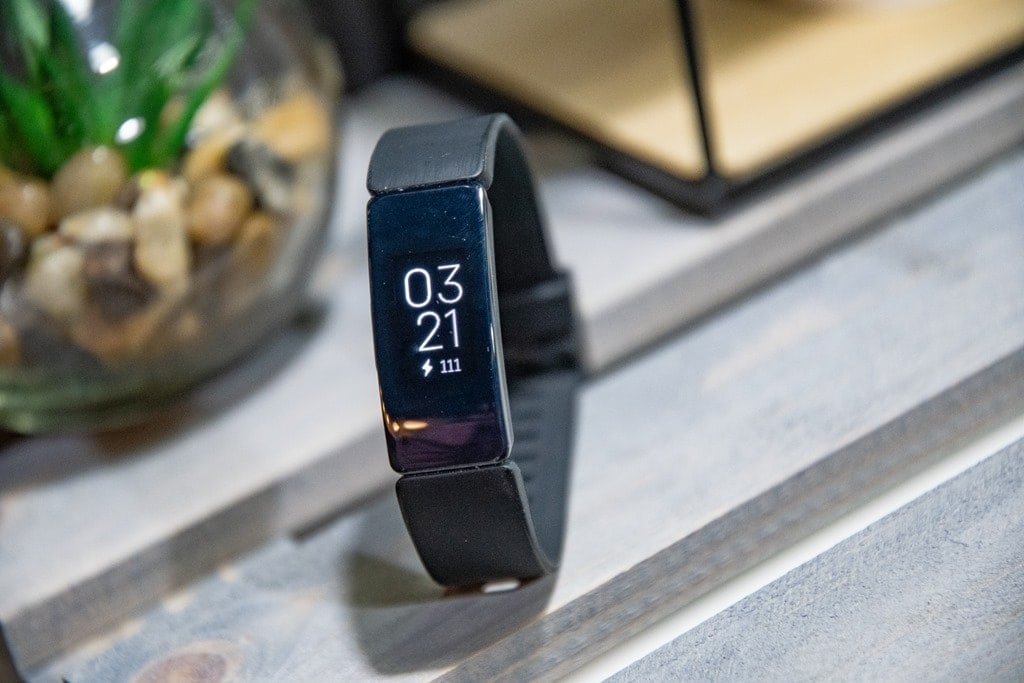
Your tracker requires a minimum level of power to maintain a stable Bluetooth radio connection. If your battery drops below twenty percent, the device automatically enters a power-saving mode that disables non-essential features, including background syncing. This is a common mistake people make; they assume the device should sync as long as it’s turned on, but it actually needs a charge to broadcast data effectively.
You can verify this by checking the battery indicator on the device’s clock face. If the icon is red or blinking, the tracker lacks the energy to perform a full data transfer. Simply place the device on its charger for at least thirty minutes.
This is a trade-off: keeping the device charged ensures constant syncing, but it does shorten the total time between charges. If you aren’t using the device for a few days, the battery will drain, and you’ll need to perform a full sync once you return to it. If you notice the battery dies within hours of a full charge, the battery itself might be failing. If X is a software glitch, a restart fixes it; if Y is a battery failure, you must replace the unit. This isn’t a fix-it-yourself situation if the battery no longer holds a charge, as opening the sealed casing voids the warranty and can cause physical damage.
Outdated app software versions
Your tracker relies on the latest version of the mobile application to interpret the data it sends via Bluetooth. If your app is several versions behind, it may not recognize the signal from your tracker, leading to a persistent syncing failure. This often happens if you have disabled automatic updates on your phone to save storage space.
To confirm this, navigate to your phone’s app store and search for the Fitbit app. If an “Update” button is visible, your app is out of date. Tap the button to install the latest version, which contains updated drivers for your specific hardware.
This is a frequent point of frustration for users who keep their tracker updated but forget the app itself. The time required for this fix depends entirely on your internet connection speed; it usually takes two to five minutes. This isn’t for you if you don’t have an active data connection or sufficient storage space on your phone to complete the download. Always ensure your phone has at least five hundred megabytes of free space before attempting a major app update. If the sync still fails after the update, restart both your phone and the tracker to clear any lingering temporary files from the old version.
The less likely causes
Corrupted cache: The application’s temporary storage can become cluttered, causing it to freeze. Clear the cache in your phone’s settings to resolve this. If the app still hangs after clearing the cache, uninstall the application entirely and reinstall it to force a fresh handshake with the server.
Too many devices: Having multiple Bluetooth devices connected to your phone simultaneously can cause interference. Disconnect other speakers or headphones to see if the sync completes. If you own a smartwatch and a tracker, turn off the watch’s Bluetooth toggle while syncing the tracker to prevent signal hijacking.
Distance issues: Your tracker must be within twenty feet of your phone to maintain a stable connection. Move them closer during the sync process. If you’re in a room with heavy Wi-Fi traffic or a microwave running, move to a different area; these appliances emit frequencies that disrupt low-energy Bluetooth signals.
Hardware damage: If the charging pins on the back of the tracker are dirty or corroded, the device can’t charge or sync. Clean them with a soft, dry cloth. If you see green or white oxidation, use a pencil eraser to gently buff the pins before wiping away the residue.
What a fix usually involves
Fixing a sync issue usually demands either a few minutes of your time or a small part, such as a new charging cable if the current one is frayed. If the problem is a software glitch, the fix is free and only requires restarting your devices. If the issue is a hardware failure, like a dead battery or a broken Bluetooth chip, the cost can be most of the price of a new one if the device is out of warranty.
The actual cost depends on whether your device is still covered under the manufacturer’s limited warranty. You should check the serial number on your device against the manufacturer’s warranty policy page to see if you qualify for a free replacement. If you’re uncertain about the status of your warranty, contact the manufacturer’s support team directly with your device’s serial number to get an accurate quote for repair or replacement services. Never pay for third-party repair services without checking your official warranty status first, as they may be more expensive than the manufacturer’s own support options.
Frequently asked questions
Can I sync my tracker without Wi-Fi?
Yes, you can sync your tracker using your phone’s mobile data connection. The tracker uses Bluetooth to talk to your phone, and the phone then uses its internet connection—whether Wi-Fi or cellular—to upload that data to your account. If you’re in an area without Wi-Fi, ensure your phone has a stable cellular signal so the app can reach the servers.
How long should a sync take?
About thirty seconds is the average time for a successful sync. If the process takes longer than two minutes, the connection is likely struggling. You should cancel the sync, ensure the tracker is within a few feet of your phone, and try the process again. If it continues to hang, restart the Bluetooth on your phone to reset the connection.
Is it safe to reset my tracker?
Yes, it’s safe to restart your tracker, as this doesn’t delete your personal data. A restart simply clears the temporary memory and forces the device to re-establish its connection with your phone. You should only perform a “factory reset” if you’re planning to give the device to someone else, as that will delete all your stored information.
What happens if I don’t sync for a week?
About seven days is the limit for most models, as the tracker can only store a certain amount of data before it must be offloaded. If you don’t sync for longer than this, the oldest data will be overwritten by new activity. Check your specific user manual to find the exact storage capacity for your model, as this varies by design.
Does it matter if my phone is locked?
No, it doesn’t matter if your phone is locked, provided the app is allowed to run in the background. If your phone’s battery optimization settings are too aggressive, they might kill the app when the screen turns off. Ensure your phone settings allow the Fitbit app to run in the background so it can sync your data automatically throughout the day.
Final Thoughts
If these quick fixes don’t get your data flowing again, don’t worry. You should reach out to Fitbit’s customer support team through their website for further help. They’ll be able to check if there’s a deeper hardware problem, so you can get back to tracking your daily progress without any more stress.
Related guides


