
Most of the time, Apple calendar not syncing happens because your iCloud account is signed out or the sync setting is turned off on one of your devices. You can confirm this instantly by checking the “Calendars” tab inside your app to see if the specific account is checked and active. If the box is unchecked, your phone will stop pulling new data from the cloud, and your events won’t show up across your other devices.
Fixing Apple Calendar not syncing
| Cause | How common | How to confirm it | Fix it yourself? |
|---|---|---|---|
| Disabled iCloud Sync | Most common | Check Calendar settings | Yes |
| Wrong Default Calendar | Very common | Create a test event | Yes |
| Poor Internet Connection | Common | Load a website | Yes |
| Outdated System Software | Occasional | Check Software Update | Yes |
| Server Outage | Rare | Check Apple status page | No |
| Account Authentication Error | Rare | Sign out and in | Yes |
Most users mistake a server outage for a sync error. If your calendar shows events on one device but not another, check the Apple System Status page first. If the status is green, the issue is local.
A common mistake is forgetting to set the “Default Calendar” in settings. If you add an event and it vanishes, you likely saved it to a local calendar that doesn’t sync. Check the event details to see which calendar is selected.
If you’re traveling, check your time zone settings. A mismatch of even one hour can hide events from your current view. If the date is correct but the event is missing, toggle your “Set Automatically” time setting off and back on. This forces the device to re-sync its internal clock with the network, often resolving hidden scheduling conflicts immediately.
iCloud account settings mismatch
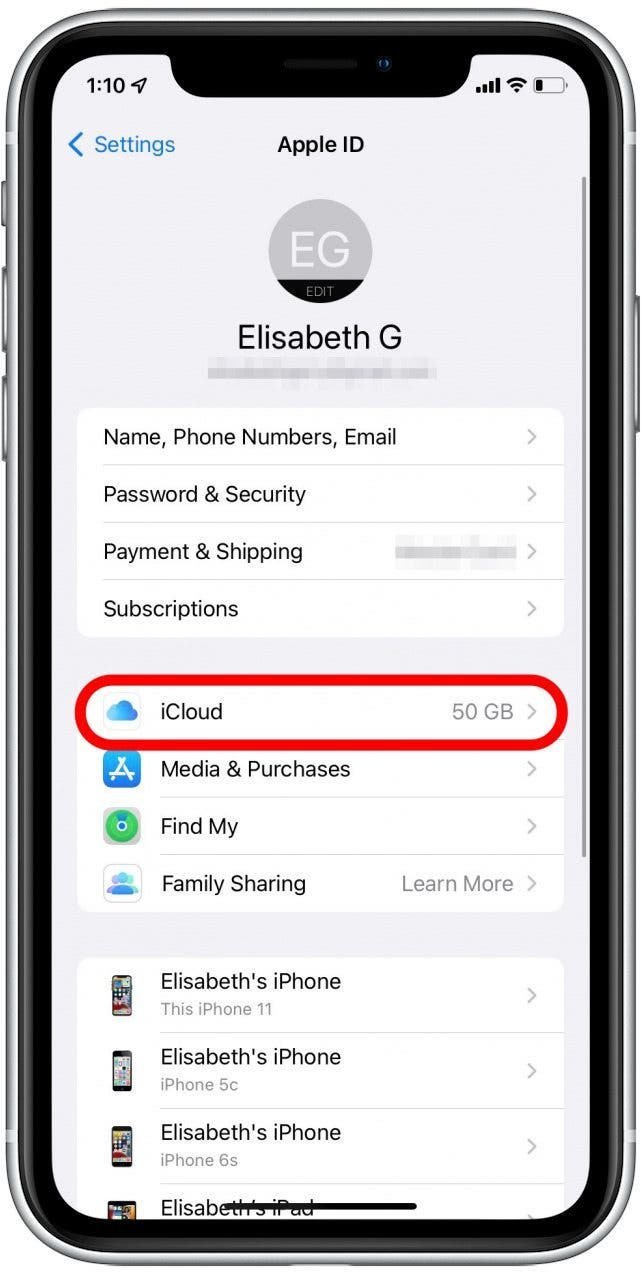
The most frequent reason for this issue is a simple toggle switch that has been turned off, preventing your data from moving between devices. When your iCloud account isn’t properly linked to the Calendar app, the device stops communicating with Apple’s servers entirely. To verify this, open your Settings, tap your name, select “iCloud,” and then look for “Show All” under the “Apps Using iCloud” section. If the switch next to “Calendars” is gray, the sync is disabled.
To fix this, toggle that switch to the “on” position. If it was already on, try turning it off, waiting ten seconds, and turning it back on again. This forces the device to re-establish its connection to your account. This process usually takes about one minute to complete, though it might take longer if you have a massive history of events. If you’re wondering about the official steps for your specific device, you can follow the Apple support guide for iCloud calendars to ensure your settings match their recommended configuration.
This setup assumes you’re using a stable Wi-Fi connection; if you’re on cellular data, the sync may wait until you have a stronger signal to save battery. If your settings look perfect but you still don’t see updates, the issue might be that your calendar isn’t set as the “default” for new entries. Check your settings under “Calendar” to ensure your primary iCloud account is selected as the default location for all new events you create.
Default calendar configuration errors
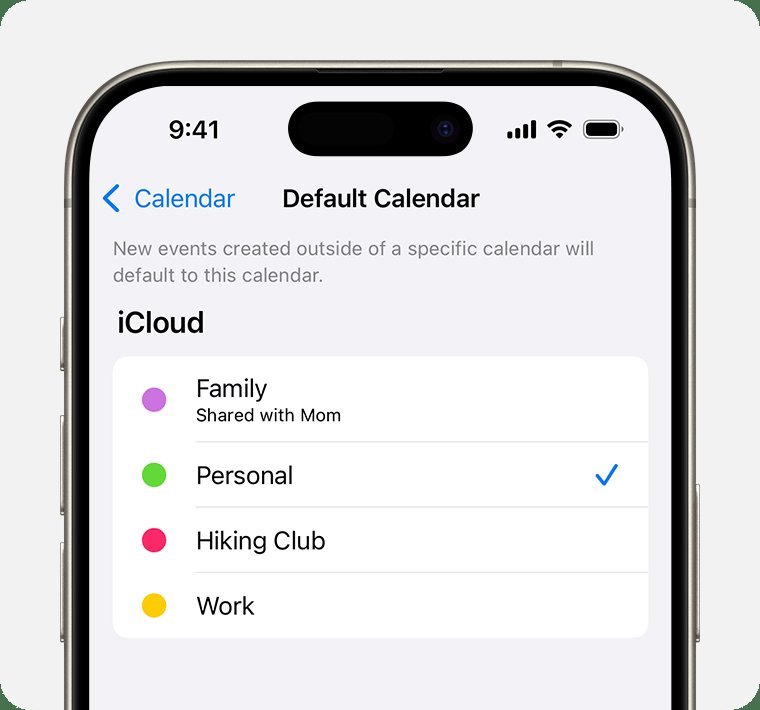
You might be adding events to a local calendar that doesn’t sync, which makes it look like the app is broken. This happens when you have multiple calendars, such as a local “Home” calendar and an iCloud “Work” calendar. If your phone is set to save everything to the local “Home” calendar, those events stay trapped on that one device and never move to your Mac or iPad.
You can tell this is the problem by checking the event color or the small “Calendar” label when you open an entry. If it says “On My iPhone” or “Local,” it won’t sync. To fix this, go to your main Settings, tap “Calendar,” then select “Default Calendar.” You must ensure an iCloud-based calendar is selected here. This change only affects new events, so it won’t fix past entries that were already saved locally.
This is a common mistake for users who previously used Android or older email services that didn’t use cloud storage. It costs you a few minutes to move old events, as you’ll have to recreate them or move them manually if your app version allows it. If you have a large library of local events, this isn’t a one-click fix. Always check the label on your event creation screen before you hit “Done” to ensure you’re selecting the right account.
Software and connectivity limits
Sometimes, the app can’t reach the server because your device is running an outdated version of the operating system. Apple updates their sync protocols regularly, and if your software is too old, the handshake between your phone and the server will fail. You can check this by going to Settings, then General, and tapping Software Update. If a version is waiting, install it to refresh your system files.
This fix isn’t for everyone; if you have a very old device that no longer supports the latest updates, this method won’t work for you. In that case, you must rely on manual syncs by pulling down on the calendar screen to force a refresh. If you’re using a VPN or an ad-blocker, it might be blocking the connection to Apple’s servers. If you use a security app, try turning it off temporarily to see if the sync starts working again.
This varies by model — check the label on your device’s About page to see if you’re on the latest supported version. If your connection is the issue, you’ll notice that other apps like Mail or Safari also struggle to load data. If you have a strong internet connection and a current OS, but you still see no changes, the problem is likely an account error that requires signing out of your Apple ID and signing back in.
The less likely causes
Server Outage: Apple’s own services might be down. Verify this by checking the official Apple System Status webpage. If the service icon is yellow or red, you must wait for their engineers to resolve the backend failure.
Corrupted Cache: Local temporary files often get stuck. A simple restart clears the device memory and forces a fresh handshake with the server. If the issue persists after a reboot, toggle your iCloud sync off and back on to purge the local database.
Date and Time Mismatch: If your phone’s manual clock is even sixty seconds off, the server will reject your sync requests for security reasons. Always keep “Set Automatically” enabled in your Date & Time settings.
Third-party App Conflict: A secondary calendar app might be overwriting your data. If you use multiple tools, delete the third-party apps one by one to isolate the culprit. This prevents data fragmentation across your accounts.
What a fix usually involves
Fixing this issue typically requires only your time and a basic understanding of your device settings. Most of these solutions involve toggling switches or signing out and back into your account, which costs nothing in terms of money. If you need to replace a device because the hardware is too old to support modern sync, that’s a major cost, but that’s rare for this specific problem.
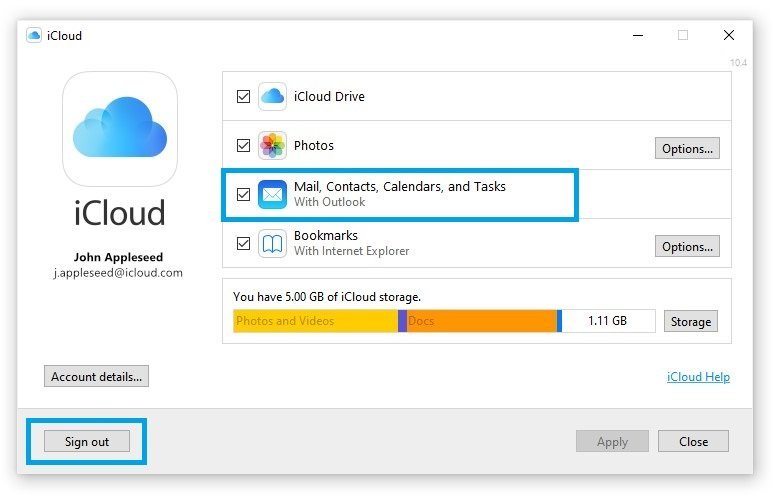
Most fixes take under ten minutes. If you need to sign out of iCloud, make sure you have a backup of your photos and documents first, as this can temporarily remove local data from the device. If the problem persists after you have tried all the steps above, you should contact Apple Support directly. They can look at your specific account to see if there’s a block on their end. Before you go, check your device’s documentation or the official support site to see if there are specific known issues for your model.
Can I fix this without losing my data?
Yes, you can fix this without losing your data by simply toggling the iCloud sync switch off and on again. This action only refreshes the connection between your device and the cloud, and it doesn’t delete your existing events or contacts. Just ensure you’re connected to a stable internet source so the device can pull your data back down immediately after the reset.
Is it safe to sign out of iCloud?
Yes, it’s safe to sign out of iCloud, but you should choose to “Keep a Copy” of your data on your device when prompted during the sign-out process. This ensures that even if the server connection is slow, your local calendar events remain on your phone until you sign back in and the sync re-establishes itself.
How long does a calendar sync take?
About one minute is the standard time for a calendar to sync once a connection is established, though this depends on your internet speed. If you have thousands of past events, the initial sync might take longer as the device indexes the entire history. If it takes longer than ten minutes, check your connection again, as the process should be nearly instant.
What happens if I have two Apple IDs?
You’ll see calendar events from both accounts only if both are signed in and enabled under your Calendar settings. If you only see one, check the “Calendars” button in the app to ensure both accounts have their checkboxes enabled. If one account isn’t listed, you must add it in the “Passwords & Accounts” section of your main settings.
Does it matter which calendar app I use?
Yes, it matters because only apps that support CalDAV or iCloud protocols will sync properly with Apple’s servers. If you use a third-party app, it must be granted permission in your privacy settings to access your calendar data. If the native Apple Calendar app works but your third-party one does not, the issue is likely within the settings of that specific app.
Is my calendar broken if I am offline?
No, your calendar isn’t broken while you’re offline, but it won’t show new entries from other devices until you reconnect. You can still add events to your phone while offline, and they will sync to the cloud automatically the moment you regain an internet connection. Always wait for the spinning wheel to stop to confirm the upload is finished.
Final Thoughts
If these quick checks don’t get your schedule back on track, don’t worry. It’s likely a minor glitch that Apple Support can fix in just a few minutes. Reach out to them through their website or the support app, and they’ll help you get everything running smoothly again in no time.


