
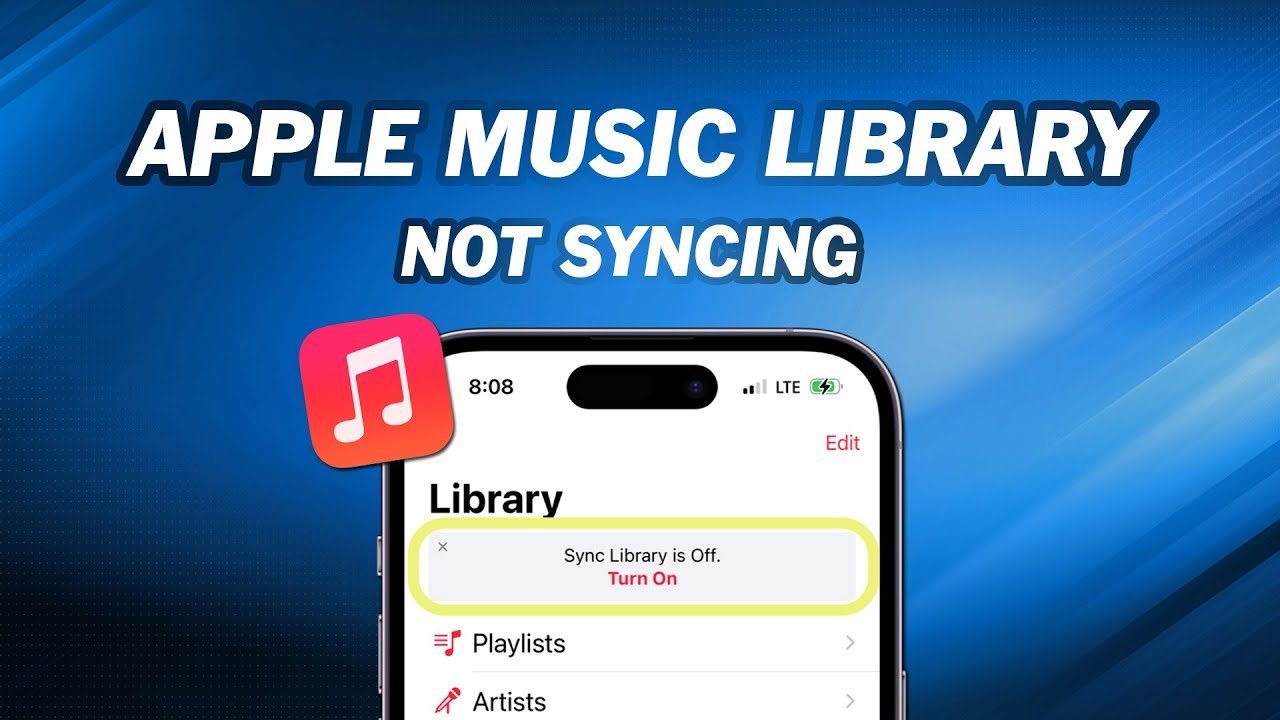
Most of the time, Apple Music not syncing occurs because the Sync Library setting is disabled on one of your devices or your Apple ID session has expired. You can confirm this quickly by checking the settings menu on your iPhone or Mac to see if the cloud library toggle is currently turned on. If the setting is active but the music is still missing, the issue usually involves a temporary connection lag or a conflict with your iCloud account status.
Fixing Apple Music Not Syncing
| Cause | How common | How to confirm it | Fix it yourself? |
|---|---|---|---|
| Sync Library disabled | Very common | Check Settings menu | Yes |
| Expired Apple ID | Common | View account status | Yes |
| Outdated software | Common | Check version number | Yes |
| Poor internet | Frequent | Test browser load | Yes |
| Corrupt cache | Rare | Clear app data | Yes |
| Server outage | Very rare | Check system status | No |
Most users assume a server outage when their library fails to load, but that’s the least likely culprit. If you see a spinning icon for more than sixty seconds, check your local Sync Library toggle first. If the switch is already on, toggle it off and back on to force a handshake with the cloud.
The most frequent mistake is ignoring a silent Apple ID logout. If your subscription remains active but your music is greyed out, your credentials have likely expired. You must re-authenticate in the primary system settings to refresh the token.
If you’re on a metered connection, the app may throttle background syncing to save data. If your download speed drops below 5 Mbps, the sync process will time out. In this case, switch to a stable Wi-Fi network before clearing your cache, as clearing data on a weak connection often triggers a massive, redundant re-download.
Sync Library toggle settings
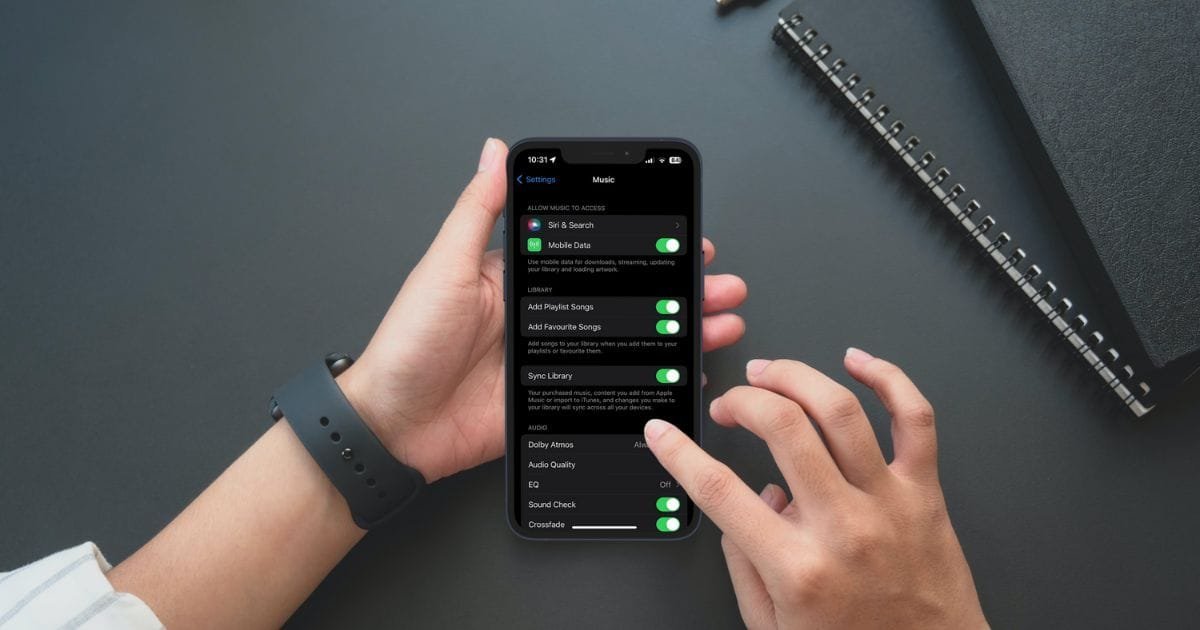
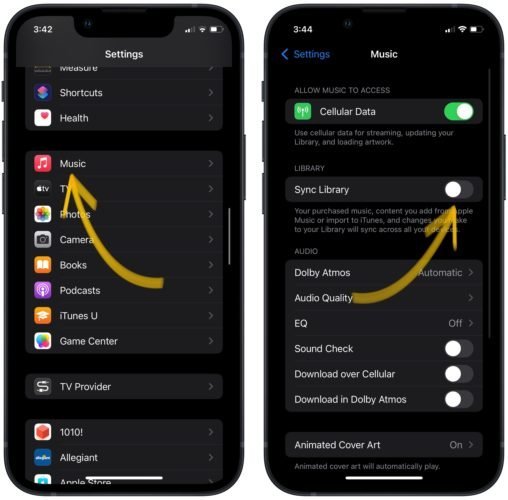
The most frequent reason for this issue is that the library synchronization feature is turned off in your system settings. When this setting is inactive, your device stops communicating with the cloud, meaning new playlists or songs added on your computer won’t show up on your phone. To confirm this, go to your device settings, find the music section, and look for the Sync Library toggle. If the switch is grey, it’s off; if it’s green, it’s on.
If you find it’s off, turn it on. If it’s already on, try turning it off, waiting ten seconds, and turning it back on to force a refresh. This process forces the app to re-scan your library against the cloud database. It usually takes about two to five minutes for the sync to complete, depending on the size of your library and your connection speed. If you have a large collection of over 50,000 songs, this process may take significantly longer.
This isn’t for people who use multiple Apple IDs on the same device, as syncing only works for the ID currently signed into the Media and Purchases section. A common mistake people make is toggling the switch while in “Airplane Mode” or on a metered connection, which prevents the sync from finishing. This costs you time because you’ll have to restart the sync once you reconnect to a stable network. Always ensure you’re on a reliable Wi-Fi network before initiating a full library refresh.
Apple ID authentication errors
Authentication errors occur when your device loses its secure link to the Apple servers, causing the music app to stop fetching updates. You can tell this is the cause if you see a prompt asking you to sign in to your Apple ID or if your account details are missing from the settings menu. To fix this, you must sign out of your account, restart your device, and sign back in to refresh the security token.
To perform this, go to your device settings, tap your name at the top, and select the sign-out option. After the device restarts, navigate back to the same menu to enter your credentials again. This process typically takes about three minutes. If you have two-factor authentication enabled, keep your other trusted device nearby to approve the login request.
This fix isn’t for users who have forgotten their Apple ID password, as you’ll need to recover your credentials before you can re-enable the sync. A common mistake is failing to wait for the full sign-out process to finish; if you force the app to close too early, the account state can become corrupted. You can verify your current account status by checking the official Apple System Status page to ensure there are no ongoing service interruptions. If the status page shows all services are active, the issue is definitely on your end.
Software version conflicts
Outdated software often creates a mismatch between your local music app and the current requirements of the cloud library. If your operating system is several versions behind, the app may lack the protocols needed to communicate with the latest Apple Music servers. You can confirm this by checking your device’s software update menu to see if an update is pending.
If an update is available, install it immediately. This process can take anywhere from ten minutes to an hour, depending on the size of the update and your internet speed. Ensure your device is plugged into a power source before starting, as a battery drain during an update can cause data errors. This limit varies by model; check the label or the settings menu to see the latest version available for your specific hardware.
This fix isn’t for those who are currently using a beta version of the operating system, as these versions often contain bugs that aren’t yet resolved. A mistake people make is ignoring the update prompt because they don’t want to wait for the installation to finish, which leaves their library stuck in a non-syncing state indefinitely. If you have the storage space for the update but it fails to install, you likely have a network restriction on your router that’s blocking the download.
The less likely causes
Corrupt local cache: The app’s temporary data files are damaged. Clear the app cache or reinstall the application to fix this. If the issue persists after a reinstall, you likely have a corrupted preference file located in your device’s hidden library folder.
Network firewall: Your home router or workplace network is blocking Apple’s servers. Try switching to a cellular network to confirm. If it works on data but fails on Wi-Fi, your router’s security settings are likely too restrictive for the specific port range Apple Music requires.
Storage limit reached: Your device has no free space left to download new metadata. Delete unused apps or photos to free up room. You need at least 500MB of overhead beyond the file size to allow for the temporary extraction process.
Service maintenance: Apple is performing work on the music servers. Check the official status page and wait for the maintenance window to pass.
What a fix usually involves
Resolving these issues usually involves basic troubleshooting steps that require only a few minutes of your time and no special equipment. If the fix requires a simple setting change, it costs nothing but your time. If you need to reinstall the app or update your system, ensure you have enough data on your plan, as these downloads can be quite large.
For issues that persist after these steps, you may need to contact official support. Most of the time, the cost of a fix is nothing because the software is provided as part of your subscription. If you ever need to replace a device, the cost is a significant portion of your total hardware budget. Always check the official documentation on the manufacturer’s website for the most accurate steps for your specific model, as the menu labels can change with every OS update. If you’re unsure, look for the “Support” section on the main website to find guides tailored to your exact device version.
Frequently asked questions
Can I force my library to sync immediately?
Yes, you can trigger a sync by toggling the Sync Library switch off and then back on in your settings. This forces the device to re-verify your entire music collection against the cloud database. If you have a very large library, this process may take several minutes to finish, so keep the app open and your device connected to Wi-Fi until the progress bar disappears.
Why does my music disappear from my phone?
This usually happens because the Sync Library feature was turned off, or your Apple ID session has timed out. When the sync is disabled, the local app no longer pulls information from the cloud, making it appear as though your songs have vanished. Simply signing back in or re-enabling the sync toggle will restore the visibility of your purchased and uploaded music.
Is it safe to sign out of my Apple ID?
Yes, it’s perfectly safe to sign out and sign back in to troubleshoot your account. Your music library is stored in the cloud, so signing out won’t delete your songs or your playlists. Once you sign back in, the device will re-download the metadata for your library, which may take a few moments depending on the number of tracks you have stored.
How long does a full sync take?
About five to ten minutes is standard for a medium-sized library on a stable connection. If you have tens of thousands of songs, the initial sync can take over an hour to complete. Always keep your device plugged into a charger during this time, as a full sync consumes significant battery life and can be interrupted if the device shuts down unexpectedly.
Does it matter if I am on mobile data?
Yes, it matters because mobile data can be slow or unstable, which often causes the sync process to fail mid-way. You should always perform large library syncs while connected to a reliable Wi-Fi network to avoid data errors. If you must use mobile data, ensure your settings allow for “High Quality Streaming” and “Sync over cellular,” though this may use a large portion of your monthly data.
What happens if the server is down?
Nothing you do on your device will fix the sync until Apple restores the service. You can check the official status page to confirm if there’s a known outage affecting your region. During these times, the best approach is to wait for the service to return, as any changes you make to your library settings may be ignored by the unresponsive servers.
Final Thoughts
If your songs still don’t appear after checking these settings, don’t worry. Sometimes a simple sign-out and sign-in process is all it takes to refresh your account’s connection to the cloud. You’ll find that your library usually pops back into place once your device re-establishes a fresh link with Apple’s servers.
Related guides


