
A jio fiber red light blinking indicates that your home gateway has lost its connection to the service provider’s network. This signal means the optical fiber cable is either damaged, bent, or disconnected from the wall jack or the modem port. You should first inspect the physical cable for any sharp kinks or breaks before calling for support. If the cable looks fine, the issue might be a local service outage or a fault in the external distribution box that requires a technician to repair.
Why is my Jio Fiber red light blinking?
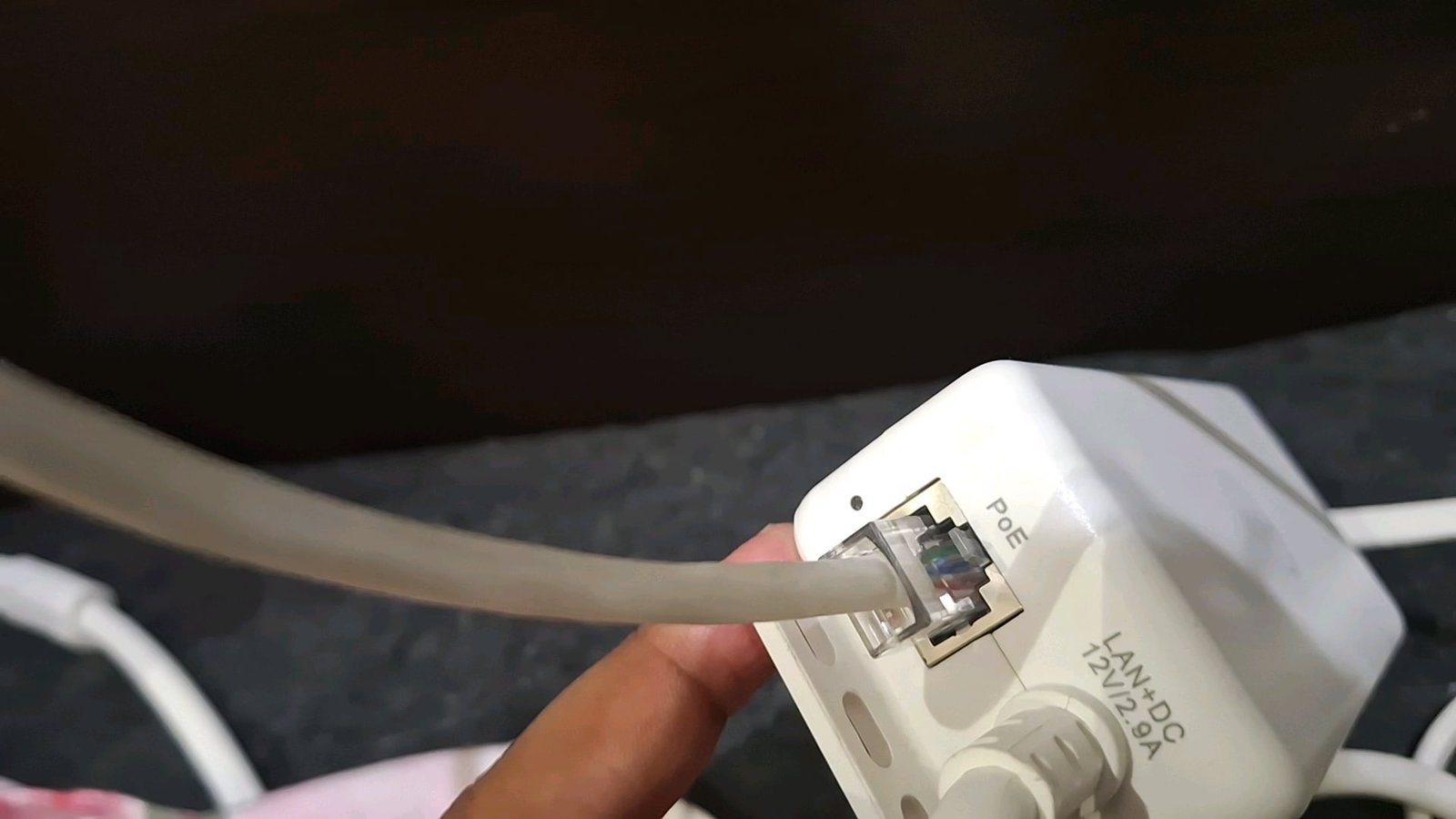
The primary reason for this alert is a physical disruption of the light signal traveling through your glass fiber cable. Unlike traditional copper wires, fiber optics use pulses of light to transmit data. If that light is blocked or interrupted, the modem cannot “see” the exchange, resulting in the red light status.
One common cause is a loose connection at the wall outlet or the back of the router. Over time, vibrations or accidental bumps can cause the small connector to shift just enough to block the light beam. You must ensure the connector is firmly clicked into the port.
Another frequent culprit is a sharp bend in the fiber cable. These cables are made of thin glass strands that are surprisingly fragile. If you have tucked the cable behind heavy furniture or coiled it too tightly, the internal glass may have fractured. According to the official Jio Fiber support guidance, a red light confirms the signal isn’t reaching the device, which necessitates a physical inspection of the line from the entry point of your home to the router.
Finally, the problem might not be inside your home at all. Environmental factors like construction work, heavy winds, or animal damage can sever the external lines that connect your building to the neighborhood distribution hub. If your neighbors are also experiencing a loss of service, the issue is almost certainly external.
Check the physical connection
This step is for those who suspect the cable moved or loosened. First, locate the thin fiber cable entering your home. Follow it to the wall jack and then to the port on the back of your router. Gently unplug the connector from the router port and inspect the tip. It should be clean and free of dust. If you see debris, use a puff of compressed air to clean it; never touch the glass tip with your fingers, as skin oils can permanently degrade the signal.
Once clean, reinsert the connector into the router port until you hear a distinct click. If you’re using a patch cord between the wall and the router, ensure both ends are seated correctly. If the red light stays on for more than five minutes after you have confirmed the connection is tight, the internal glass strand might be damaged.
If you have a spare fiber patch cable of the exact same type, try swapping it to see if the original cable was the failure point. If you don’t have a spare or if you feel resistance when handling the cable, stop immediately. Attempting to force a connection or bend a stiff cable can break the glass permanently, which turns a simple fix into a costly replacement. This fix isn’t for those who are uncomfortable handling delicate electronics; if you have doubts, it’s safer to wait for a professional.
Restart and reset the hardware
If your cables are perfectly straight and firmly connected, a software glitch in the router might be preventing it from re-establishing the handshake with the network. Perform a power cycle by unplugging the power adapter from the wall outlet, not just the back of the router. Wait at least sixty seconds to allow the internal capacitors to discharge fully.
Plug the power back in and watch the indicator lights on the front panel. It’s normal for several lights to flash as the device boots up and attempts to sync with the exchange. Give the router ten minutes to complete its startup sequence. If the light remains red after this time, the device is failing to authenticate with the network.
A mistake people often make is pressing the “Reset” button located in the tiny hole on the back of the unit. This wipes your custom Wi-Fi name and password, forcing you to reconfigure the entire network. Avoid this unless a support agent explicitly tells you to do so. If the light is still red after a power cycle, the issue is beyond your control. This varies by model — check the label on the bottom of your router for the specific version number, as some older models have different light color sequences than the newer Wi-Fi 6 units.
Contact the service provider
When physical checks and power cycles fail to clear the red light, you must contact the service provider to report a “Loss of Signal” (LOS) issue. This is the only way to resolve problems occurring outside your house, such as a severed cable in the street or a faulty port at the local exchange.
This fix is for everyone who has exhausted the basic troubleshooting steps above. You’ll need your customer ID or registered mobile number when you call. Be prepared to tell the agent that you have already checked the cable for bends and performed a power cycle. This saves time because the agent will ask these questions first.
If the agent confirms an outage in your area, they will provide an estimated time for the repair. If there’s no outage, they will schedule a technician visit. Don’t attempt to climb poles or open street-level utility boxes yourself, as this carries a high risk of electrical shock and is illegal in many jurisdictions. Professional field engineers carry the specialized fusion-splicing equipment required to repair broken fiber lines. If you aren’t a trained technician, leave the external infrastructure alone and let the service company handle the repair process.
What not to do
- Don’t bend the fiber cable at a sharp angle: The glass core inside will snap instantly if forced into a tight “U” shape or a knot.
- Don’t use liquid cleaners on the fiber connector: Any residue left on the glass tip will block the light signal and cause the connection to fail.
- Don’t pull or tug on the cable: Fiber cables have very little tensile strength, and pulling them can pull the connector out of the wall or snap the strand.
- Don’t open the router casing: Tampering with the internal components voids your warranty and can expose you to harmful laser light, which is invisible to the human eye.
How to stop it happening again
Proper maintenance of the cable path is the best way to ensure a stable connection.
| If you’re doing this | Do this instead | Why |
|---|---|---|
| Leaving cables loose on the floor | Secure cables with plastic clips | Prevents accidental pulling or tripping |
| Coiling excess cable tightly | Use large, loose loops | Prevents internal glass fractures |
| Placing heavy items on cables | Route cables along baseboards | Protects the cable from crushing force |
| Ignoring dust near the router | Keep the area clean | Prevents debris from entering the port |
Most users mistake a flicker for a hardware failure. If your connection drops only when someone walks nearby, the issue is physical tension, not signal degradation.
Watch for the “tight radius” trap. If your cable bends at an angle sharper than a standard soda can, you’re likely damaging the internal fiber strands. If you see a permanent crease in the cable jacket, replace the cord immediately. A kinked cable will eventually fail due to internal glass fracture, regardless of how clean your ports remain.
Frequently asked questions
Can I fix a broken fiber cable myself?
No, you can’t fix a broken fiber cable yourself because it requires a specialized fusion splicer to join the glass strands. This machine uses an electric arc to melt the glass, which is a tool most people don’t own. You must contact your service provider to replace the damaged line.
Why is my internet red light blinking after a storm?
The red light is blinking because a storm likely damaged the external fiber line or caused a power failure at the distribution hub. High winds often bring down tree limbs onto cables, causing a physical break that the modem detects as a loss of signal. You should report the issue to your provider.
How long does it take for a technician to fix a red light?
A technician visit usually takes between two and four hours to complete, depending on the severity of the damage. If the break is inside your home, they can often fix it quickly by replacing the patch cord. If the damage is in the street, the repair may take longer.
Is it safe to leave the router on with a red light?
Yes, it’s perfectly safe to leave the router powered on while the red light is blinking. The light simply indicates that the device is searching for a signal that’s currently unavailable. You can turn it off to save electricity if you expect a long delay before the repair.
What happens if I move my router to another room?
Moving your router to another room will cause a red light if you don’t have a matching fiber wall jack installed in that location. Fiber service requires a specific optical port to function rather than a standard outlet. You must ask the provider to relocate the fiber entry point.
Final Thoughts
If your internet doesn’t return after checking the connections, don’t hesitate to reach out to customer care through the MyJio app. They’ll be able to run a remote diagnostic test to see if there’s a deeper problem. You shouldn’t have to wait long to get back online and enjoy your connection again.
Related guides


