
When your browser stops sharing data across devices, it’s usually because firefox not syncing history is caused by a disconnected account or a disabled synchronization setting. You can resolve this by logging out of your Firefox account and signing back in to refresh the connection. This fix works for most desktop and mobile users who find their bookmarks or tabs aren’t updating. If this doesn’t work, the issue often stems from a conflict in your browser profile or a temporary server error at Mozilla.
Reasons Firefox not syncing history
Synchronization issues occur when the secure token between your browser and the Mozilla servers becomes stale or invalid. This often happens after a major browser update or if your system clock is out of sync with the internet time, which causes authentication failures.
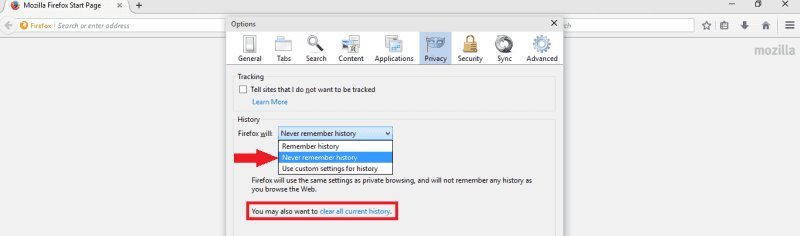
Another common cause involves your privacy settings. If you use a strict “Clear history when Firefox closes” setting, the browser might be deleting the local sync database before it can upload your data to the cloud.
Finally, check for external interference. Many third-party security suites or aggressive ad-blockers can block the specific API calls Firefox uses to communicate with its servers. If you have recently changed your firewall or installed a new VPN, this is likely the root of your problem. You can verify your current sync status and account health through the official Mozilla support dashboard. This page details how to verify if your device is actively communicating with the network.
Sign out and log back in
This is the primary fix for users who see their account listed but notice that data remains static. It forces the browser to discard the old, broken session token and request a fresh one from the server.
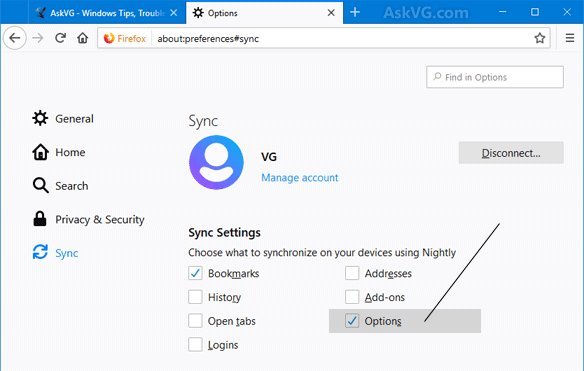
To do this, navigate to your browser settings by clicking the three horizontal lines in the top right corner. Select “Settings” and then click the “Sync” tab on the left sidebar. Click your email address and choose “Sign out.” Before signing back in, restart your browser completely. This clears the memory cache and ensures no background processes are holding onto the old, faulty connection data.
Once the browser reopens, return to the Sync menu and sign in again. You’ll see a prompt asking which data types to sync. Ensure the “History” box is checked. If you have multiple devices, do this on your primary machine first, then your secondary devices. This fix isn’t for users who have lost their account password or who can’t access their registered email, as you’ll need to verify your identity via a secondary code sent to your inbox. If you find the sync still fails after this, check your local disk space; if your drive is completely full, Firefox can’t write the necessary local sync logs to finish the process.
Clear the sync cache
Sometimes the local database that tracks what has already been sent becomes corrupted. When this happens, the browser gets stuck in a “pending” state because it can’t reconcile the local history file with the cloud version.
To fix this, you need to force a reset of the sync engine. In the address bar, type about:support and hit enter. Look for the “Places Database” section. This is where your history and bookmarks live. If the check indicates the database is corrupted, use the “Verify Integrity” button. This will attempt to repair the file structure.
If the database is fine but sync still fails, go to about:config in your address bar. Search for services.sync.reset. Clicking it will clear your local sync metadata and force a fresh fetch from the server. This is a powerful step that effectively treats your browser as a new device. It isn’t for people who rely on custom sync configurations or complex privacy tweaks, as this reset will return your sync settings to their default state. If you aren’t comfortable editing advanced configurations, stop here and consult your browser’s help menu, as changing the wrong setting in this menu can cause the browser to behave unexpectedly or lose saved login credentials.
Verify your internet connection
If the sync fails consistently, check your network environment. If you’re on a corporate network or a restricted public Wi-Fi, the network administrator may be blocking the traffic required for synchronization.
This fix is worth the effort if you have already tried the steps above and still see a “Sync failed” error. First, disable any VPN or proxy software you have running. These tools often route traffic through servers that Mozilla’s infrastructure flags as suspicious, leading to a temporary block of your sync requests. If you’re on a home network, restart your router.
If you’re using a work computer, you might not have the permissions to change network settings. In this case, contact your IT department and ask if they whitelist Mozilla sync services. Don’t try to bypass corporate firewalls using unauthorized tools, as this often violates company policy and could lead to your account being locked by the network security system. If you’re using a home connection, ensure your date and time settings are set to “Automatic.” If your computer’s time is off by more than a few minutes, the secure cryptographic certificates will fail to validate, preventing any sync from occurring.
What not to do
- Don’t reinstall the browser immediately. This is a common mistake that wastes time because the sync data is stored on Mozilla’s servers, not in the local application files.
- Don’t delete your local history file. Manually deleting the
places.sqlitefile will permanently remove your browsing history from that device, and if sync is off, you’ll lose that data forever. - Don’t share your sync account credentials with others. Using the same account on a public or shared computer creates a privacy risk where your personal history merges with theirs, which is difficult to separate later.
- Don’t ignore “Sync Error” notifications. These messages appear for a reason, and ignoring them usually leads to a total breakdown of the service, requiring a much more difficult manual recovery.
How to stop it happening again
Consistency is the best way to keep your data moving between devices without manual intervention.
| If you’re doing this | Do this instead | Why |
|---|---|---|
| Using aggressive VPNs | Whitelisting sync servers | Prevents the server from flagging your traffic as suspicious. |
| Blocking all background cookies | Allowing Mozilla domain cookies | These cookies are required to maintain your active login session. |
| Manually editing database files | Using the built-in integrity tool | Manual edits often cause permanent data corruption in the browser. |
Frequently asked questions
Can I recover deleted history after a sync error?
No, you can’t recover locally deleted history once the browser syncs that deletion to the cloud. Synchronization ensures all devices remain identical by removing items from the server and all connected machines. Note that resetting sync settings may overwrite local data with server versions.
Why is my history not showing on my phone?
Your history may be missing because your mobile device hasn’t refreshed its connection with the server. Toggle the “History” switch off and back on within the Sync settings menu to force a database request. Ensure you’re signed into the same account on both devices.
How long does it take for history to sync?
This assumes you have a stable internet connection and aren’t using Private mode. If data remains missing after five minutes, sign out and back in to refresh the connection.
Is it safe to use Firefox Sync?
Yes, your data is safe because it’s encrypted end-to-end using your account password. Mozilla can’t access your synced information because they don’t possess your unique encryption key. For added security, you can enable two-factor authentication on your account.
What happens if I use different Firefox versions?
Using different versions of Firefox can cause sync issues because newer versions often use database schemas that older versions don’t recognize. Keep all installations updated to the latest version to ensure the sync protocol remains compatible. Older versions may cause specific data types to stop working.
Final Thoughts
If these adjustments don’t get your data moving again, don’t worry. You can reach out to the official Mozilla support forum to share your specific situation with their team. They’re great at helping users troubleshoot stubborn glitches, so you’ll likely have your devices back in sync before you know it.
Related guides


