
An app not blocked by Screen Time usually occurs because it’s categorized as a system essential or has been added to the “Always Allowed” list. Screen Time settings don’t apply to apps you have specifically exempted. Check your whitelist in the Screen Time menu to ensure the app isn’t on the exception list.
Why Screen Time fails to block apps
The primary reason an app continues to function is its classification. Operating systems often protect specific apps from restrictions to prevent your phone from crashing or losing critical connectivity. If an app is vital for the phone’s basic operations, the system won’t block it, even if you set a hard limit.
Another frequent cause is the “Always Allowed” list. Many users accidentally add an app to this list during the initial setup or while trying to troubleshoot a different issue. Once an app is on this list, it bypasses all time limits and scheduling restrictions. This is a deliberate design choice by manufacturers like Apple to ensure that apps like Phone, Messages, or Maps are always available for emergencies.
Finally, app updates can change how a specific piece of software interacts with your device. Sometimes, an app might update its internal process, causing the operating system to misidentify its category. If the system no longer sees the app as a social or entertainment tool, it might stop applying the restriction. You can verify the official Apple Screen Time support documentation to see how these limits are intended to function across different device categories. This varies by model—check the label or the specific version of your OS, as navigation paths change between major software releases.
Adjust your allowed apps
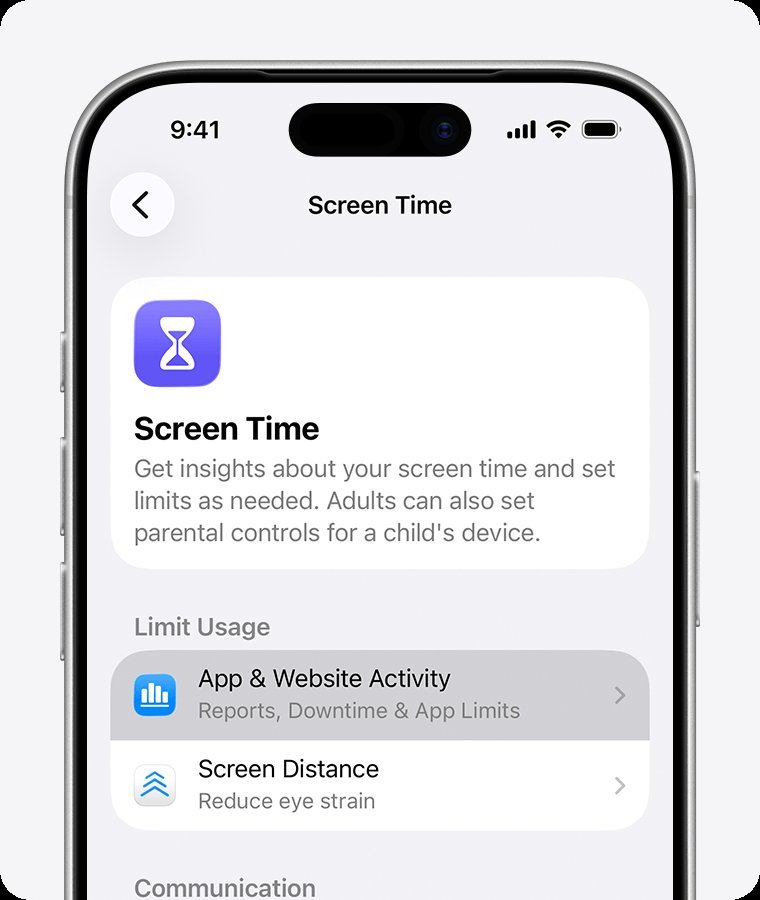
This fix is for users who want to ensure that only truly critical apps remain available after the daily limit is reached. Start by opening your Settings app and navigating to the Screen Time section. Look for the “Always Allowed” option in the main menu. You’ll see a list of apps with green plus signs next to them. These are the apps that stay active regardless of your limits.
If you see the app that isn’t being blocked on this list, tap the red minus button next to it. This removes the exemption and places the app back under your standard Screen Time rules. If you don’t see the app there, try adding it to the list and then removing it immediately. This forces the software to refresh its permissions and re-apply the block.
After making these changes, restart your device to ensure the new settings take effect. If the app is still running, check if it has a “web” component. If the app uses a browser to load content, you might need to block the specific website in the Content & Privacy Restrictions menu rather than blocking the app itself. This is a common trade-off; you lose the ability to browse that specific site, but you gain control over the time spent in the app.
Update your app limits
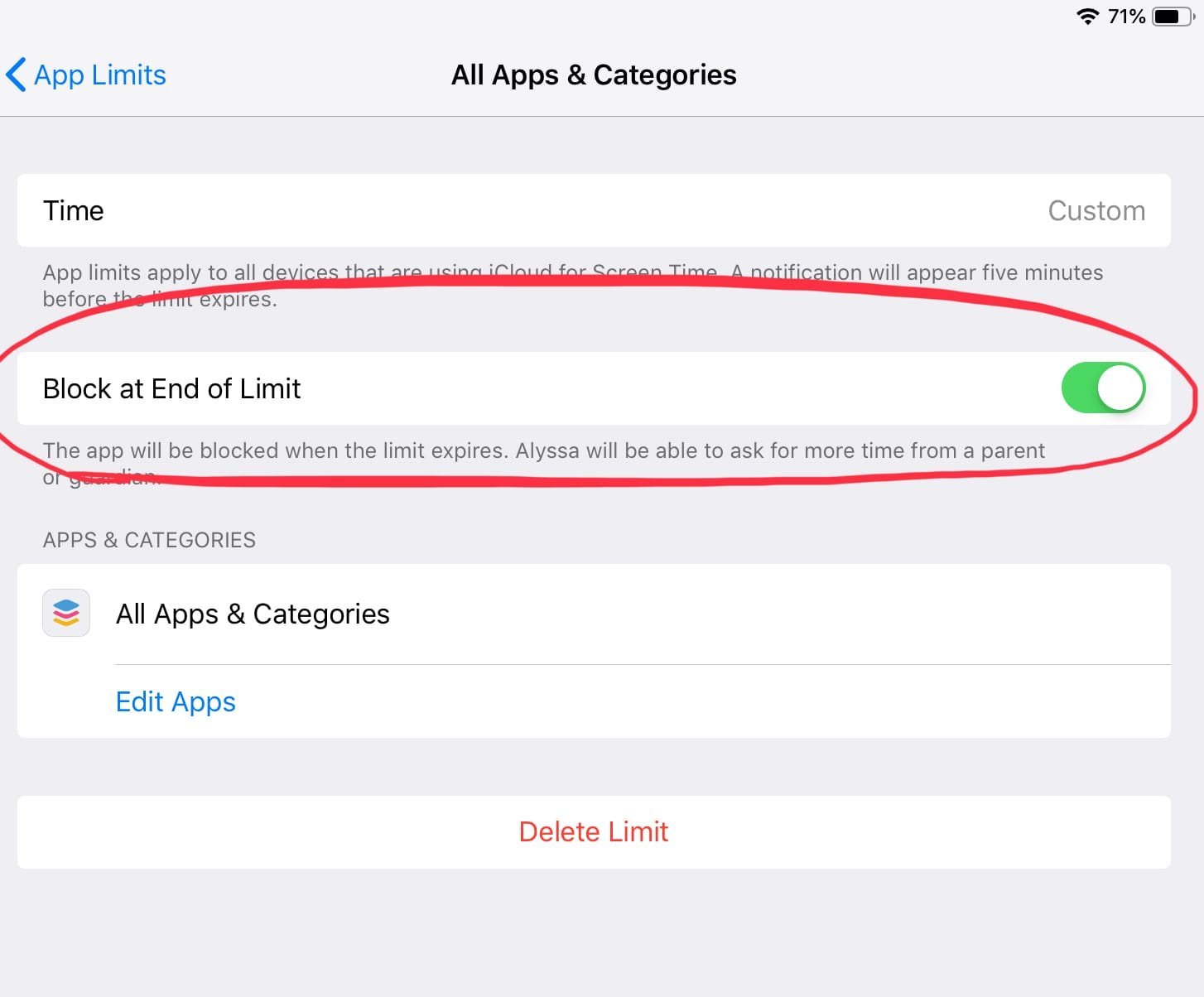
Use this method if you have confirmed the app isn’t on the “Always Allowed” list but it still ignores your time constraints. Go to “App Limits” within the Screen Time menu and select the category that contains the problem app. If you have selected “All Apps & Categories,” ensure the individual app is specifically toggled on.
Sometimes, the system fails to apply a limit because the “Block at End of Limit” toggle is turned off. When this feature is inactive, the system sends a notification but doesn’t prevent you from clicking “Ignore Limit.” Ensure this switch is turned to the “On” position for every category you want to restrict strictly.
This fix is specifically for users who find that they can still open apps after the time expires. If you’re setting limits for a child’s device, make sure you have set a Screen Time passcode. Without a passcode, anyone can simply press “Ignore Limit” and continue using the app for another 15 minutes or the rest of the day. If you don’t have a passcode, the system treats every limit as a suggestion rather than a hard rule. This is a mistake many people make, and it costs them the ability to enforce screen boundaries effectively.
Reinstall the problematic software
If the previous fixes fail, the app’s internal state may be corrupted. Uninstalling and reinstalling the app forces the operating system to re-register the app’s permissions and category. This is the best approach for harder cases where the software seems to “glitch” through the system’s filters.
Before you delete the app, ensure you have backed up any data stored within it, as deleting the app will remove local files. After you reinstall, return to the Screen Time menu and re-apply the limit. This process takes time, so only use it if you have already verified that the app isn’t in your “Always Allowed” list and that your “Block at End of Limit” setting is active.
If the app still bypasses the block after a fresh install, the problem likely lies with how the developer categorized the app in the App Store. If the developer labeled it as a “Utility” or “System” tool, the system will often refuse to block it regardless of your manual settings. In this scenario, you have reached a limit of the software. You can’t force a block on a system-level app; you would need to contact the developer or use third-party parental control software that monitors traffic at the network level.
What not to do
Don’t disable Screen Time entirely to “reset” it. This action wipes your entire usage history and forces you to reconfigure every limit from scratch. You lose the data trends that help identify your actual habits.
Avoid downloading “master keys” or unknown third-party apps promising to force-block content. These tools often require invasive permissions, such as full device management access, which compromises your security. If an app asks for your root configuration files, uninstall it immediately.
Don’t delete your Apple ID or factory reset your phone. These steps are extreme and won’t resolve a simple category misclassification error. You’ll likely lose your local storage and synced cloud data for nothing.
Never share your Screen Time passcode with the person using the device. If they know the code, they can extend their own usage limits at will. If you suspect they have seen it, change the code immediately to regain control of your digital boundaries.
How to stop it happening again
Consistent management of your settings prevents these issues from recurring. If you’re managing multiple devices, keep a checklist of which apps are allowed to run during downtime.
| If you’re doing this | Do this instead | Why |
|---|---|---|
| Leaving app limits on “All” | Select specific categories | Prevents system apps from being blocked. |
| Sharing your passcode | Use a unique, private code | Keeps the restrictions enforceable. |
| Ignoring update prompts | Update apps immediately | Fixes bugs in category labeling. |
| Allowing all notifications | Disable non-essential alerts | Reduces the urge to open the app. |
Frequently asked questions
Fixing an app not blocked by Screen Time
No, you can’t block core system apps deemed essential for device functionality. These apps are hardcoded to ignore screen limits to prevent the device from becoming unusable. Note that apps mislabeled as “utilities” in the store may also bypass your restrictions.
Why does my child still use the app after the limit ends?
Your child is likely selecting the “Ignore Limit” option when the notification appears. You must set a Screen Time passcode that the user doesn’t know to prevent this. Without this code, the user can bypass limits without your permission.
How long does it take for a new limit to take effect?
A new limit takes effect immediately after you save the changes in the settings menu. If the app is already open, you may need to close and reopen it for the restriction to trigger. Restart the device if the restriction doesn’t appear after one minute.
Is it safe to use third-party apps to block apps?
No, it isn’t recommended to use third-party blockers because they often require invasive MDM access. Granting this access allows developers to track your data and control your device remotely. Stick to the built-in Screen Time features to ensure your privacy and security.
What happens if I delete an app to fix the block?
Deleting an app removes the software and all its local data from your device. This effectively resets the app’s interaction with Screen Time, but you’ll lose any unsaved progress or files. Check if the app stores data in the cloud before deleting it.
Final Thoughts
If the problem persists after checking your settings, try restarting your device to refresh the software. Sometimes a quick reboot is all it takes to clear a minor glitch. If you’re still having trouble, don’t hesitate to reach out to Apple Support, as they’ll be happy to help you get things sorted.
Related guides


