
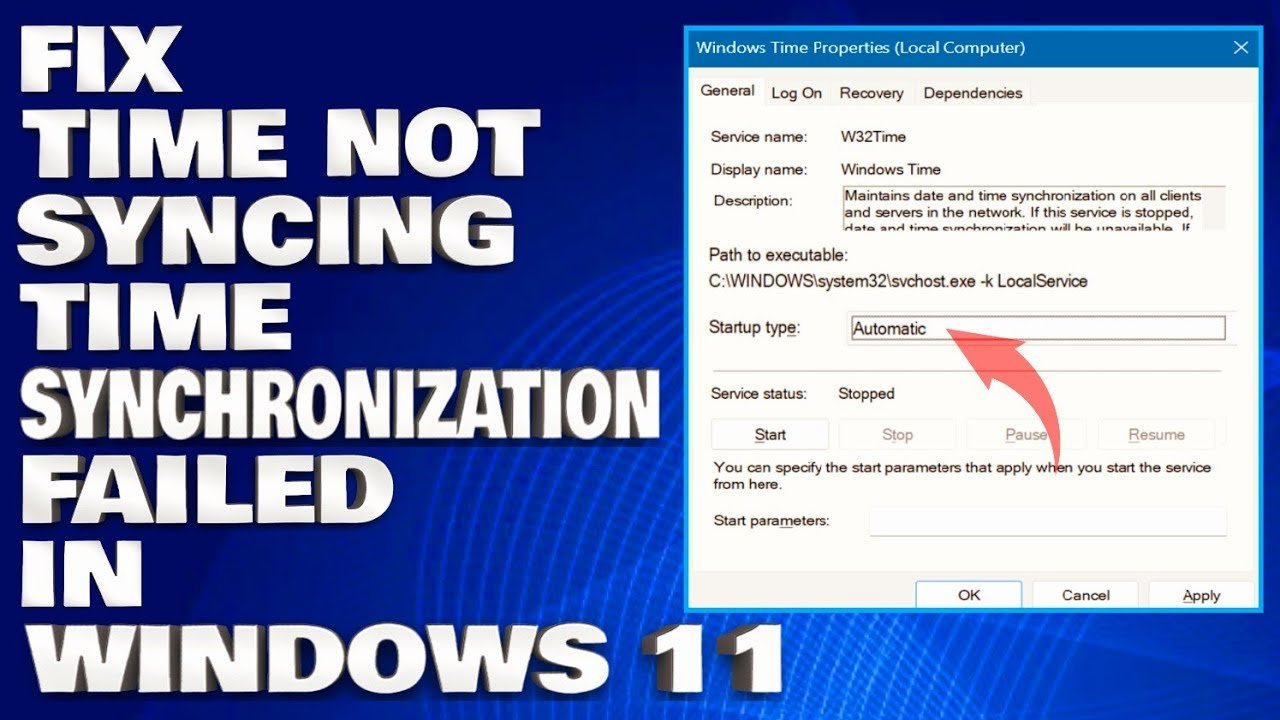
The most common reason for time not syncing on windows is a stopped or disabled Windows Time service, which affects nearly half of all sync issues. You can verify this by opening the Services console, locating the Windows Time service, and checking if the status is set to “Running.” If it’s stopped, right-click and select “Start.” This assumes you have administrator rights; for standard user accounts, you’ll need to contact your system administrator to change service configurations.
Fixing time not syncing on Windows
| Cause | How common | How to confirm it | Fix it yourself? |
|---|---|---|---|
| Service disabled | Very common | Check Services.msc status | Yes |
| Wrong time zone | Common | Check Date & Time settings | Yes |
| Internet blocked | Common | Check network connectivity | Yes |
| Sync server down | Occasional | Ping time.windows.com | Yes |
| CMOS battery dead | Rare | Check BIOS clock | Yes with care |
| Registry error | Rare | Check registry keys | No |
The most frequent culprit is the Windows Time service being set to “Manual” or “Disabled.” If your clock drifts by exactly one hour, verify your Daylight Saving Time toggle first. If the drift is irregular, your CMOS battery is likely failing.
A common mistake is assuming a server outage when your local firewall is the true blocker. If you can’t ping the server, check your router logs before blaming Microsoft.
Use this decision rule: if the clock resets every time you power down, replace the motherboard battery. If the clock loses time only while the computer is running, you have a sync conflict. If the time is off by an exact hour, your time zone or Daylight Saving Time settings may be misconfigured. Never attempt a registry edit unless you have a verified system restore point, as a single typo can break your authentication handshake entirely.
Service configuration errors
The Windows Time service is the background process responsible for keeping your system clock accurate by communicating with external servers. When this service stops or fails to start automatically, your computer can’t reach the time servers, leading to a drift that grows over time.
To confirm this is the issue, press the Windows key + R, type services.msc, and press Enter. Scroll down the list until you find “Windows Time.” If the status column is blank, the service isn’t running. Double-click the entry, change the “Startup type” to “Automatic,” and click the “Start” button under the Service status section.
If the service refuses to start, you may need to re-register it. Open Command Prompt as an administrator and type w32tm /unregister followed by w32tm /register. This process takes about two minutes. If you’re on a domain-joined machine, your organization may have group policies that prevent you from changing these settings. In those cases, the sync behavior is controlled by the domain controller, and you must follow Microsoft’s official time service guidance to ensure your workstation aligns with the network time server. This isn’t for users on restricted corporate networks, as manual changes can cause authentication errors across the domain. Always check the label on your system settings to see if your organization manages your time synchronization.
Incorrect time zone settings
Sometimes the time is technically “synced,” but it shows the wrong hour because your computer is set to the wrong location. This happens often after travel or system updates that reset local preferences.
To see if this is your problem, compare your current system time with a reliable clock. If the minutes are correct but the hour is off by an exact increment, you’re likely in the wrong time zone. Open Settings, navigate to “Time & language,” and select “Date & time.” Ensure “Set time zone automatically” is toggled to “On.” If it’s already on, toggle it off and manually select your correct region from the dropdown list.
This fix is immediate. If the time jumps to the correct hour, the sync process was working, but the display logic was flawed. If the time remains incorrect after changing the zone, your issue lies with the sync server, not the time zone. A common mistake is manually setting the time to “fix” the issue; this is a temporary patch that will fail again as soon as the system attempts to sync with the internet. It’s better to use the automatic settings to keep your clock aligned with global time standards. This depends on your OS settings; check your region’s specific daylight saving rules, as some countries don’t observe these shifts.
Network and server interference
Your computer needs a clear path to the internet to query time servers, and certain network security settings can block this traffic. When your firewall or router prevents the computer from reaching the NTP (Network Time Protocol) port, synchronization will fail every time.
Verify this by checking your internet connection first. If you can browse websites but the time sync still fails, your router might be blocking port 123, which is the standard port for time synchronization. To test this, try connecting your computer to a different network, such as a mobile hotspot. If it syncs successfully on the hotspot, your home router’s firewall is the culprit.
This is a trade-off: you can lower your router’s security to allow NTP traffic, or you can accept that your clock will drift until you manually sync it. If you’re using a third-party antivirus or firewall, check its settings to ensure it isn’t blocking w32tm.exe. This isn’t for users who don’t have access to their router’s administrative panel, as changing firewall rules can expose your home network to risks. If you can’t access your router, you’ll need to rely on manual updates or a third-party time-sync application that uses a different port for communication. Always check your router’s documentation to see which specific ports are restricted in your current configuration.
The less likely causes
- Dead CMOS battery: If your clock resets to a date like January 2000 every time you power off, the coin-cell battery on your motherboard is likely empty and needs physical replacement.
- Registry corruption: If you have tried all other steps and the service still fails, the time-related registry keys may be corrupted, which requires advanced editing that can break your OS if done incorrectly.
- Corrupted system files: Missing or damaged Windows system files can prevent the time service from executing, which is best handled by running the System File Checker tool.
- Group Policy restrictions: In a professional or school environment, a system administrator may have disabled time syncing to maintain a specific network standard, which you can’t override without their authorization.
What a fix usually involves
Fixing time sync issues generally requires either toggling a software setting or restarting a service. If the issue is software-based, it costs nothing but a few minutes of your time to navigate the settings menu or the command line. When the cause is hardware, such as a dead CMOS battery on a desktop motherboard, the fix involves a small part that usually costs very little. However, the labor required to open a computer case and replace the battery can be significant depending on the design of your device.
If you’re unsure of the cost or the complexity, check your device’s manual or the manufacturer’s support page for repair estimates. Never pay for expensive software tools that promise to “fix” your clock; these are rarely necessary and often contain bloatware. Most fixes are built directly into Windows. If you find that the hardware needs replacement, consult a professional technician to get a real quote before proceeding, as opening a laptop or all-in-one PC can void your warranty.
Frequently asked questions
Why is my clock always wrong?
Your clock is wrong because the internal system time is drifting and failing to reach the time server. This usually happens when the Windows Time service is stuck or your internet connection blocks the sync request. Check your service status and your router’s firewall settings to ensure the computer can communicate with the outside world.
Is it safe to change my time manually?
Yes, it’s safe to change your time manually, but it’s only a temporary fix. Your system will eventually drift again because it lacks the automatic correction provided by the sync service. Use manual settings only if you can’t connect to the internet or if you’re in a location with no network access at all.
How long does a time sync take?
A time sync takes less than five seconds once the connection is established. If your computer hangs for longer than thirty seconds while trying to sync, it means the server is unreachable or the service is unresponsive. You should stop the process, check your internet, and try again after a few minutes.
Does it matter if my time is off by a few minutes?
Yes, it matters because many secure websites and authentication services will block your connection if your clock doesn’t match the server time. This is a security measure to prevent invalid tokens and certificate errors. Keeping your clock within one minute of the actual time is highly recommended for stable web browsing.
What happens if I can’t start the Windows Time service?
If the service won’t start, your Windows installation may have corrupted files or registry entries. You should try running the system file checker tool to repair the underlying OS components. If the problem persists, the issue might be a deep-seated system error that requires a professional to examine your Windows installation.
Can a router block my time sync?
Yes, a router can block the specific port (port 123) that Windows uses for time synchronization. If you have strict firewall rules enabled on your router, they might be preventing your computer from reaching the time servers. Try connecting to a different network to see if the sync succeeds under different conditions.
Final Thoughts
If your clock still shows the wrong time after trying these fixes, there might be a deeper issue with your motherboard’s CMOS battery. It’s worth checking your computer’s hardware manual or reaching out to a local technician. Don’t worry, you’ll get everything back on track once the underlying cause is identified.


