
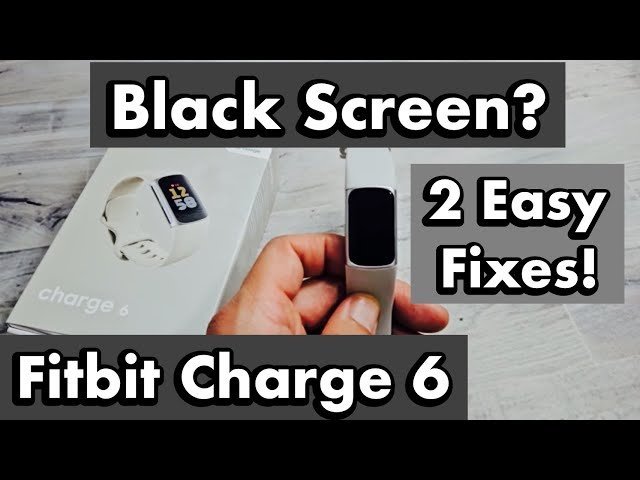
You can resolve a Fitbit Charge 6 not updating by performing a forced restart while the device is connected to its charging cable. Plug your tracker into the official USB charger, then press the button on the side of the tracker three times, pausing for one second between each press. You should see the Fitbit logo appear on the screen within ten seconds.
If this doesn’t work, the most common cause is a poor connection between the pins on the back of the tracker and the charging cable. Inspect the pins for debris or oxidation. If you see dark spots, gently clean them with a soft, dry toothbrush.
If the screen remains black, verify your power source. Switch from a computer USB port to a wall adapter. A low-voltage port often fails to trigger the restart command. If the logo still fails to appear, your battery may be fully depleted. Leave the device charging for thirty minutes before attempting the button sequence again.
Why this happens
The update process usually fails because of an unstable Bluetooth connection or insufficient power. Your tracker needs a steady link to your smartphone to pull the update file from the Fitbit app. If your phone moves too far away during the transfer, the data stream breaks, and the tracker stops the process to prevent corrupted software.
Another common cause is a low battery level. If your tracker has less than 20 percent charge, the system blocks any firmware updates to ensure the device doesn’t die in the middle of the installation. A dead battery during an update can leave the device in an unusable state, so the software is designed to be cautious.
Finally, outdated app versions often cause synchronization errors. The Fitbit app must be fully updated to communicate correctly with the firmware server. If your app version is old, it might not recognize the new update file, or it may fail to initiate the transfer entirely. If you suspect a hardware fault, this varies by model — check the label on your specific device for the model number and verify if there’s a known hardware recall for your specific production batch.
Restart your device
This fix is for users whose tracker is stuck on a progress bar or unresponsive to touch. A forced restart forces the operating system to clear its temporary cache and re-establish a handshake with your smartphone.
To do this, keep the tracker plugged into the power source. Locate the button on the side of the device. Press it three times in quick succession. If you’re using a third-party charging cable, this step might fail because those cables often lack the data pins required for a full system reset. If the screen remains black after three attempts, wait 30 seconds and try again.
This fix isn’t for devices that are physically damaged or have water inside the screen. If your screen shows lines or cracks, a restart won’t repair the hardware. If the device still doesn’t respond after three tries, it’s time to stop and contact official support. People often make the mistake of using a wall outlet that provides too much power, which can lead to overheating; always use a standard USB port on a computer to stay safe. If the update starts but gets stuck at the same percentage every time, the issue is likely the connection, not the device itself.
Clear the app cache
If the update fails repeatedly, the problem might be stored in the app’s temporary memory on your phone. Clearing this cache forces the app to pull fresh data from the server.
On an Android device, go to your phone settings, find the “Apps” menu, and select Fitbit. Tap on “Storage” and then choose “Clear Cache.” Don’t select “Clear Data” unless you’re ready to sign back into your account, as this will remove your saved preferences. On an iPhone, you can’t clear the cache directly. Instead, you must delete the app entirely, restart your phone, and reinstall it from the App Store.
This fix is for users who have a stable internet connection but still see “Update Failed” notifications. It isn’t for users who can’t connect to Bluetooth at all. If you have a poor internet connection, the app will simply fail to download the file again, so ensure you’re connected to Wi-Fi. A mistake people make is trying to update while on a cellular data plan; this often results in incomplete files and wasted data. If the app still shows an update is available after clearing the cache, try toggling your phone’s Bluetooth off and on again to reset the radio signal.
Reconnect your tracker
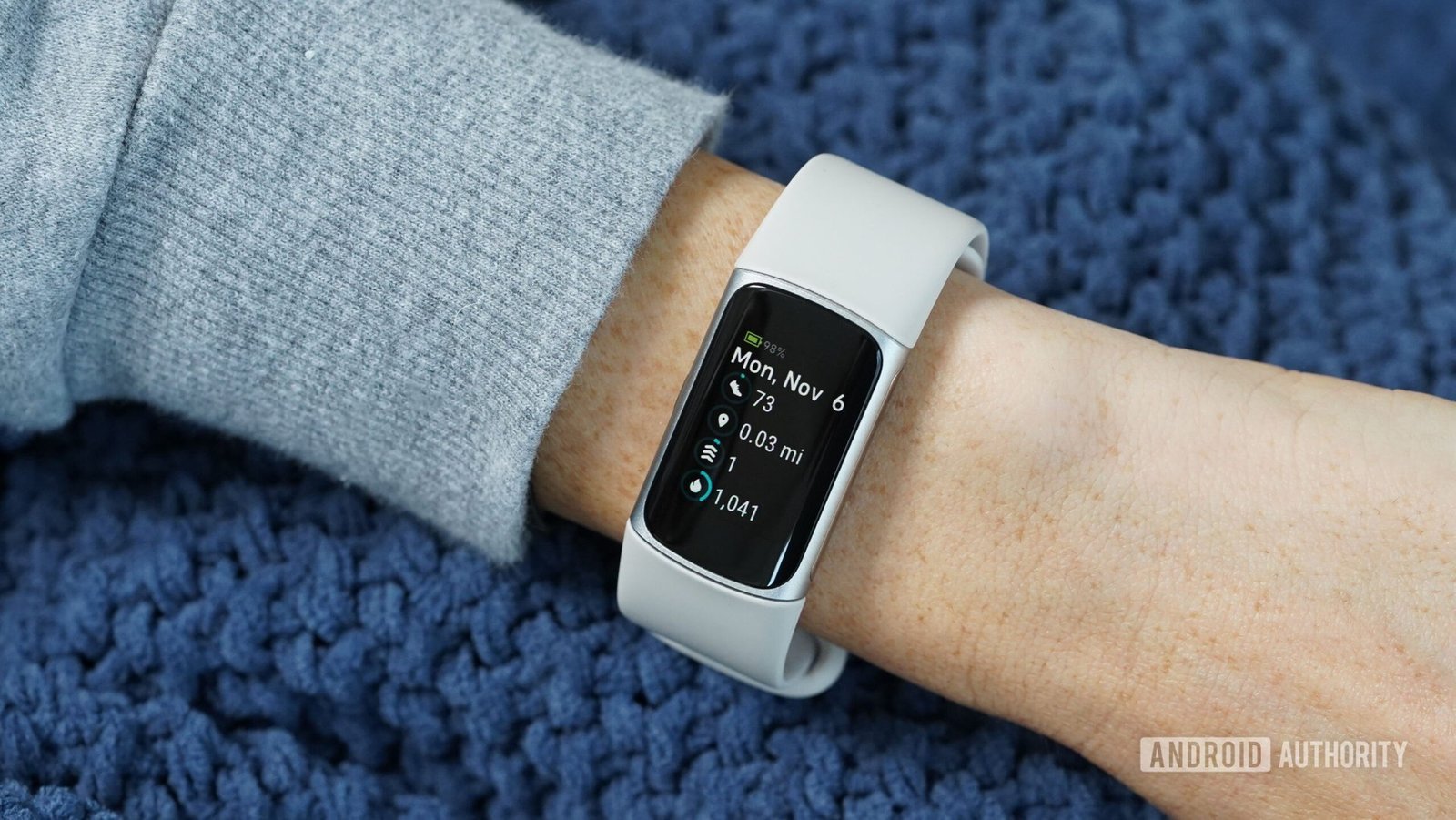
This final step involves removing the tracker from your account and setting it up as a new device. Use this only when other methods fail, as it requires you to re-sync your recent activity data.
It’s worth the extra effort if you have tried restarting and clearing the cache without success. However, it isn’t worth it if you have a pending workout you haven’t synced yet, as you’ll lose that data. First, go to your phone’s Bluetooth settings and “forget” the device. Then, open the Fitbit app, tap your profile icon, and select “Remove Device.” Once removed, restart your phone. Open the app, tap “Set up a Device,” and follow the on-screen instructions to pair it again.
This process requires a stable internet connection and about five minutes of your time. If you don’t have your login credentials handy, don’t start this process, as you’ll be locked out of the app. This is a technical step that resets the internal pairing key. If you’re uncomfortable with these settings, contact the manufacturer’s customer service team. They can remotely check if your account has a “stuck” update flag that needs to be cleared on their end.
What not to do
- Don’t leave your phone in another room while the update is running, because the Bluetooth signal must remain strong to transfer the software files.
- Don’t use a magnetic charging stand that isn’t designed for this specific model, as the pin alignment might be slightly off and cause power drops.
- Don’t turn off your phone or the Fitbit app while the progress bar is moving, as this can corrupt the firmware and brick the device.
- Don’t try to force an update using a tablet or a computer, as the official Fitbit app is designed for mobile operating systems and may not support the update process on other platforms.
How to stop it happening again
Preventing update issues relies on maintaining the health of your battery and your connection. A common mistake is initiating an update when your device is below 50% battery capacity. If the device dies mid-process, you risk corrupting the system partition, which often necessitates a full factory reset to restore functionality.
| If you’re doing this | Do this instead | Why |
|---|---|---|
| Charging to 10% | Charge to 50% or more | Updates require more power |
| Updating on cellular | Use a stable Wi-Fi network | Prevents data packet loss |
| Keeping phone far away | Keep it within 5 feet | Ensures a strong Bluetooth link |
| Ignoring app notifications | Update the app first | Older versions lack new fixes |
Check your signal strength before starting. If you see fewer than two bars of service, don’t attempt the update. A weak connection causes fragmented downloads that fail during the verification stage, forcing you to restart the entire process from zero. Always prioritize a plugged-in power source over battery power alone.
Frequently asked questions
Can I use the tracker while it’s updating?
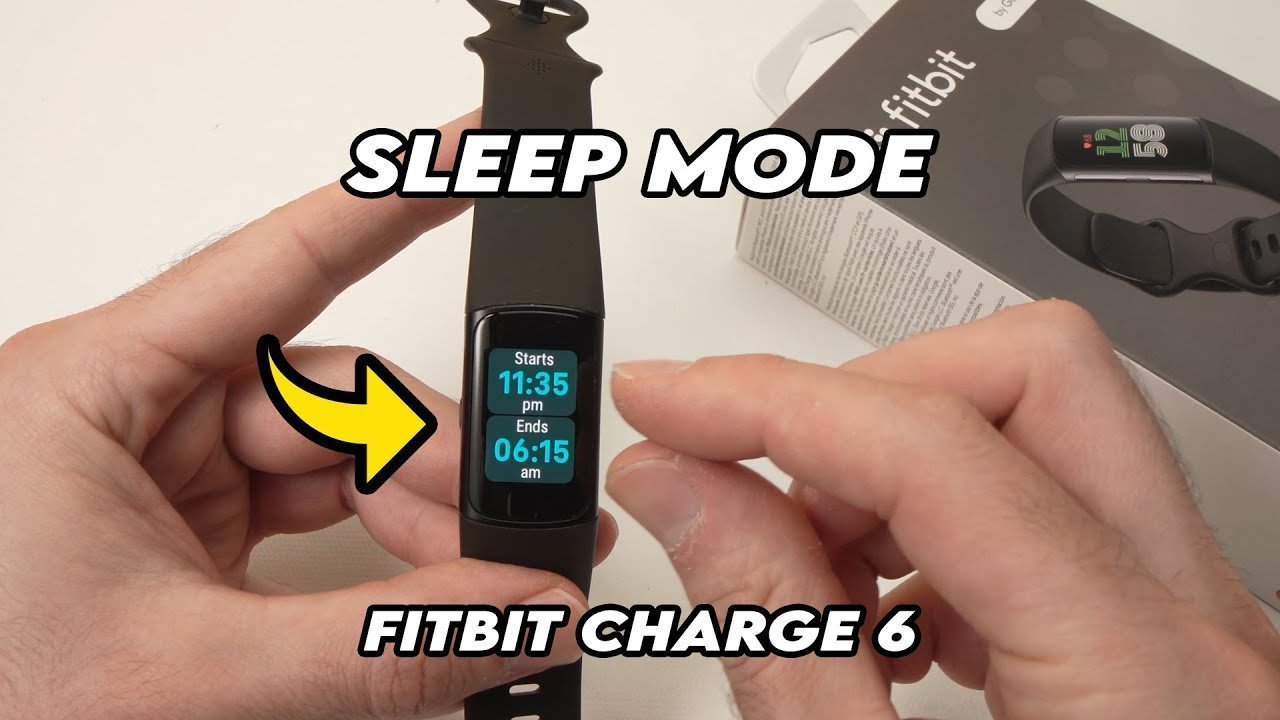
No, the tracker will be completely unresponsive during the update process. The screen will display a progress bar while firmware is written to the device memory. Don’t touch the buttons or screen during this time, as any interruption can halt the installation.
Why does the update take so long?
The update takes 15 to 30 minutes because the tracker is receiving large amounts of data over a low-power Bluetooth connection. This speed is limited by the hardware to keep the device from overheating. If you see the progress bar moving very slowly, it’s normal. Don’t cancel the update or move the phone away, as this will force the entire process to start over from the beginning.
Is it safe to update overnight?
Yes, you can leave the tracker updating overnight if it remains connected to a power source. However, it’s better to update while awake so you can monitor progress. If the update fails while you’re asleep, you’ll wake up to a device that isn’t synced.
What happens if the update fails?
If the update fails, your tracker will usually remain on its current firmware version. You’ll see an error message in the Fitbit app telling you the update couldn’t be completed. In most cases, the device will continue to function normally for tracking steps and heart rate. You can simply try the update again later when you have a better internet connection and a higher battery percentage.
How long should I wait between failed attempts?
Wait at least 10 minutes between failed update attempts to let the device cool down. Repeatedly forcing an update on a warm device can trigger thermal protection, which may cause the tracker to shut down to protect its internal components. Giving it time to rest allows the software to clear any errors and resets the connection state, which often leads to a successful update on the next try.
Final Thoughts
If the screen remains frozen after these efforts, don’t worry. Your device might simply need a fresh sync with the mobile app to clear out any lingering software bugs. Check that your phone’s Bluetooth is active, and you’ll likely see your tracker spring back to life in no time.


