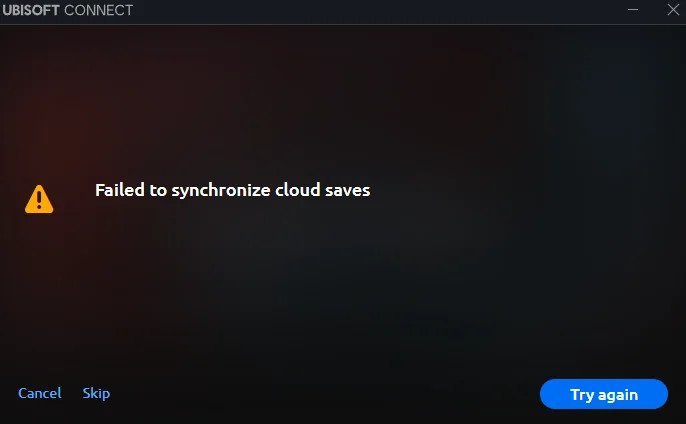
The most common reason for this issue is a conflict between your local cache and the server, which happens in most cases when your internet connection drops during a save attempt. You can confirm this by checking the Ubisoft Connect overlay; if it shows a “Cloud sync failed” error, it means the client can’t reach the servers to upload your progress. You can check the current status of their services on the official Ubisoft Help portal. If the status is green, the issue is likely on your local machine or network configuration.
Fixing Ubisoft Connect not syncing cloud saves
| Cause | How common | How to confirm it | Fix it yourself? |
|---|---|---|---|
| Corrupt cache files | Very common | Check for save errors | Yes |
| Network restrictions | Common | Test browser connection | Yes |
| Outdated client | Common | Check version number | Yes |
| Server downtime | Occasional | View status page | No |
| Firewall interference | Occasional | Check security logs | Yes with care |
| Permissions error | Rare | Check folder access | Yes |
| Storage space full | Rare | Check local drive | Yes |
Corrupt cache files usually manifest as intermittent UI glitches or failed asset loads. If your application crashes during startup, clear the local app data folder entirely. This forces a fresh download of essential resources.
Network restrictions often stem from corporate VPNs or strict router firewalls. If you can’t reach the login portal, try switching to a mobile hotspot. If the connection stabilizes, your local network is the bottleneck.
Outdated clients frequently trigger “version mismatch” warnings. Always check the official developer blog before troubleshooting hardware. If the version number matches the public release, the issue is likely a server-side authentication failure.
Firewall interference is a silent killer. Check your security logs for blocked outbound traffic on specific ports. If you see repeated drops, create a manual exception for the application executable. Be careful, as overly permissive rules expose your system to genuine threats.
Permissions errors occur when the installer lacks write access to the Program Files directory. Right-click the folder to verify your user account has full control.
Resolving corrupt local cache files
Corrupt cache files prevent the client from correctly verifying your progress, leading to a loop where it can’t push new data to the cloud. This happens when a previous sync was interrupted abruptly, leaving behind a partial or broken file that the application can’t overwrite. To test this, navigate to your Ubisoft Connect installation folder, usually found in your Program Files directory, and look for the “cache” folder. If you see files with zero bytes or strange naming conventions, your cache is almost certainly the culprit.
To fix this, you must clear the cache. Close the Ubisoft Connect client completely, ensuring no background processes are running in your system tray. Open the installation folder, locate the “cache” subfolder, and delete its contents. Don’t delete the folder itself, just the files inside. Restart the application and log in again. This forces the client to rebuild its index from the server’s master copy. This process usually takes about two minutes of your time. If your save was already local, the client will detect a mismatch and ask you to choose between the local version and the cloud version. If you’re unsure which is newer, always choose the local version to avoid losing your most recent progress.
Managing network and firewall blocks
Network restrictions often prevent the client from establishing the handshake required to upload files to the cloud. This occurs if your router’s firewall or your Windows Defender settings are blocking the specific ports Ubisoft Connect uses for data transfer. You can tell this is the cause if other online features, like the game store or friend list, also fail to load while your web browser works fine.
To fix this, you need to add an exception for the application in your firewall settings. Open your Windows Security settings and navigate to “Allow an app through firewall.” Ensure that both the Ubisoft Connect executable and the specific game executable have “Private” and “Public” boxes checked. If you use a third-party antivirus, you may need to disable its web-shield temporarily to see if the sync completes. If it does, you must add the Ubisoft install folder to the antivirus exclusion list. If you’re on a public network, such as a school or office, these ports are often blocked by an administrator. In that case, you can’t fix it yourself and must use a different connection, like a mobile hotspot, to finish the sync. This is a common trade-off: higher security on public networks often means restricted access to game cloud services.
Updating the client and verifying files
Sync errors often occur because an outdated client version fails to communicate with the current cloud API, even after a restart. This happens because the server expects a newer authentication token that the old client can’t generate. You can identify this if the client doesn’t show a “Check for updates” option or if it displays a version number lower than the one listed on the official website.
To fix this, download the latest version of the client directly from the official portal and run the installer over your current installation. This will patch the files without deleting your games or save data. After the update finishes, right-click the game in your library, select “Properties,” and choose “Verify files.” This step checks if your local game installation files match the expected files on the server. This process takes about five to ten minutes depending on the size of the game installation. One mistake people make is trying to move or copy save files manually while the client is still open; this causes a file lock error, which can result in a corrupted save. If you see a “File in use” error, always close the client before moving any data.
The less likely causes
Full disk space: Your drive is full, and the client can’t write the temporary sync file. Free up at least five gigabytes of space to allow for overhead.
Permissions errors: Your user account lacks read/write access to the “Documents/Ubisoft” folder. Right-click the folder, go to Properties, and ensure your account has full control. A common mistake is assuming administrator rights grant this; you must explicitly verify the “Owner” status in the Security tab.
Third-party overlays: Overlays from software like Discord or MSI Afterburner can hook into the game and block the sync process. Disable these before launching. If the sync succeeds after closing these apps, add the game executable to your overlay’s exclusion list to keep both features active.
Account suspension: Your account has restrictions preventing cloud interaction. Check your email for security notices. If you can’t log into the web portal, your access is likely restricted.
What a fix usually involves
Fixing sync issues involves a mix of software configuration and file management. Most of the time, clearing the cache or updating the application requires only a few minutes and no specialized tools. If you need to edit firewall rules, this requires administrative access to your computer. When the issue is a corrupt save file, you may need to rely on local backups. If you don’t have a manual backup, you might be forced to choose the older cloud version, which results in the loss of recent progress. The cost of these fixes is usually nothing, as they rely on built-in system tools. If the problem persists after these steps, you may need to contact official support for a deeper diagnostic of your account’s cloud storage. Always check the official documentation on the support page before you attempt to modify system registries, as doing so incorrectly can cause further issues with your operating system.
Frequently asked questions
Can I play my game while the sync is failing?
Yes, you can play, but your progress won’t be saved to the cloud until the issue is resolved. The game will rely on local saves on your hard drive. If you play on a different computer, you won’t have access to your current progress. Always resolve the sync error before moving your saves to a new machine to avoid overwriting your data.
Is it safe to delete the cache folder?
Yes, it’s safe to delete the contents of the cache folder because the application rebuilds these files automatically when it restarts. These files are only temporary data used to speed up the interface and verify current cloud status. Deleting them doesn’t remove your game installations, your settings, or your actual save files, which are stored in a separate directory in your Documents folder.
What happens if I choose the wrong save version?
If you choose the cloud version over your local version, you’ll lose any progress made since the last successful sync. The client will overwrite your local files with the ones stored on the server. If you choose the local version, you’ll upload your current progress to the server, successfully updating the cloud. Always compare the timestamps provided by the client before making your selection.
How long should a cloud sync take?
A normal sync takes about five to ten seconds for most games. If the process hangs for more than two minutes, it indicates a connection error or a conflict. Large save files may take longer to sync depending on your upload speed. If it takes longer, verify your network connection and restart the client.
Does it matter if my game is installed on an external drive?
Yes, it can matter if the external drive has slow read/write speeds or disconnects during the sync process. If your drive loses power or connection during the sync, the cache files will likely become corrupted. Ensure your external drive is connected to a high-speed port and isn’t set to sleep or power down during your gaming session to maintain stable cloud communication.
Final Thoughts
If these simple adjustments don’t get your progress moving again, don’t worry. You should reach out to Ubisoft Support directly by opening a ticket on their website. They’ll be able to look at your specific account data and help you recover your files so you can get back to playing.