
You can resolve an ecobee app not working issue by force-closing the application and checking your smartphone’s internet connection. Most connectivity problems stem from a temporary synchronization error between your mobile device and the ecobee server. If the app remains unresponsive after a restart, ensure your phone’s operating system is fully updated, as outdated software often fails to communicate with modern thermostat firmware.
Reasons your ecobee app not working

The primary reason for app instability is a mismatch between your local network and the ecobee cloud services. When your smartphone loses its handshake with the thermostat, the app may display an “offline” status or fail to load the dashboard entirely. This is rarely a hardware failure of the thermostat itself, but rather a bottleneck in how your router handles traffic or how the app manages its local cache.
Another common cause is the accumulation of corrupted temporary data. Over time, the app stores login credentials and UI elements in a cache to load faster. If these files become fragmented or outdated, the app can’t refresh its data, leading to a permanent “connecting” screen. This happens more often after major software updates on your phone or when your internet service provider experiences intermittent packet loss.
Finally, consider the status of the cloud servers. While rare, ecobee sometimes performs maintenance or experiences unexpected downtime. If the ecobee service status page shows a red or yellow indicator for “Mobile App,” the issue is on their end. You should wait for them to resolve the situation. If the status is green but your app still fails, the problem is local to your specific device or home network configuration.
Force close and restart the application
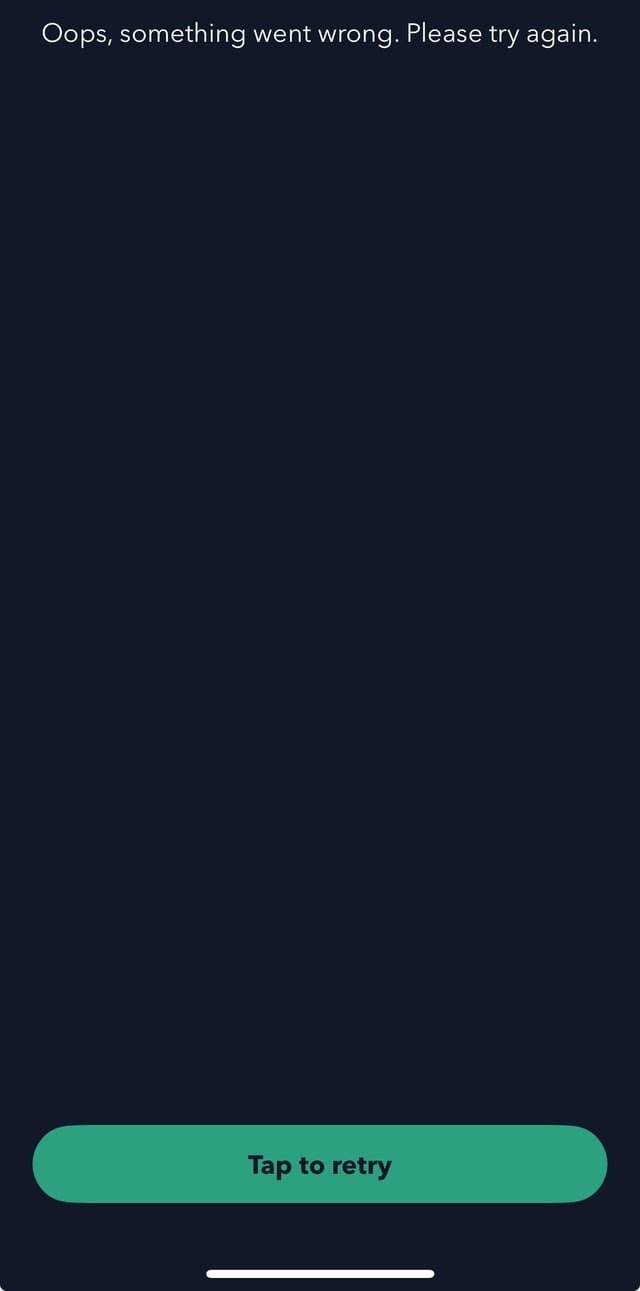
This fix is for users who see the app open but find it stuck on a loading screen or unresponsive to touch. To perform this, swipe up from the bottom of your screen (or double-tap the home button on older models) to view your open apps. Find the ecobee icon and swipe it off the screen to force it to shut down completely. Once it’s closed, wait ten seconds before reopening it.
If the app still shows as disconnected, verify that your smartphone isn’t using a VPN. If you use a VPN, don’t connect to it while trying to manage your thermostat, as the encryption can block the local discovery process. If you have multiple Wi-Fi networks in your home—such as a 2.4GHz and a 5GHz band—ensure your phone is on the same network that the thermostat uses. If the phone is on cellular data, toggle your Wi-Fi on to connect to your home network so the phone can communicate with the thermostat. If this fails, restart your router by unplugging it for thirty seconds. This clears the network cache and is a standard procedure for any home automation device that loses its IP address assignment.
Clear cache and reinstall the app
This fix is for users who experience persistent crashes or errors that a simple restart doesn’t solve. If the app continues to freeze, the installation files may be corrupted. Uninstall the application entirely from your phone. Before reinstalling, restart your phone to clear any lingering background processes that might have saved the corrupted configuration.
Download the latest version from your official app store. Once the fresh copy is installed, sign in again using your credentials. If you use two-factor authentication, ensure you have access to your secondary device to complete the login. This isn’t for users who have forgotten their password; if you can’t log in, use the “Forgot Password” link on the login screen to reset your credentials first.
Your preferences and dashboard layouts are saved to your ecobee account and will persist after a reinstall. However, this is the most reliable way to ensure that all background services are correctly initialized. If the app still refuses to connect after a fresh install, check your phone’s “Battery Optimization” or “Background App Refresh” settings. If these are set to “Restrictive,” your phone might be killing the app’s connection to the internet to save power. Allow the app to run in the background to ensure it stays synced.
Verify thermostat firmware and network
This fix is for users who have tried everything else and suspect the issue is with the thermostat’s connection to the internet. If the thermostat display itself shows a “Disconnected” icon (usually a cloud with a slash), the app will never work because the thermostat isn’t reaching the server. Check your router’s list of connected devices to ensure the thermostat is still listed as “Active.”
If your thermostat isn’t connected, use the thermostat’s own screen to navigate to the “Wi-Fi” settings menu. Select your network again and re-enter your password. This varies by model — check the label on the back of your thermostat or the manufacturer’s manual to see if your specific version requires a specific frequency, such as 2.4GHz.
If the thermostat says “Connected” but the app still fails, your internet firewall might be blocking the port the ecobee uses to talk to the cloud. This is a common mistake people make when tightening network security. If you have recently installed a new firewall or changed your router’s security level to “High,” it may be blocking outbound traffic. This isn’t a DIY task for those without network experience; if you’re unsure how to manage port forwarding or firewall rules, consult your router’s manual or contact your internet service provider for assistance. If you can’t get the thermostat to show a green cloud icon on its own screen, the issue is likely a faulty Wi-Fi radio, and you should contact the manufacturer for a warranty claim.
What not to do
- Don’t reset the thermostat to factory settings immediately. This deletes your entire schedule and preferences, which is a major time loss when the issue is usually just a simple network handshake.
- Don’t try to disassemble the thermostat housing. This voids your warranty and poses a risk of electrical damage to the unit or your heating system.
- Don’t change your router’s DNS settings unless you’re a network professional. Changing these often leads to broader internet issues that go far beyond just the thermostat application.
How to stop it happening again
Consistent maintenance of your home network ensures that smart devices stay connected without manual intervention.
| If you’re doing this | Do this instead | Why |
|---|---|---|
| Using public Wi-Fi | Use your home network | Public networks block thermostat traffic |
| Ignoring app updates | Enable auto-updates | Newer versions fix connectivity bugs |
| Hiding your SSID | Keep the network visible | The thermostat may fail to find hidden IDs |
| Using a weak password | Use a complex password | Routers sometimes drop insecure connections |
The most common mistake is failing to separate your 2.4GHz and 5GHz bands. Many smart thermostats lack 5GHz radios and struggle to handshake with dual-band routers that merge both frequencies under one name. If your device drops connection daily, force it to a dedicated 2.4GHz guest network.
If your device still disconnects, check the signal strength in the app; anything below -70 dBm requires a Wi-Fi extender to prevent packet loss.
Frequently asked questions
Can I control my thermostat without the app?
Yes, you can control the temperature directly from the thermostat wall unit. The physical interface provides full control over heating, cooling, and scheduling regardless of app status. You don’t need a cloud connection, as the thermostat operates independently once your initial schedule is saved.
Why is my ecobee app saying offline?
Your app shows offline because the thermostat has lost its connection to the ecobee servers. This usually occurs due to router issues, internet outages, or a non-responsive Wi-Fi radio. If the thermostat screen displays a disconnected cloud icon, the problem lies with your home network or the device itself.
How long should I wait for the app to sync?
You should wait no more than two minutes for the app to sync after opening it. A healthy connection typically updates the current temperature and status within fifteen seconds. If the app remains stuck, force-close and restart it to initiate a new connection attempt.
Is it safe to reinstall the ecobee app?
Yes, it’s perfectly safe to reinstall the app on your smartphone. Your thermostat settings are stored in the cloud, so they remain intact when you remove the application. You may only need to re-configure local phone settings like push notifications or biometric login preferences after logging back in.
What happens if I change my Wi-Fi password?
You must manually update the Wi-Fi settings on the thermostat screen after changing your password. Navigate to the Main Menu, select Settings, and choose Wi-Fi to enter the new credentials. The app won’t function until you perform this step, as the thermostat can’t receive updates while disconnected.
Final Thoughts
If you’ve tried these fixes and still can’t connect, don’t worry. Simply reach out to the manufacturer’s support team through their website to see if there’s a wider service outage in your area. They’re happy to help you get your home’s climate control back in your hands as quickly as possible.
Related guides


