
To fix 0 not showing up in excel, go to File > Options > Advanced, scroll to Display options for this worksheet, and check Show a zero in cells that have zero value. This setting often gets toggled off, hiding standalone zeros. If leading zeros disappear while typing, Excel is treating your entry as a standard number.
Why excel isn’t showing zeros
Excel hides zeros for two distinct reasons: intentional sheet settings or automatic data typing.
First, workbook settings can hide zeros across an entire sheet. If you open a template made by someone else, they may have unchecked the worksheet display option to make empty-looking tables cleaner. The zero is still stored in the cell, and formulas can still calculate with it, but the screen renders the cell completely blank.
Second, number formatting rules often drop the digit. In standard general formatting, Excel evaluates any input containing only numbers as a mathematical quantity. In mathematics, the number 05 is simply 5. Excel strips the leading character immediately when you press Enter.
Third, custom formatting strings can suppress zeros intentionally. A format string with three semicolons (like 0;-0;;@) explicitly tells Excel to display positive numbers, display negative numbers, but leave zero values totally blank. Conditional formatting rules can also turn the font color white whenever a cell equals zero, making the number invisible against a standard white background.
Turn on the worksheet zero display setting
This fix is for sheets where typing a lone 0 results in an empty cell, or where formula results that equal zero look blank. It brings back all standard zero values across the entire active sheet without altering your underlying data.
- Click File in the top-left corner and select Options at the bottom of the left sidebar.
- Click Advanced in the left menu.
- Scroll down until you see the header Display options for this worksheet.
- Check the dropdown to confirm it shows the specific sheet you’re working on right now.
- Place a checkmark in the box labeled Show a zero in cells that have zero value.
- Click OK at the bottom right.
You’ll know it worked because any cell calculating to zero immediately displays 0.
This setting varies by model — check the label: Excel for Mac places this control under Excel > Preferences > View > Zero values, rather than the Windows file menu. This fix isn’t for restoring leading zeros in phone numbers, ID cards, or ZIP codes. It only restores values that equal zero by themselves.
Format the cells as text before typing
This fix is for entering codes with leading zeros, such as employee badges, part numbers, or postal codes. It forces Excel to treat every character as plain text instead of a mathematical digit.
Select the range of cells where you plan to enter your numbers. On the Home tab, locate the Number dropdown group in the middle of the ribbon. Click the dropdown that currently says General and scroll to the bottom of the list to pick Text. Now, type your data starting with a zero (like 04521). The zero stays in place when you press Enter.
Alternatively, you can type a single apostrophe (') as the very first character directly in any cell, like '04521. The apostrophe tells Excel to store the following characters as text. The tick mark remains visible in the formula bar, but it doesn’t show up in the cell grid or print out on paper.
You’ll see a small green triangle in the upper-left corner of the cell. This indicates a “Number Stored as Text” warning. It confirms the zero is safely preserved. The trade-off is that these cells won’t calculate with standard math formulas like SUM or AVERAGE without extra conversion steps.
Apply a custom number format to fix codes
This fix is for cases where you need leading zeros displayed, but you still want the data stored as pure numbers for math formulas or database exports. It’s worth the extra effort when working with fixed-length items like five-digit US ZIP codes or ten-digit serial numbers.
Select the column that needs the zeros. Press Ctrl + 1 (or Cmd + 1 on a Mac) to open the Format Cells dialog box. Under the Number tab, click Custom at the bottom of the category list on the left. In the Type input field on the right, clear out whatever text is there. Enter a series of zeros equal to the total number of digits your code requires. For a standard 5-digit postal code, type 00000. Click OK.
Excel pads any entry shorter than five digits with zeros on the left. If you type 712, the screen instantly shows 00712. Because the underlying value remains a number, mathematical sorting works without text-sorting errors.
If your entries have varying lengths—like some codes with four characters and others with nine—don’t use this fix. It forces every value into one single digit length, which corrupts irregular codes. In those irregular situations, convert the entire dataset to pure text instead.
What not to do
Don’t add spaces in front of numbers. Typing a space before the zero keeps it visible under General formatting, but it corrupts sorting orders, ruins VLOOKUP matches, and breaks formula calculations across your workbook. If you see a space, use the TRIM function to clean it before performing any math.
Don’t change your entire worksheet font to white or black to find hidden zeros. Some online tips suggest clearing all cell formatting, but this removes your dates, currency signs, and borders alongside the zero rules. Instead, use Conditional Formatting to highlight cells that equal zero. This preserves your visual design while pinpointing the exact data points you need to fix.
Don’t rely on apostrophes for massive data imports. Adding an apostrophe manually works for five cells, but doing it on thousands of rows wastes hours. Configure your file import settings or use the Microsoft Support guide for leading zeros to set data types properly on import.
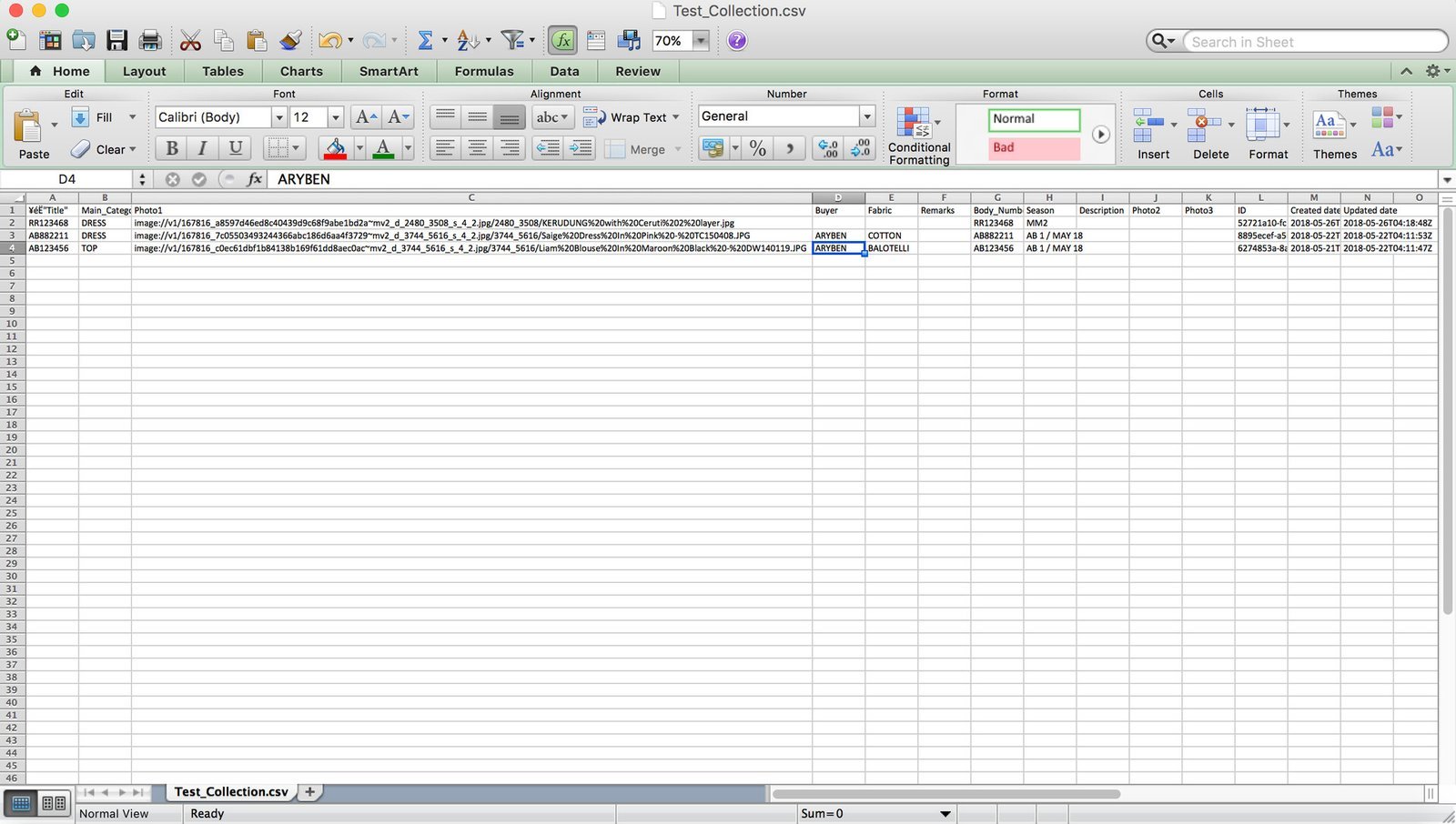
Don’t use CSV files without verifying how they open. Double-clicking a plain CSV file lets Excel open it with default General settings, stripping all leading zeros automatically before you even touch a key. Always use the Data tab and select “From Text/CSV” to force the import wizard to treat your columns as text.
How to stop it happening again
A simple habit shift prevents zero-display issues before you build large sheets or import external records.
| If you’re doing this | Do this instead | Why |
|---|---|---|
| Opening a raw CSV directly | Use Data > From Text/CSV to import | You can set ID columns to Text before Excel drops the zeros |
| Typing numeric identifiers | Set column format to Text beforehand | Preserves initial digits without needing apostrophes in every cell |
| Building clean client reports | Use conditional formatting instead of sheet-wide zero suppression | Hides zeros only in specific summary ranges without affecting lookup tables |
| Writing zero-suppression formats | Stick to standard currency or accounting formats | Keeps numeric values legible instead of turning blank cells into calculation errors |
| Handling postal codes | Apply the built-in Special > ZIP Code format | Automatically enforces standard 5-digit padding without manual format strings |
The most common mistake is applying “General” formatting to an entire column after the data has already been pasted. If the data was imported as a number, you must apply custom formatting to display the leading zeros. You must re-import the source file to recover the lost data.
If you’re unsure whether your data is safe, check the formula bar. If the leading zero appears there but not in the cell, you have a formatting issue. If it’s missing from both, the data was converted to a numeric type during the initial import. Always verify your column types in the import wizard before clicking “Load” to avoid this permanent loss.
Frequently asked questions
Can Excel formulas calculate numbers that have leading zeros?
Yes, but only if you use custom formatting rather than text formatting. If you used custom number formatting (like 0000), the cell holds an actual number, so functions like SUM work immediately. If you formatted the cell as Text or used an apostrophe, math functions like SUM will ignore the cell. You must wrap text cells in the VALUE function, such as =VALUE(A1)+10, to force a math calculation.
Why did my zeros disappear after saving as CSV?
Excel drops leading zeros in CSV files because it applies General formatting upon opening. To preserve your data, import the file using Data > Get Data > From File > From Text/CSV and set the column data type to Text. This ensures Excel treats your values as text rather than numbers.
How do I show zero instead of a blank cell from an IF formula?
Wrap your output logic inside standard quotation marks or adjust your sheet settings. If your formula reads =IF(A1=B1, "", 0), make sure your sheet is set to display zeros through your advanced options. If the zero setting is already active and the cell still looks empty, verify your formula doesn’t end with "" for false conditions. Changing that ending argument to the plain number 0 forces the digit to appear.
Is it safe to convert numbers with zeros to text format?
Yes, it’s safe as long as the numbers are identification codes rather than values you intend to add up. Social Security numbers, phone numbers, and product SKUs should always be stored as text. The only drawback comes when you try to use mathematical sorting: text sorting places 100 before 2, whereas numeric sorting orders them correctly. If you need numerical sorting, use custom number formatting instead of text.
What happens if I paste leading zeros from a website into Excel?
Excel automatically strips the leading zeros the moment you use standard paste. If you copy 0149 from a web page and press Ctrl + V, Excel converts the clipboard content into standard numbers and displays 149. To keep the zero, double-click inside the target cell so your blinking cursor appears, or select the column, change its format to Text, and use Paste Special > Match Destination Formatting.
Final Thoughts
You shouldn’t have to worry about missing data anymore, but it’s a good idea to double-check your formatting settings if you’re working with ID codes or zip codes. Once you’ve saved these changes, you’ll find that your spreadsheets look much cleaner and you won’t run into these display issues again.


