
You can stop an end kernel panic not syncing virtualbox error by disabling the Hyper-V virtualization engine in your system settings. This specific crash usually happens when the host operating system’s virtualization features conflict with the guest machine’s needs.
Fixing end kernel panic not syncing VirtualBox
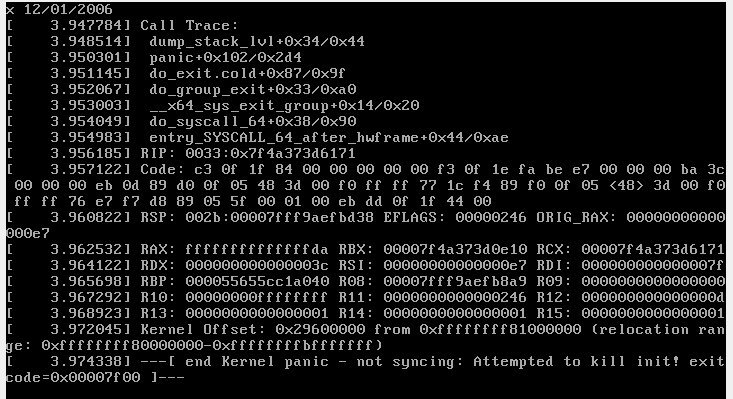
The primary cause of this error is a virtualization conflict between your host machine and the VirtualBox software. Most modern Windows systems run Hyper-V, which is Microsoft’s own hypervisor. When you attempt to run a virtual machine inside VirtualBox, both hypervisors try to control the hardware virtualization features at the same time. This struggle for control often results in a kernel panic because the guest OS can’t properly access the CPU instructions it expects.
A second cause involves outdated or incompatible guest additions. If your virtual machine was created on an older version of the software, the kernel drivers inside the guest might not be able to communicate with the host’s current version of the VirtualBox engine. This creates a mismatch that triggers a system halt during the boot process.
Finally, some Linux guest operating systems experience this panic if they’re configured to use more CPU cores than the host machine can reliably provide. This is a common mistake for users who assign all available cores to a VM. If the host needs a core for its own background tasks, the guest OS may hang or trigger a panic when it finds the hardware unresponsive. Always check the VirtualBox user manual to confirm the hardware requirements for your specific guest OS version.
Disable Hyper-V features
This fix is for users running VirtualBox on Windows hosts who encounter the panic immediately upon starting a VM. Hyper-V often runs in the background even if you haven’t manually enabled it. To disable it, open your Command Prompt as an administrator and type bcdedit /set hypervisorlaunchtype off. After you execute this command, you must restart your computer for the changes to take effect.
If this step works, your virtual machine will boot normally without the kernel panic. If the error persists, you should also ensure that “Windows Hypervisor Platform” is unchecked in the “Turn Windows features on or off” menu. This fix isn’t for users on macOS or Linux hosts, as they don’t use the Windows Hyper-V hypervisor. If you rely on Hyper-V for other software like Docker or WSL2, you’ll face a trade-off: you may need to choose which virtualization platform takes priority on your machine. If you find that disabling these features prevents other programs from working, you may need to reconsider your virtualization setup. Always check the official documentation for your host OS before making system-wide changes to your virtualization settings.
Update guest additions
This fix is for users whose virtual machines were working previously but started showing errors after a software update. Outdated drivers are a frequent culprit in kernel panics. To update them, boot your virtual machine into “Safe Mode” if it fails to load normally, or use a terminal interface if the GUI is unavailable. Once inside, mount the VirtualBox Guest Additions ISO file from the “Devices” menu in the top bar of the VM window.
Run the installer located on the virtual disc. For Linux guests, use the command sudo ./VBoxLinuxAdditions.run in the terminal to overwrite the old drivers with the current versions. If you don’t have the guest additions installed, the VM can’t properly communicate with the host hardware, which often leads to instability. This fix requires you to have the correct kernel headers installed for your specific guest operating system. If you’re using a specialized distribution, check its documentation to ensure you have the required build tools, such as gcc and make, installed before running the script. A successful update will prompt you to reboot the guest machine. If the update fails, you may need to manually remove the existing /opt/VBoxGuestAdditions directory before attempting the installation again.
Adjust CPU core allocation
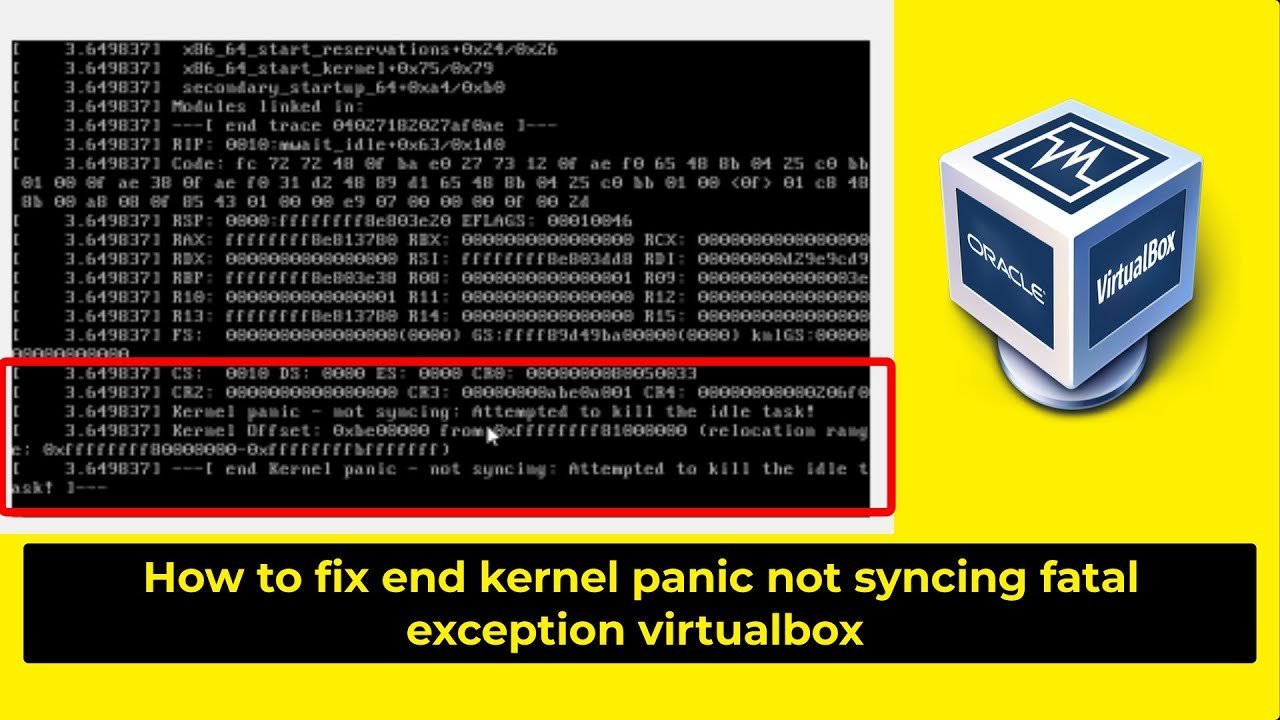
This fix helps when the virtual machine crashes during high-load tasks. Sometimes, the guest OS panics because it’s trying to use resources that the host can’t give. Open the settings menu for your virtual machine in the VirtualBox manager and navigate to the “System” tab, then click on “Processor.”
If you have assigned more than half of your host’s total CPU cores to the guest, reduce this number significantly. For example, if your host has a four-core processor, limit the guest to two cores. This leaves enough overhead for the host OS to manage the hardware properly. This isn’t for users who have high-end workstations with eight or more cores, as they can usually afford to allocate more to the VM. If you’re running a guest OS that isn’t optimized for multi-core processing, you might even see better stability by limiting the guest to a single core. This change is immediate and doesn’t require a reinstall. You’ll know it worked if the VM stops crashing during heavy operations or boot-up sequences. This varies by model — check the label or specifications of your processor to see how many physical cores are available versus logical threads, as virtualizing logical threads often causes performance bottlenecks.
What not to do
Don’t reinstall the entire VirtualBox application immediately. This rarely fixes configuration-based kernel panics and costs you your existing machine settings. If you lose those configuration files, you face a manual rebuild of every virtual network adapter and storage controller.
Don’t increase the memory or video RAM allocation when you see a kernel panic. This doesn’t address the underlying communication error with the CPU. If the host system is already struggling with resource contention, adding more overhead often triggers a system-wide freeze rather than a fix.
Don’t attempt to force the boot process by disabling security features like Secure Boot in your BIOS. This risks the integrity of your host operating system by opening vectors for unauthorized boot-level code.
Don’t ignore the “Guest Additions” update prompt. Outdated drivers are the most common cause of stability issues over time. If your guest OS version drifts more than two minor releases behind the host, expect graphical glitches and input lag.
How to stop it happening again
Consistency is the best way to prevent future panics. By keeping your host and guest software aligned, you avoid the most common causes of system instability.
| If you’re doing this | Do this instead | Why |
|---|---|---|
| Updating the host software | Update guest additions too | Keeps drivers compatible |
| Assigning all CPU cores | Assign half of available cores | Leaves room for host tasks |
| Running multiple hypervisors | Disable Hyper-V on Windows | Prevents hardware conflicts |
| Ignoring error logs | Check the VBox.log file | Identifies the specific module |
Most users fail by ignoring the “VT-x/AMD-V” status in their BIOS. If your virtualization technology is disabled at the hardware level, software tweaks will never stabilize your environment. Check your BIOS settings if you see “Guru Meditation” errors during boot.
Use this decision rule: if the crash happens during startup, verify your hardware virtualization settings first. If the crash occurs during active use, prioritize updating your guest additions. Miscalculating your resource overhead is a common mistake that costs you total system freezes. Always reserve at least 20% of your host RAM to prevent the OS from swapping to disk.
Frequently asked questions
Can I run VirtualBox and Hyper-V at the same time?
No, you can’t run them simultaneously without significant stability issues. Recent VirtualBox versions offer experimental support for the Windows Hypervisor Platform, but it remains less stable than running VirtualBox alone. You may face intermittent kernel panics or slow performance if you attempt to use both.
Why does my VM freeze during boot?
Your virtual machine freezes during boot because it has encountered a hardware instruction it can’t process or a driver mismatch. This is usually the result of a configuration error where the guest OS attempts to access a hardware feature that the host is blocking.
How long does it take to fix this?
It usually takes five to ten minutes to adjust your settings and restart the virtual machine. The longest part of the process is often the reboot of the host machine when you disable Hyper-V. You may spend more time testing CPU core assignments if you face complex configuration issues.
Is it safe to change CPU core settings?
Yes, it’s safe to change your CPU core allocation settings within the VirtualBox manager. You’re only adjusting the processing power the virtual machine requests from the host, not changing physical hardware. Assigning too many cores may cause stability issues, while too few will result in slower performance.
What happens if I ignore the kernel panic?
If you ignore a kernel panic, your virtual machine will remain stuck in a boot loop or crash repeatedly. This often leads to file system corruption inside the virtual disk because the OS can’t shut down properly. Addressing the panic immediately is necessary to ensure the health of your data.
Final Thoughts
If you’re still seeing issues, check your BIOS settings to ensure hardware virtualization is fully enabled. Sometimes, a quick update to your software version can also clear up lingering glitches. Don’t hesitate to reach out to the community forums if you’re stuck; you’ll find plenty of friendly help waiting there.


