
The most common reason for a fitbit not updating is an unstable Bluetooth connection between your tracker and the mobile application. If your device fails to sync your daily activity, first ensure that Bluetooth is toggled on in your phone settings and that the Fitbit app has the necessary permissions to run in the background. If the sync still hangs, restarting both your phone and your tracker usually clears the communication error. This simple reset fixes most data transfer issues caused by temporary software glitches or memory conflicts in the device’s operating system.
Reasons your Fitbit isn’t updating
Data transfer issues usually stem from a breakdown in the handshake process between your wearable and your smartphone. When you open the app, it sends a signal to your tracker to pull the latest step, heart rate, and sleep data. If your phone’s Bluetooth stack is busy or the app has been put to sleep by your phone’s battery optimization settings, the connection request fails.
Another frequent cause is an outdated app version or firmware. If your tracker is running an old software version, it may struggle to communicate with the latest version of the Fitbit app. This is especially common after a major update to your phone’s operating system, such as a transition from Android 13 to 14, which often changes how apps handle background processes.
Finally, consider the state of your device’s memory. If your tracker has been recording data for several days without a successful sync, the internal storage may be near its capacity. This can lead to a “buffer overflow” where the device can’t process new incoming data until the old logs are cleared by a successful sync. This varies by model — check the label or the back of your tracker to see if your specific version requires a unique syncing sequence.
Turn off Bluetooth and restart
This fix is for users whose device shows as “Disconnected” or “Searching” in the app interface. If your tracker isn’t showing any signs of life, don’t start here; check your battery level first.
To perform a hard reset on the connection, follow these steps: 1. Open your phone’s settings and turn off Bluetooth completely. 2. Force close the Fitbit app by swiping it away from your recent apps list. 3. Restart your phone to clear the temporary cache. 4. Once the phone is back on, toggle Bluetooth back to the “On” position. 5. Open the Fitbit app and wait for the sync icon to appear at the top of the dashboard.
If this works, you’ll see a progress bar move across the top of the screen. If it stays stuck at the beginning, the issue might be your internet connection rather than Bluetooth. Ensure you have a stable Wi-Fi or cellular data connection, as the app needs to send the data to the cloud servers to complete the update. If you have multiple devices connected to your phone’s Bluetooth, such as wireless speakers or headphones, disconnect them temporarily. This avoids signal interference during the sync process. If your tracker still refuses to connect, it’s time to move to the next step.
Clear the app cache
This method is for Android users who notice the app crashes or freezes during the sync process. If you’re using an iPhone, you can’t clear the cache manually; you must uninstall and reinstall the app instead.
To clear the cache on Android: 1. Go to your phone’s “Settings” menu. 2. Select “Apps” or “Application Manager.” 3. Find the Fitbit app in the list and tap on it. 4. Select “Storage” and then tap “Clear Cache.” 5. Don’t tap “Clear Data” unless you’re prepared to log back into your account, as this will remove your stored preferences.
This process removes temporary files that may have become corrupted. After clearing the cache, restart the app and attempt a manual sync by pulling down on the dashboard. This fix is highly effective if you have recently updated your phone’s OS but the app is still behaving as if it’s on the older version. Note that this doesn’t delete your activity history, as that data is saved to your account in the cloud. If you’re still seeing an error message after clearing the cache, it’s possible the app itself is corrupted and requires a fresh installation. This is a common mistake; people often try to update the app without first clearing the old, potentially broken files, which costs them extra time and frustration.
Reinstall the application
This is the final step for persistent issues. Reinstalling is worth the time if you have tried all other connection fixes and the device still fails to communicate.
Before you delete the app: 1. Ensure you remember your login email and password. 2. Sync your tracker if you have another device (like a tablet) that it connects to. 3. Remove the tracker from your phone’s Bluetooth settings (select “Forget Device”).
Once you have uninstalled the app, restart your phone again. Download the latest version from the official app store. When you open the fresh app, log in and follow the on-screen prompts to “Set up a New Device.” It will recognize your existing tracker and re-establish the pairing.
Who this isn’t for: If your tracker has a cracked screen, water damage, or a battery that no longer holds a charge, software fixes won’t help. If the device doesn’t vibrate when placed on the charger, the issue is hardware-related. In this case, stop trying to sync and contact the manufacturer’s support team for a potential warranty claim. Don’t attempt to open the device yourself, as this will void any remaining warranty and likely destroy the internal components beyond repair.
What not to do
- Don’t perform a factory reset immediately. This deletes all unsynced data from your tracker and should be your absolute last resort.
- Don’t use third-party “sync booster” apps. These often contain malware and can interfere with the official Bluetooth handshake, making the problem worse.
- Don’t leave your tracker on the charger for days. Keeping the battery at 100% capacity constantly can degrade its health, leading to future power-related sync failures.
- Don’t ignore firmware update prompts. Running an outdated version creates a security and compatibility gap that makes syncing more difficult over time.
- Don’t constantly toggle the Bluetooth on and off. Rapidly switching it can cause the phone’s radio to lock up, requiring a full phone restart to fix.
How to stop it happening again
To keep your device syncing reliably, make it a habit to sync at least once every 24 hours. This prevents the internal memory from filling up and ensures your data is backed up to the cloud regularly.
| If you’re doing this | Do this instead | Why |
|---|---|---|
| Leaving Bluetooth off | Keep it enabled | The tracker needs a constant link to push data. |
| Closing the app fully | Let it run in background | The app needs to wake up periodically to sync. |
| Waiting a week to sync | Sync every morning | Smaller files sync faster and with fewer errors. |
| Ignoring update alerts | Install updates promptly | New firmware fixes known connectivity bugs. |
| Using power-saver mode | Add Fitbit to “Allowed” list | Power-saver kills background sync processes. |
Frequently asked questions
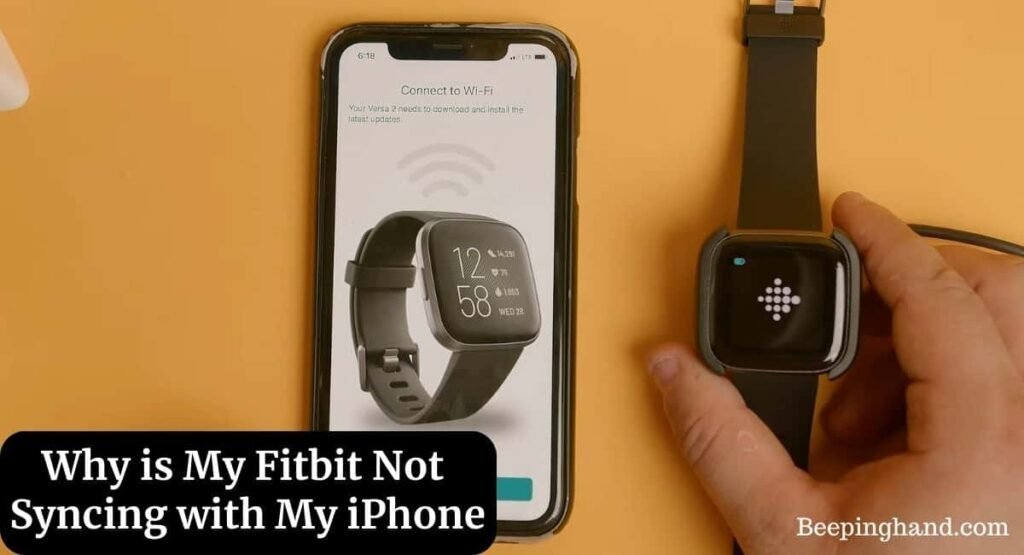
Can I sync my tracker without a phone?
No, you can’t sync your tracker directly to a server without a bridge device like a smartphone or a computer with a sync dongle. Your tracker uses Bluetooth to send data to the app, which acts as the internet gateway. Without a bridge, data remains on the tracker.
Why does my sync take so long?
Sync time depends on the amount of stored data and your wireless connection strength. If you haven’t synced for several days, the device has a large backlog of heart rate, step, and GPS data to upload. Keep your phone within three feet for the fastest results.
Is it safe to factory reset my tracker?
No, a factory reset will permanently erase all unsynced data on your device. Only perform a factory reset if you have tried all other troubleshooting steps and the device remains unresponsive. This process returns the hardware to its original out-of-the-box state.
How long does a tracker hold data?
Most models hold seven days of detailed motion data before overwriting the oldest information. Your daily summary totals are usually kept for up to thirty days on the device. Sync daily to ensure you don’t lose granular workout and sleep details.
What happens if my phone loses connection?
Your tracker will continue to record activity normally, storing data in its internal memory until the connection is restored. The device is designed to function independently, requiring the phone only to offload data to the cloud. Once reconnected, it will automatically upload all stored information.
Final Thoughts
If these quick fixes don’t get your device back on track, don’t worry. You should reach out to the manufacturer’s support team through their website. They’ll help you check if there’s a deeper hardware problem. Once you’re connected again, you’ll be ready to get back to hitting your daily goals.


