
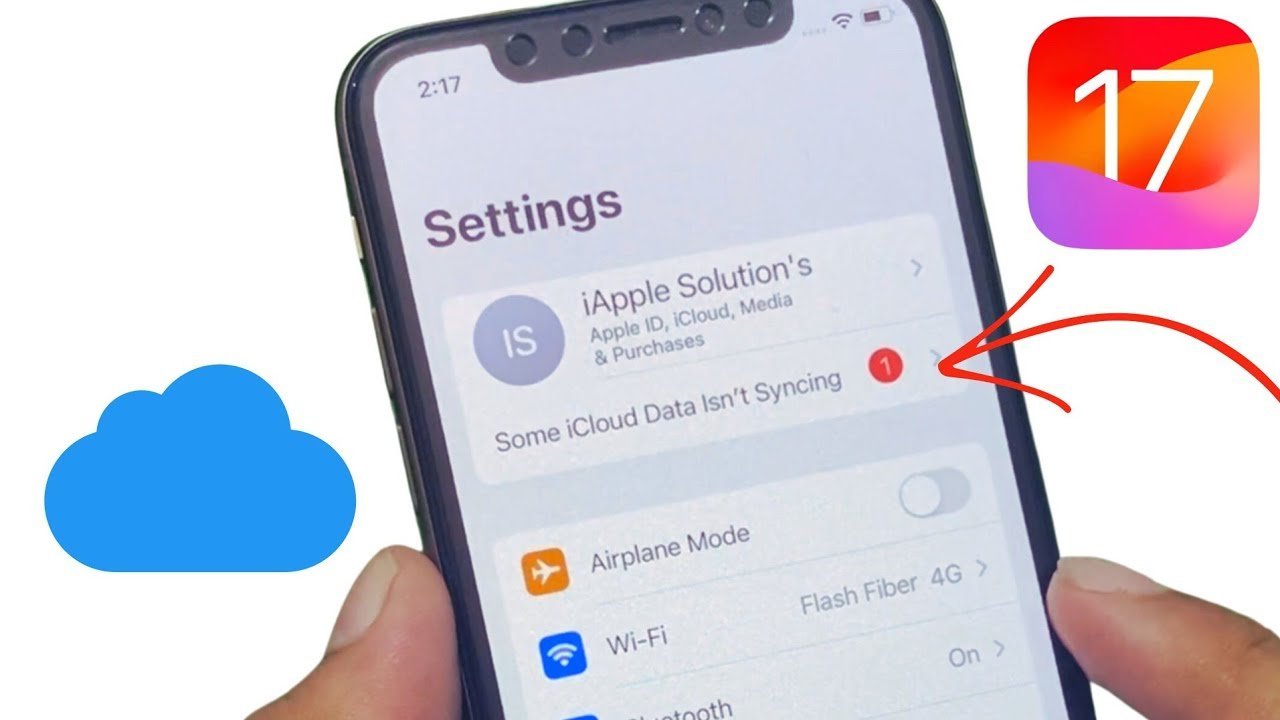
When you find your iCloud photos not syncing, it is usually due to a lack of storage space or a lost internet connection. Your account may have hit the five-gigabyte limit or your device is in low-power mode. Check your storage in the settings app; if full, delete old files or upgrade your plan to resume syncing.
Troubleshooting iCloud photos not syncing
| Cause | How common | How to confirm it | Fix it yourself? |
|---|---|---|---|
| Full cloud storage | Very common | Check storage settings | Yes |
| Poor internet signal | Very common | Try a different network | Yes |
| Low power mode | Common | Check battery icon color | Yes |
| Outdated software | Occasional | Check for system updates | Yes |
| Wrong Apple ID | Occasional | View account settings | Yes |
| Hardware failure | Rare | Consult official support | No |
Most users mistakenly assume a hardware failure when a simple cache clear resolves the issue. If your storage is over 90% full, the system often disables background syncing to preserve space, which mimics a broken connection.
Always check your signal strength in decibels if you suspect network issues. A reading worse than -80 dBm is likely the culprit, even if your phone shows two bars. If you’re on a public Wi-Fi network, the firewall may be blocking the sync ports entirely. In that case, switching to cellular data is the only way to confirm if the network is the bottleneck.
If you have multiple Apple IDs, verify that the iCloud account matches the App Store account. Mismatched credentials often trigger silent sync failures that don’t produce error messages. Use this decision rule: if the sync fails on both Wi-Fi and cellular, check your storage; if it fails only on Wi-Fi, investigate your network settings.
Full storage space errors
When your account exceeds its allocated space, the system immediately halts all new uploads to prevent data corruption. You’ll usually see a notification in your settings menu stating that storage is full. This happens because Apple provides a set amount of space for free, and once you exceed it with photos, videos, and backups, the sync process stops until you make room.
To confirm this, go to your settings, tap your name, and select the cloud storage tab. You’ll see a breakdown of what is taking up space. If you’re over your limit, the system won’t sync even a single new image.
The fix involves either deleting large videos or unused backups to drop below the threshold. If you have many files you want to keep, you must purchase more storage through the settings menu. This process takes about five to ten minutes of manual sorting. A mistake many people make is deleting photos from their device thinking it clears the cloud; if you have “Optimize Storage” turned on, you must use the official Apple storage management guide to ensure you’re clearing the correct data. If you have a massive library, this varies by model — check the label on your device settings to see how much space your specific media takes up.
Network and power settings
Syncing requires a stable connection and enough power to run background tasks. If your device is in low power mode, the system automatically turns off background syncing to conserve your battery life. You can tell this is the cause if your battery icon is yellow instead of white or green.
To test this, plug your device into a power charger and wait five minutes. If the sync starts moving again, your battery settings were the culprit. You should also ensure you aren’t on a restricted network, such as a public Wi-Fi that blocks cloud services.
If you have a fast connection but it still won’t sync, toggle your Wi-Fi off and back on again. This forces the device to re-establish its handshake with the servers. If you’re trying to sync a large library over cellular data, the system might be waiting for a Wi-Fi connection by default. Go to your settings and toggle the “Unlimited Cellular Data” option if you need to sync while away from home. This isn’t for users with limited data plans, as it can quickly consume your monthly allowance. The trade-off is between waiting for a Wi-Fi connection and potentially paying for extra data usage.
Software and account mismatches
Syncing fails if your device software is outdated or if you’re signed into the wrong account. Apple frequently releases patches to fix synchronization bugs, and running an old version of the operating system can prevent the background processes from communicating with the servers.
Check your software version by going to the General section in your settings. If an update is available, install it and restart the device. This usually takes about twenty minutes, depending on the update size and your internet speed.
Another common issue is a mismatch between the account on your phone and the one on your computer. If you see your photos on one device but not the other, navigate to the cloud settings on both and verify the email addresses match exactly. If they differ, the devices are trying to sync to two separate accounts. This is a common mistake that costs users hours of troubleshooting time. If you find they’re different, you must sign out of the incorrect account and sign in with the one that holds your primary library. This will merge the photos, though it may take several hours for the initial sync to finish if you have thousands of images.
The less likely causes
Corrupted system cache: Temporary files occasionally lock up, preventing background processes from executing. Perform a forced restart to clear these volatile memory blocks. If the issue persists after a reboot, the cache is likely not the culprit.
Server outages: The service may experience regional downtime. Check the official Apple system status page for a green indicator. If the status is yellow or red, your local settings are irrelevant; you must wait for the provider to restore connectivity.
Restricted background data: You may have toggled “Low Data Mode” or blocked specific app permissions. Navigate to your cellular settings to ensure the app has explicit permission to use data. Users often forget these global restrictions, which silently kill sync functionality.
Hardware failure: If the device fails to recognize any network or power source, the internal antenna or port is likely damaged. This requires professional repair rather than software troubleshooting.
What a fix usually involves
Fixing a sync issue usually involves a mix of time, basic digital housekeeping, and checking your settings. If the fix is simply cleaning up space, you’ll spend time deleting files or organizing albums, which costs nothing but your time. If you need more cloud space, you’ll pay a monthly subscription fee, which is a small part of the price of a new device. If the issue is a software bug, you simply need to update your operating system, which is free.
When a hardware issue is the cause, you’ll likely need to visit an authorized service center. This can be the most expensive scenario, as it may involve a repair fee or the cost of a replacement device. Before paying for any service, always check the official support documentation online to see if there’s a known issue for your specific device model. This saves you from paying for a repair that could have been solved with a simple setting change.
Frequently asked questions
Can I force my photos to sync right now?
Yes, you can force a sync by plugging your device into a power source and connecting to a strong Wi-Fi network. Open the photos app, scroll to the bottom of your library, and look for a status bar. If the sync is paused, tap “Resume.” If it’s already running, leave the app open and keep the screen awake for several minutes to allow the process to finish.
Why do my photos sync on my phone but not my computer?
About 90 percent of the time, this happens because the two devices are signed into different Apple IDs. Check the settings on both your phone and your computer to ensure the account names match exactly. If they’re the same, ensure that both devices have the “iCloud Photos” toggle turned on in the settings menu, as this must be active on every device you want to sync.
Is it safe to delete photos if they aren’t syncing?
No, you shouldn’t delete photos if they aren’t syncing, as you might lose them permanently. If the sync is broken, any photo you delete from the device won’t be backed up to the cloud. Always wait until the sync status indicates that all items are uploaded before you remove any images from your local storage to prevent accidental data loss.
How long does it take for a large library to sync?
The time depends on your internet upload speed and the size of your library. For a library of one thousand photos on a standard home connection, expect it to take about one hour. If you have tens of thousands of images, it can take several days of continuous connection. Keep the device plugged into power and connected to Wi-Fi until the status shows “Synced with iCloud.”
What happens if I turn off iCloud Photos?
When you turn it off, your device will ask if you want to remove the photos from your phone or keep them. If you choose to remove them, they will be deleted from your device but will remain safely stored in the cloud. If you choose to keep them, they will stay on your device but will no longer update when you take new pictures or edit existing ones.
Does it matter if I have low battery?
Yes, it matters because your device will automatically pause syncing when the battery is low. This is a built-in power-saving feature that prevents the sync process from draining the remaining energy. To keep the sync running, you must either plug the device into a charger or turn off the “Low Power Mode” in your battery settings. Once the battery level is sufficient, the sync will resume automatically.
Final Thoughts
If these quick checks don’t get your pictures moving again, don’t worry. Sometimes a simple restart is all your device needs to refresh its connection. If you’re still stuck, it’s worth reaching out to Apple support directly. They’ll help you figure out what’s wrong so your memories stay safe and backed up.
Related guides


