
You can resolve the app entry not found expo error by verifying that the main field in your package.json file correctly points to the node_modules/expo/AppEntry.js file. This error happens because the Metro bundler can’t locate the entry point required to launch your project.
If you’re using a custom entry point, ensure the path is relative to your project root. A common mistake is using an absolute path, which breaks when the project moves between environments. This simple oversight often adds hours of debugging time.
Use this decision rule: if you have a custom index file, point main to that file. If you’re using the default Expo structure, strictly set the field to node_modules/expo/AppEntry.js. If the error persists after this change, delete your .expo folder and restart the bundler with npx expo start -c to clear the cached entry path.
Why this happens
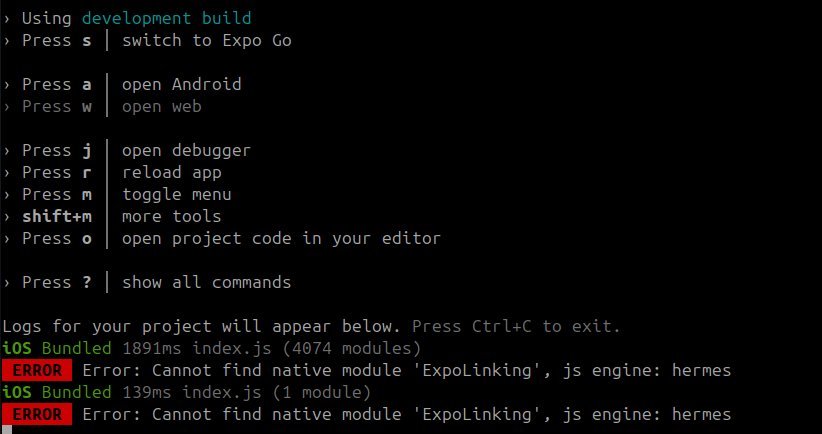
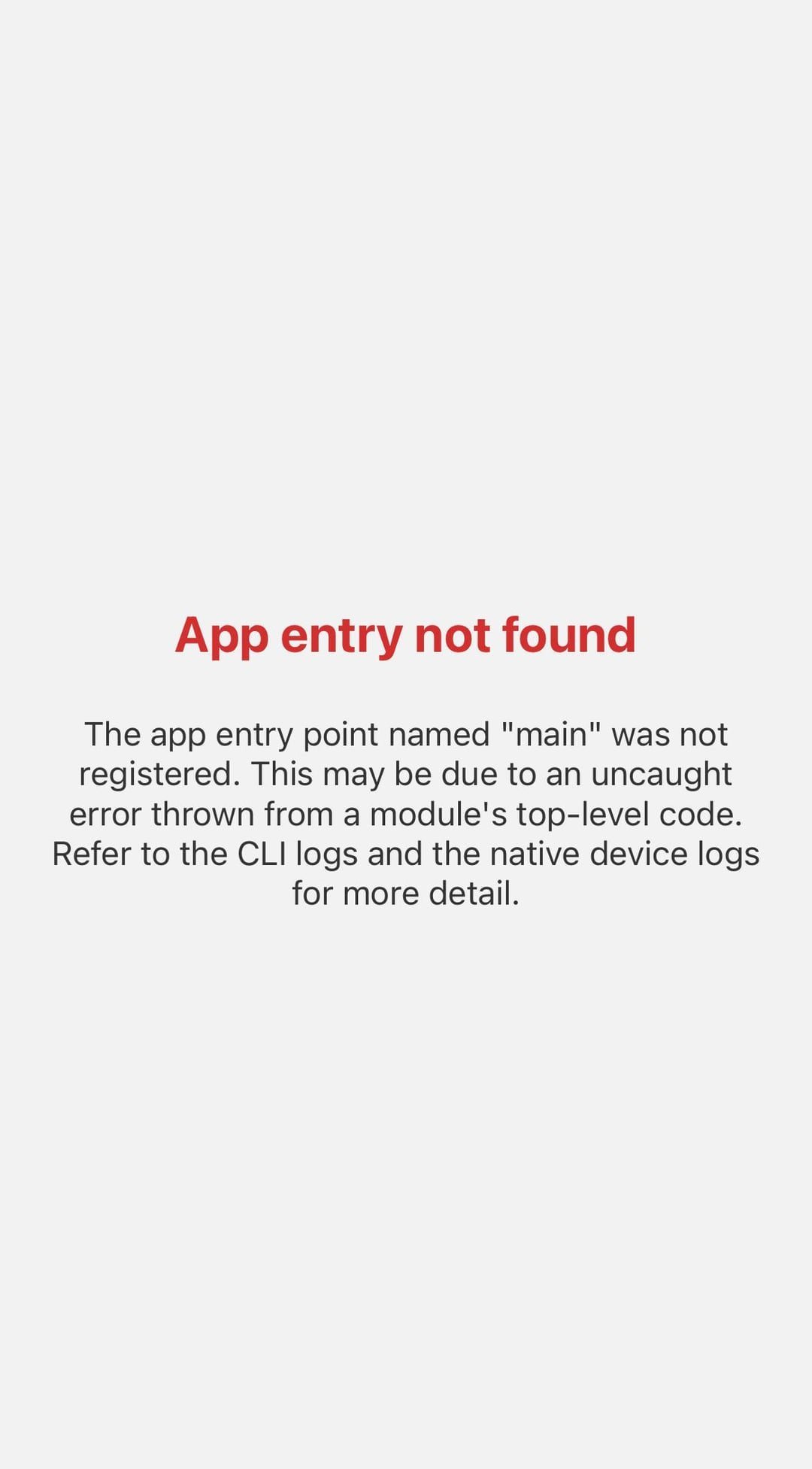
This error message appears when the build tool, Metro, fails to identify the starting file for your application. The system expects a specific entry point to initialize the React Native environment. When the configuration is missing or points to a non-existent directory, the process stalls.
The most common cause is a mismatch between the package.json file and the actual file structure. If you moved your source code into a src folder but didn’t update the configuration, the bundler will look for the file in the root directory and fail. Another cause is an incomplete installation of dependencies. If your node_modules folder is corrupted or missing the core Expo packages, the system won’t find the required AppEntry.js file.
It’s also possible that your project uses an older configuration style. Expo projects have evolved significantly, and older templates may rely on files that are no longer standard. If you have recently upgraded your SDK version, some paths may have changed. You should check your app.json or expo-env.d.ts files to ensure they align with the current SDK requirements. If X happens—a fresh clone of a repository—do A: run npx expo install --check. If Y happens—a manual file move—do B: update the main field in package.json to match the new path. This varies by model—check the label or the official documentation for your specific SDK version to confirm the required path structure.
Update the package configuration
This fix is for users who have recently restructured their folders or initialized a project from an existing template. You need to align the package.json file with your actual file layout.
Open your package.json file in your code editor. Look for the main key. It should look like this:
"main": "node_modules/expo/AppEntry.js".
If you have moved your code into a subfolder, such as src, you must ensure that your entry point remains correctly referenced. If you’re using a custom index.js file at your project root, change the main field to "main": "index.js".
After saving the file, you must clear the Metro cache to ensure the changes take effect. Run the following command in your terminal: npx expo start -c. The -c flag tells the bundler to ignore existing cache files and perform a fresh scan of your project structure. If the build succeeds, you’ll see the development server start in your terminal. If the error persists, check if you have a metro.config.js file that might be overriding the default entry path. This is a common mistake; people often forget that a custom config file takes priority over the standard settings, which can lead to confusing errors.
Reinstall the dependencies
This fix is for cases where the node_modules folder contains broken links or missing packages. If you have tried updating your configuration and it still fails, the local environment might be corrupted.
First, delete the node_modules folder and the lock file associated with your package manager. If you use npm, run rm -rf node_modules package-lock.json. If you use Yarn, run rm -rf node_modules yarn.lock. This removes all installed packages and the records of their versions.
Next, clear your system-wide cache. For npm, run npm cache clean --force. This ensures that no corrupted cached files are pulled during the reinstallation. Now, install the dependencies again by running npm install or yarn install. Once the installation is complete, try starting your project again with npx expo start.
This approach acts as a “hard reset” for your project environment. It’s effective if you have recently switched between different versions of Node.js or if a previous installation was interrupted. This isn’t for developers who have a stable, working build; it’s a time-consuming process that should only be used when you suspect the core files are missing. If you’re on a slow internet connection, this will take several minutes to finish.
Verify the project root
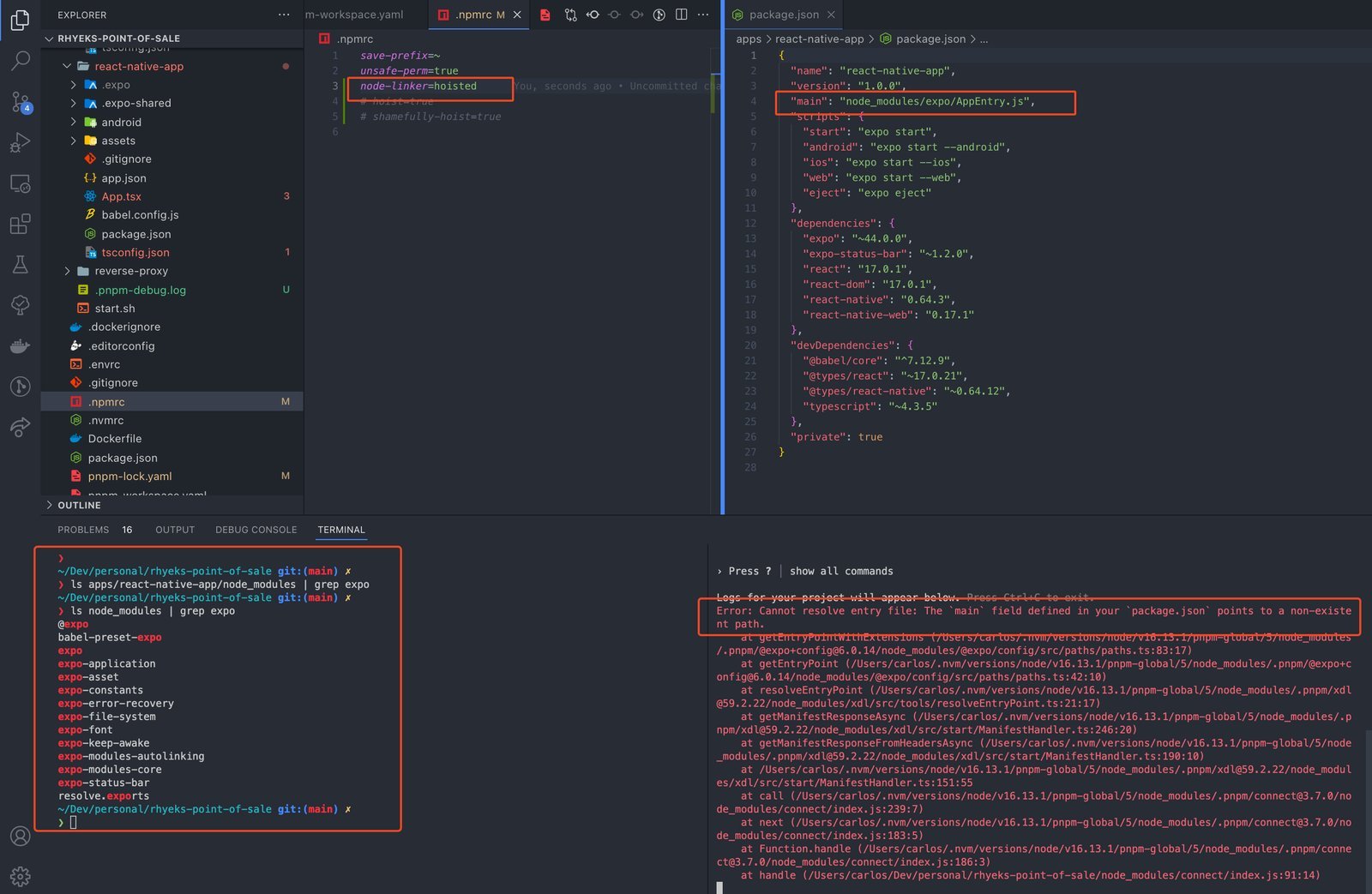
This fix is for complex project structures where multiple package.json files exist, such as in a monorepo or a project with a separate backend folder. It’s worth the time if you’re managing a large application with many sub-projects.
Check your current directory in the terminal. You must run the npx expo start command from the root of the project where the package.json file is located. If you’re inside a subfolder, the bundler won’t be able to find the entry point.
If you’re using a monorepo tool like Yarn Workspaces or Nx, ensure that your workspace configuration correctly maps the Expo project as an independent application. You may need to specify the project root explicitly if the tool can’t detect it automatically.
This fix isn’t for beginners using a standard single-app setup. If you aren’t familiar with monorepo structures, you should consult the documentation for your specific workspace tool. Attempting to force a project to run from the wrong directory can lead to dependency conflicts that are difficult to debug. If you feel overwhelmed by the configuration, it’s better to revert to a simple, single-folder structure before trying to scale your application.
What not to do
Don’t manually edit files inside the node_modules folder. These changes vanish the moment you run an install command. If you must patch a dependency, use the patch-package utility to store your changes as a permanent diff.
Don’t ignore “peer dependency” warnings. These alerts signal that your Expo version is incompatible with your current React Native version. Ignoring them leads to cryptic runtime crashes that are nearly impossible to debug later.
Avoid keeping multiple terminal instances running with different project roots. This habit triggers port conflicts and confuses the Metro bundler, often causing it to serve the wrong project assets. Always check lsof -i :8081 to kill stale processes before starting a new session.
Finally, never rename AppEntry.js inside the library folder. This breaks the internal logic the framework uses to initialize your app. If you need a custom entry point, configure the main field in package.json instead.
How to stop it happening again
Consistency is the best way to prevent this error. Always keep your entry point at the root level unless you have a specific reason to move it.
| If you’re doing this | Do this instead | Why |
|---|---|---|
| Moving files manually | Use the project CLI | CLI updates references automatically |
| Ignoring warnings | Run npx expo install --fix | It resolves dependency version gaps |
| Updating SDKs manually | Use npx expo install --check | It ensures all packages are compatible |
| Using old templates | Create a new project | It provides the latest file structure |
The most common mistake is assuming a manual file move is safe because the build succeeds once. This creates a hidden debt that causes crashes during production deployments. If your project build fails after a move, revert the file location immediately.
If you must move files, verify the app.json entry field matches your new path. If the path is correct but the app still fails, run a clean install to clear the cache. Use this rule: if the error persists after two minutes of debugging, reset the directory structure to the default.
Frequently asked questions
Can I rename AppEntry.js?
No, you shouldn’t rename AppEntry.js. The Expo framework is designed to look for this specific file to bootstrap your application. If you rename it, the bundler will fail to locate the entry point, and your app won’t launch. If you need a custom entry, create an index.js file at the root of your project and update the main field in your package.json to point to that file instead.
Fixing the ‘app entry not found expo’ error
Your project is likely looking for a file that doesn’t exist because your package.json configuration is outdated. This often happens after you move files to a new folder or upgrade your SDK version. The configuration still points to the old path, but the file is no longer there. You must update the main field in your package.json to match the current location of your entry file.
How long does it take to reinstall dependencies?
It takes between two and ten minutes to reinstall dependencies, depending on your internet speed and the size of your project. A larger project with many native modules will take longer to download and link. You should ensure you have a stable connection before starting this process. Don’t interrupt the installation once it has begun, as this can leave your node_modules folder in a broken state.
Is it safe to delete the cache?
Yes, it’s safe to delete the cache files. The Metro bundler will automatically rebuild the cache the next time you start your project. Clearing the cache is a standard troubleshooting step that resolves issues related to stale or corrupted build data, though it may temporarily slow down your initial project startup.
What happens if I update my SDK version?
Updating your SDK version often requires you to update the main entry in your package.json or other configuration files. Expo updates sometimes change how the project is initialized to improve performance or stability. If you don’t perform these updates after an SDK upgrade, your project will likely fail to build. Always review the official upgrade guide provided by Expo whenever you change your SDK version to ensure your configuration remains valid.
Final Thoughts
Once your configuration is set, you’ll be ready to get back to building your features. Don’t forget to restart your development server to ensure the changes take effect properly. You’re all set to keep coding, so dive back into your project and enjoy seeing your app run smoothly on your device.
Related guides


