
An app not allowing screenshot is a security feature built into the software to protect private data. You can’t bypass this restriction through standard phone settings because the developer has explicitly disabled the capture function for that specific window. If you need the information urgently, the fastest workaround is to view the content on a secondary device, such as a laptop or tablet, and take a photo of the screen with a separate camera. This method avoids the software block entirely and keeps your device settings intact.
Why this happens
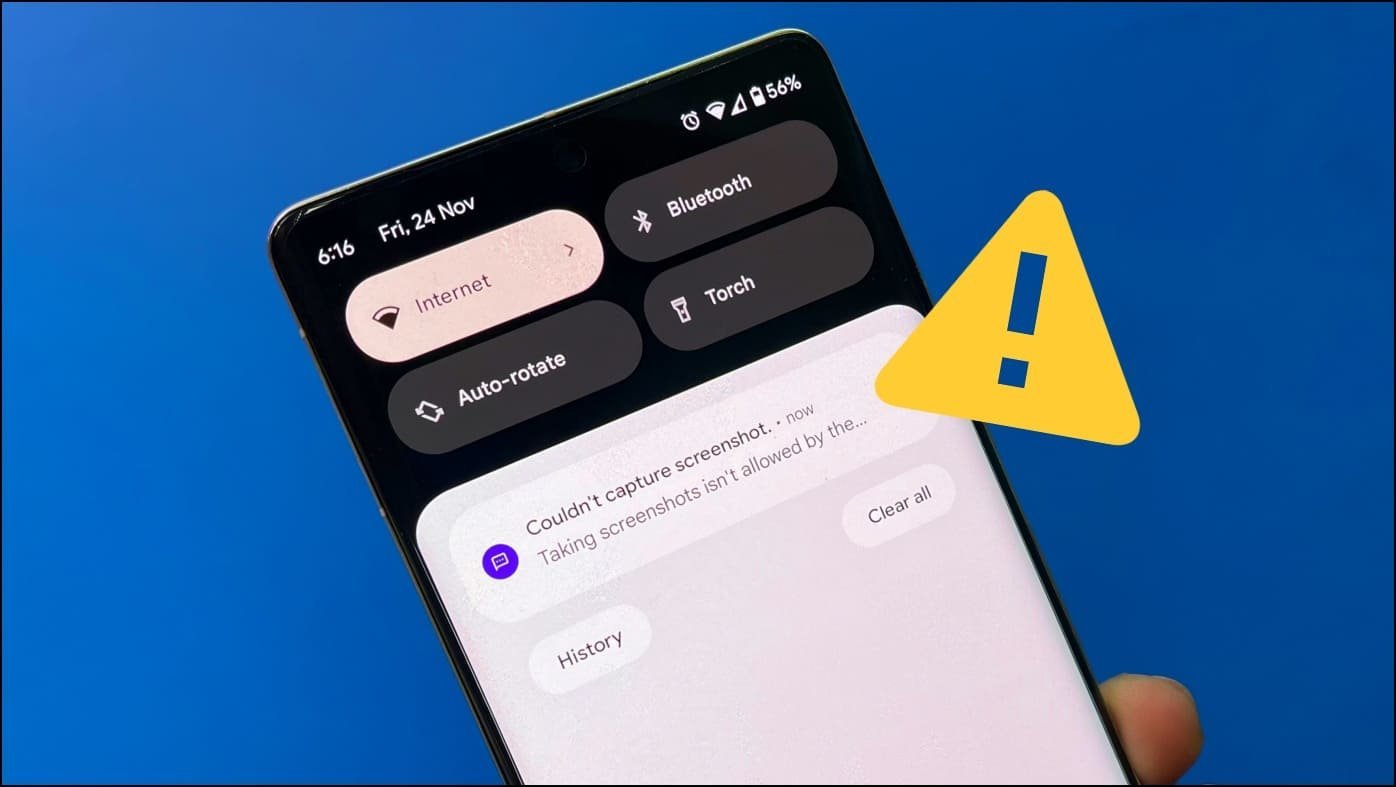
The primary reason this happens is the FLAG_SECURE parameter in Android development. This is a system-level command that tells the operating system to treat the app’s window as non-capturable. When an app developer includes this flag, the system hides the content from the screen capture service. This is common in banking apps, streaming services like Netflix, and password managers. These companies use this to prevent sensitive information—like your account balance, credit card numbers, or copyrighted video content—from being saved to your local gallery where it could be accessed by malicious software.
Another reason is digital rights management (DRM) compliance. Streaming platforms are required by contract to prevent users from recording their content. If the app allowed you to take screenshots, it would fail the security audits required to distribute that content. According to the Android Developers documentation for secure windows, this flag prevents the content from appearing in screenshots and also stops it from being recorded during screen sharing or screen casting sessions.
This behavior isn’t a bug or a temporary glitch. It’s a deliberate choice by the creator to keep your data safe from screen-scraping malware that might try to harvest your personal information in the background.
Use a secondary camera
This fix is for users who need to save a receipt, a code, or a document that’s currently locked by the app. Because the app blocks the internal capture system, you must use an external tool. Grab a second smartphone, a digital camera, or a tablet. Point the lens at your screen while the desired information is visible.
If the image is blurry, increase the brightness on your primary device until the text is sharp. If you see a glare or reflection from your room lights, tilt the primary screen slightly away from the light source. Once you have the photo, you can crop the edges on your second device to make it look professional.
This is the only method that works for every app, regardless of the security settings. It isn’t for people who need to capture long, scrolling pages, as you’ll have to take multiple photos and stitch them together later. If you’re handling sensitive medical or legal documents, be mindful of where you store these photos afterward. Since they’re now saved as regular image files, they’re no longer protected by the app’s internal encryption. Ensure your secondary device has a passcode or biometric lock enabled to keep that captured data secure.
Enable web access instead
Many services that block screenshots in their mobile app don’t apply the same restrictions to their web browser version. If you’re struggling to capture information, log in to the service using a computer or a mobile web browser instead of the dedicated app.
On a computer, you can use standard tools like the Snipping Tool on Windows or Shift+Command+4 on a Mac to capture the screen. These tools don’t encounter the FLAG_SECURE setting because that flag is specific to the Android mobile operating system’s internal API.
Check if the website allows you to print the page to a PDF. This is often better than a screenshot because it keeps the text selectable and searchable. If the website also blocks right-clicking or printing, you’re likely dealing with a platform that uses heavy DRM. In that case, you must return to the secondary camera method. This fix is best for viewing bank statements, invoices, or account settings. It isn’t for users who only have access to a mobile device, as the mobile browser may still trigger the same restrictions as the app if the site detects the mobile user agent.
Use desktop mirroring software
For power users who need to capture data frequently, desktop mirroring software can sometimes bypass mobile restrictions. By casting your phone screen to a computer, you move the viewing process to a platform that doesn’t enforce the same strict capture blocks.
This fix is worth the effort if you have a large volume of data to document, such as copying a long list of transactions for accounting. It isn’t worth it if you only need one or two screenshots, as the setup time is significant. You’ll need to install a mirroring application on both your phone and your computer, then connect them via a USB cable or a shared Wi-Fi network.
Be aware that some high-security apps are smart enough to detect mirroring software. If the app detects a connection to a computer, it may turn the screen black or disconnect the session entirely. If this happens, don’t keep trying, as repeated attempts might flag your account for suspicious activity. Always check the terms of service for the app you’re using; some financial institutions strictly forbid the use of third-party mirroring tools for security reasons. If you’re unsure, stick to the secondary camera method to avoid account suspension.
What not to do
- Don’t download “screenshot bypass” apps from the app store, as these often contain malware that steals the very data you’re trying to protect.
- Avoid rooting your phone to remove security flags, as this voids your manufacturer’s warranty and makes your device vulnerable to viruses.
- Don’t try to use screen recording software to bypass the block, because the app will simply record a black screen or trigger a security warning that logs your activity.
- Never share your login credentials with a friend so they can take a screenshot for you, as this violates privacy policies and puts your personal account at risk.
How to stop it happening again
If you find yourself needing to capture information often, change your workflow to avoid relying on the mobile app’s restricted environment.
| If you’re doing this | Do this instead | Why |
|---|---|---|
| Taking photos of the screen | Use the web browser version | Browsers allow standard OS capture tools. |
| Using “bypass” apps | Use a secondary camera | Third-party bypassers are security risks. |
| Rooting your device | Use desktop mirroring | Rooting destroys your phone’s security. |
| Recording the screen | Download the data as PDF | PDFs are cleaner and support text search. |
Frequently asked questions
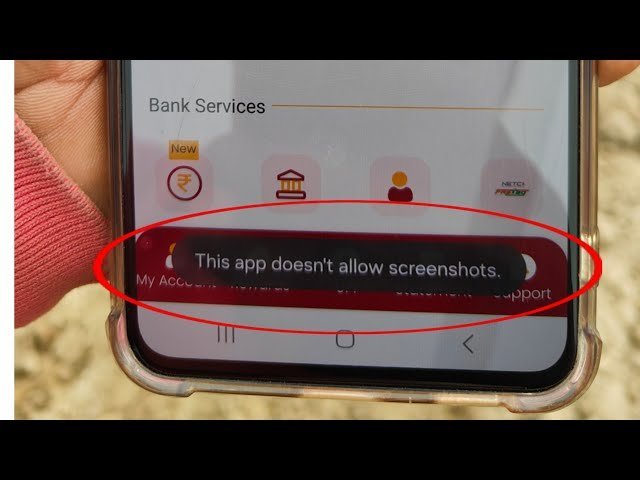
Fixing an app not allowing screenshot
No, you can’t change your phone settings to override this restriction. It’s coded into the app using the Android FLAG_SECURE API to prevent unauthorized data capture. You must use an external method, like a secondary camera, to capture the screen.
Is it safe to use a third-party screenshot app?
No, it isn’t safe to use apps that claim to bypass screenshot restrictions. These tools are often malicious and designed to steal your login credentials or record your screen. You should uninstall them immediately and change your account passwords.
Why does the screen turn black when I try to record?
The screen turns black because the app has triggered a privacy shield to protect your data. This built-in defense mechanism prevents sensitive information from being saved to your gallery. It’s a standard feature confirming the app is working correctly.
Avoid using unauthorized software to prevent these consequences.
Is it safe to use a secondary camera?
Yes, it’s safe to use a secondary camera because it doesn’t interact with your phone’s software. Taking a photo is a physical action that the app can’t detect or block. Ensure you store these photos in a secure folder.
What happens if I keep trying to bypass the block?
To avoid account flags, stop using software-based workarounds and use physical methods.
Final Thoughts
If you frequently encounter these blocks, it’s worth checking the app’s official support page for any built-in export tools. Sometimes developers provide a legitimate way to save your data without needing a workaround. Don’t worry if you can’t find one; just keep a physical notepad nearby, as it’s often the simplest solution.
Related guides


