
The firestick remote light blinking means the device is currently in pairing mode and looking for a connection to your streaming unit. This happens when the remote has lost its wireless link, usually because of a dead battery or interference, and it’s trying to re-establish communication with your television system.
Why is your Firestick remote light blinking?
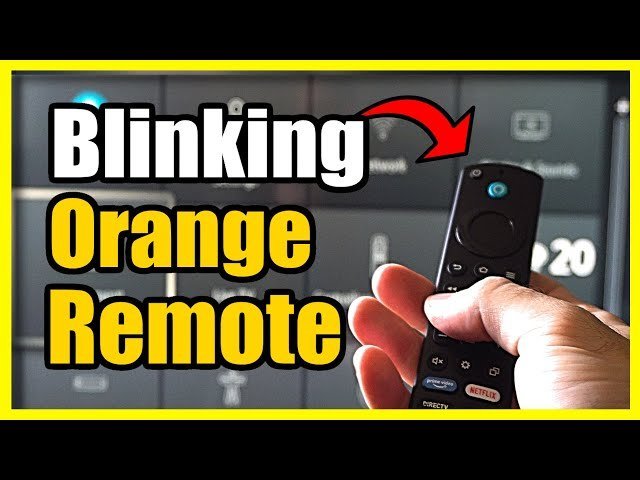
The blinking light acts as a status indicator for the hardware. When you press the Home button and see a yellow or blue light flash, the remote is broadcasting a signal to find its paired Fire TV. If the remote can’t find the specific unit it was previously paired with, it continues to pulse while it scans the local area for a signal.
This usually happens because the batteries have dropped below the required voltage to maintain a stable Bluetooth connection, even if they still have enough power to trigger the light. It’s also common after a power surge or a temporary outage where the Fire TV restarts and loses its handshake with the remote. If you have moved the Fire TV unit into a cabinet or behind the television, the physical obstacle may be blocking the signal, causing the remote to keep searching until it times out. This varies by model — check the label on your specific remote to see if it uses AAA batteries or a coin-cell type, as the voltage requirements differ significantly. If the light blinks for a few minutes and then stops, the remote has entered power-save mode to prevent total battery drain.
Hold the home button
If your remote is blinking but not controlling the screen, you must force a manual pairing process. Start by unplugging your Fire TV from the power outlet and waiting for sixty seconds. Plug the device back in and wait for the home screen to appear. Once the system is live, hold the Home button on your remote down for at least ten to fifteen seconds. You should see the light change from a slow pulse to a rapid blink, which signals that it’s now searching for the console.
This fix is for users whose hardware is physically intact but has simply lost the software link. If you see the light blink three times and then stop, the remote has failed to connect; try moving closer to the TV to ensure there’s no signal interference. If the remote still doesn’t respond after three attempts, it’s likely that the internal Bluetooth radio has a hardware fault, and you should visit the Amazon Fire TV support page to check for official troubleshooting steps. This process requires a clear line of sight to the device and works best when no other wireless controllers are currently in pairing mode nearby.
Refresh the power supply
Sometimes the remote has just enough energy to blink but not enough to send the data required for a successful pair. Take out the batteries and leave them out for at least one minute. After this, insert fresh, brand-name alkaline batteries. Don’t mix old and new batteries, as this causes uneven voltage that can confuse the remote’s sensor.
This fix is for cases where the remote feels sluggish or the pairing light is dim. If the light doesn’t flash at all after inserting new batteries, check the metal contact points inside the battery compartment. If you see white or green powder, the old batteries have leaked and corroded the contacts. You can clean this with a cotton swab dipped in a small amount of isopropyl alcohol.
If the metal is pitted or broken, the remote is likely damaged beyond repair. A simple rule applies: if the contact spring is loose or snapped, no amount of cleaning will restore the connection. You must also avoid using vinegar or water for cleaning, as these leave moisture behind that accelerates internal rust.
This isn’t for users who are uncomfortable opening electronic housing or handling cleaning chemicals. If you’re unsure about the state of the contacts, consult a professional technician. Attempting to scrape off corrosion with a metal knife often removes the conductive plating, which permanently ruins the remote’s ability to draw power.
Reset the remote hardware
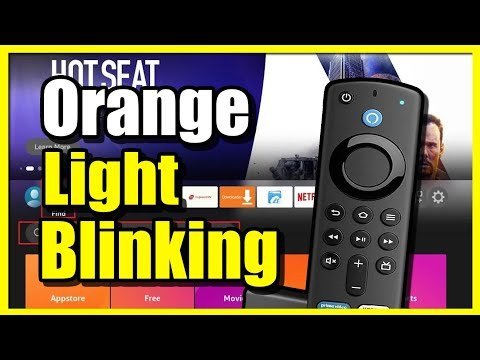
For stubborn connection issues, you must perform a factory reset on the remote itself. This clears the memory of the device and forces it to forget any old, corrupted pairing data. To do this, ensure your Fire TV is powered on. Simultaneously press and hold the Left button, the Menu button (the three horizontal lines), and the Back button for twelve seconds. Release these buttons and wait for five seconds. Remove the batteries from the remote, then unplug your Fire TV for sixty seconds. Plug the power back in, wait for the home screen to appear, and then put the batteries back into the remote. Press the Home button once to initiate the pairing process.
This is the most effective method for software-related errors, but it’s time-consuming. Only use this if the previous two methods have failed to stop the blinking. If you find that the remote blinks but the TV doesn’t react at all, the issue might be with the Fire TV’s internal receiver rather than the remote. If you have another compatible remote, try testing it to see if the problem follows the controller or stays with the television.
What not to do
Don’t tap or slam the remote against a hard surface to “fix” a connection. This often snaps internal plastic clips or damages the delicate antenna, turning a software glitch into a permanent hardware failure.
If the light doesn’t flash after ten seconds, stop and restart the process.
Don’t attempt to pair the remote while the Fire TV is mid-update. The system ignores all incoming Bluetooth signals until the process is complete. If the screen shows a progress bar, wait at least five minutes before trying again.
If your remote feels sluggish or drops connection, have a technician inspect the device to rule out a power deficiency.
How to stop it happening again
To keep your remote stable, avoid letting the battery level drop to zero. If you notice the remote responding slowly, replace the batteries immediately rather than waiting for the blinking to start.
| If you’re doing this | Do this instead | Why |
|---|---|---|
| Leaving the TV in a closed cabinet | Move it to an open shelf | Bluetooth signals struggle to pass through wood and metal. |
| Using generic, cheap batteries | Use high-quality alkaline batteries | Cheap batteries leak acid and cause erratic connection drops. |
| Keeping the remote near speakers | Move it away from electronics | Large magnets in speakers create interference for wireless signals. |
| Ignoring “low battery” warnings | Change batteries as soon as notified | Low voltage causes the remote to lose its pairing handshake. |
Most users mistake a sluggish cursor for a broken remote.
If you have replaced the batteries and the remote still disconnects, perform a hard reset. If the remote reconnects but drops again within an hour, the internal Bluetooth antenna is likely failing. In that case, no software fix will resolve the issue.
Frequently asked questions
Can I use my phone as a Firestick remote?
Yes, you can use the official Amazon Fire TV app on your smartphone to control your device if your remote is missing. Download the app from the Apple App Store or Google Play Store and ensure your phone is on the same Wi-Fi network. The app functions as a full replacement for navigating menus and managing settings.
Why does my remote blink yellow?
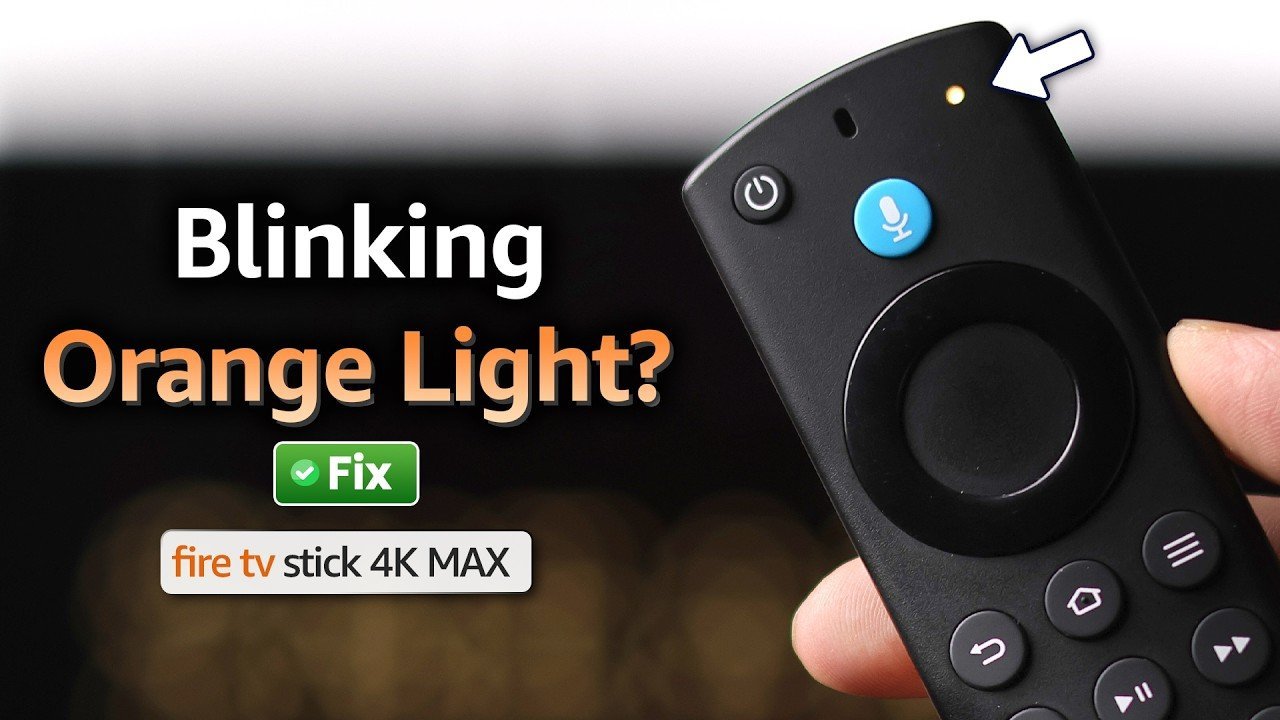
A yellow blinking light indicates that the remote is in discovery mode and searching for a Fire TV unit to pair with. If it blinks for more than a minute, it can’t find the signal. This often happens after power outages, requiring you to manually re-pair the remote using the Home button.
How long does it take to pair a new remote?
It typically takes thirty to sixty seconds for a remote to pair once you have initiated the process. After you hold the Home button, the remote sends a pairing request to the Fire TV. Once the Fire TV acknowledges this request, the blinking light on the remote will stop, and a notification will appear on your television screen confirming that the new controller is ready for use.
Is it safe to open the remote casing?
No, it isn’t recommended to open the plastic housing of the remote as it’s designed to be a sealed unit. Opening the casing often results in broken plastic tabs, which prevents the remote from snapping back together securely. If the remote isn’t functioning and you have already tried the standard battery and pairing resets, it’s safer to contact Amazon support for a replacement rather than attempting internal repairs.
What happens if the remote never stops blinking?
If the remote blinks indefinitely even after you replace the batteries and try to pair it, the internal Bluetooth radio has likely failed. This is a permanent hardware defect that can’t be fixed through software. At this point, the remote is considered non-functional, and you’ll need to purchase a replacement remote or use the smartphone app until you can acquire a new device.
Final Thoughts
If the blinking persists despite fresh batteries, don’t worry. It’s likely just a temporary glitch that a quick restart of your streaming device can fix. If you’re still having trouble after that, check the official support page to see if your hardware needs a replacement. You’ll be back to watching soon.
Related guides


