
The quickest way to fix icloud calendar not syncing is to toggle the calendar switch off and back on in your iCloud settings. This forces your device to reconnect with Apple’s servers and refresh your data. If you have multiple devices, start with the one where you add events most often. This simple refresh solves the majority of connectivity errors because it clears out stuck sync processes that can happen after a software update or a network interruption.
Fixing an iCloud calendar not syncing
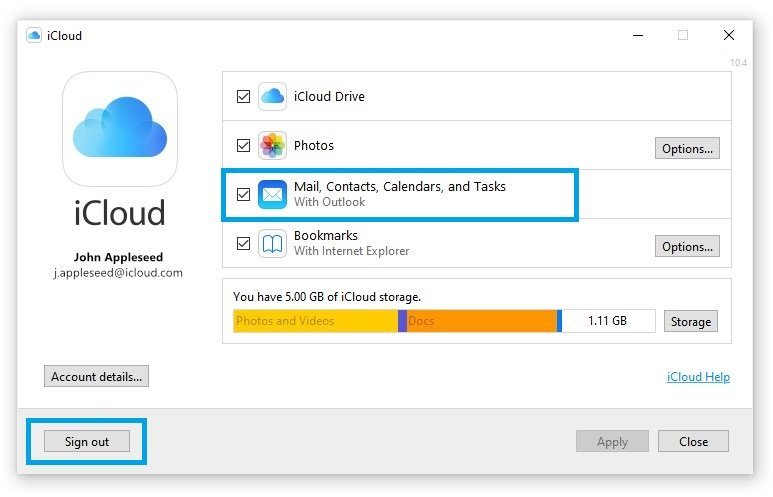
Syncing issues usually stem from a mismatch between your local device state and the cloud server. When your internet connection drops for even a few seconds during a sync, the device may flag the calendar as “up to date” even when it’s not. This leads to the calendar showing old information. Another cause is a conflict in your Apple ID authentication. If your password was recently changed on one device but not another, the server will block the sync to protect your account.
You should also consider your device time settings. The server will see the request as coming from an untrusted source because of the time stamp error. Finally, low power mode or strict battery optimization settings can kill background app refresh. If the Calendar app isn’t allowed to run in the background, it will only sync when you manually open the app. You can verify your current account status and system health by visiting the Apple System Status page to ensure there are no active service outages affecting iCloud.
Toggle your account settings
Resetting the account connection is the most effective way to fix sync issues where events fail to appear across devices. Go to Settings, tap your name, select iCloud, and toggle Calendars off and then back on. Choose “Delete from My iPhone” if you’re confident your data is backed up on the cloud.
This process forces a fresh download of your calendar data from the cloud. If you’re on a Mac, go to System Settings, click your Apple ID, select iCloud, and find the Calendars option to toggle it off and on. If you have a slow internet connection, give the device at least five minutes to finish the initial re-sync. If this fix works, you’ll see your events reappear one by one. If you have thousands of events, this could take longer. This method isn’t for users who have never enabled iCloud sync in the first place; ensure your account is fully signed in before trying this.
Verify your default calendar
A common mistake involves adding events to a local calendar instead of an iCloud-synced one. If your phone is set to save new events to an “On My iPhone” calendar, those events will never appear on your Mac or iPad. You can check this by opening the Calendar app and tapping “Calendars” at the bottom of the screen. Look for your list of calendars under the “iCloud” header. If you see calendars listed under “Other” or “On My iPhone,” those aren’t syncing to the cloud.
To fix this, go to Settings, tap Calendar, and then tap “Default Calendar.” Select the calendar under the iCloud section. Moving forward, all new events will automatically save to your iCloud account and sync across all your devices. If you already have events in the wrong calendar, you’ll need to move them manually. Open the event, tap “Edit,” tap the calendar name, and select your iCloud calendar from the list. This is a manual task and there’s no global “move all” button, so this fix is best for users with a small number of misplaced events. If you have hundreds of events in the wrong place, it’s faster to export them to a computer and re-import them into an iCloud-linked calendar.
Check your internet and date settings
If the previous fixes fail, the issue often relates to your network environment or device configuration. Start by checking your date and time settings. Go to Settings, then General, and tap Date & Time. Ensure “Set Automatically” is turned on. If your device time is manually set or out of sync, the secure connection to Apple’s servers will be refused. If this is already on, try toggling it off and back on.
Next, examine your network restrictions. If you’re on a corporate or school Wi-Fi network, the firewall might be blocking the specific ports that iCloud uses to sync data. This is a common trade-off for security in professional environments. If you suspect this is the case, turn off Wi-Fi and use your cellular data for a moment to see if the calendar syncs. If it does, your network is the bottleneck. For those using a VPN, disable it temporarily. VPNs can sometimes mask your connection in a way that makes Apple’s servers suspicious of your login attempt. If you’re using a managed device with a security profile, you may need to reach out to your IT department, as they might have restricted cloud syncing to prevent data leaks. This isn’t for users with unrestricted personal home networks, but it’s the most likely culprit if your calendar works everywhere except at your office.
What not to do
- Don’t delete the Calendar app from your device, as this doesn’t remove the iCloud account data and will only force you to re-download the app without fixing the underlying sync setting.
- Don’t sign out of your entire Apple ID on your device unless you have exhausted every other option, because this can trigger a massive re-download of all your photos and documents which takes hours.
- Avoid using third-party “sync repair” apps found in the app store, as these often request permissions they don’t need and rarely solve server-side sync issues.
- Don’t force-restart your device repeatedly, as the sync process happens in the background and doesn’t benefit from constant rebooting.
How to stop it happening again
Consistency is the best way to prevent future sync issues. Keep your software updated so your device uses the latest connection protocols.
| If you’re doing this | Do this instead | Why |
|---|---|---|
| Adding events offline | Add events while on Wi-Fi | Sync requires an active data handshake |
| Using local calendars | Set iCloud as default | iCloud calendars sync to all devices |
| Ignoring software updates | Update when prompted | Updates include critical security patches |
| Using a public VPN | Disable VPN during sync | VPNs can block Apple server requests |
Frequently asked questions
Can I force a manual sync of my iCloud calendar?
You can force a refresh by pulling down on the list of calendars within the Calendar app. This action prompts your device to fetch the latest data directly from the iCloud server. If the refresh icon spins without results, your device may be experiencing authentication issues.
Why do my events disappear after I add them?
Events often disappear because they’re being added to a local, non-synced calendar that’s hidden from view. Check your “Calendars” list to ensure all iCloud calendars are selected. Note that Low Power Mode can sometimes prevent the app from pulling new data from the cloud.
How long does it take for iCloud to sync?
Syncing typically occurs within ten seconds of adding or editing an event. On slower networks, this process may take up to two minutes to reflect on other devices. If changes take longer than five minutes, you likely have a connection issue with Apple’s servers.
Is it safe to delete my calendar and re-add it?
It’s safe to remove an iCloud calendar from your device because the data remains stored in the cloud. Choosing “Delete from My iPhone” only removes the local copy, which will re-download once you toggle the switch back on. Always verify your events on iCloud.com before deleting local data.
What happens if I have too many calendar events?
Initial syncing for thousands of events can take several minutes or hours as the device indexes your data. The app typically prioritizes recent events over older ones during this process. Archiving older events on a computer can help improve performance if the app becomes sluggish.
Does low power mode stop my calendar from syncing?
Low Power Mode pauses background app refresh, which prevents your calendar from syncing automatically. You must manually open the app and pull down to refresh while this mode is active.
Final Thoughts
If these adjustments don’t get your schedule back on track, don’t worry. It’s a good idea to check that your date and time settings are set to automatic, as a small mismatch here often causes sync issues. If you’re still stuck, reaching out to Apple Support is the best way to get extra help.
Related guides


