
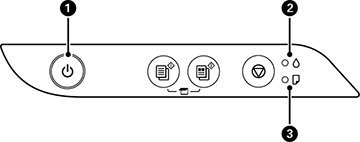
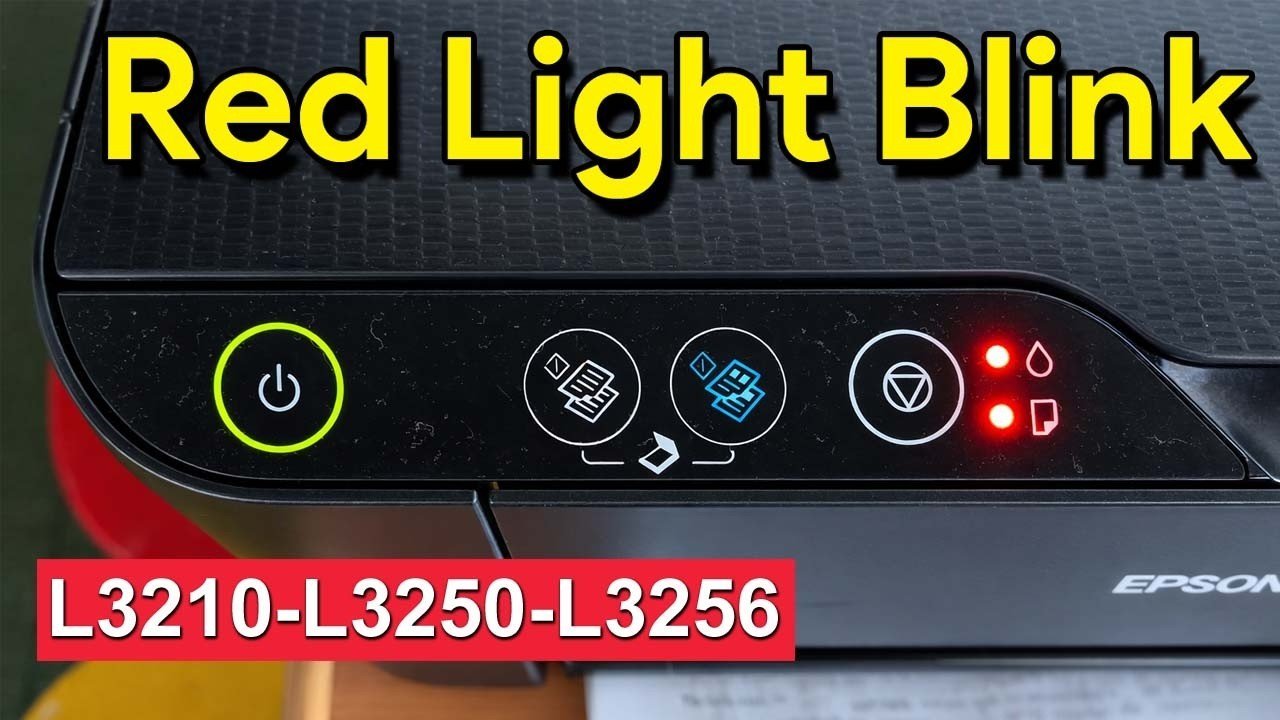
When you see the epson l3210 l3250 red light blinking, it means the ink pad has reached its service life limit and needs a reset or replacement. The printer will not function until the internal counter is cleared, though it is safe to keep plugged in. A computer pop-up will confirm this status when you try to print.
Fixing the Epson L3210 L3250 Red Light Blinking
| What you notice | What it usually means | What to do first |
|---|---|---|
| Red light flashing alternately | Ink pad life limit | Check computer error message |
| Red light solid on | Paper jam or error | Clear the paper path |
| Both red lights blink | General internal error | Turn off and restart |
| Carriage doesn’t move | Mechanical obstruction | Remove any loose paper |
| Printer stops mid-job | Communication error | Check the USB cable |
| Light blinks during start | Internal hardware fault | Contact official support |
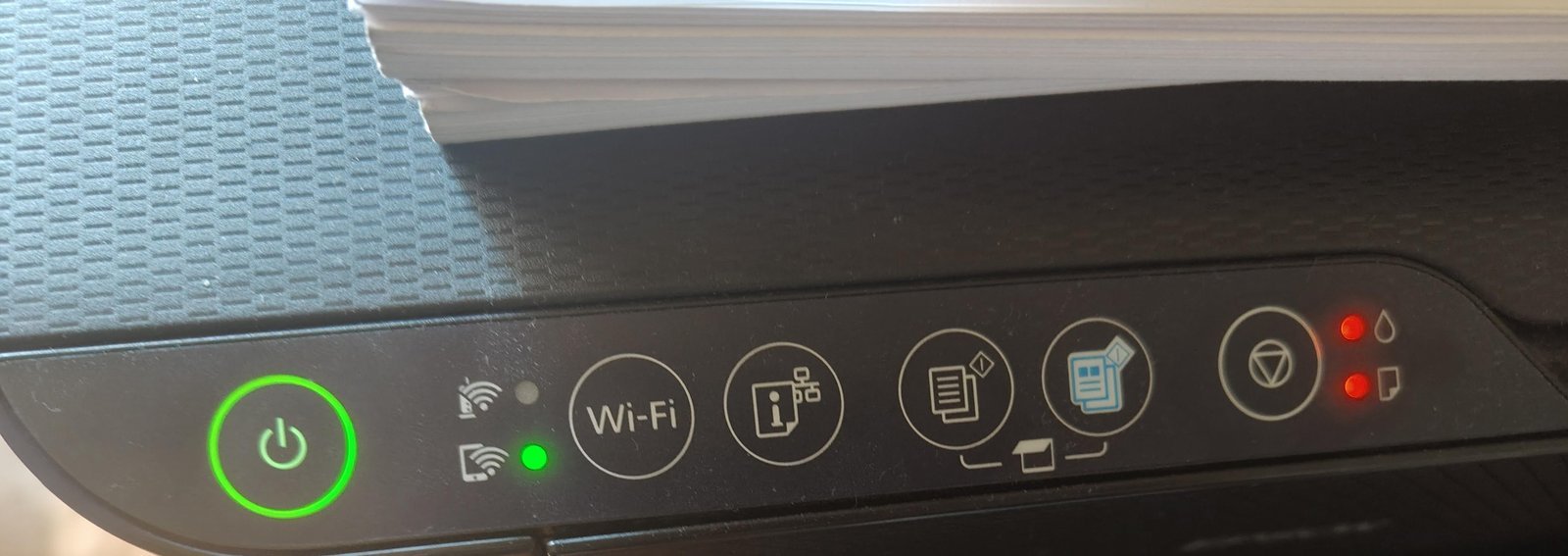
If the red light flashes alternately, your printer has likely reached its waste ink pad limit. Many users mistakenly try to force a print job, which can cause a permanent ink spill inside the chassis. If the error message on your screen mentions “Service Required,” stop immediately.
When the power and ink lights flash together, the internal counter has hit its programmed ceiling. You can verify this by checking the printer utility software on your desktop. If the utility shows a “Service Life” warning, you must use a reset utility to clear the counter. Failing to do this will prevent the printer from operating until the counter is reset.
If your printer stops mid-job, the culprit is often a loose USB connection rather than a software crash. If you’re using a hub, plug the cable directly into the computer port. A faulty hub often causes intermittent signal drops that look like hardware failures. If the printer still fails to resume, replace the cable entirely before assuming the printer’s motherboard is failing.
The ink pad service limit
The primary reason for the flashing lights is an internal counter that tracks how much waste ink the printer has collected during cleaning cycles. Every time you run a head cleaning or turn the machine on, the printer pumps a small amount of ink into a series of absorbent pads inside the base. Once the printer determines these pads are saturated, it locks the system to prevent ink from leaking out of the bottom of the chassis and damaging your desk. You can verify this by visiting the Epson Support ink pad page to see if your specific model status matches the error message on your screen.
If you’re a heavy user who prints high-resolution photos or runs cleaning cycles regularly, this limit may appear sooner than for casual users. This is a trade-off: the printer protects your furniture from ink stains by stopping, but it forces a service intervention. If you use the printer in a high-humidity environment, the pads may feel wet to the touch even before the counter reaches the limit. Don’t attempt to wash or dry these pads yourself, as they’re designed to be replaced by trained technicians to ensure the internal components aren’t damaged during disassembly. If you reset the counter without replacing the physical pads, you risk ink overflow.
Paper path and mechanical obstructions
Sometimes the blinking isn’t about the ink pads but a simple mechanical blockage preventing the print head from moving. The printer uses a sensor to detect if the carriage can slide freely from left to right; if it hits a piece of torn paper or a stray object, it triggers a safety stop. You can tell this apart from the ink pad error because a paper jam usually comes with a specific “paper jam” notification on your computer screen rather than the “service life” warning.
To clear this, turn off the printer and unplug it from the power source. Open the top cover and look for any small scraps of paper, staples, or debris that might be trapped in the sliding track. Use a flashlight to inspect the area under the print head, but never force the carriage to move by hand if you feel strong resistance. If you move it too quickly, you can damage the internal motor or the timing belt. After you have cleared the path, plug the machine back in and turn it on. If the lights stop blinking and the carriage moves to its home position, the issue is resolved. If the lights continue to flash immediately upon startup, the printer is likely still flagging the ink pad counter.
Internal communication faults
The third cause involves a temporary glitch in the printer’s mainboard firmware, which can sometimes misread the status of the sensors. This happens if there’s a sudden power flicker while the printer is processing a file or if the USB connection is loose. You can distinguish this from the other two causes because it often happens randomly, whereas the ink pad error is a permanent state that persists every time you turn the machine on.
To reset this, perform a hard power cycle. Turn off the printer and unplug the power cable from the wall outlet. Plug the power cable directly into a wall outlet, avoiding power strips or surge protectors that might be providing unstable voltage. Press the power button once. If the printer completes its initial warm-up sequence and the lights return to a steady state, the issue was a temporary software hang. If the blinking returns instantly, you’re dealing with a hard-coded service limit that requires a reset tool or professional maintenance. Note that this varies by model — check the label on the back of your printer to ensure you’re following the correct sequence for your specific version.
When to stop and get help
Leaking ink: If you see liquid ink pooling under the printer, stop using it immediately to prevent an electrical short. Unplug the device from the wall outlet before wiping the spill. If the ink has reached the power supply or internal circuit boards, the unit is likely unsalvageable.
Burning smell: A scent of ozone or hot plastic indicates a motor failure that requires a professional inspection. Don’t attempt to restart the printer, as this smell often precedes a fire hazard.
Excessive noise: Grinding sounds during startup suggest a broken gear or snapped belt. If you hear a rhythmic clicking, stop the print job instantly to prevent the carriage from jamming further. This damage requires specific internal parts replacement.
Locked software: If the official reset utility doesn’t recognize the printer, don’t download third-party “cracked” software. These files often contain malware that can compromise your computer’s security.
If you have performed the basic checks and the red light persists, the printer has reached a hardware limit that only authorized service centers can safely bypass. Attempting to disassemble the base of the printer can void your warranty and may lead to permanent hardware damage. Contact an official Epson service provider to have the ink pads professionally replaced and the internal counter reset according to the manufacturer’s specifications.
Frequently asked questions
Can I fix the blinking light by myself?
You can fix the light if it’s caused by a paper jam or software error using the steps above. If the ink pad service life limit is reached, you must use an official reset utility or contact a technician. Avoid unofficial resetter programs, as they pose security risks to your personal files.
Is it safe to keep using the printer when it blinks?
No, it isn’t safe to print while the ink pads are at their limit, as this could cause ink to leak inside the machine. While the printer is powered on and idle, it’s safe to keep plugged in, but the hardware has locked itself to prevent damage. You should stop all print jobs until you have resolved the underlying cause of the blinking light.
How long does it take to repair the ink pads?
The time required depends on whether you’re simply resetting the software counter or physically replacing the pads. A software reset takes about 10 minutes once you have the correct tool, while a physical pad replacement by a professional usually takes 2 to 3 business days. Always check your printer’s warranty status before attempting any repair, as unauthorized disassembly will void your coverage.
Why does the printer stop working suddenly?
The printer stops working to protect its internal components from permanent damage. When the ink pad counter hits its limit, the machine is designed to lock up to prevent waste ink from overflowing onto your desk or causing an electrical hazard. This is a deliberate maintenance feature designed to prevent waste ink from leaking out of the printer chassis.
Does it matter if I use a surge protector?
Yes, it matters because unstable power can cause the printer’s mainboard to misread its own status sensors. Always plug your printer directly into a wall outlet to ensure it receives the steady power required to operate its sensors and internal motor correctly during the startup sequence.
What happens if I ignore the blinking light?
If you ignore the light, the printer will refuse to process any commands until the error is cleared. You won’t be able to print, scan, or copy documents, as the system firmware prevents any mechanical movement while the error flag is active. Continued attempts to force the machine to print can cause the ink to saturate the internal plastic housing, which may result in permanent staining or electrical shorts.
Final Thoughts
If you aren’t comfortable performing these technical adjustments yourself, it’s best to contact a local service center for professional help. They’ll ensure your device is handled correctly so you can get back to printing your documents without any more interruptions. Don’t worry, your printer should be running smoothly again very soon.


